

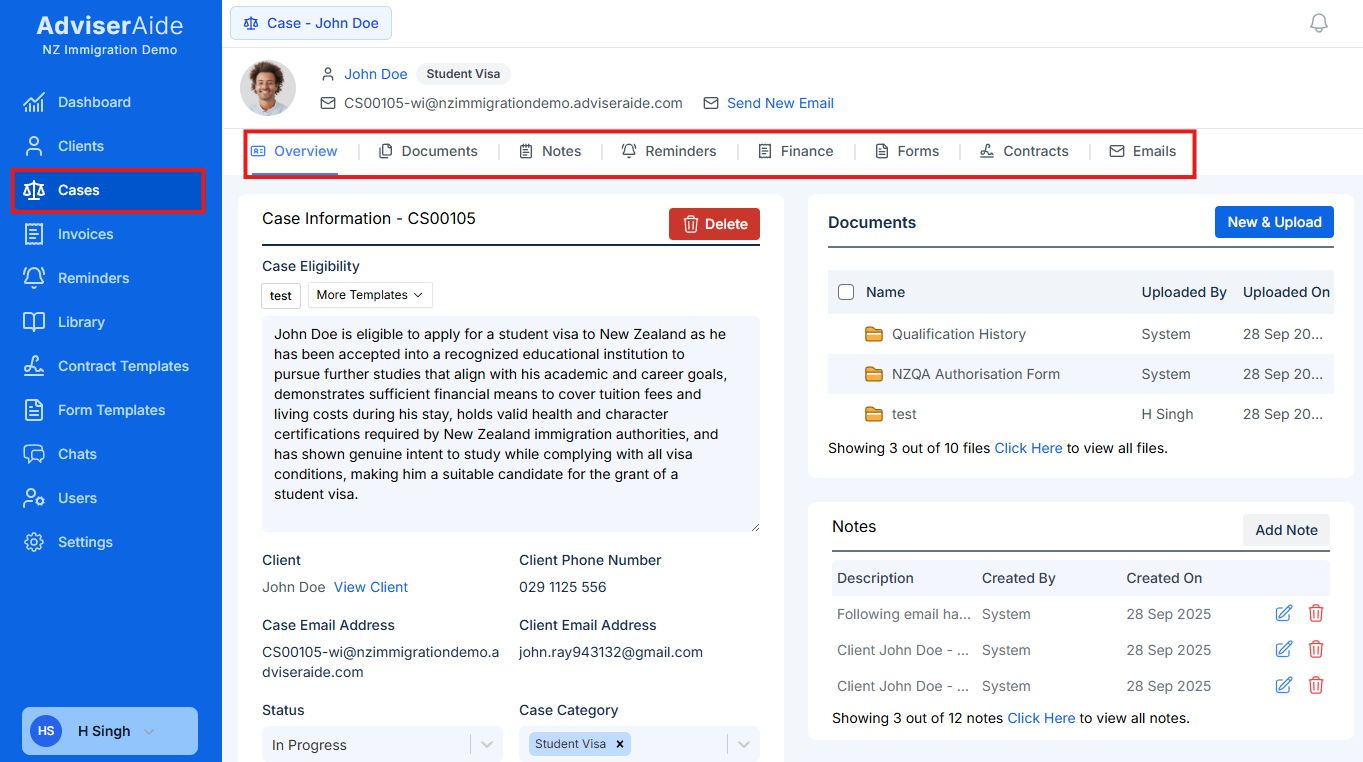
Case Profile Overview
Case Overview
The Overview tab is divided into three main sections:- Top banner – Displays the client name and case category, shows the case’s unique email address (e.g.,
CS00107-wi@yourorganisation.adviseraide.com) and provides a button to compose a new email to this case. - Left panel: Case information – Lists key details such as the case number, case type, status, eligibility, assigned adviser and client contact details. This section provides a quick reference to all critical information about the case.
- Right panel: Quick snapshot – Summarises the case’s activity by showing counts or summaries of documents, notes, reminders, invoices and forms. This snapshot helps you see at a glance how much has been done and what still needs attention.
Case Documents
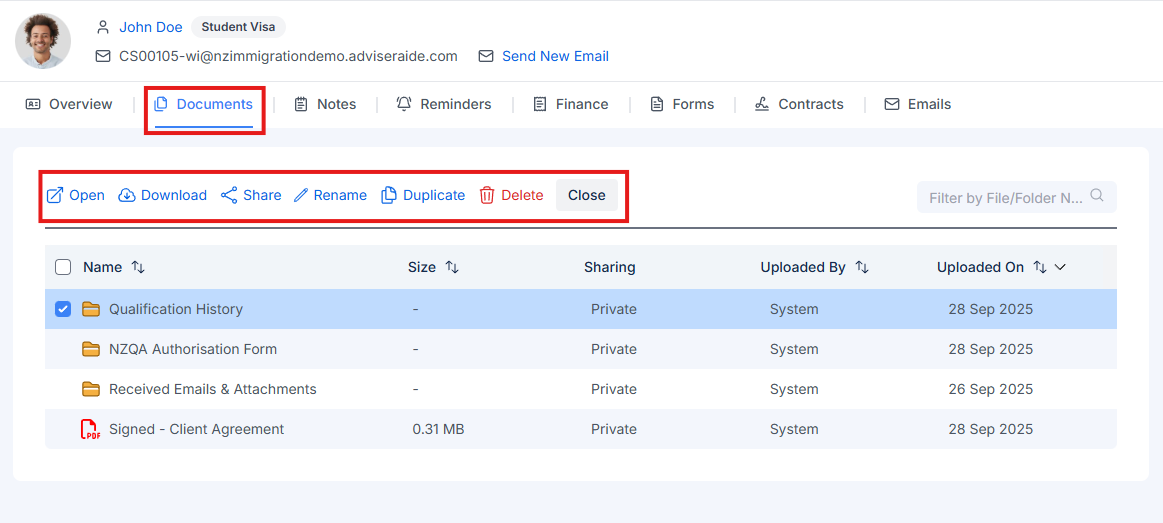
Case Documents Tab
- Uploading files – You can upload individual or multiple files. Drag-and-drop or use the “Upload” button. When multiple files are selected a context toolbar appears, allowing batch operations.
- Automatic email attachments – When you forward an email to the case email address (e.g.,
CS00107-wi@yourorganisation.adviseraide.com), any attachments are automatically saved here. Additionally, the email content itself is converted into a PDF file and saved in the case profile, ensuring you never lose important correspondence or documents. - Link from other cases or the library – You can link existing files from other cases or from your document library. This avoids duplication and keeps everything consistent.
- Built-in editor – Create or edit Word-like documents directly in your browser. You don’t need to download or re-upload a file.
Case Notes
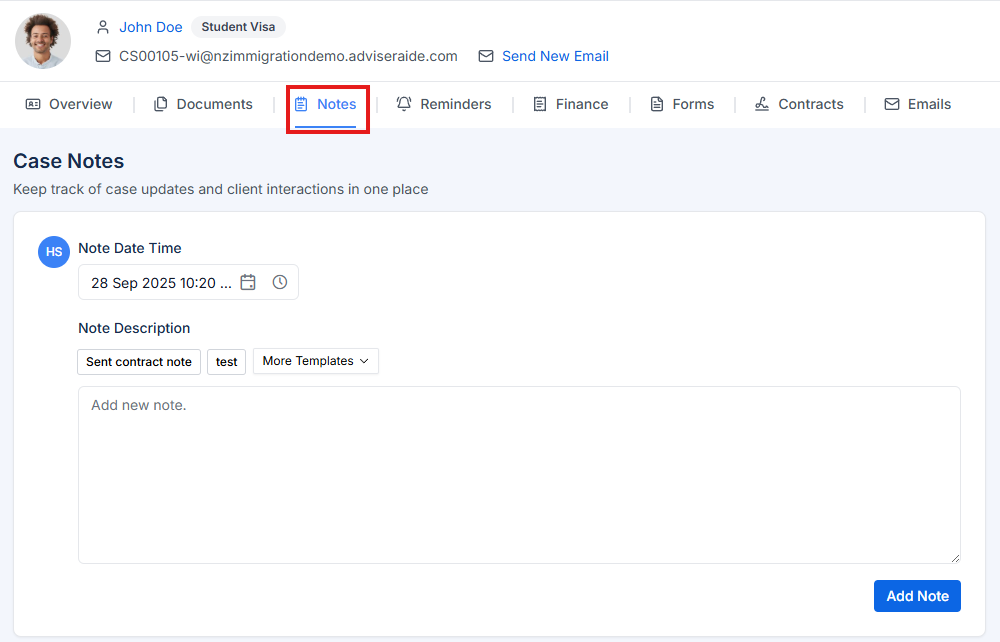
Case Notes Tab
- Content – the full body of the note, where you can include formatted text.
- Timestamp – automatically recorded so you can see when each note was added.
Automatic Notes
AdviserAide automatically creates notes for key actions in the case, saving you time and ensuring nothing is missed. Automatic notes are created when:- Sending agreements – When you email an agreement/contract to a client
- Agreement signed – When the client signs and submits the agreement
- Sending invoices – When you send an invoice for payment
- Payment receipts – When you send a payment receipt to the client
- PDF forms sent – When you send a PDF form to the client for completion
- Forms submitted – When the client completes and submits a form
Case Reminders
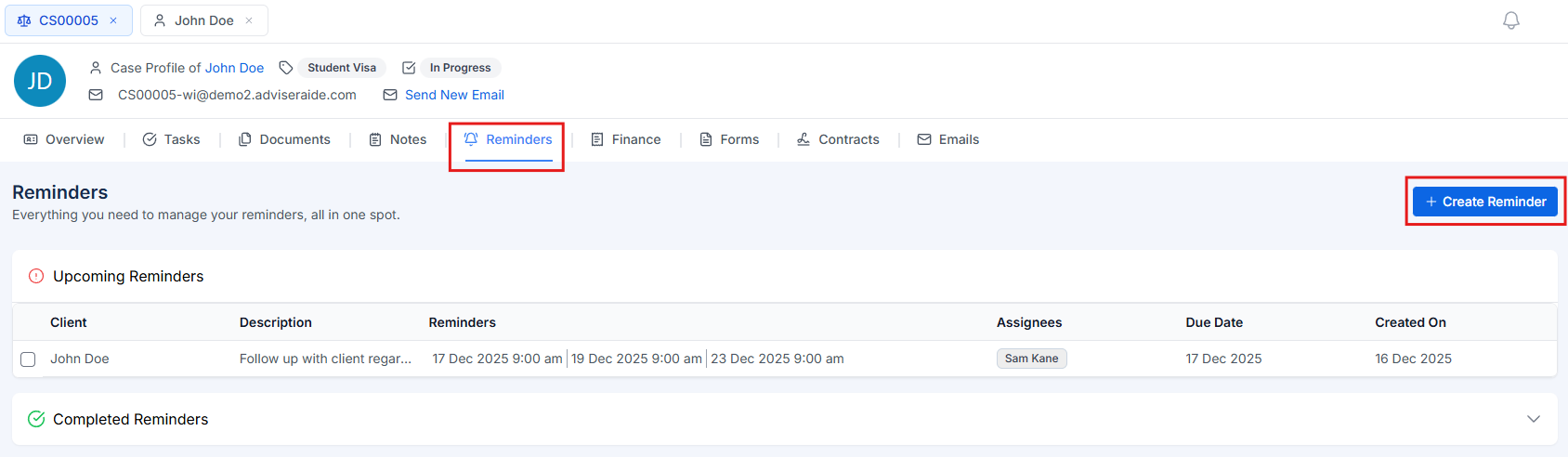
Case Reminders Tab
- Upcoming Reminders – Shows all active reminders that need attention
- Completed Reminders – Shows reminders that have been marked as complete
Creating a Reminder
Click Create Reminder to add a new reminder. You can configure:- Description – What the reminder is about (required)
- Client – Link to the client (optional, automatically set for case reminders)
- Case – Link to a specific case (optional, automatically set when creating from a case)
- Due Date – When the task should be completed (optional)
- Assign Users – Select which team members should receive the reminder (required)
- Reminder Schedule – Configure up to three email reminders at different times:
- First Reminder – The initial reminder notification (required)
- Second Reminder – An optional follow-up reminder
- Third Reminder – An optional final reminder
Case Finance - Invoices and Advance Payments
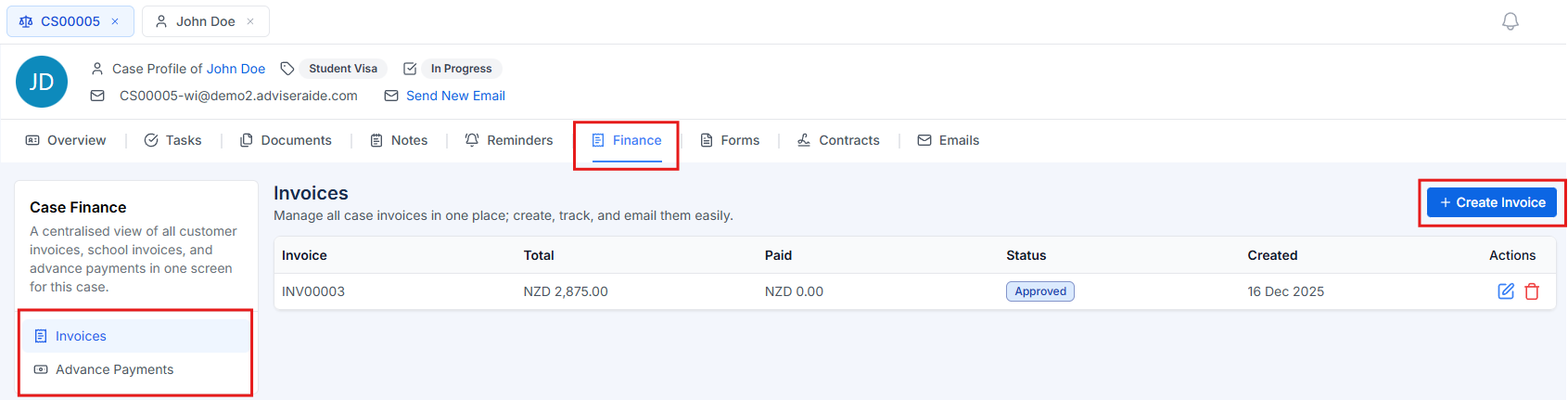
Case Finance Tab
- Create new invoices (see Creating and Sending an Invoice).
- Record payments when a client pays.
- Create advance payments or proforma invoices (see Advance Payments).
- View the case’s financial history at a glance.
Case Forms
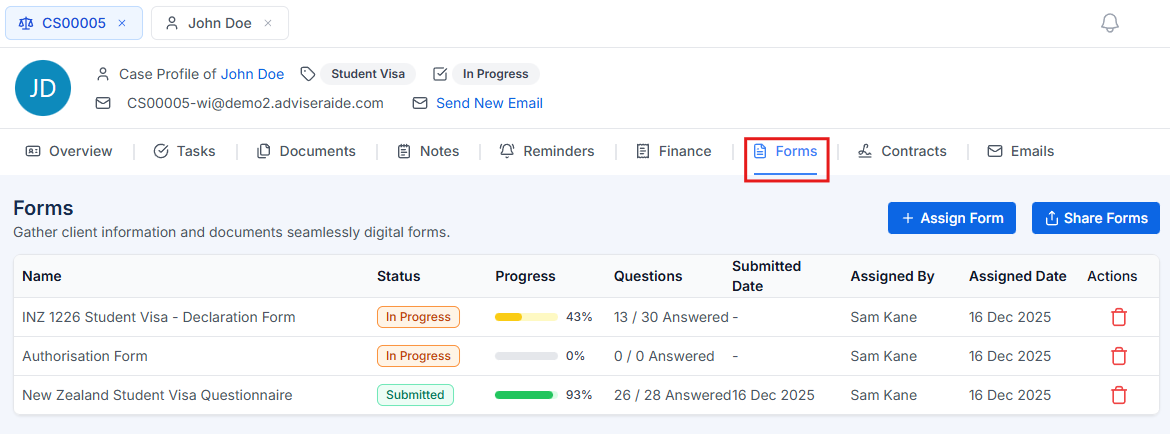
Case Forms Tab
- First, create a form template.
- Assign the form to a case by clicking Assign Form Button.
- Share the form with the client by clicking Share Form and emailing them the secure link.
Case Contract / Agreement
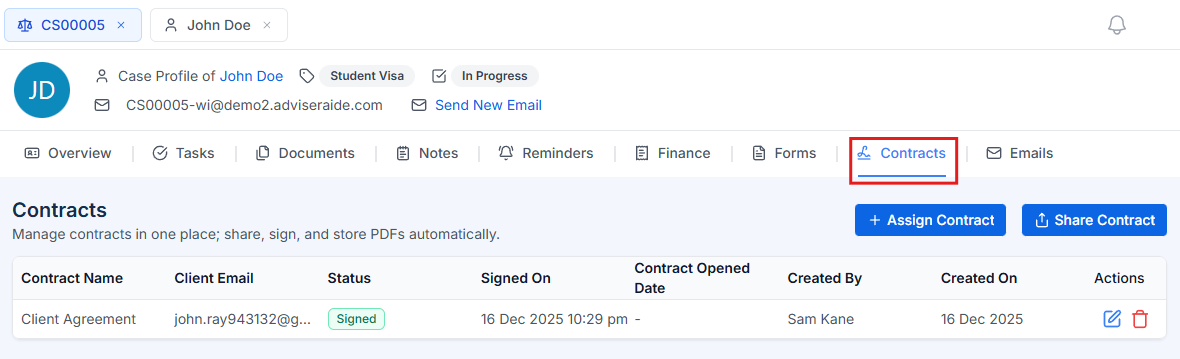
Case Contracts Tab
- Stores the signed contract in the Documents tab.
- Sends a confirmation email to the adviser.
- Adds a note to the case to record the event.
Case Emails
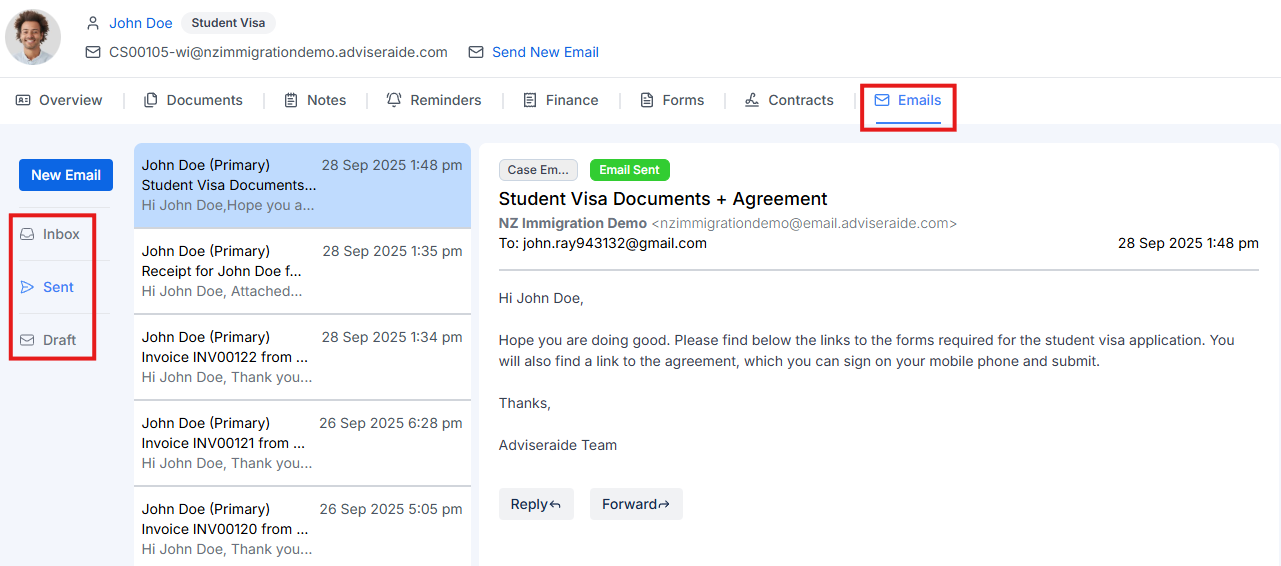
Case Emails Tab
CS00001-wi@yourorganisation.adviseraide.com) it will appear in the case inbox. This way, every message connected to a case, such as John’s Student Visa case, is gathered in one place for easy access.
Inbound Emails
Every case has its own inbound email address (for example,CS00001-wi@yourorganisation.adviseraide.com).
This address is used to bring external correspondence into the case: if you or a client forward an email to this address, Adviseraide attaches the message and any attachments to the case automatically.
Outgoing Emails
When you compose an email in Adviseraide, it is sent from your organisation’s alias (such asYourOrganisationName@email.adviseraide.com). Adviseraide automatically adds both your organisation’s address and the case’s inbound email address to the reply-to email header. This means clients can reply directly to the email they receive, and AdviserAide will:
- Deliver the reply to your usual inbox so you can continue the conversation from your email client.
- Log a copy of the reply in the Email tab of the case profile. Any attachments in the reply are automatically saved to the Documents tab. This ensures nothing important gets lost and eliminates manual uploads.
Next Step
Creating and Sending a Contract
Learn how to create a contract template and send it to clients for signing.