This guide explains how to create a case in AdviserAide.
This guide explains how to create a case in Adviseraide. Follow the steps below.
1
Find the client
Go to the Clients page and locate the client for whom you want to open a case. Use the search box labelled “Filter by Name, Email or Phone” to search by name, email or phone number. Once you find the correct client, click the client row to open their profile.
Search for the client
2
Click Create Case
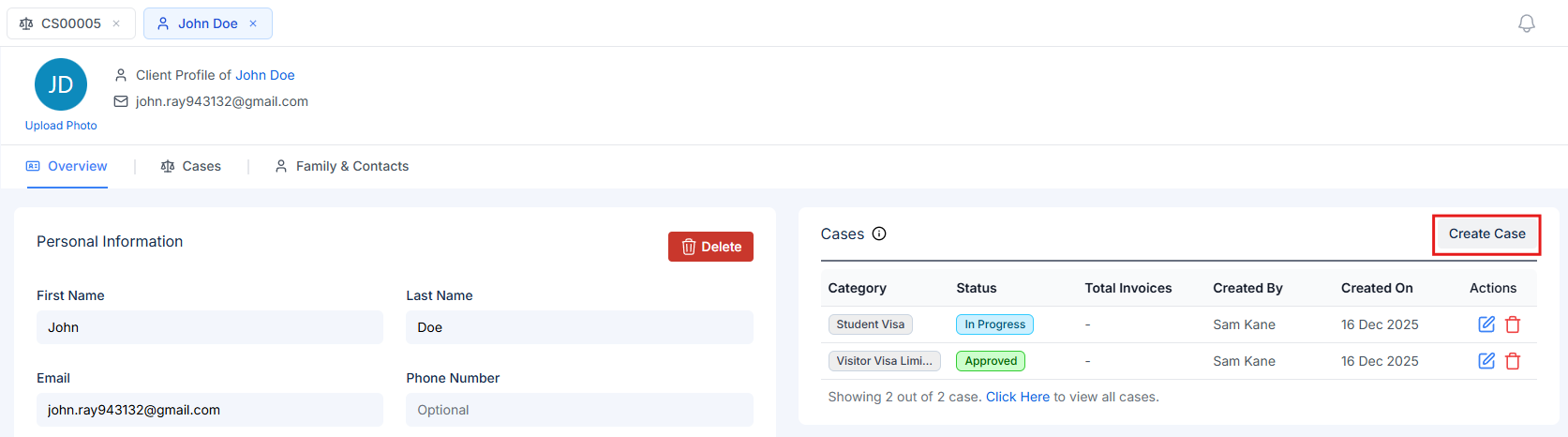
The client profile displays the client’s details with tabs such as Overview and Cases. On the right-hand side you will see a Cases card that lists existing cases for that client. Click Create Case on this card to start a new case.
Click Create Case button
3
Fill in the case details
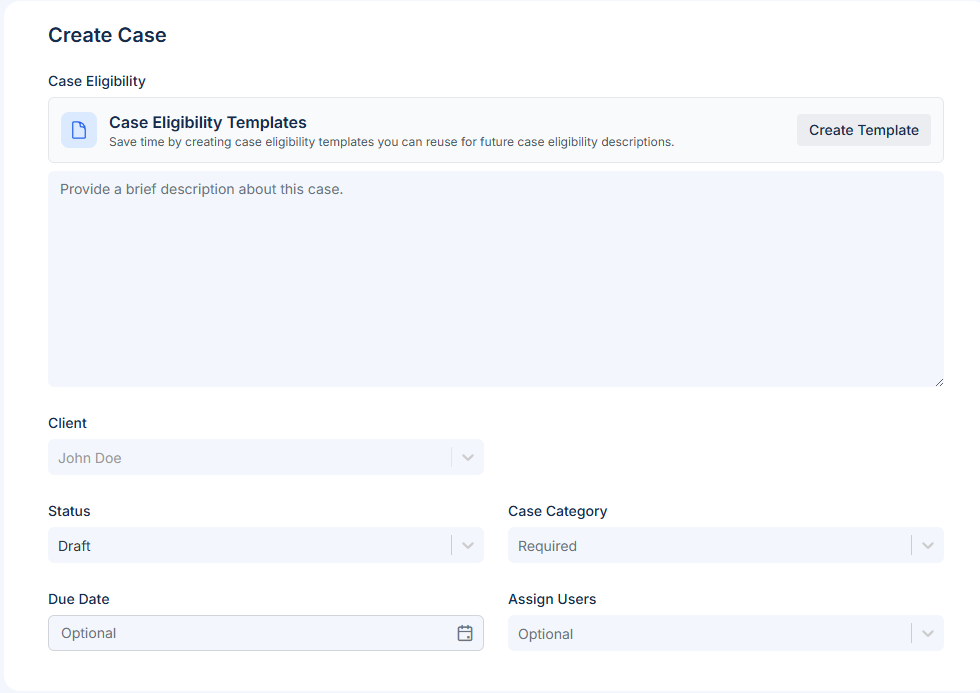
The Create Case form opens with the Client field already filled in. Complete the remaining fields:
Case Eligibility – summaries the purpose of the case
Status (required) – set the initial status, such as Draft or In Progress.
Case Category (required) – select the appropriate type for the case (e.g. Student Visa, Visitor Visa, etc.).
Due Date (optional) – choose a due date if one is required.
Assign Users (optional) – choose the staff members who will handle the case.
Create Case form
4
Save the case
When the details are complete, click Save Case at the bottom. A new case will be created and you will be taken to the case profile.