

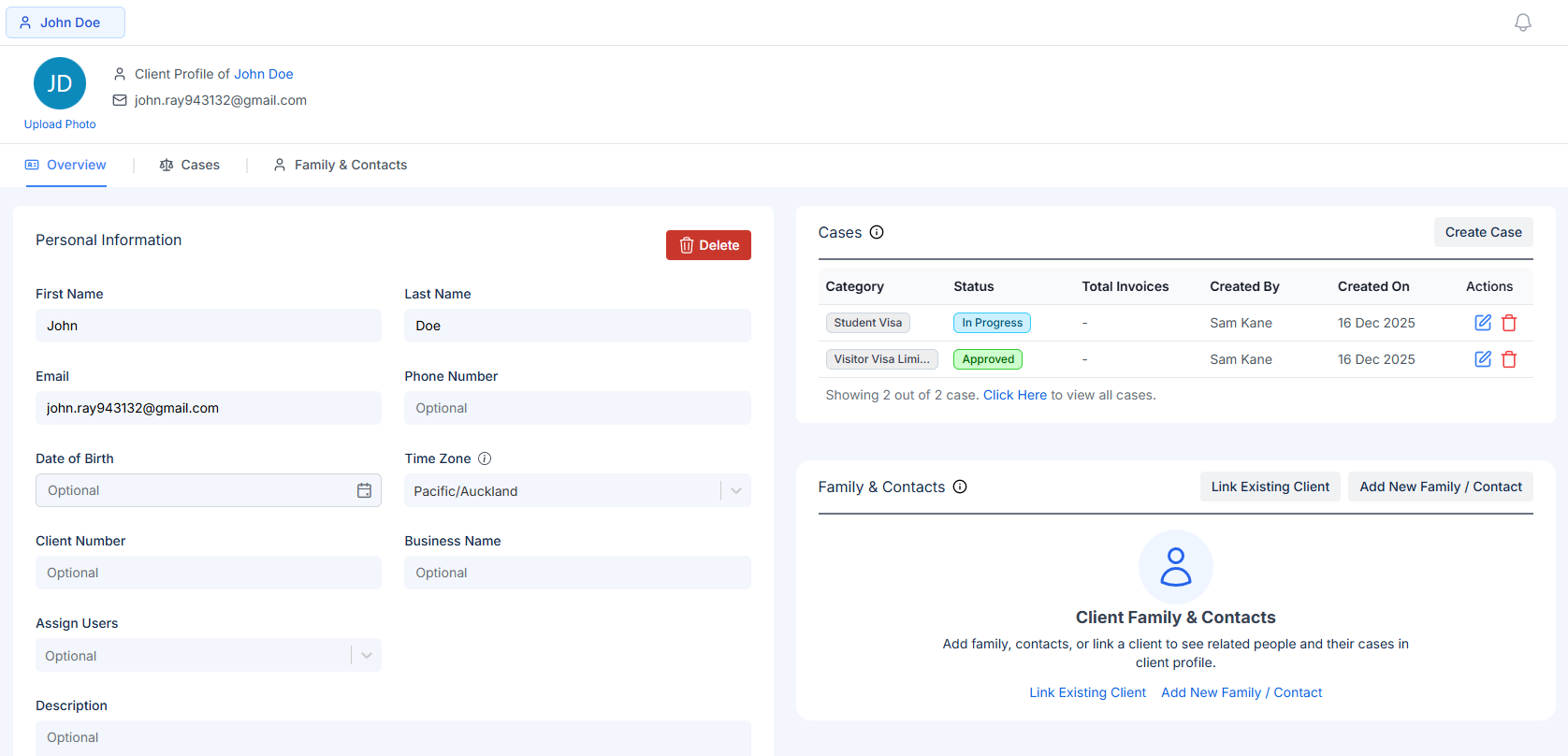
Client Profile Overview
Screenshots in this guide show demo sample data for illustration purposes only.
Overview Tab
The Overview tab displays editable client Personal Information fields on the left. Here you can enter or update the client’s First Name, Last Name, Email, Phone Number, Date of Birth, Time Zone, Client Number, Business Name, assign users to the client and write a Description. After making changes, click Save Changes to save your updates.Client Cases
On the right side of the Overview tab is a Cases card that lists all cases created for this client.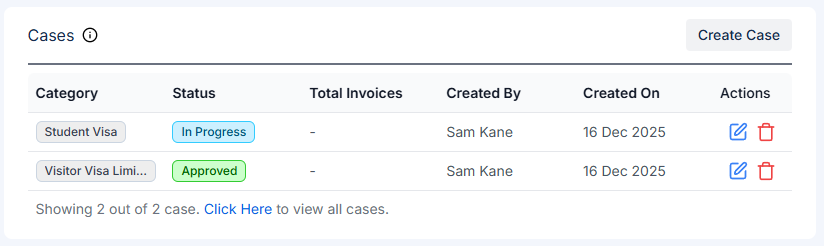
Cases card showing client's cases
Family & Contacts Card
Below the Cases card on the right side is the Family & Contacts card, which displays linked family members and related clients.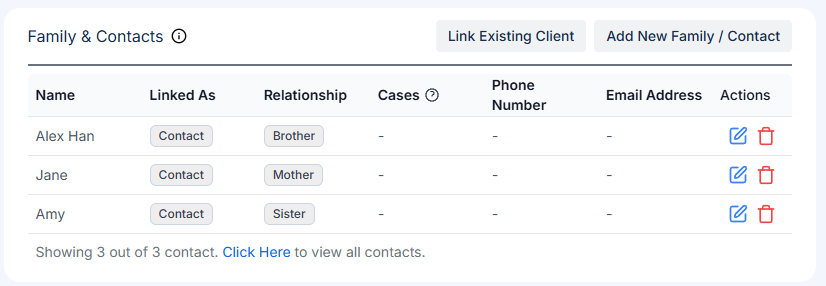
Family & Contacts card showing linked family members
- Linked clients – Other clients in your system who are related to this client (spouse, partner, parent, child, etc.)
- Contact information – Name, relationship type, and cases (for linked clients)
- Quick actions – Click Link Existing Client to connect another client, or Add New Family / Contact to create a new contact record
Employers Card
Further down the right side is the Employers card, which displays employment relationships.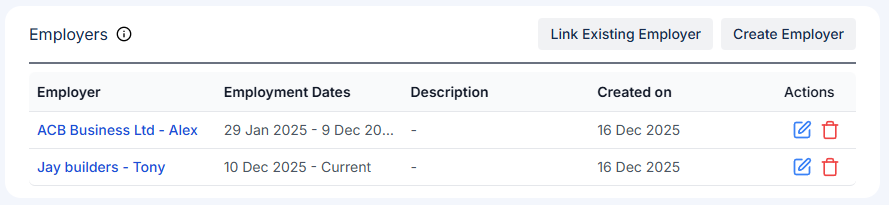
Employers card showing employment relationships
- Linked employers – Companies or organizations where the client works or has worked
- Employment details – Employer name, employment dates (start and end), and description
- Quick actions – Click Link Existing Employer to connect an employer already in your system, or Create Employer to add a new employer and link them immediately
Client Address
Scrolling further down on the left reveals the Address section.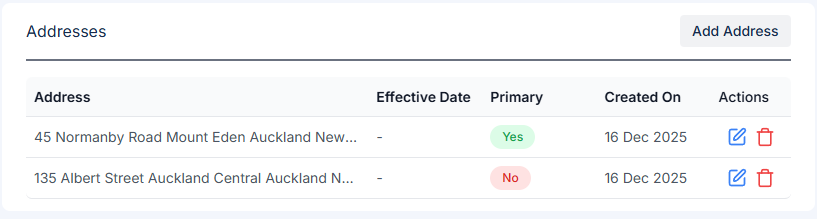
Address section
Cases Tab
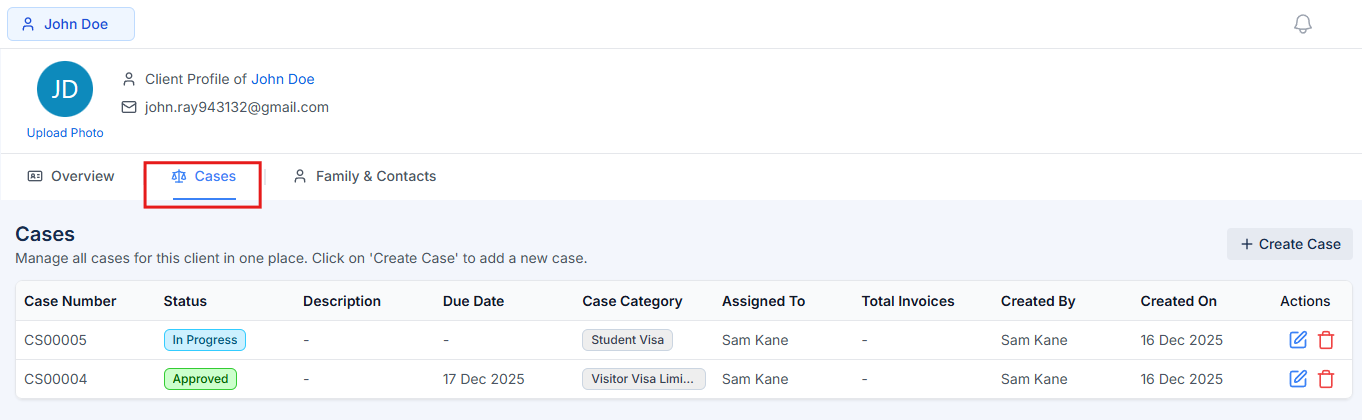
Cases Tab
Family & Contacts Tab
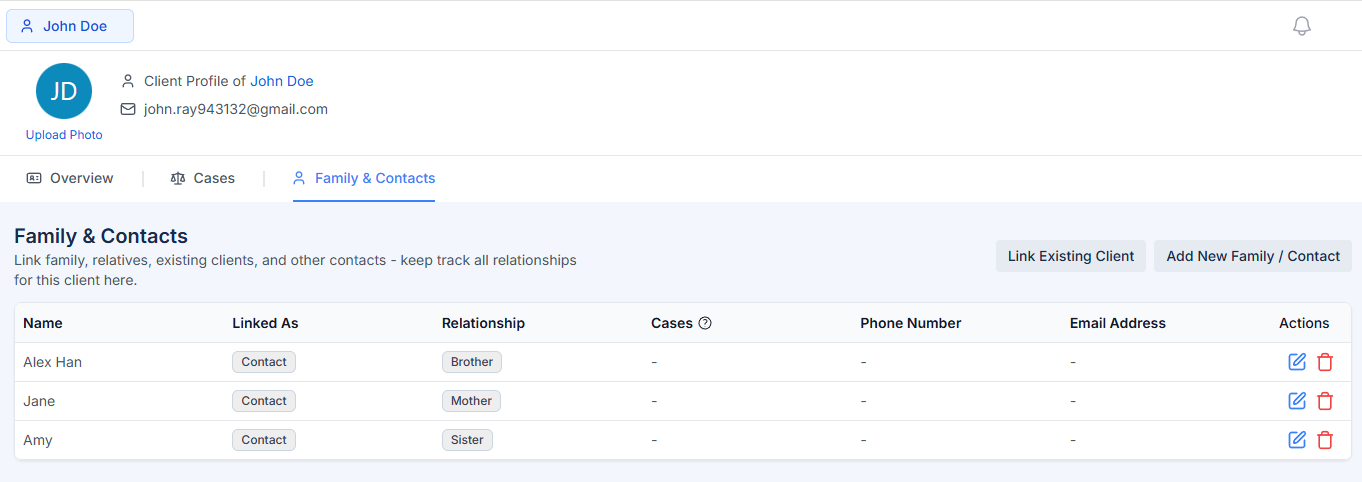
Family & Contacts Tab
- Name – The full name of the family member or contact
- Linked As – Shows whether this is a “Client” (existing client in your system) or “Contact” (a contact record)
- Relationship – The relationship type (e.g., Spouse, Partner, Parent, Child, Sibling, Other)
- Cases – For linked clients, displays their cases with status tags. This allows you to see the immigration status of related family members at a glance
- Phone Number – Contact phone number
- Email Address – Contact email address
Managing Relationships
Use the action buttons at the top right:- Link Existing Client – Connect another client already in your system. This is useful when managing family applications where multiple family members are your clients
- Add New Family / Contact – Create a new contact record for family members or related contacts who aren’t clients yet
Why separate cases?
Clients often have more than one immigration case. Adviseraide recognises this by letting you open multiple cases per client. Each case has its own profile page with dedicated tabs for overview, documents, notes, reminders, invoices, forms, contracts and emails (see Understanding the Case Profile). This logical design keeps data clean: notes or documents from a student visa case are never confused with those from a work permit or citizenship application. Advisers can confidently manage complex client relationships knowing that every case remains isolated and organised.Next Step
Creating a New Case
Learn how to create a case for your client.