

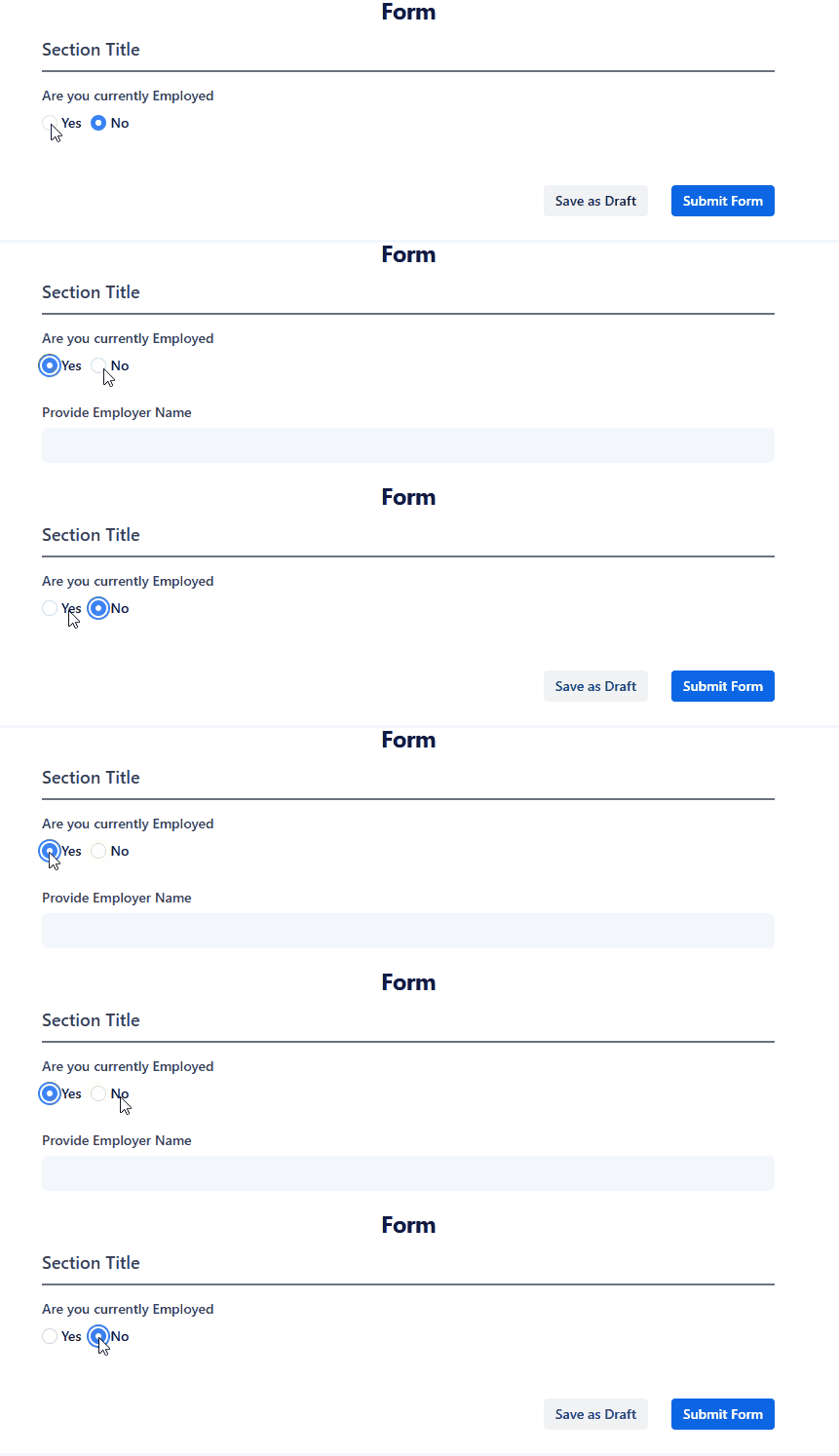
When to use conditional fields
Use conditional fields to:- Show follow-up questions only when relevant
- Request additional details based on specific answers
- If client answers “Yes” to “Do you have a spouse?”, show spouse details questions
- If client selects “Employed” as employment status, show employment history fields
- If client answers “Yes” to “Have you traveled outside your country?”, show travel history
- If client selects “Other” in a dropdown, show a text field to specify
Creating conditional fields
1
Add the parent field
First, create the field that will control the visibility of other fields. This must be a field type that has options:For example, create a radio button field asking: “Have you previously been refused a visa?”With options: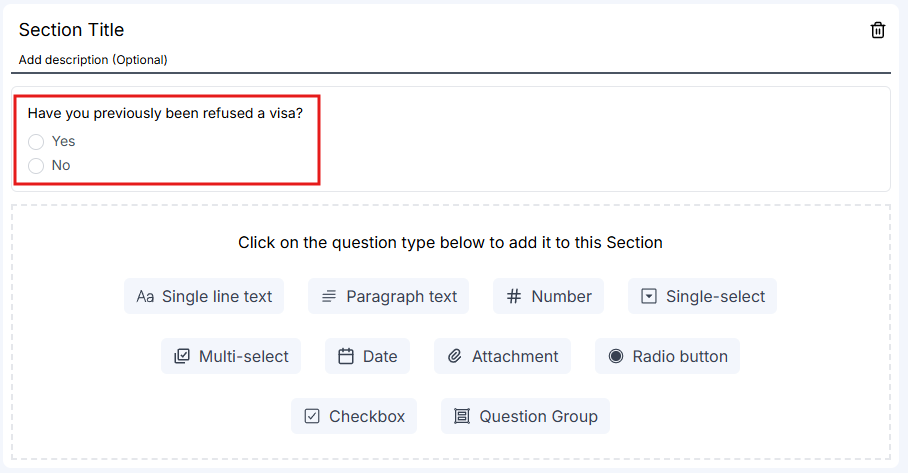
- Yes
- No
2
Add the conditional field
Add the field that should appear conditionally. This can be any field type.For example, add a paragraph text field: “Please provide details about the visa refusal”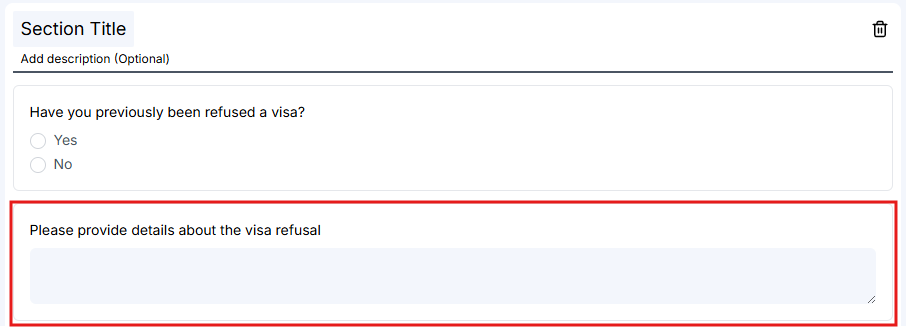
3
Configure conditional visibility
Click the settings icon (gear icon) on the field you want to make conditional.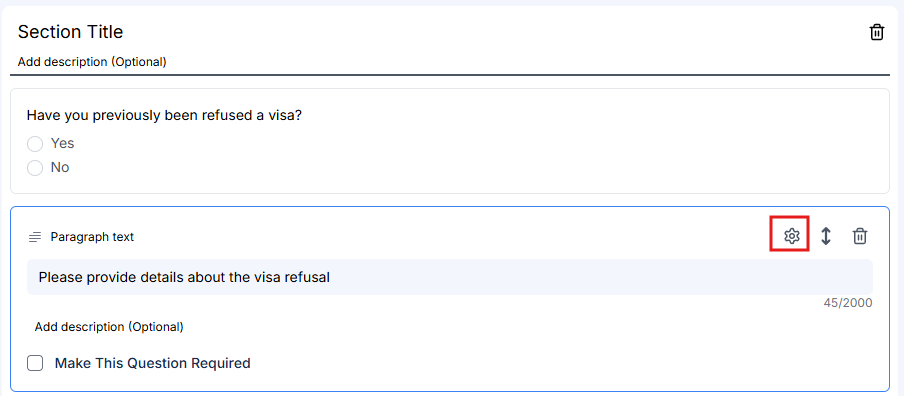 This opens the Configure Conditional Visibility panel.
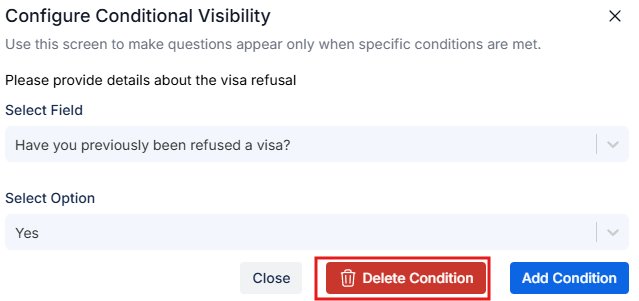
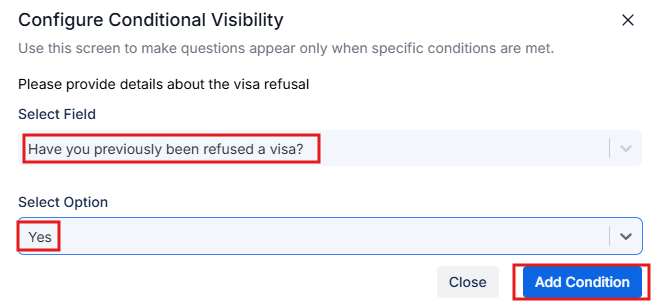 In the Select Field dropdown, choose the field that controls when this question appears.Then, in the Select Option dropdown, choose which specific answer should trigger this field to appear.For example, select “Yes” to show the details field only when the client answers “Yes” to the visa refusal question.
Only fields with options (radio buttons, checkboxes, select fields) in the same section will be shown in this list. If you move a field to a different section, its conditional rule is removed.
4
Save the conditional rule
Click “Add Condition” to save the conditional visibility rule.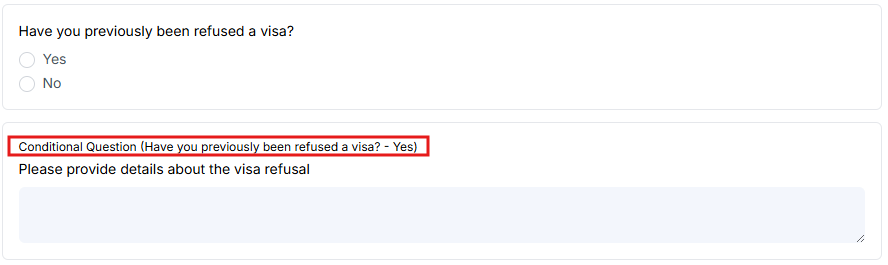
The field now displays a label indicating it’s a conditional field. It will only appear to clients when the specified condition is met.
Showing a group of questions conditionally
Conditions can also be added to a question group, so a whole set of related questions appears only when it’s needed. Click the settings icon on the question group and set the condition the same way as for a single field. For example, to collect partner information only when a client is including a partner:- Create a Partner section
- Add a radio button question such as “Are you including a partner in this application?” with “Yes” and “No” options
- Below it, add a question group for each topic, such as Partner details, Partner character and Partner health
- Set a condition on each question group to show when the answer is “Yes”
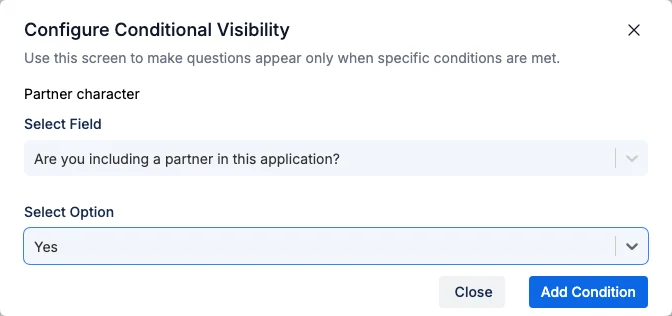
Setting the condition on the Partner character question group
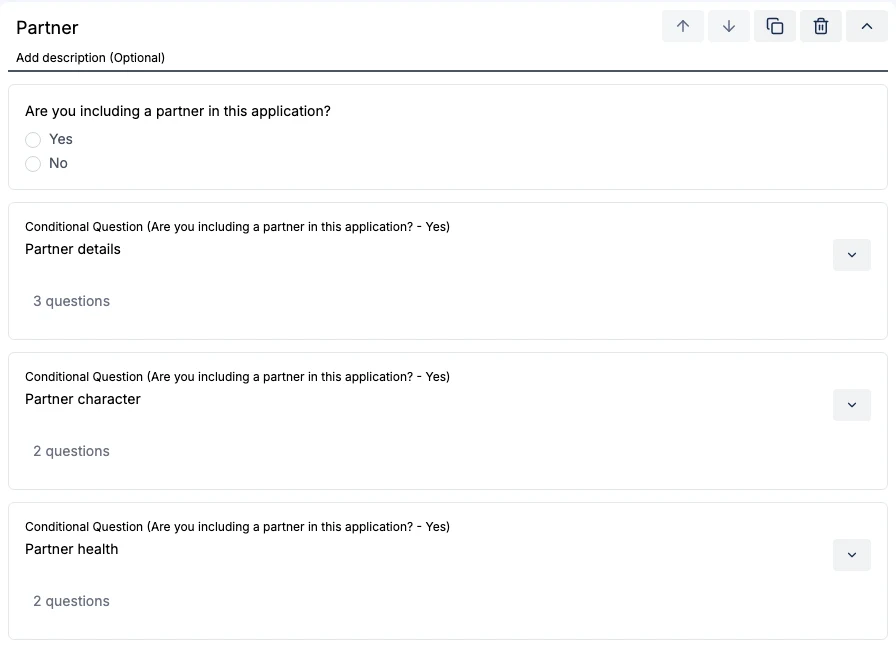
Three question groups controlled by one radio button question
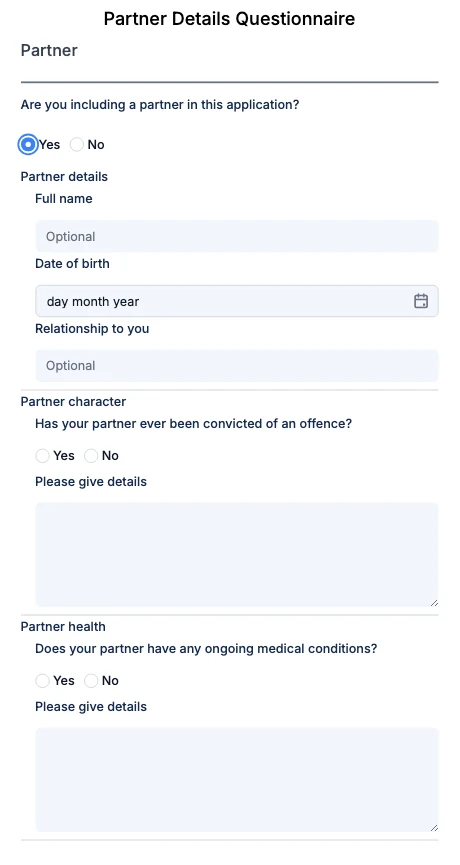
The client answers Yes and the partner questions appear
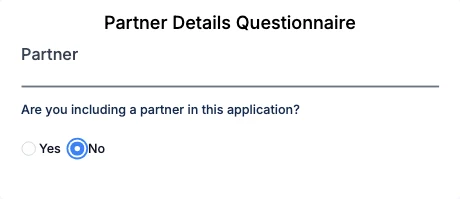
The client answers No and the partner questions stay hidden
Conditions work within a section, so the trigger question and the question groups it controls must be in the same section. Whole sections can’t be shown or hidden with a condition.
Removing conditional rules
To remove a conditional rule:- Click the settings icon on the conditional field
- Click “Delete Condition” in the settings panel
- The field becomes a regular, always-visible field
Related Documentation
Creating Questionnaire Forms
Learn how to create questionnaire forms from scratch with various field types.
Questionnaire Form Field Types
Explore all available field types and when to use each one.