

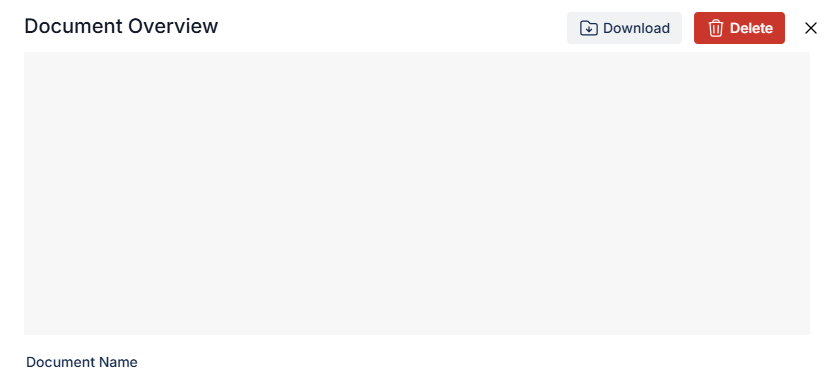
Sometimes when you click on a PDF file, PDF file doesn’t load in the preview screen built into Adviseraide. Instead, you see a grey screen.
Grey screen when PDF won't load
This can happen if you’re using Google Chrome and the setting to show the files in Google Chrome is switched off. Following are the two steps to enable this setting.

Fixing the Issue

1

Open Chrome PDF Settings

Open a new tab in Chrome and in the address bar copy and paste: chrome://settings/content/pdfDocuments

Chrome settings URL
2

Enable 'Open PDFs in Chrome'

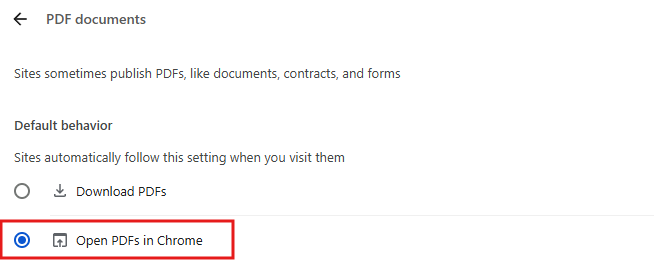
The following screen will open up and make sure the “Open PDFs in Chrome” option is selected.
Open PDFs in Chrome toggle
That’s it! The PDF file should now display properly.
If this doesn’t resolve the issue, please reach out to our support team at support@adviseraide.com