

What the Client Feature Enables
Client ProfilesStore complete client information, contact details, documents, custom fields, and addresses for each client. Maintain a comprehensive record of everyone you work with.
Case ManagementCreate and track visa applications for each client. Monitor case progress, manage deadlines, upload supporting documents, and keep detailed notes throughout the application process.
Employer SponsorshipsLink clients to employers when they’re being sponsored for work visas. This creates visibility between the employer and client profiles, showing the sponsorship relationship clearly.
Client InvoicingGenerate invoices for your services, track payments, manage advance payments, and send professional invoices directly to clients via email.
Contracts & AgreementsCreate service agreements with digital signature capabilities. Clients can review and sign contracts online, creating a legally binding record of your engagement.
PDF FormsSend digitised immigration forms to clients for completion. Clients fill out forms online, and responses are automatically saved to their profile.
Accessing the Clients Page
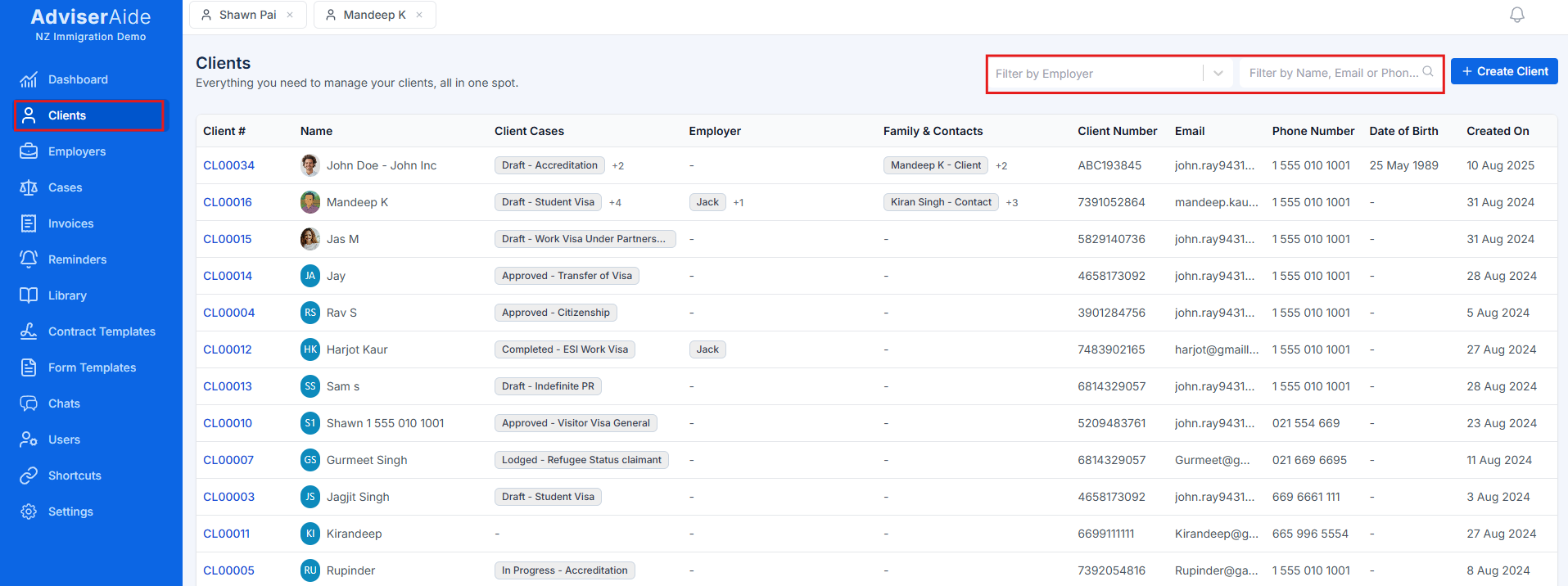
Clients list page showing all client records
The screenshot above shows demo sample data for illustration purposes only. This is not real client information.
- Filter by Employer – A dropdown to view clients linked to specific employers
- Filter by Name, Email or Phone Number – A search box that filters the list instantly as you type
- Create Client – Button to add new client records
The Client List
The list displays the following columns:- Client # – The system-generated reference number for the client
- Name – The client’s full name with profile image
- Client Cases – Visual tags showing all cases for this client (e.g., “Draft - Accreditation”, “Approved - Transfer of Visa”). The first case is displayed with a count indicator showing additional cases (+2, +4, etc.)
- Employer – Displays linked employer relationships. Shows the employer’s business name or contact name, with the first employer visible and additional employers indicated by a count (+1, +2, etc.). Click an employer to view their profile
- Family & Contacts – Shows related family members and contacts linked to this client. Displays the first contact’s name with a label (“Client” or “Contact”), and additional contacts are indicated by a count (+2, +3, etc.). Click a linked client to navigate to their profile
- Client Number – Custom reference number you can assign
- Email – Primary contact email address
- Phone Number – Primary contact phone number
- Date of Birth – Client’s date of birth
- Created On – Date the client record was created
Next Steps
Creating a Client
Learn how to create new client records
Client Profile
Understand the client profile layout and features