Client Relationships is a feature that allows you to link existing clients together within AdviserAide.
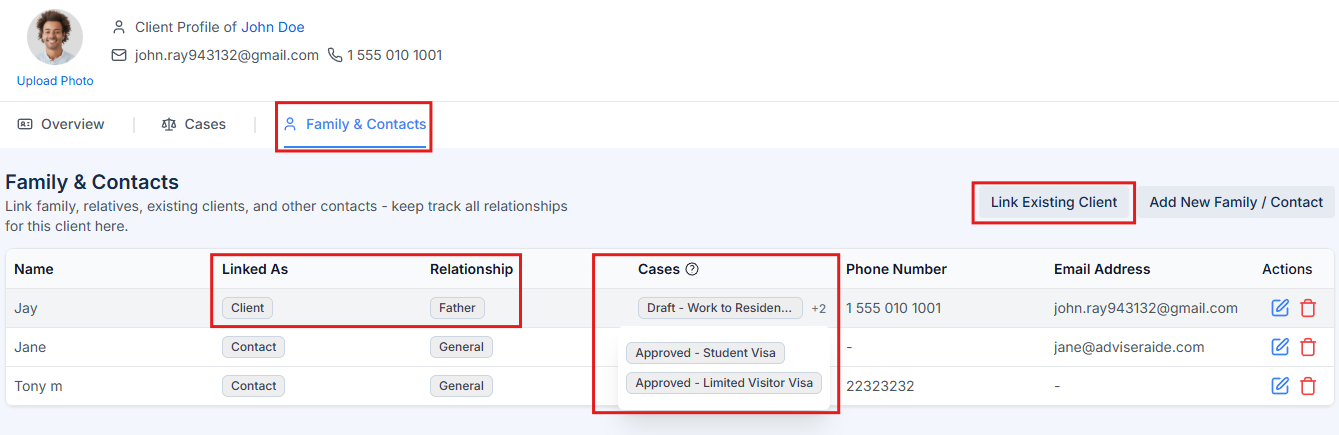
Client Relationships is a feature that allows you to link existing clients together within Adviseraide. This is particularly useful for managing family applications where multiple family members are your clients. When clients are linked, you can see their relationship, view their cases, and quickly navigate between related client profiles.
Family & Contacts tab showing linked clients and their relationships
Follow these steps to link an existing client to another client’s profile.
1
Open Family & Contacts and Click Link Existing Client
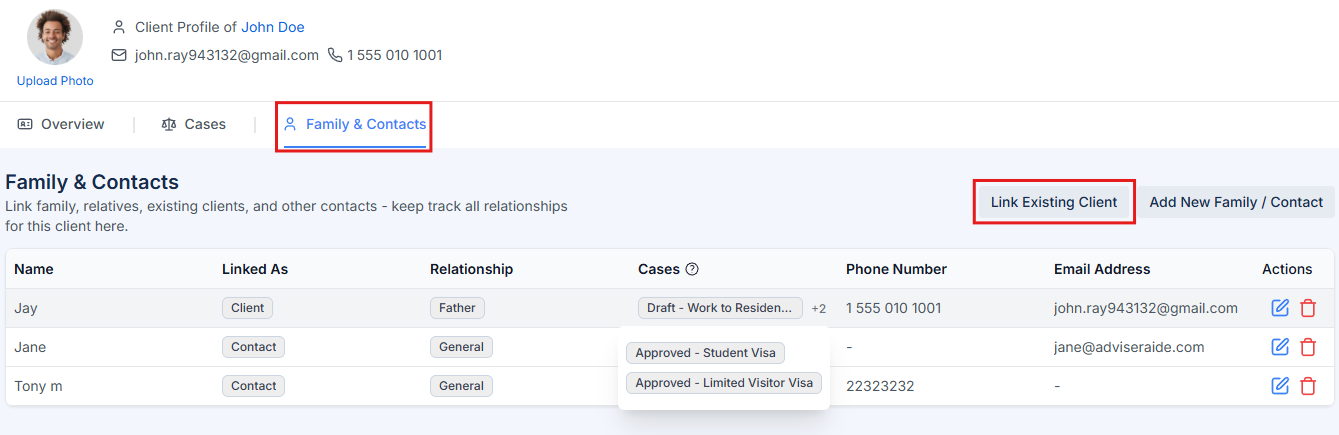
Navigate to the client profile where you want to add the relationship. Click on the Family & Contacts tab at the top of the profile, then click the Link Existing Client button in the top right corner.
Family & Contacts tab with Link Existing Client button
2
Search for Client and Define Relationships
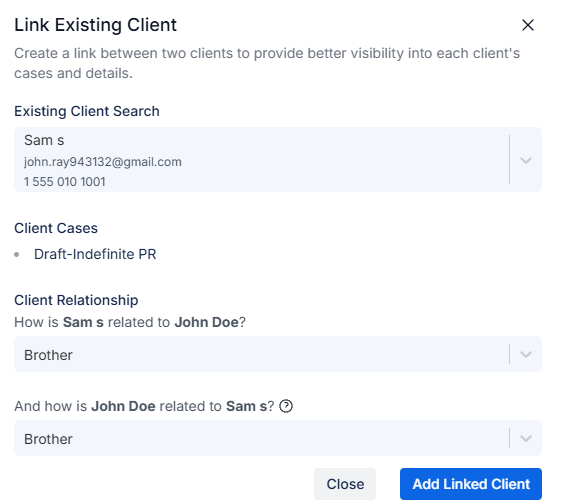
In the modal that appears, use the Existing Client Search field to find the client you want to link. You can search by name, email, or phone number. Select the client from the search results and you will see their Client Cases displayed below.Under the Client Relationship section, you’ll see two dropdown fields:First dropdown - “How is [Selected Client] related to [Current Client]?”
Select how the linked client is related to the current client. This is required. Common options include Spouse, Partner, Parent, Child, Sibling, or General.Second dropdown - “And how is [Current Client] related to [Selected Client]?” (Optional)
Select how the current client should appear on the linked client’s profile. This creates a bidirectional link so both clients can see each other.
Link Existing Client modal with client search and relationship dropdowns
If you leave the second dropdown empty, the link will only appear on the current client’s profile. The linked client will not see this relationship on their profile.
3
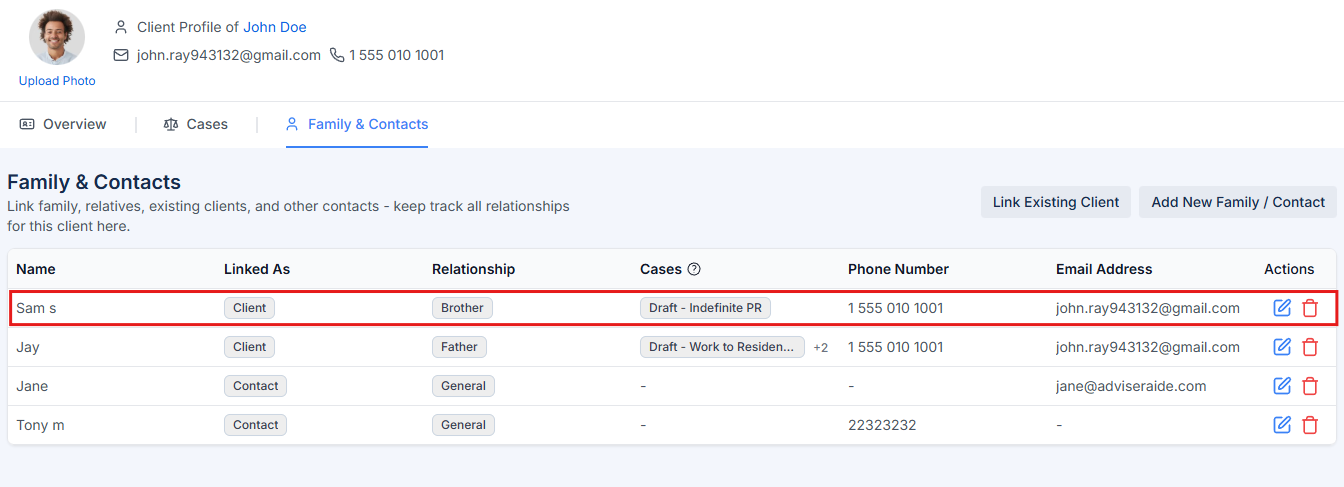
Save the Relationship
Click Add Linked Client to save the relationship. The linked client will now appear in the Family & Contacts tab.
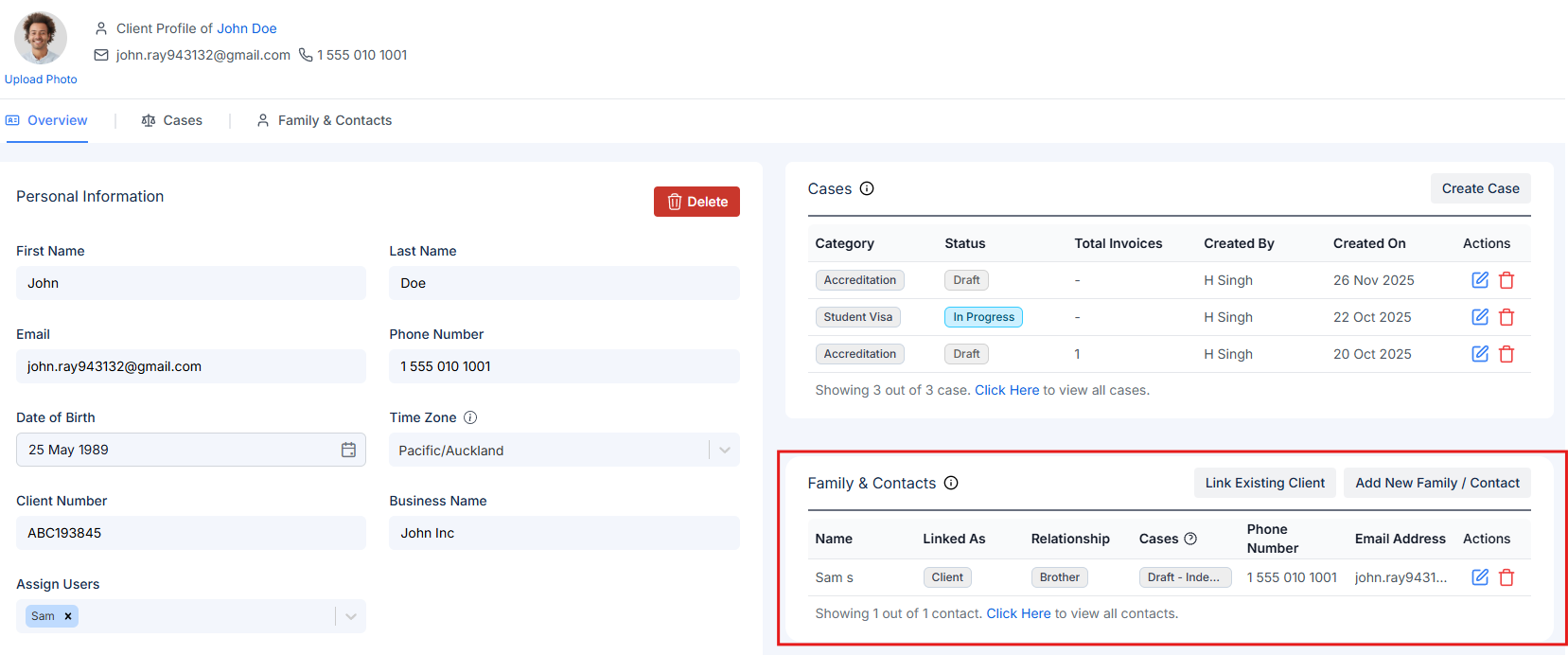
On the client profile Overview tab, you’ll find the Family & Contacts card on the right side. This card provides a quick preview of linked family members and contacts.
Family & Contacts card on the Overview tab
The card displays:
Name - The linked client’s or contact’s name
Linked As - Shows “Client” for linked clients or “Contact” for regular contacts
Relationship - The relationship type (Spouse, Child, Parent, etc.)
Cases - For linked clients, displays their case categories with status
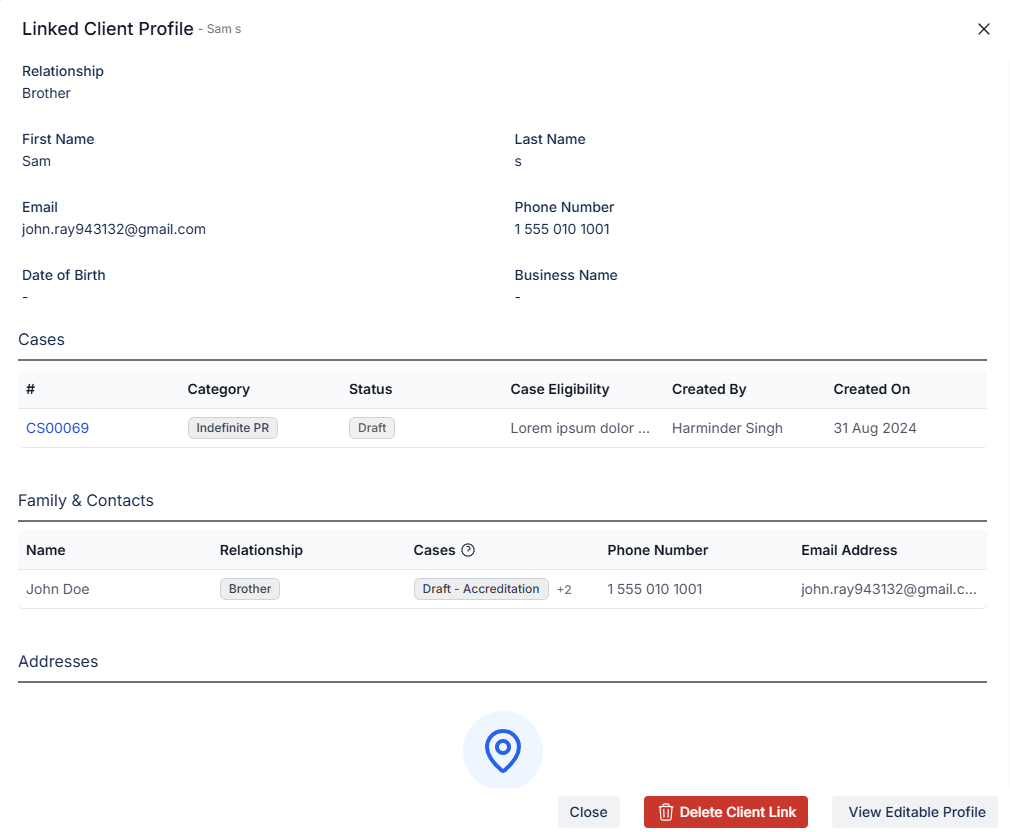
Click on a linked client to view their full profile information in a popup.
Linked client detail popup showing full profile information
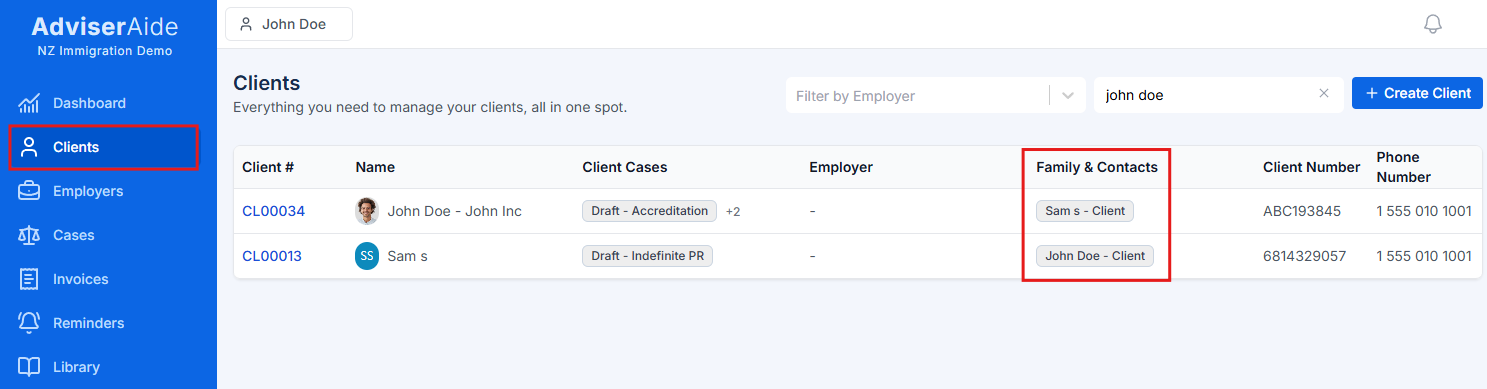
The client list page now includes a Family & Contacts column that displays all linked clients and contacts for each client. This makes it easy to see family relationships at a glance without opening individual client profiles.When searching for clients, the search also looks through client contacts. This means you can find a client by searching for their spouse’s name, child’s name, or any other linked contact.
Client list with Family & Contacts column showing linked relationships