

Text input fields
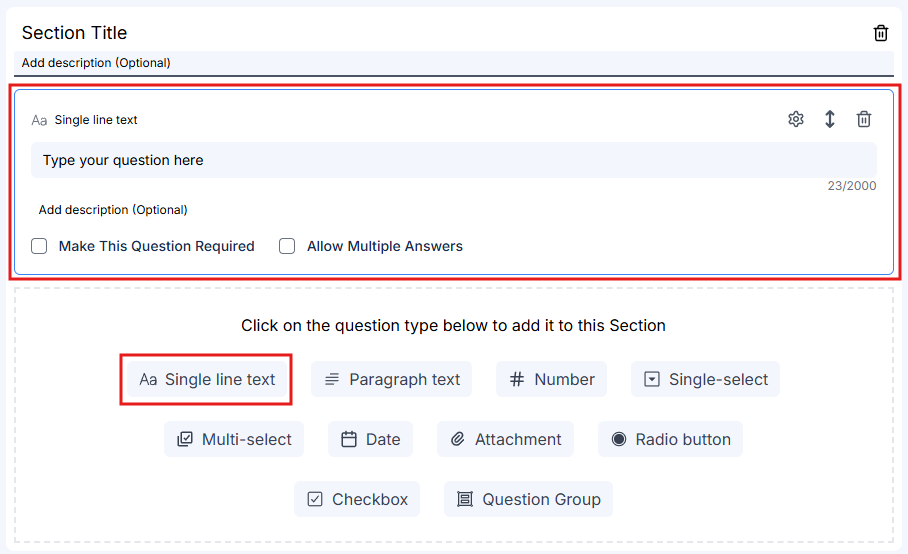
Single line text Use for short responses that fit on one line:- Names (first name, last name)
- Email addresses
- Phone numbers
- Reference numbers
- Job titles
- Short answers
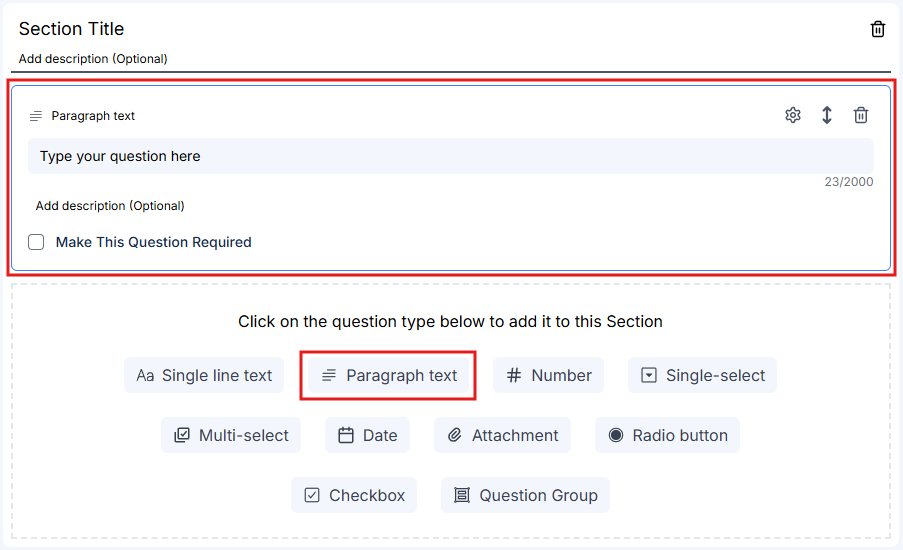
- Descriptions or explanations
- Reasons or justifications
- Detailed information
- Comments or notes
- Address fields
Number fields
Use when you need numeric responses:- Age
- Years of experience
- Quantities or amounts
- Durations (in months, years)
- Number of dependents
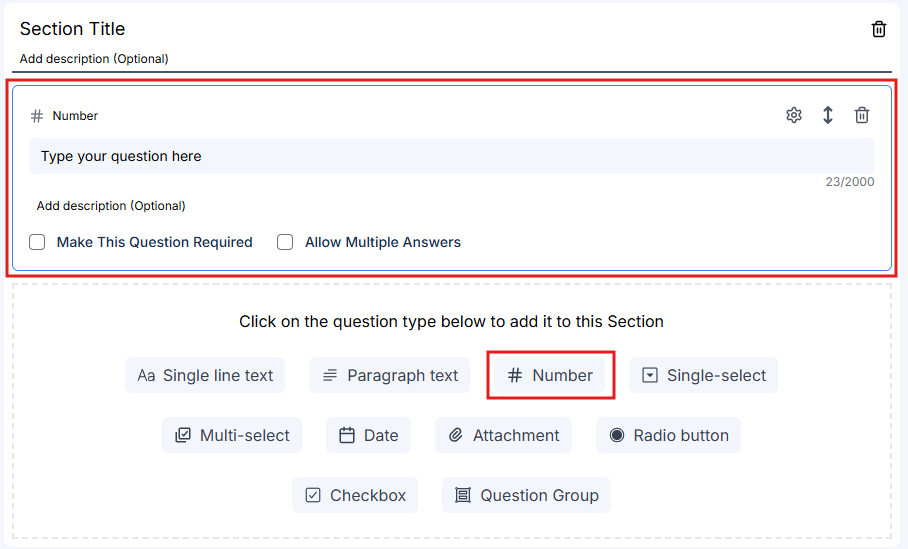
Number fields only accept numeric input, preventing data entry errors.
Selection fields
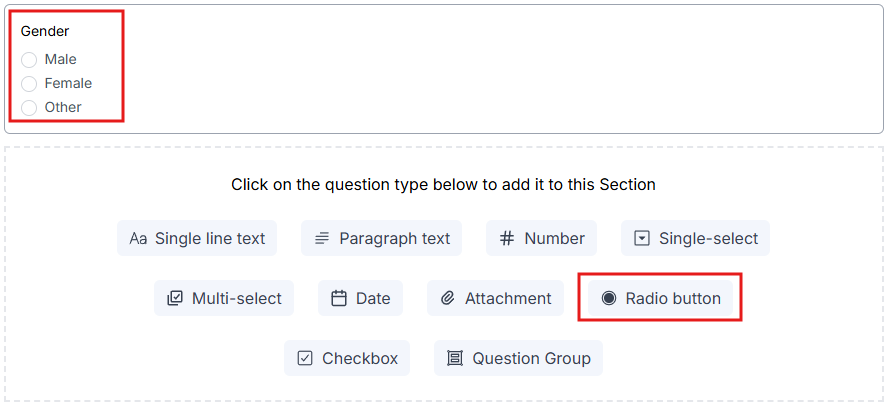
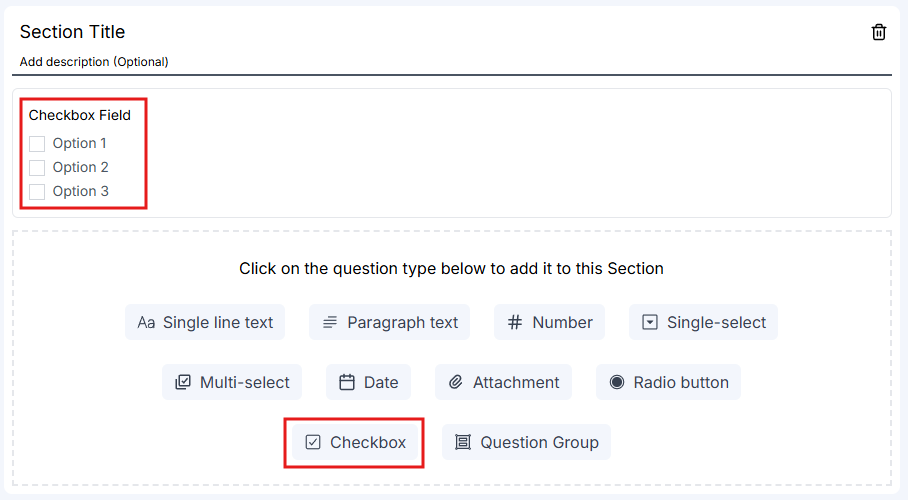
Radio buttons Use when the user should select only one option and all choices should be visible:- Yes/No questions
- Gender selection
- Marital status
- Small lists of exclusive choices (2-5 options work best)
- Services interested in
- Languages spoken
- Skills or qualifications
- Multiple applicable items from a list
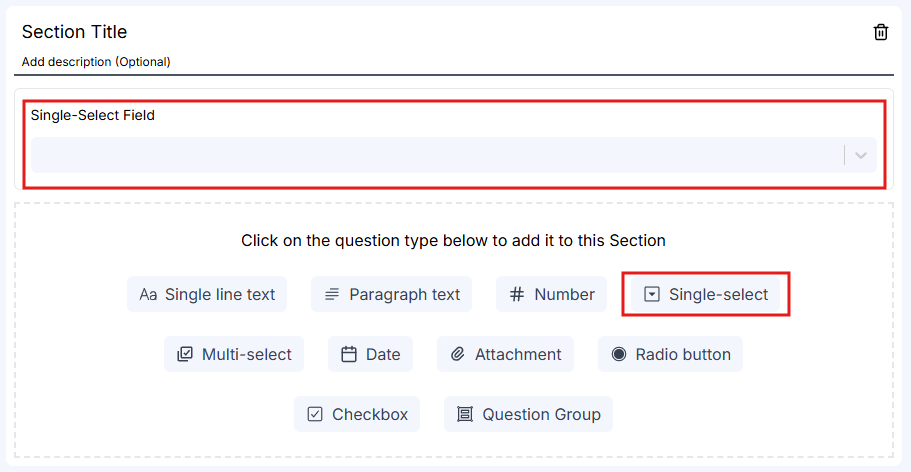
- Country of citizenship
- State or province
- Occupation from a long list
- Any single-choice question with more than 5 options
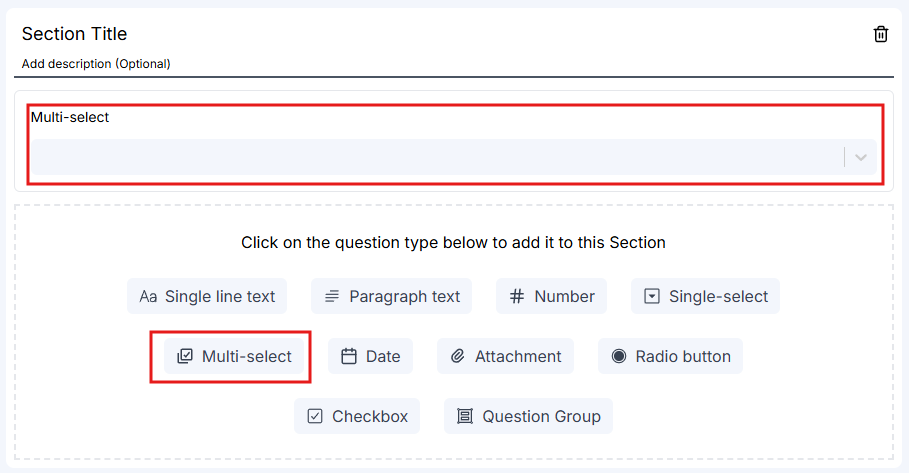
- Countries visited
- Multiple citizenships
- Multiple qualifications or certifications
- Any multi-choice question with many options
Date fields
Use for any date-related information:- Date of birth
- Passport expiry date
- Employment start/end dates
- Travel dates
- Important deadlines
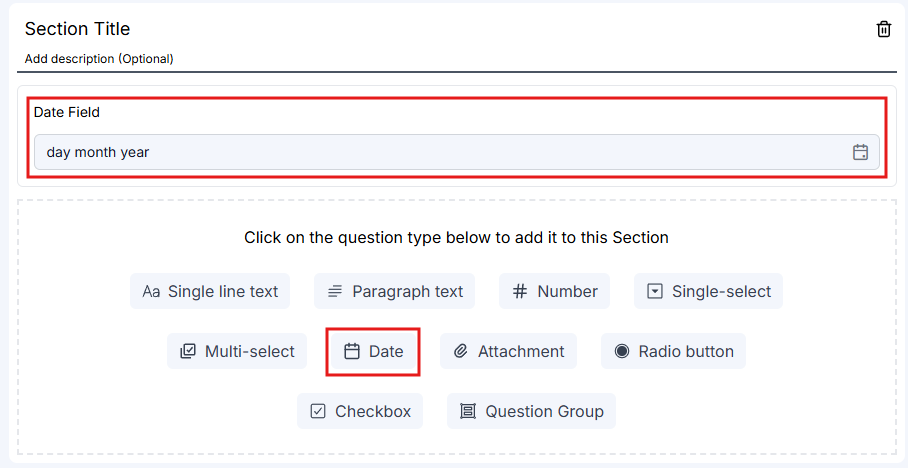
Clients can either type the date or use the calendar picker for easy date selection.
Attachment fields
Use attachment fields to request specific documents from clients:- Educational certificates
- Employment letters
- Bank statements
- Any supporting documentation
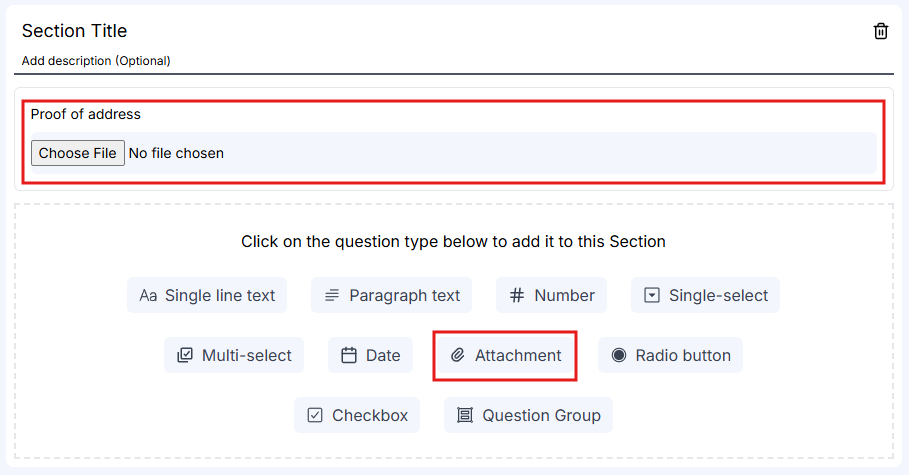
When clients upload files through attachment fields, the documents are automatically saved to the case.
Using question groups
Question groups are one of the most powerful features of advance forms. They allow clients to provide multiple entries for the same set of questions.When to use question groups
Question groups are perfect for collecting information where the client may have multiple entries:- Travel history - Countries visited with dates and purposes
- Employment history - Multiple employers with positions, dates, and duties
- Education records - Multiple educational institutions with degrees and dates
- Previous addresses - Multiple residential addresses with dates
- Family members - Information about multiple children or dependents
- References - Multiple professional or character references
Creating a question group
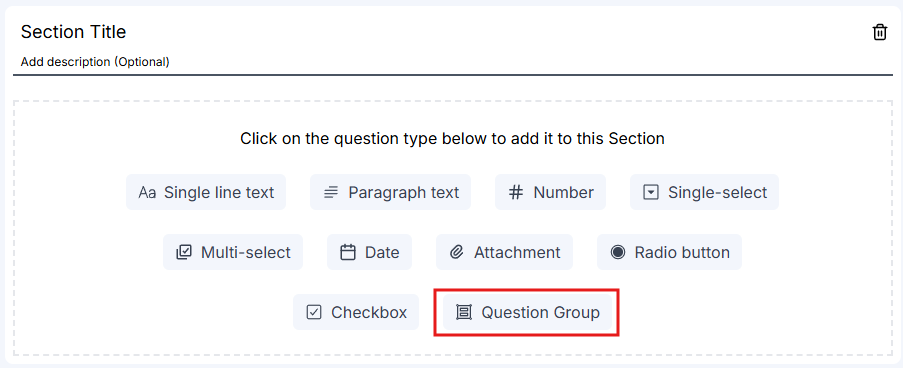
Name your question group
Enter a descriptive title for the question group, such as: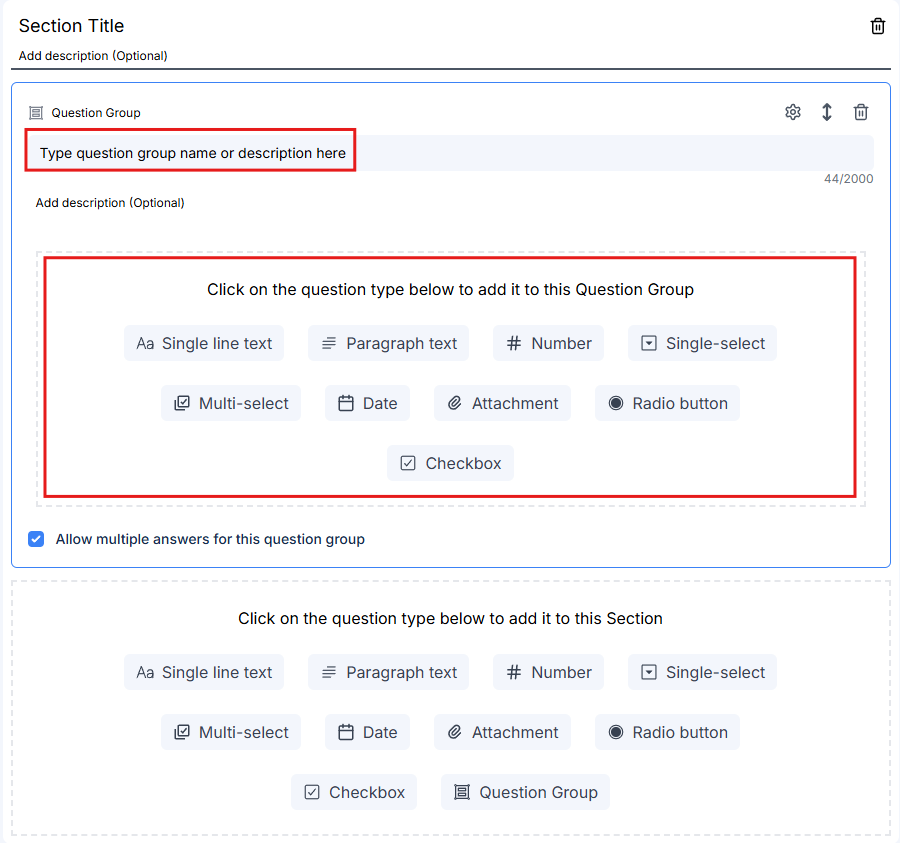
- “Work History”
- “Countries Visited”
- “Educational Background”
- “Previous Addresses”
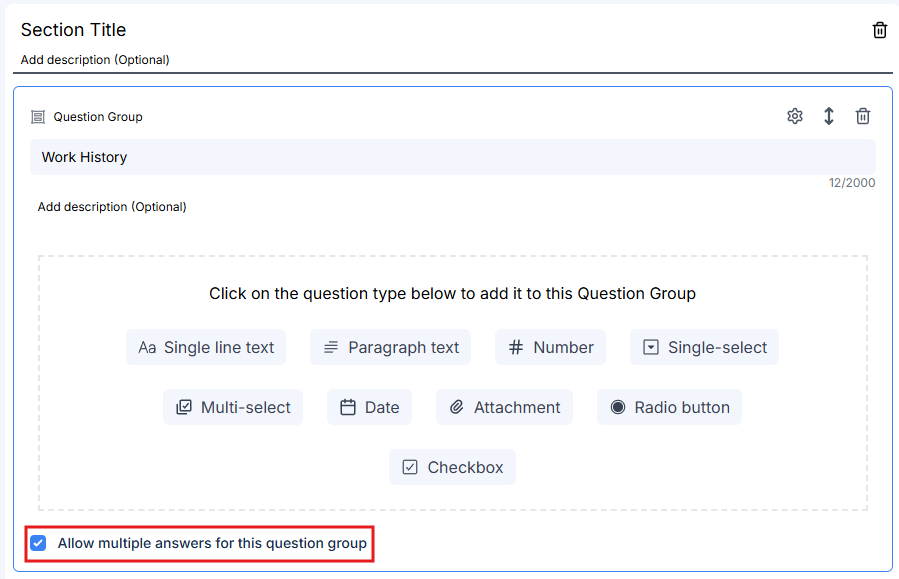
Add fields inside the question group
Inside the question group, you’ll see a new field selection area. Click field types to add questions within the group.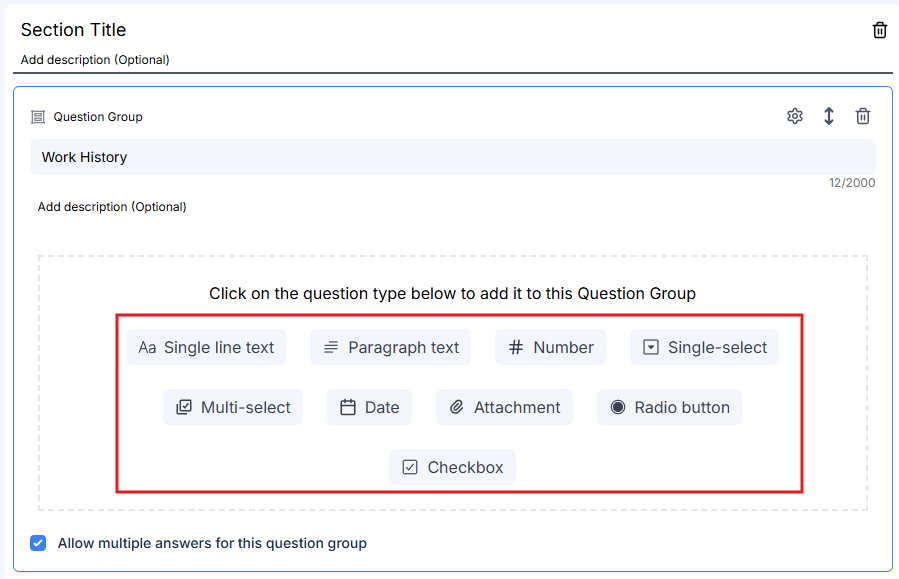 For example, for a “Work History” question group, you might add: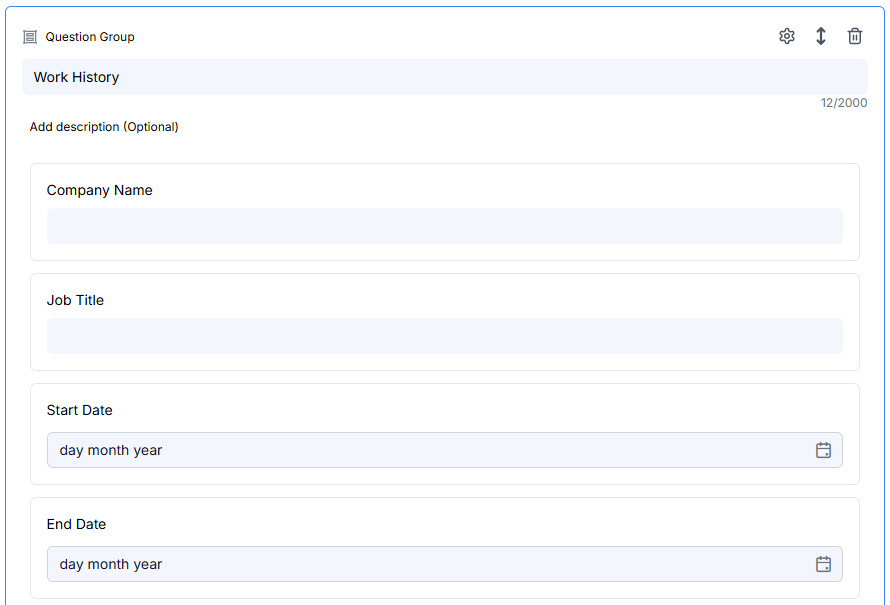
- Single line text: “Company Name”
- Single line text: “Job Title”
- Date: “Start Date”
- Date: “End Date”
- Paragraph text: “Job Duties”
How clients use question groups
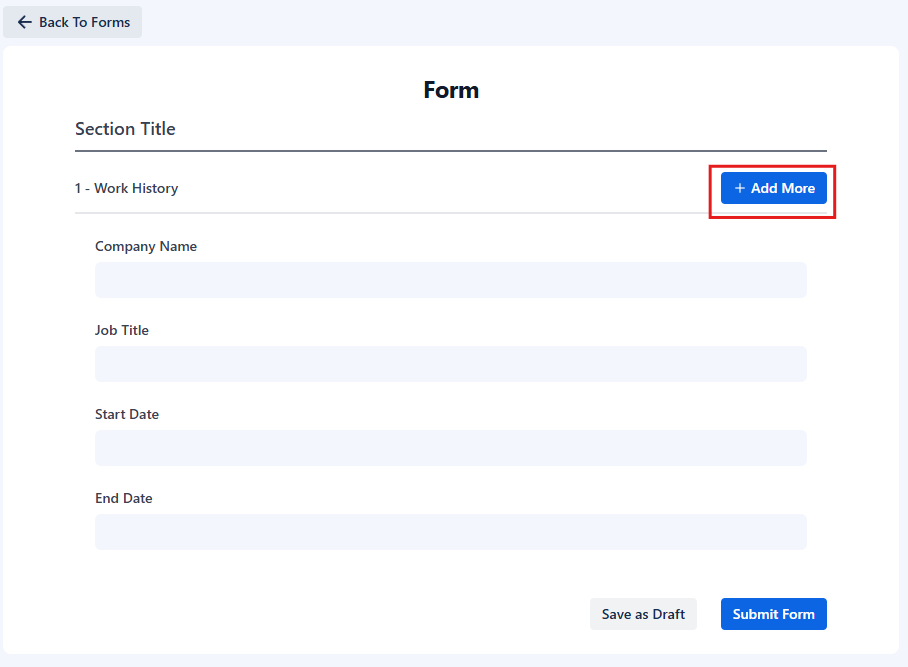
When completing a form with question groups:- The client fills in all fields in the first entry
- They click the “Add more” button to add another entry
- A new set of the same questions appears
- They repeat this process for each entry they need to provide
Related Documentation
Creating Advance Forms
Learn how to create advance forms from scratch using these field types.
Conditional Fields
Create dynamic forms that show or hide questions based on user responses.