

Common forms to digitize
Immigration advisers commonly work with government forms and official documents that are perfect candidates for digitization:- INZ 1226 (New Zealand) - Student Visa Declaration Form
- Form 956 (Australia) - Appointment of a registered migration agent, legal practitioner or exempt person
- IMM 5476 (Canada) - Use of a Representative Form (IMM 5476)
- Form G-28 (United States) - Notice of Entry of Appearance as Attorney or Accredited Representative
Any PDF form with fillable fields, signature requirements, or structured information can be digitized using the PDF form builder.
How PDF forms work
The process is straightforward:- Upload your PDF - Start with any existing PDF document
- Add interactive fields - Drag and drop text fields, checkboxes, signature boxes, and more onto your PDF
- Assign to cases - Forms automatically assign to relevant cases based on categories you set
- Share with clients - Send forms to clients through the client hub with a unique link
- Client completes - Clients fill out and sign the form online
- Automatic PDF generation - A completed PDF is saved to case documents
Understanding the PDF form builder
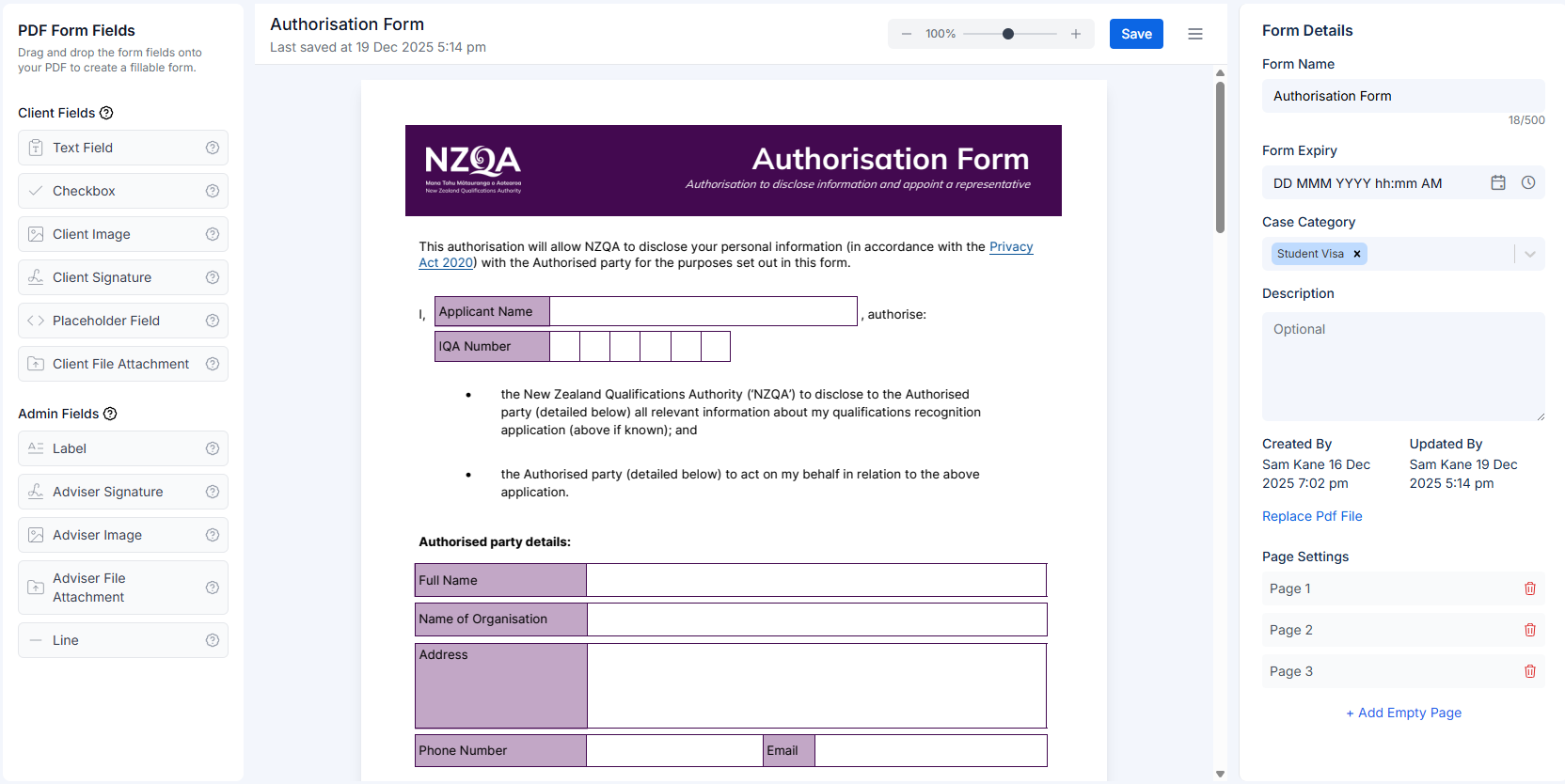
The PDF Form Builder is where you transform your static PDF into an interactive form. The interface consists of three main panels designed to streamline the form creation process:Left panel: Form fields palette
This panel displays all available field types that you can drag onto your PDF. Fields are organized into two categories: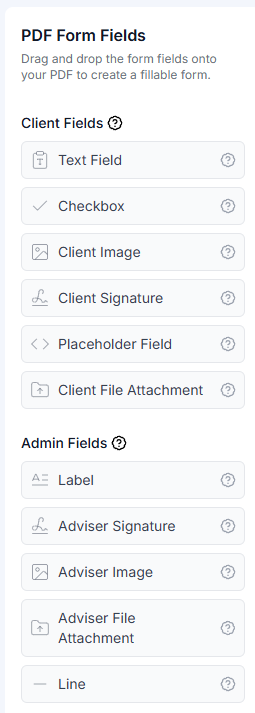
Client fields
These fields can be filled out by clients when they receive the form:- Text - Single-line or multi-line text input for names, addresses, or other information
- Checkbox - Yes/no or checkbox selections for agreements or options
- Client Image - Upload area for clients to attach photos (e.g., passport photo)
- Client Signature - Digital signature field for client signatures
- Placeholder Field - Auto-populated fields using client or case data (e.g., client name, case reference)
- Client File Attachment - Upload area for clients to attach supporting documents
For detailed examples and best practices for each field type, including when to use each one, see the PDF Form Field Types guide.
Admin fields
These fields are pre-filled by you and visible but not editable by clients:- Label - Static text labels for headings or instructions
- Adviser Signature - Your digital signature
- Adviser Image - Images or logos you add to the form
- Adviser File Attachment - Documents you attach for client reference
- Line - Visual dividers or lines to organize form sections
Admin fields are useful for adding your branding, pre-filling information, or providing instructions that clients should read but not modify.
Center panel: PDF canvas
The center panel displays your PDF pages with the background document visible. This is where you’ll add and position your interactive fields.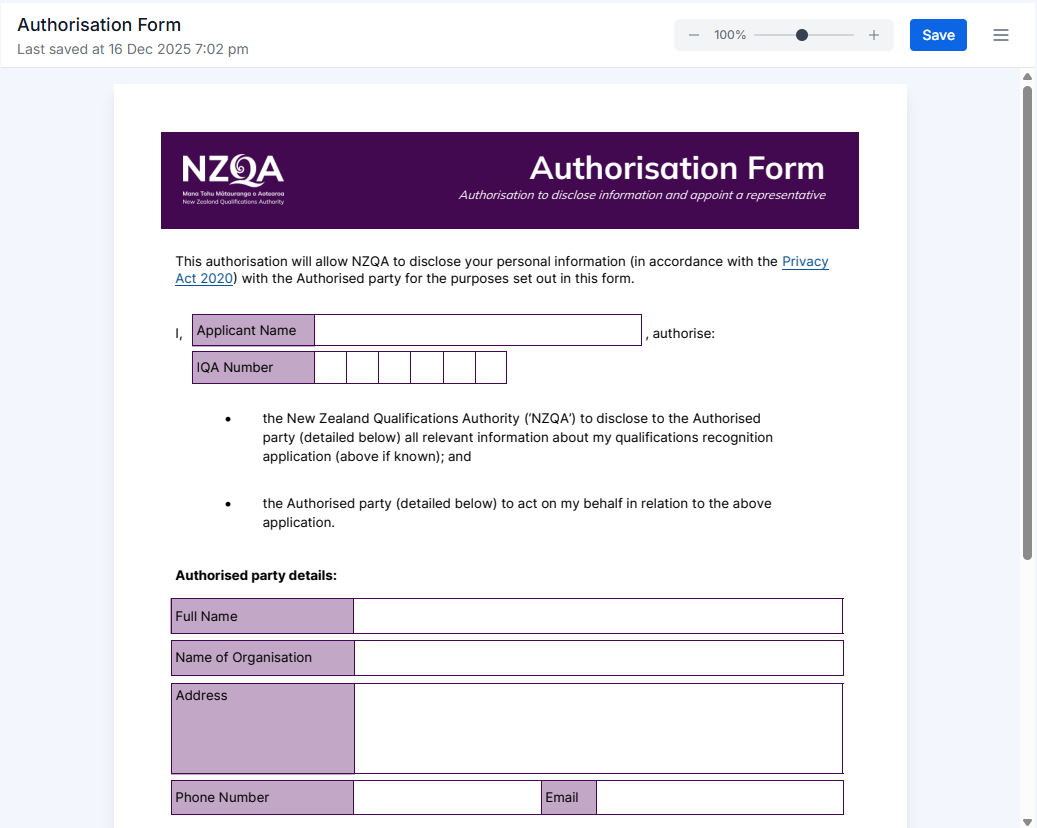
- Zoom controls - Adjust the view size for precise field placement (located in the top toolbar)
- Page navigation - For multi-page PDFs, scroll through pages vertically
- Field overlay - Fields appear as colored boxes overlaid on the PDF background
- Background image - Your original PDF content remains visible beneath the fields
Right panel: Properties panel
When you select a field on the canvas, this panel displays its properties and settings. You can configure:- Basic information - Field label and question text
- Position & dimensions - Exact coordinates and size
- Display settings - Colors, borders, and visual appearance
- Field-specific options - Options unique to each field type
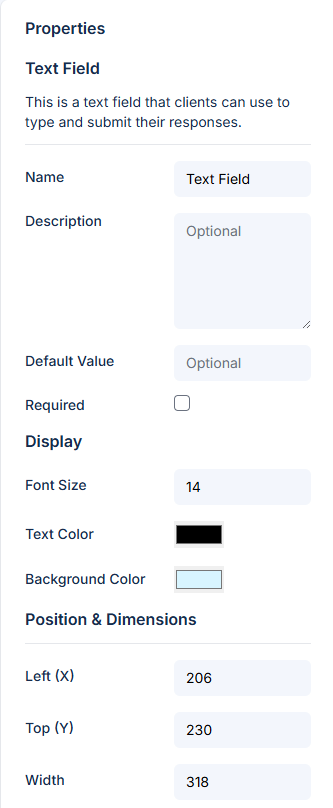
The properties panel remains empty until you select a field on the canvas. Click any field to see and edit its properties.