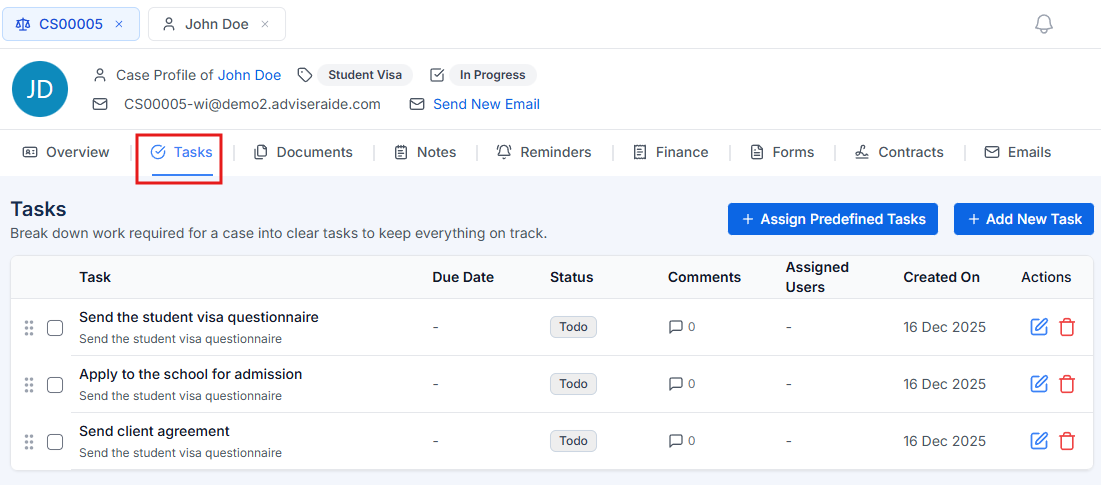
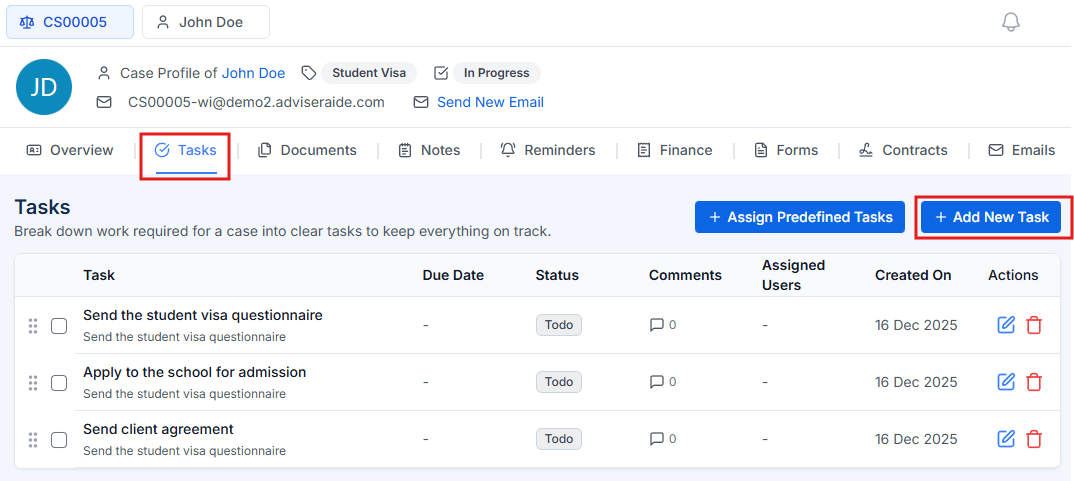
Create, assign and track the tasks required to progress an immigration case in AdviserAide.
Every case requires work to be completed - sending agreements to clients, sharing forms for completion, collecting education documents, obtaining certificates, securing school offer letters for student visas, or lodging applications with immigration. These are all work tasks that need to be done to successfully process a case.This is where tasks come in. For each case category, you can predefine tasks once in Settings. When you create a new case for that specific category (for example, a Student Visa), all the predefined tasks automatically get assigned to the case. All you need to do is tick off tasks as you complete the work. This guide covers both predefined task templates that automatically assign to cases and ad-hoc tasks you can create on the fly for unique situations.
Predefined task templates are reusable task definitions you create once in Settings. When you create a new case that matches the template’s categories, all associated tasks automatically appear on that case.
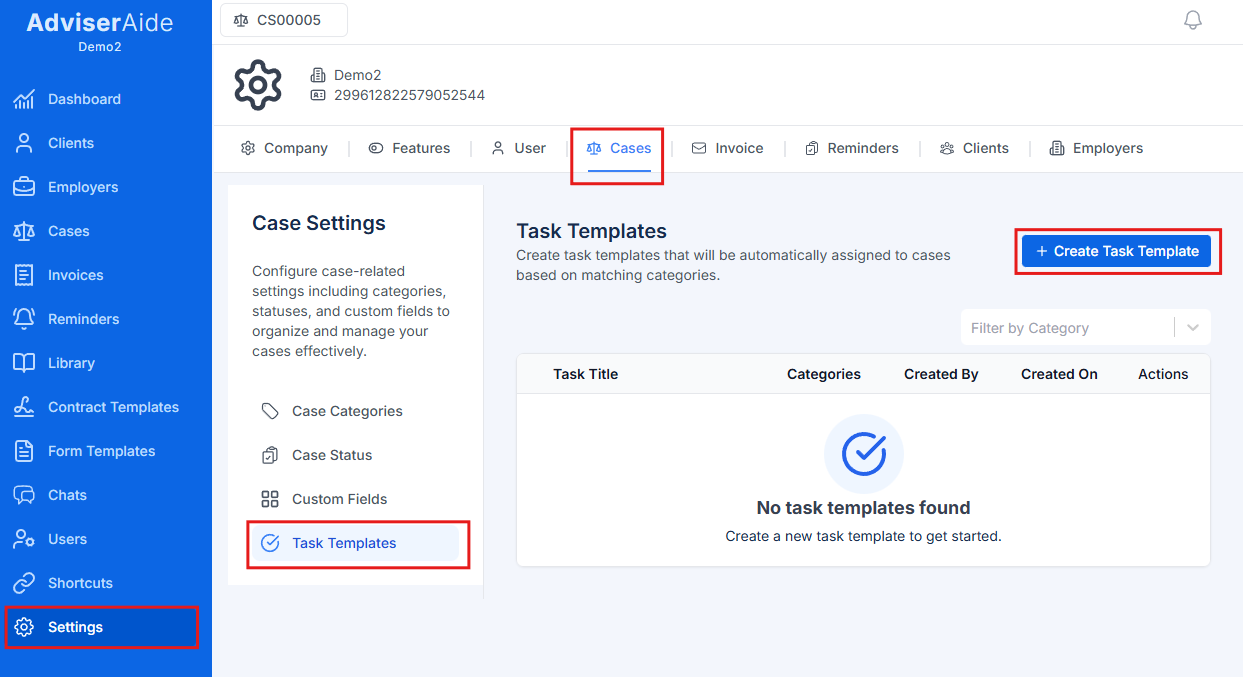
Click on Settings in the main navigation menu.Select Cases from the settings menu.Click on the Tasks tab.
Navigation path to task template settings
2
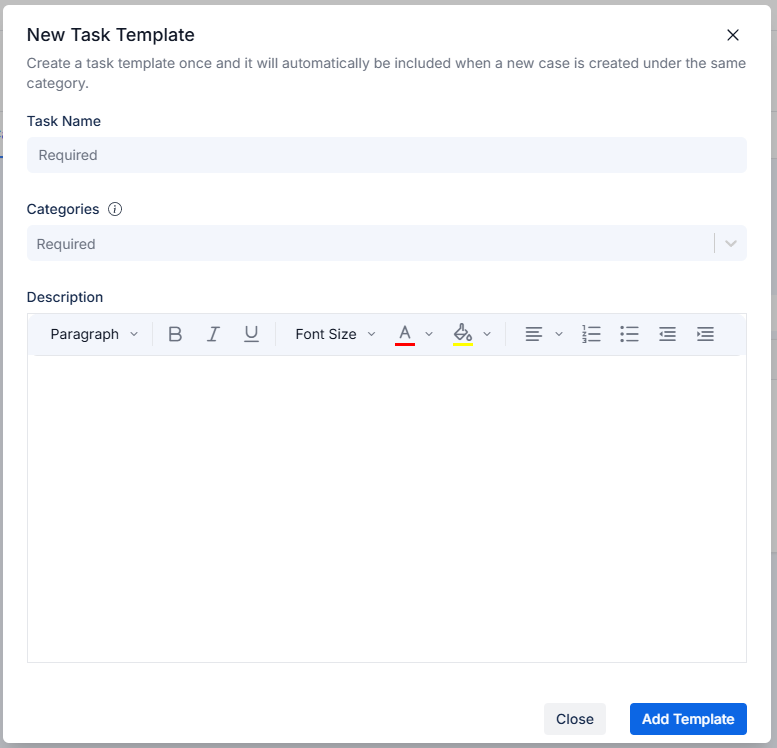
Enter task template details
Fill in the following information:
Task Name (required) – Enter a clear, action-oriented name (e.g., “Verify Employment Letter”, “Submit Application to Immigration”)
Categories (required) – Select one or more case categories. The template will automatically assign to cases matching these categories.
You can select “All” to assign this task to every case regardless of category
Description (optional) – Add detailed instructions or notes about the task. Use the rich text editor to format instructions, add links, or create lists.
Task template creation modal with all fields filled
The categories you select determine which cases will automatically receive this task. If categories don’t match a case, the task won’t appear on it.
3
Save the task template
Click the “Add Template” button to save your task template.
4
Reorder templates (optional)
The order of templates in the list determines the order tasks appear on cases.To reorder templates:
Hover over a template row
Click and drag using the drag handle (⋮⋮) on the left side