

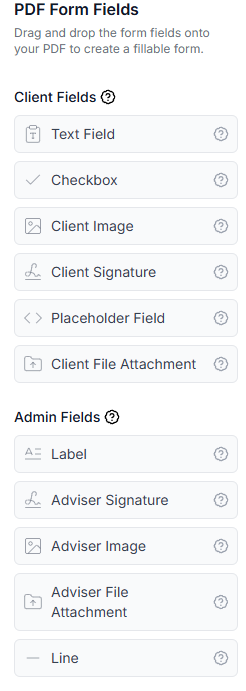
Client fields
These fields can be filled out, uploaded to, or signed by clients when they receive the form.Text field
Use for any text-based information clients need to provide.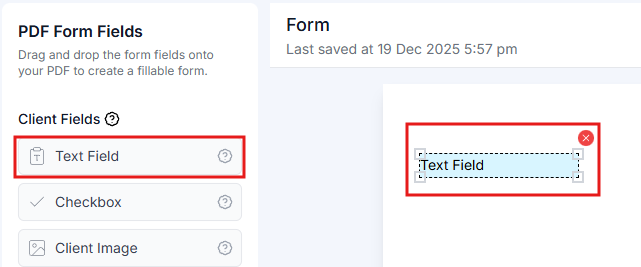
- Names (first name, last name, full legal name)
- Addresses (street, city, postal code)
- Email addresses
- Phone numbers
- Reference numbers
- Passport numbers
- Any short or long text responses
- Single-line - For brief responses like names or reference numbers
- Multi-line - For longer responses like addresses or explanations
- Character limits - Set maximum length if needed
- Validation - Email format, phone format, etc.
Checkbox
Use for yes/no questions, agreements, or multiple choice selections.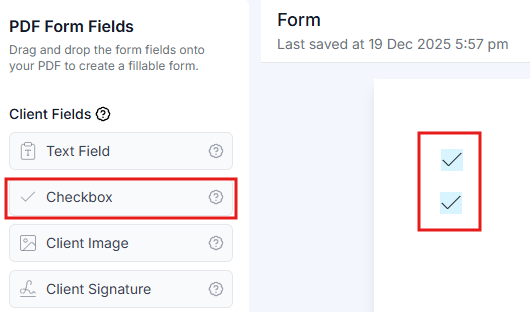
- Agreement acknowledgments (“I agree to the terms”)
- Yes/No questions
- Optional selections from a list
- Consent forms
- Declaration statements
- Default checked state - Pre-check the box if needed
- Required - Force clients to check the box before submission
Checkboxes are commonly used for declarations and consent statements in government forms.
Client signature
Digital signature field where clients can sign the form.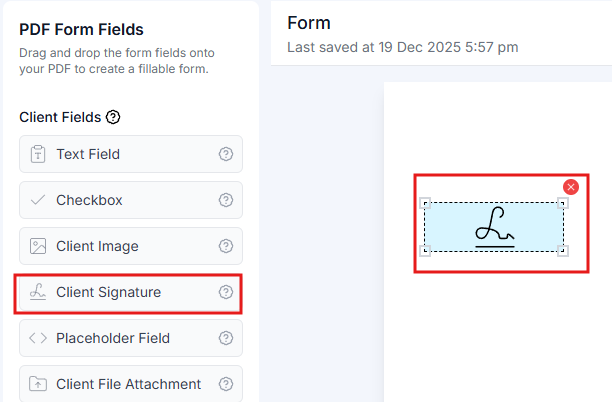
- Authorization forms
- Consent forms
- Declarations
- Any document requiring client signature
- Legal agreements
- Draw - Sign with mouse, finger, or stylus
- Type - Type their name in a signature font
- Upload - Upload an image of their signature
Digital signatures captured through PDF forms are legally valid and automatically dated with the submission timestamp.
Client image
Upload area for clients to attach photos.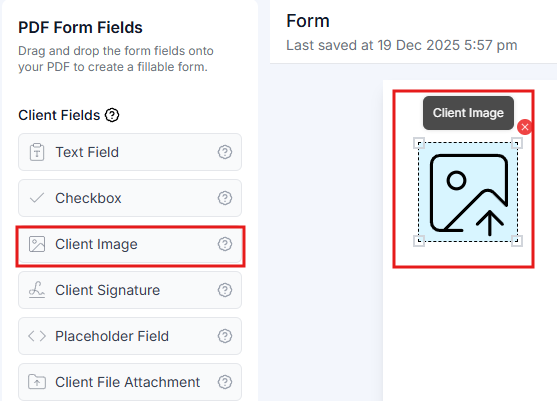
Client file attachment
Upload area for clients to attach supporting documents.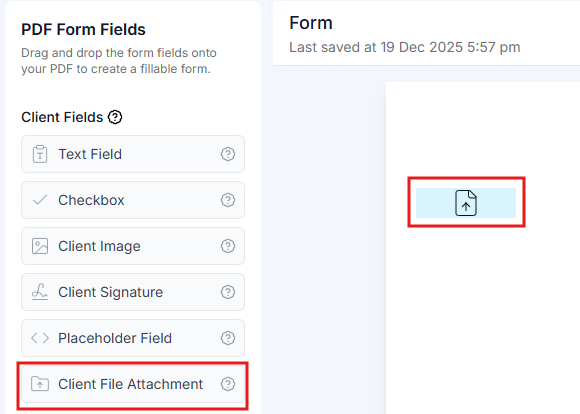
- Supporting documents
- Educational certificates
- Employment letters
- Bank statements
- Any PDF or document uploads required
When clients upload files through attachment fields, the documents are automatically saved to the case documents folder.
Placeholder field
Auto-populated fields that pull data from the client’s profile or case information.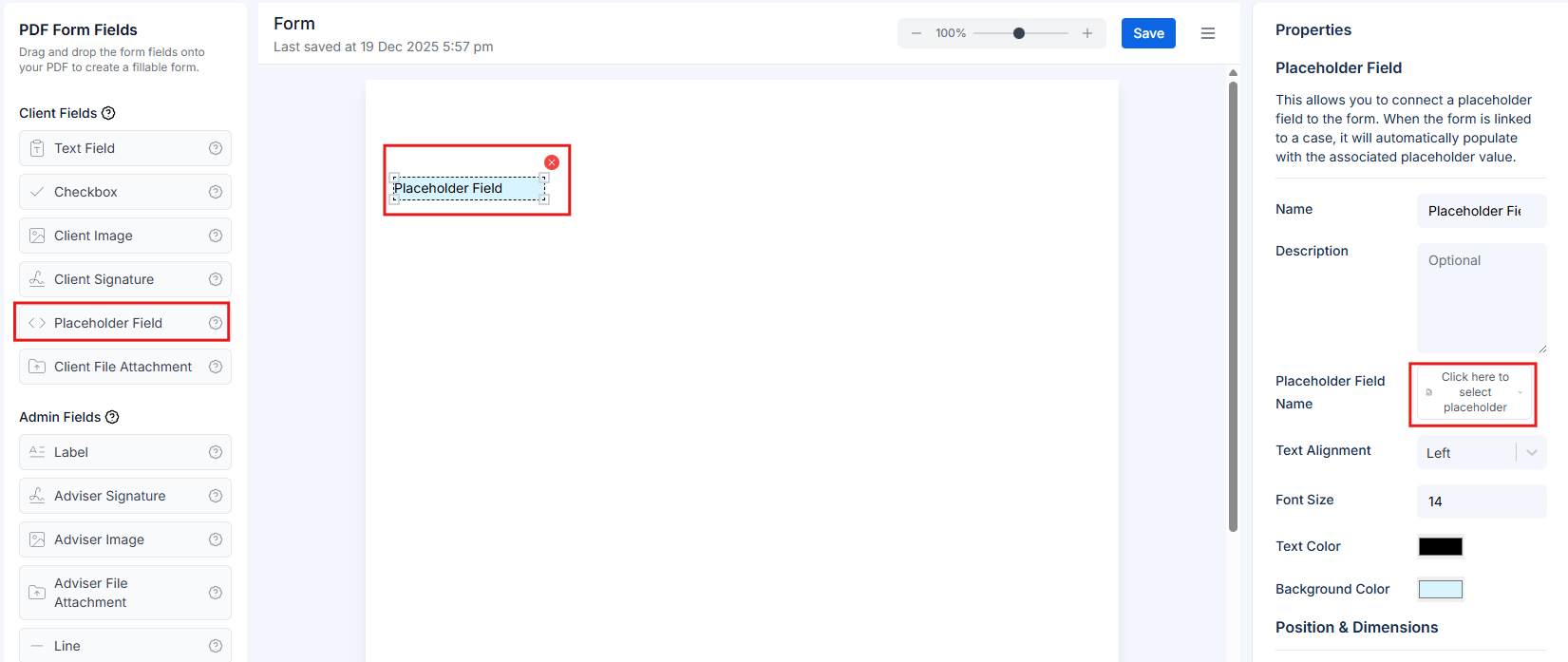
- Client’s first name, last name, or full name
- Date of birth
- Case reference number
- Application date
- Any data already in the system
- Reduces manual data entry for clients
- Ensures accuracy and consistency
- Saves time on repetitive information
- Client profile fields (name, DOB, contact details)
- Case information (case ID, case type, created date)
- Organization details (adviser name, organization name)
Admin fields
These fields are pre-filled by you and visible to clients but not editable. They’re useful for adding branding, instructions, or pre-filled information.Label
Static text labels for headings, instructions, or information.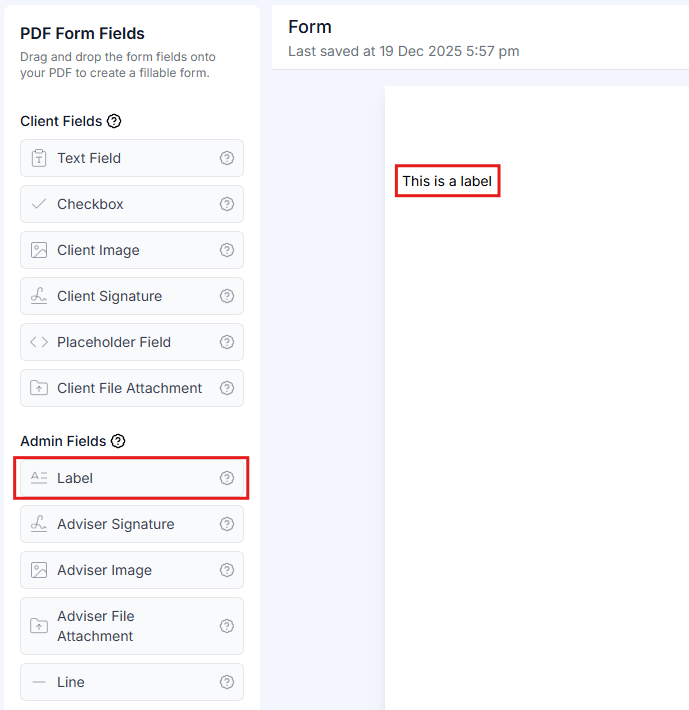
- Section headings
- Instructions or guidance
- Additional context for questions
- Disclaimers or notes
- Form titles
- Company name, email address, phone number
- Any static text or labels that don’t need client input
- Font size and color
- Text alignment
- Bold, italic, underline formatting
Labels are read-only for clients. Use them to provide additional context or structure to your form.
Adviser signature
Your digital signature that appears on the form. This field is pre-filled with your signature and is visible but not editable by clients.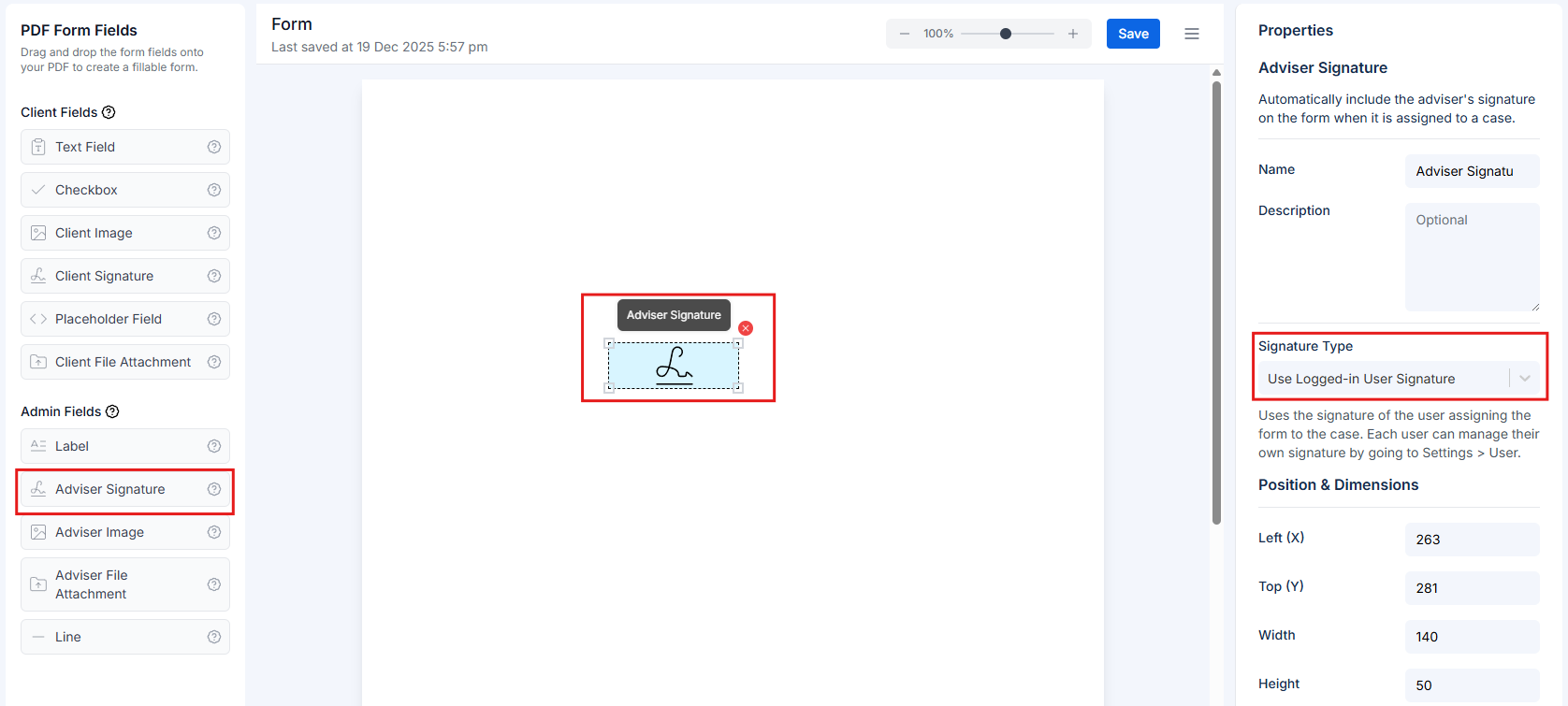
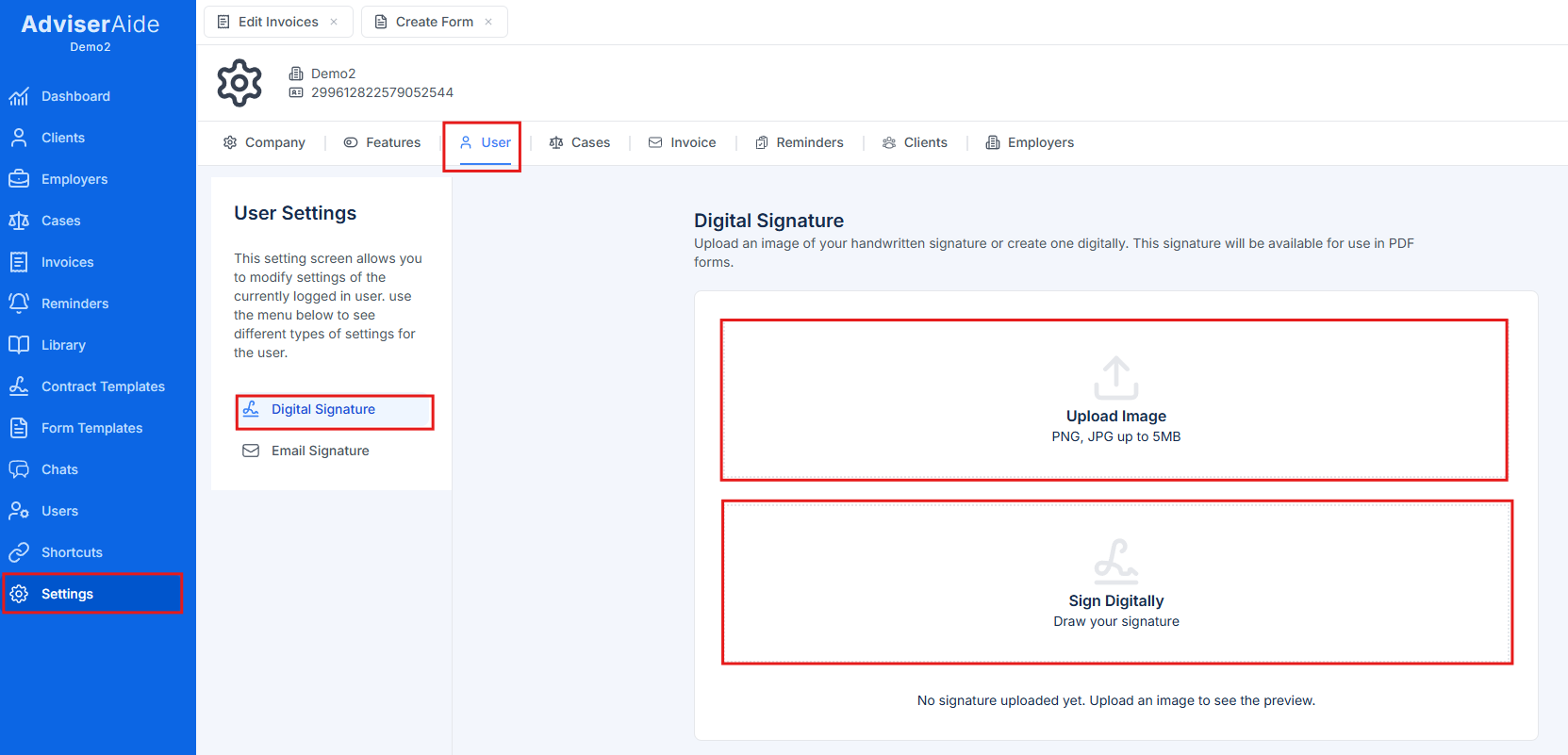
You only need to create your digital signature once. After it’s saved in your profile, it can be used on unlimited forms and will appear consistently across all documents.
Adviser image
Images or logos you add to the form.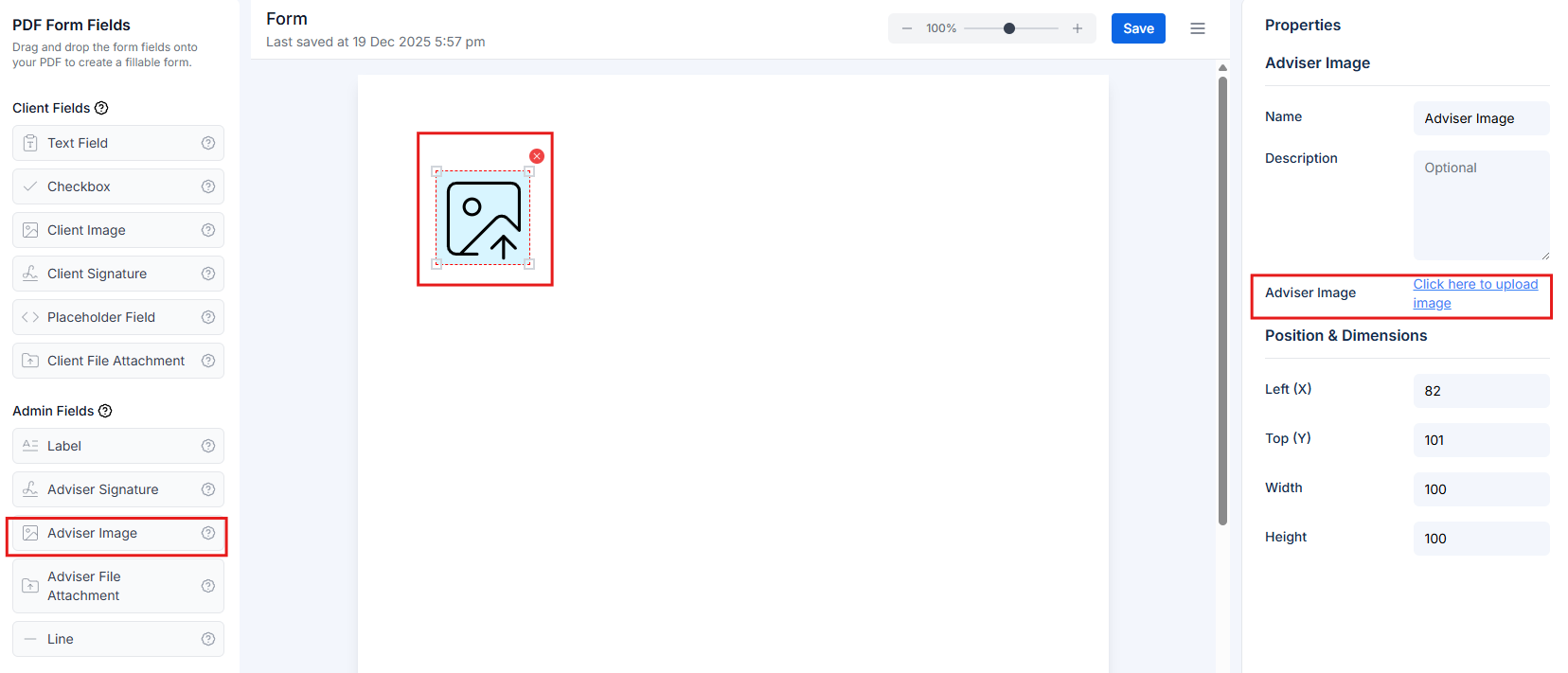
- Company logo
- Branding elements
- Any visual element
Adviser file attachment
Documents you attach to the form that clients can view and download. Use this field to provide reference materials, instructions, or supporting documents that help clients complete the form correctly.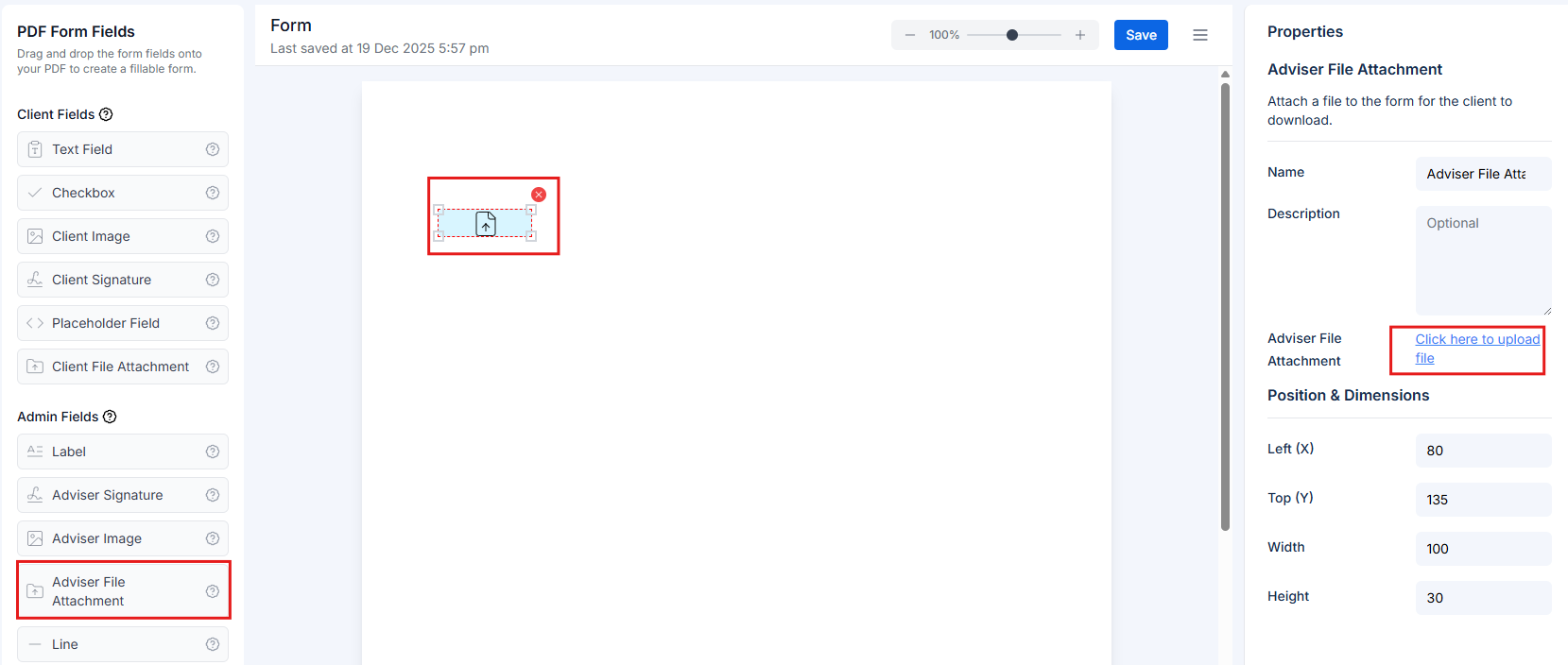
Line
Visual dividers to organize form sections.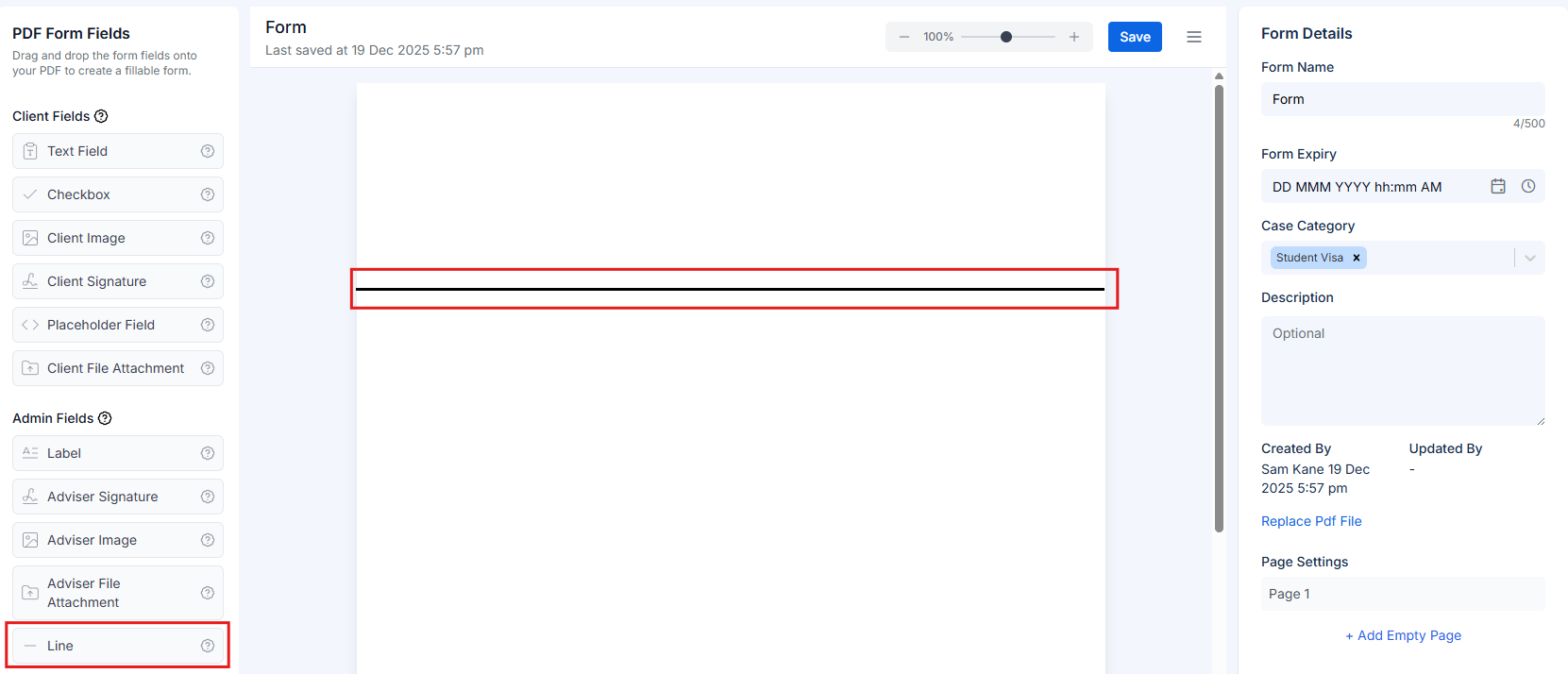
- Separating form sections
- Creating visual breaks
- Highlighting important areas
- Improving form readability
- Line thickness
- Line color
- Horizontal or vertical orientation