

How do I add an adviser's signature to my agreements?
How do I add an adviser's signature to my agreements?
To add an advisers signature to a contract there is only one way. First you will need a image of your signature. Once you have a image follow these steps.
1
Open your contract template
Open your contract by going to the contract template menu from the left menu panel. See below for an example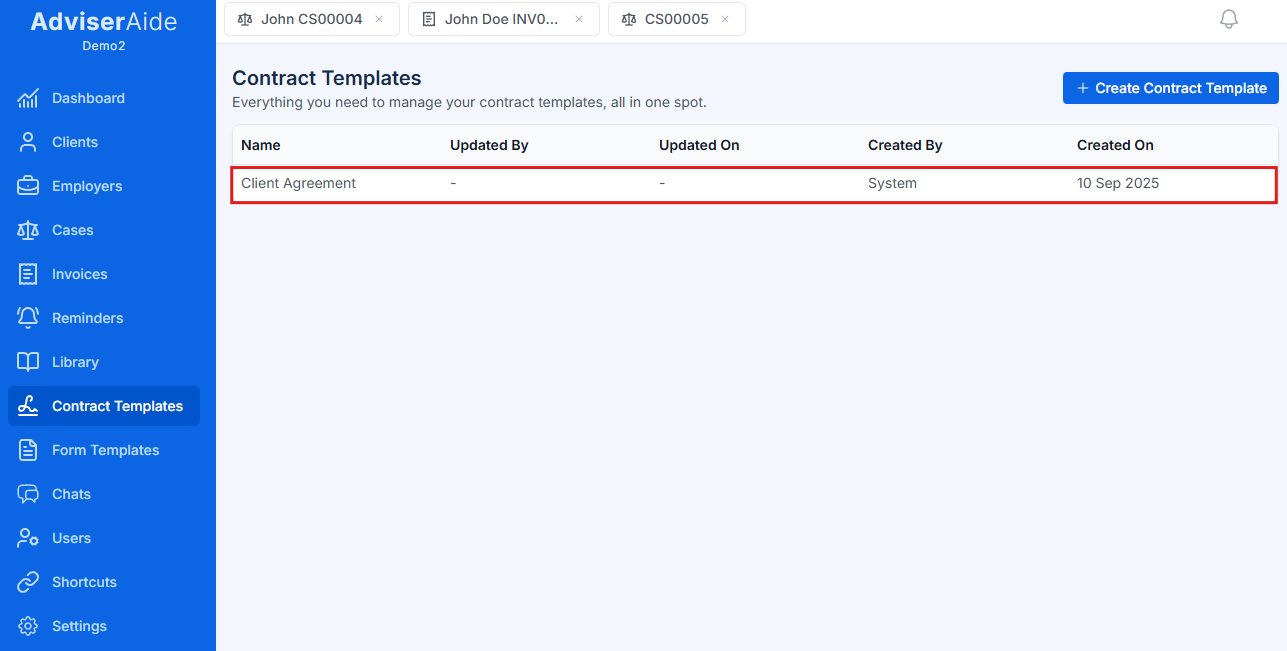
2
Open the word editor
Then open your contract and you will see the following word editor window.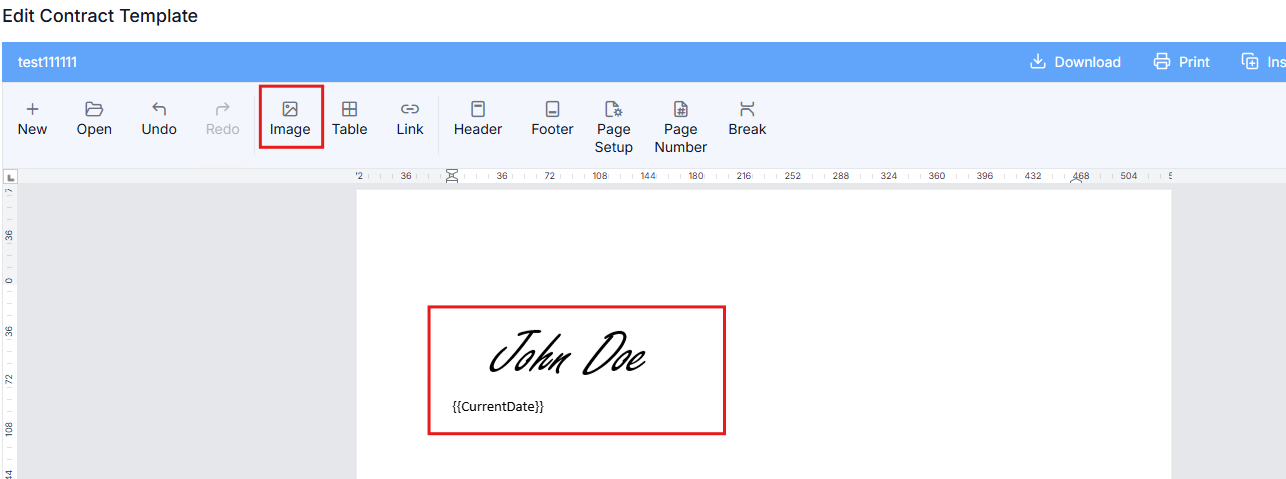
3
Upload your signature image
Simply click on the image button and upload your image once uploaded the image will appear in the contract as highlighted in the screenshot above.
4
Add the signed date placeholder
For the adviser signed date, use the
{{CurrentDate}} placeholder. When you assign the contract to a case, this will automatically update to the assignment date.How do I set up contracts for multiple signers?
How do I set up contracts for multiple signers?
There may be times when you need more than one person’s signature on a contract. For instance, if two people are listed, both will need to sign. We also understand that signatures may not always happen at the same time. Let’s walk through how you can handle this using Adviseraide.Step 1. Open the contract template by clicking on the contract template in the left panel and clicking on a contract.Step 2. Insert signature placeholdersClick on the placeholder field button highlighted below and add signature placeholders in your template. You will see the following placeholder screen popup from the right side
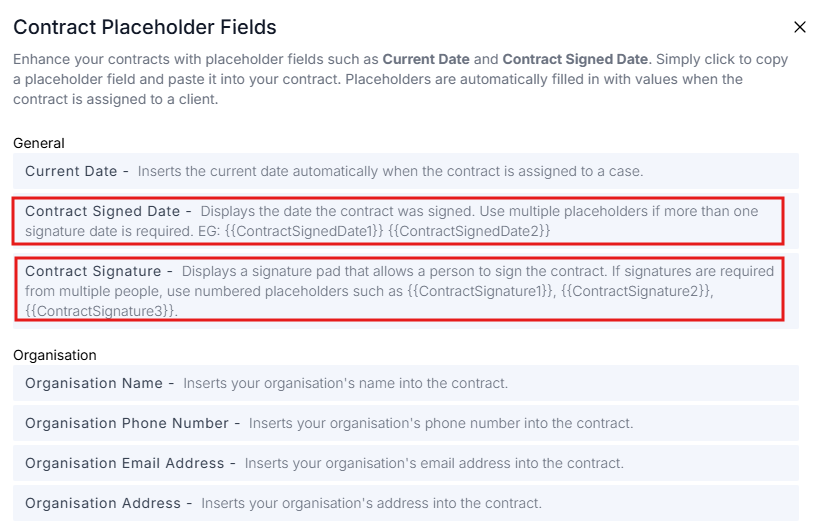 Here you can click on the
 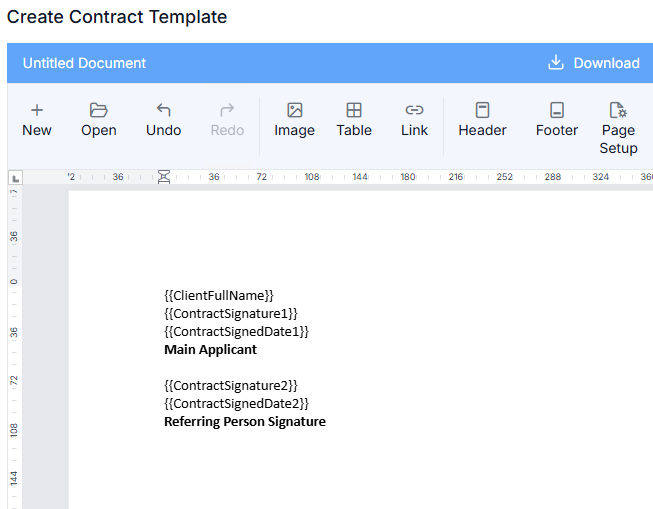 Next step: If you want the second person’s name to come from the client profile, you can do this by following the steps below.
{{ContractSignature1}} {{ContractSignature2}} and paste them into your word editor by using Ctrl+VWhen you paste the signature you will get {{ContractSignature}} and you have to manually add the numbering to {{ContractSignature2}} {{ContractSignature3}} etcAdd unique signature datesTo add contract signed dates use: {{ContractSignedDate1}} {{ContractSignedDate2}} This ensures that the date will only be inserted when the second signer completes their signature.Here is final example.