Once you’ve sent an invoice to a client by following Creating and Sending an Invoice to a Client, you’ll want to record payments and email receipts to your client. Adviseraide makes this straightforward.
Important: If you don’t record a payment against an invoice, it may become overdue once the due date passes. In that case, Adviseraide will automatically begin sending overdue reminders to the client until payment is recorded.
Adding a payment
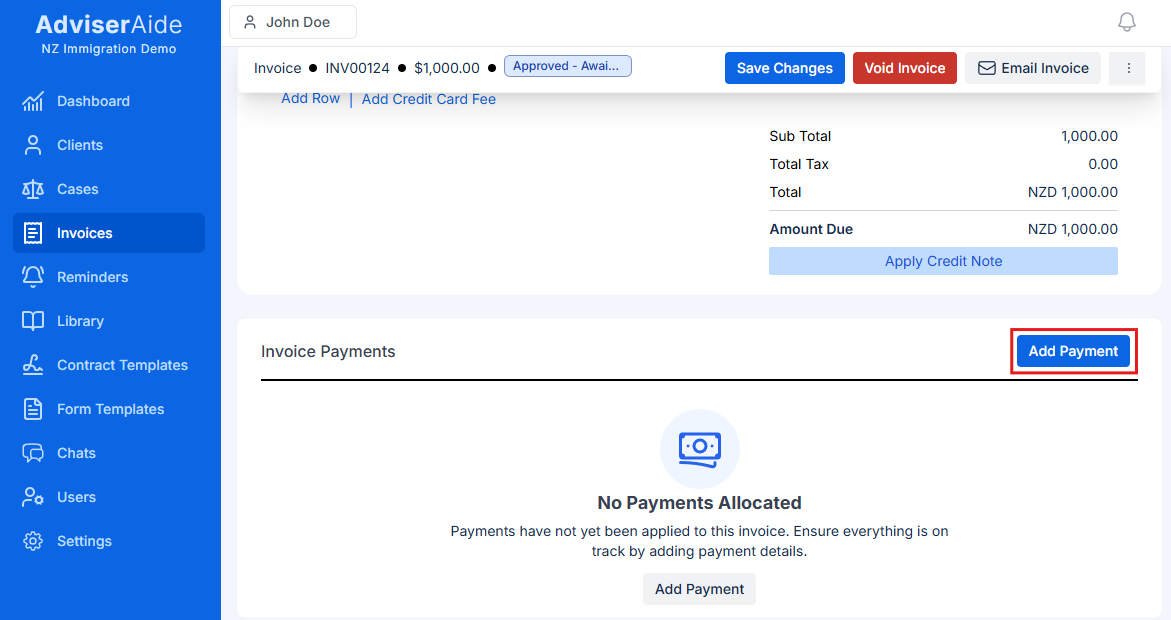
On the Update Invoice page of a particular invoice, click on the Add Payment button (highlighted in the screenshot below).
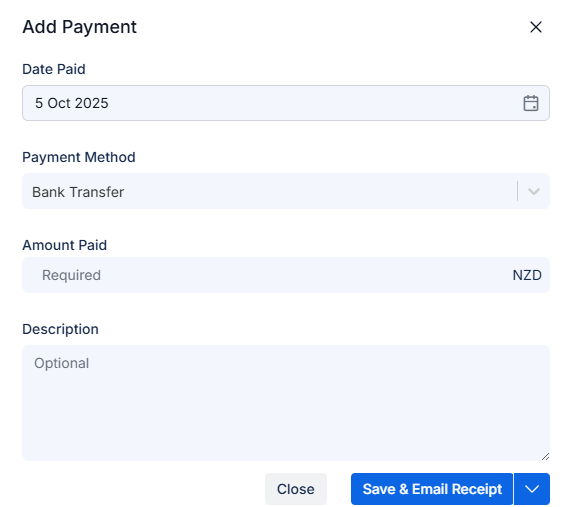
Clicking it opens the following form where you can fill in the fields to add a payment
- Enter the payment amount - You can record partial payments or the full amount due. Adviseraide adjusts the due and paid amounts automatically.
- Select the payment date - Choose the date the payment was received.
- Choose the payment method - Such as bank transfer, credit card, cash, or other methods you’ve configured.
- Add a reference in description - Useful for recording transaction IDs or bank references.
- To save the payment - Click the Save & Email Receipt button to record the payment and send a receipt to the client.
Sending a receipt to the client
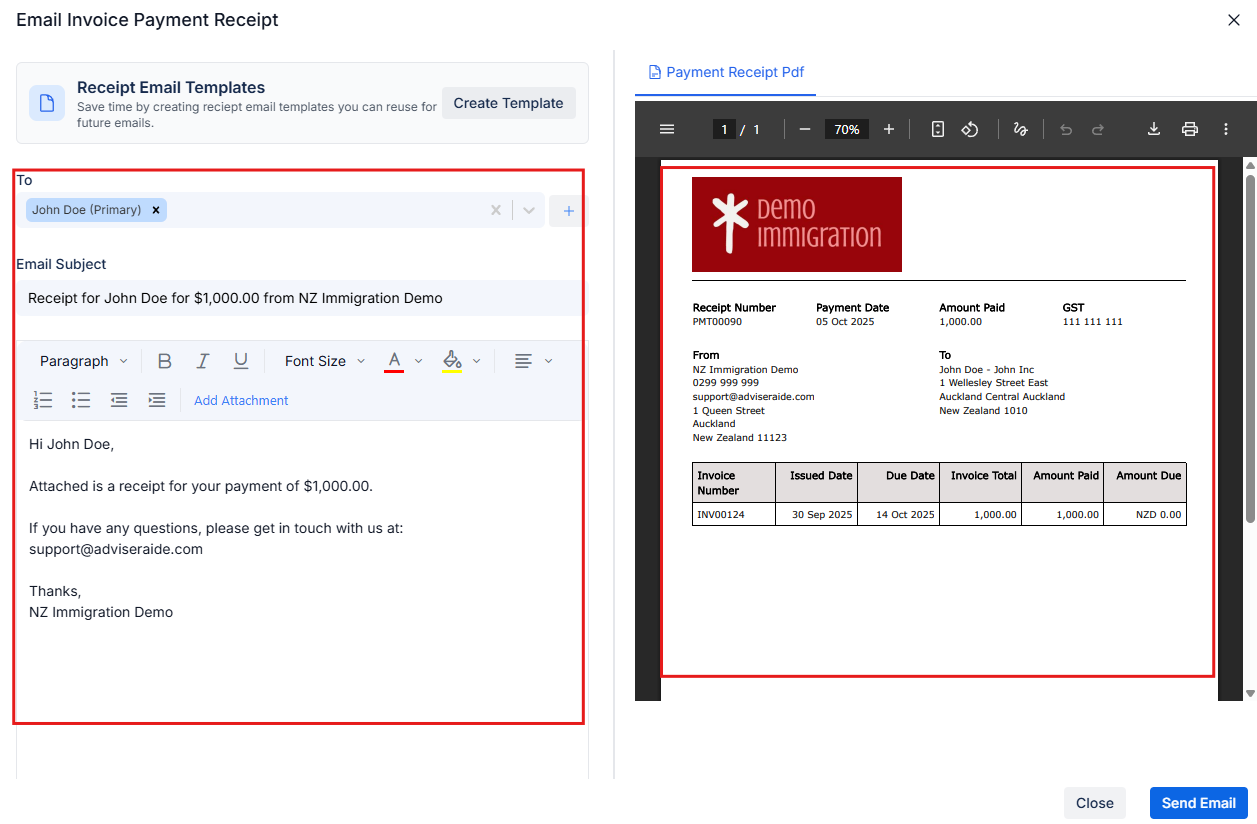
After clicking Save & Email Receipt, an email window will appear.
This screen is divided into two sections:
- Left side: Shows the email body that the client will receive.
- Right side: Displays the PDF receipt that will be attached to the email.
When you’re ready, click Send Email to send the receipt to your client. Once the email is sent, the email will automatically appear in the case’s Sent Emails section.