

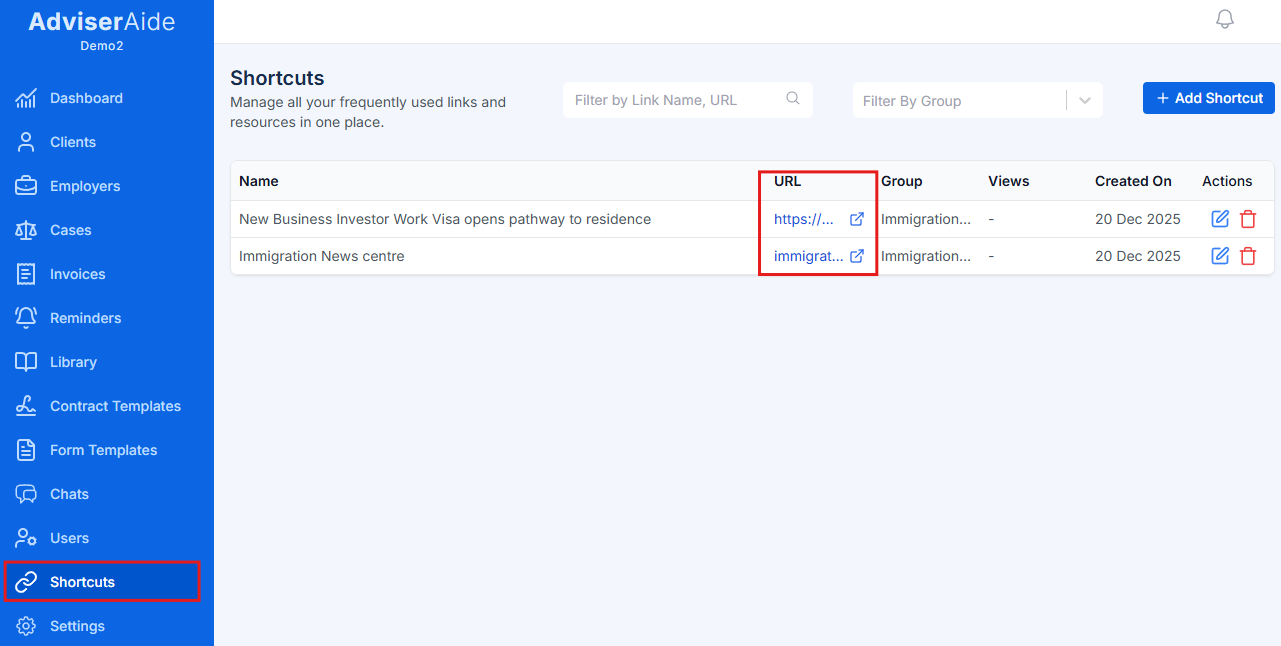
Adding a shortcut
1
Navigate to shortcuts
From the main navigation menu, click on Shortcuts.This opens the shortcuts page where you can view all existing shortcuts and add new ones.
2
Click Add Shortcut
Click the Add Shortcut button in the top right corner of the page.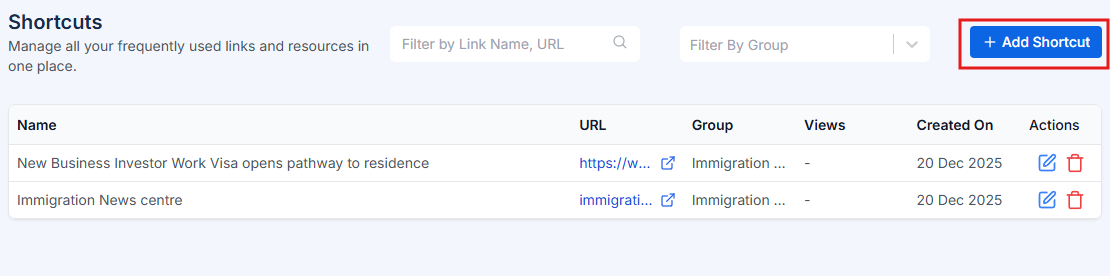
3
Enter shortcut details
Fill in the shortcut information: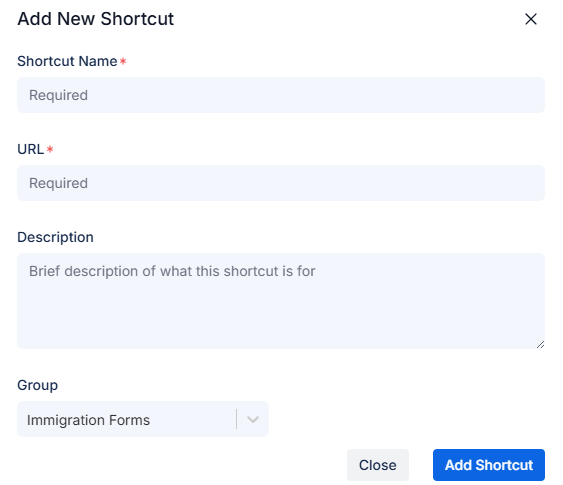
- Name (required) - Enter a clear, descriptive name for the shortcut (e.g., “INZ Online Portal”, “UK Home Office”)
- URL (required) - Paste the complete web address including https://
- Description (optional) - Add notes about what this link is for or when to use it
- Group (required) - Select a category to organize your shortcuts, or create a new group
4
Save the shortcut
Click Save to add the shortcut to your list.
The shortcut is now available to everyone in your organization. Team members can click the link to visit the website, and the system will automatically track usage.