

Creating a password for your account
1
Access the password setup page
Click here to access the password setup page. You’ll see the following User Detail page - just enter your email address and select Send Verification Code. If the link above doesn’t work, you can visit app.adviseraide.com and use the Forgotten password option to setup your password.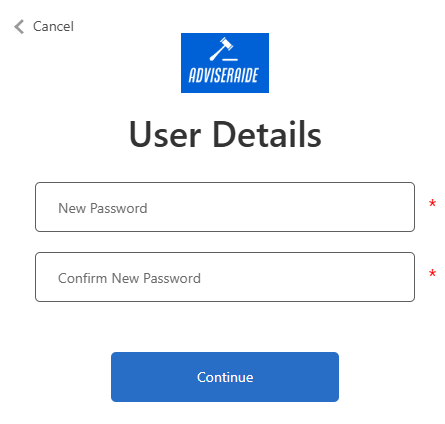
2
Enter verification code
Check your email for the verification code, then enter it to confirm your email and move forward.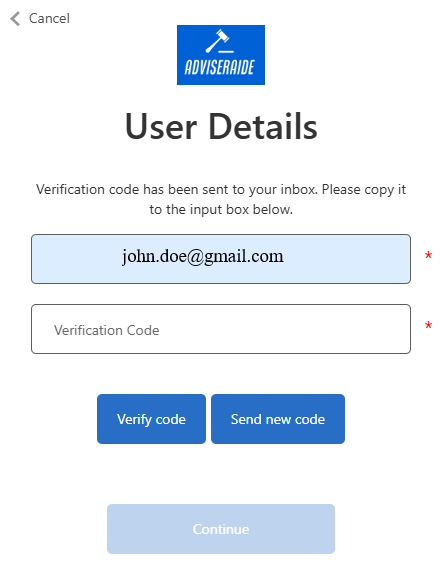
3
Continue to next step
Once your email is verified, you’ll be taken to the next page. Just click Continue to move on.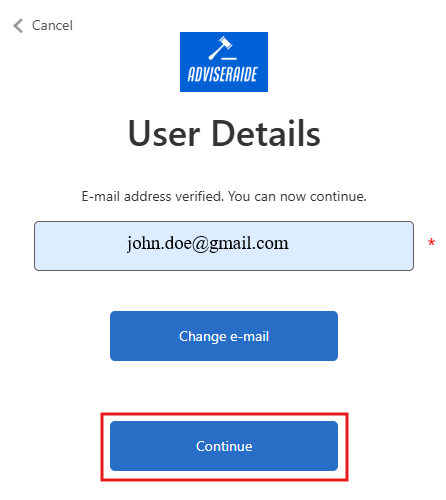
4
Choose your password
For the last step, choose a strong password for your account and then click Continue.All done! Your password is now set.
Company Settings
Once you’ve set up your password, log in to AdviserAide, open Settings, then select Company.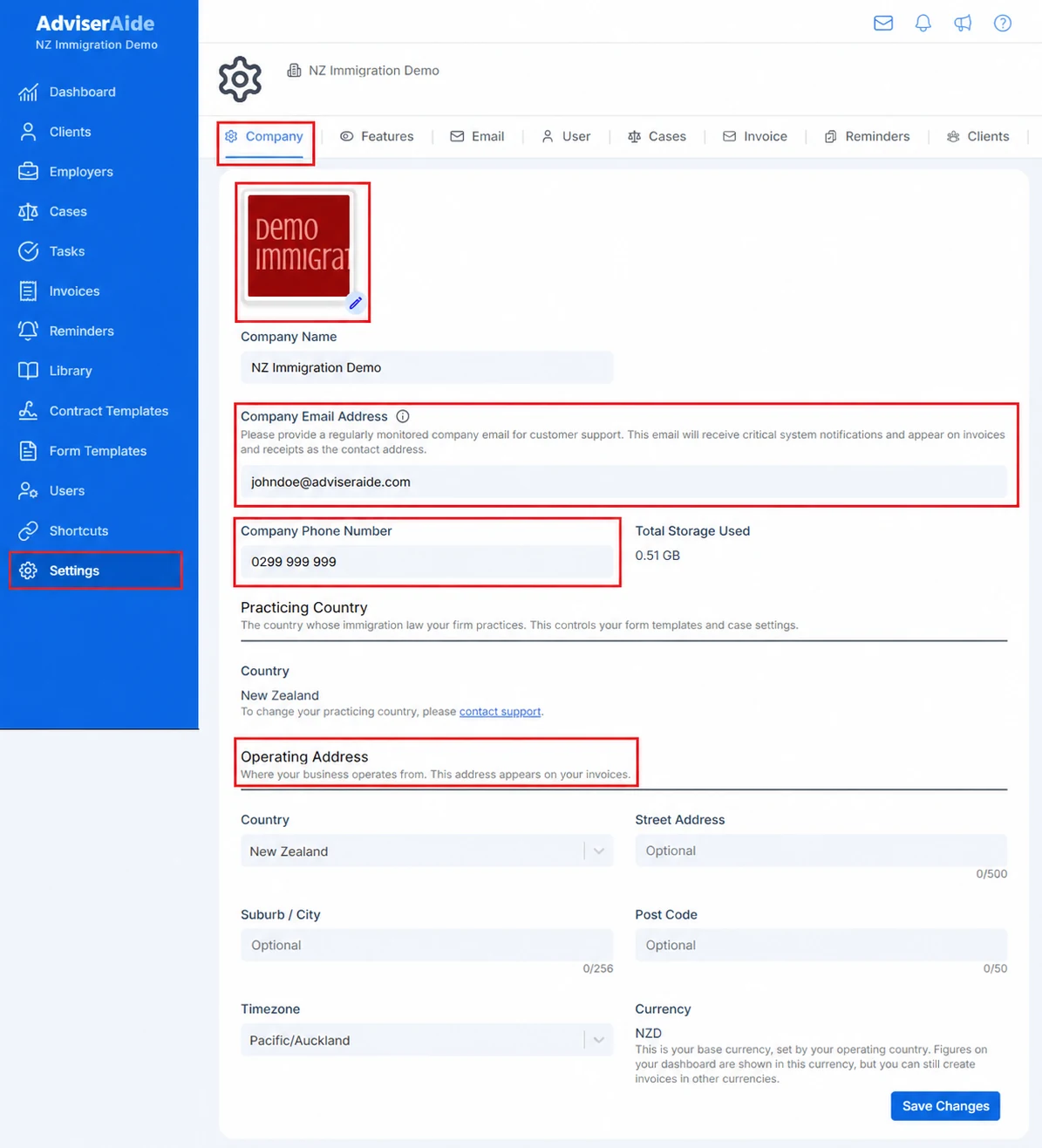
Complete your company details, practicing country and operating address under Settings, then Company
Company details
- Company logo - Upload your organisation’s logo.
- Company email address - Use an email address your team checks regularly. AdviserAide sends important system notifications to this address and shows it as the contact address on invoices and receipts.
- Company phone number - Enter your organisation’s main contact number.
Practicing country
Your Practicing Country is the country whose immigration law your organisation works with. AdviserAide uses it to provide the relevant form templates and case settings. The practicing country cannot be changed from this page. Contact AdviserAide Support if it needs to be updated.Operating address
Your Operating Address is where your business operates from. This address appears on your invoices and can be different from your practicing country.- Country - Select where your business operates. This controls the address fields, timezone options and base currency available to your organisation.
- Street Address, Suburb / City and Post Code - Enter the address you want to appear on invoices. If you enter any address details, you must also enter a street address.
- Timezone - Select the local timezone your organisation uses.
- Currency - AdviserAide sets your base currency from the operating country. Dashboard figures use this currency, but you can still create invoices in other currencies.
Invoice Settings
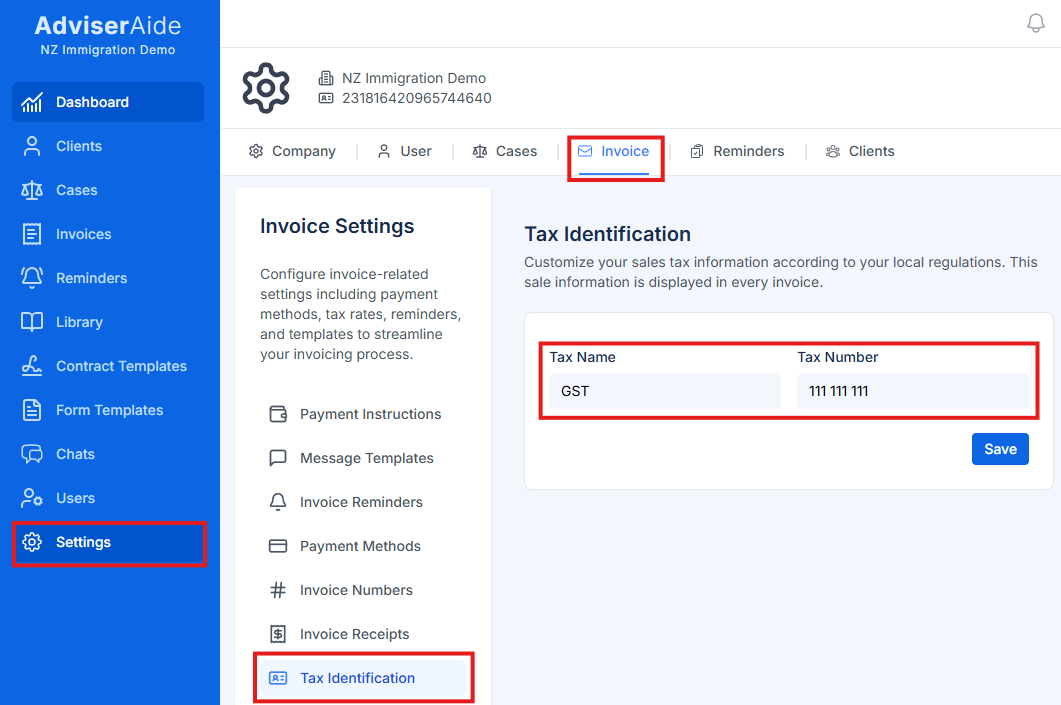
If you plan to send invoices, add payment instructions in the invoice settings and enter your GST number (if applicable). This step is optional and only needs to be completed once you start invoicing clients. The payment instructions you provide will automatically appear on the PDF invoices sent to your clients.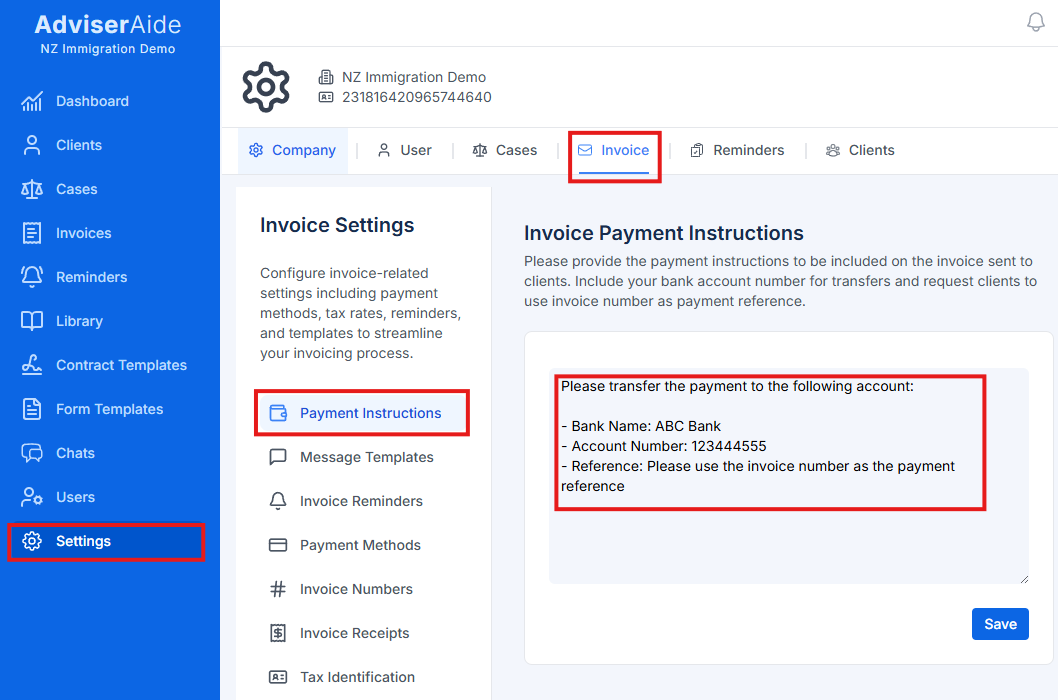
Next Step
Getting Started
Follow the Getting Started guide to add your first client, create a case, prepare an agreement, and explore form templates.
If you have any questions or need assistance, send us an email at support@adviseraide.com , and we will be happy to assist you.