Record and issue a client refund against the relevant invoice in AdviserAide.
When a client asks for their money back, for example a cancelled consultation or a service that didn’t go ahead, you can record the refund against their invoice and email them a refund receipt, all from the invoice page.Before you start, it helps to know three things:
Pay the client first. AdviserAide records the refund and sends the receipt. It does not move money itself. Transfer the funds from your bank account as you normally would, then record it here. If Xero is connected, AdviserAide can also record the refund payment in Xero for you.
A refund never changes the invoice. The invoice total, the payments the client made, and the amount due all stay exactly as they were. The refund is tracked separately, so your records always show what was actually invoiced and paid.
Nothing is sent to your client automatically. An email only goes out if you choose Save & Email Refund. If you just want to record the refund, no notification of any kind reaches the client.
1
Open the invoice and click Add Refund
Open the invoice you’re refunding and scroll down to the Invoice Refunds section. Click Add Refund. (This section appears once the invoice has at least one payment, because you can only refund money you’ve actually received.)
The Invoice Refunds section sits below the invoice payments
2
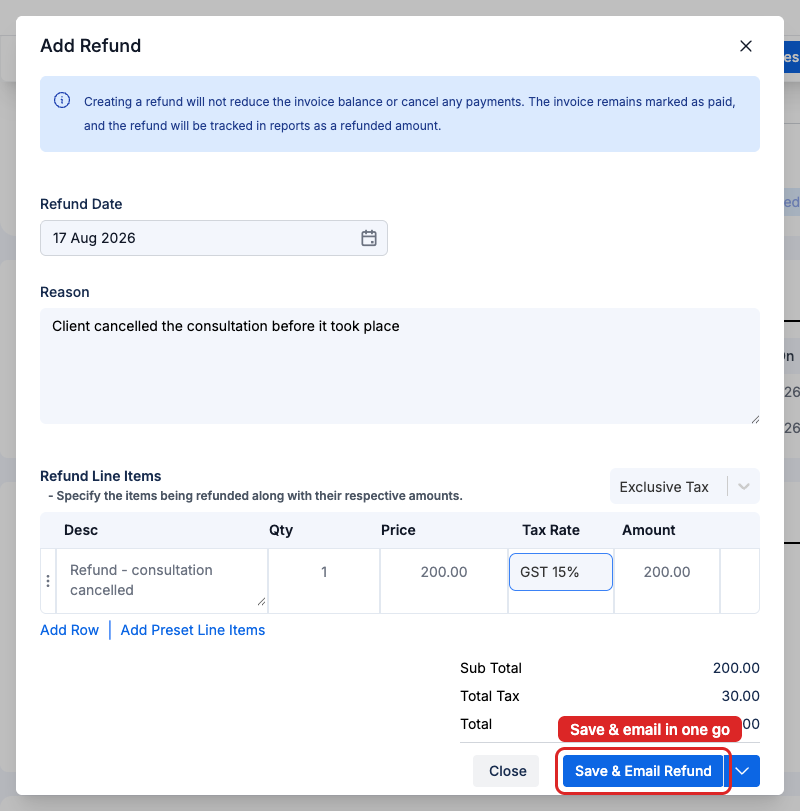
Enter the refund details
Refund Date – When you paid the money back.
Reason – A short note like “Client cancelled the consultation”. This appears on the refund receipt, so write it for your client.
Refund Line Items – What you’re refunding and how much. The total at the bottom is the amount the client gets back.
Xero section (when Xero is connected) – Choose whether AdviserAide also records the refund payment in Xero and which Xero account the money leaves. See Credit notes and refunds with Xero.
Fill in the date, reason, and the amount being refunded
3
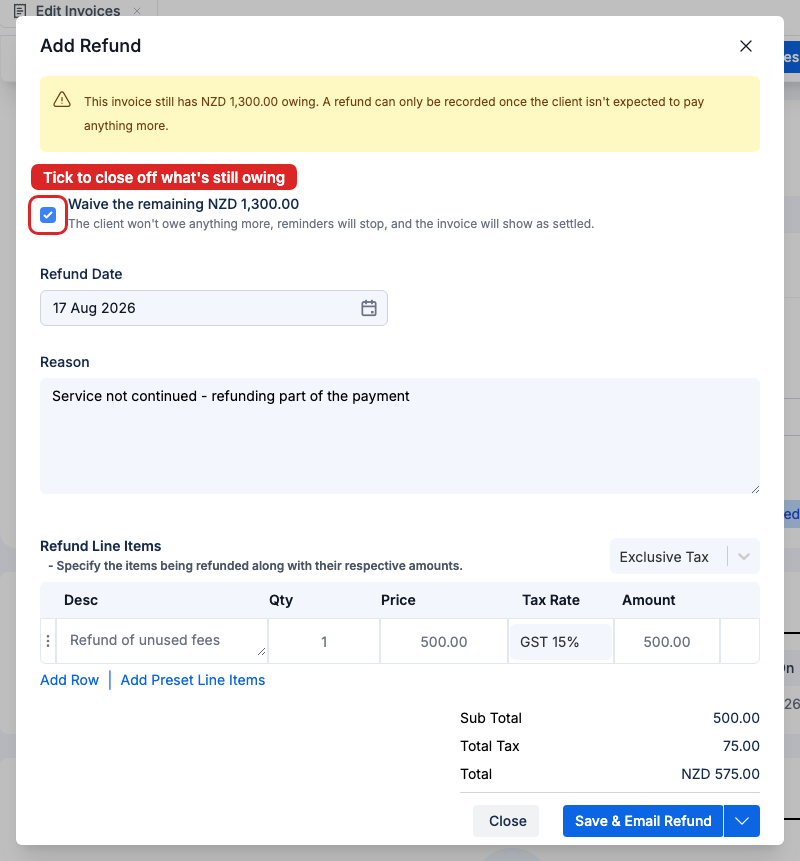
If the invoice still shows an amount owing, tick the waive box
Tick Waive the remaining amount only when the invoice will still have an amount owing after the refund and the client will not pay it. Say the invoice was 2,000,theypaid1,000, and you’ve agreed to keep a fee and refund the rest - the client isn’t going to pay the remaining balance, so the invoice needs to be closed off.Tick Waive the remaining amount and AdviserAide takes care of it in one go: the leftover balance is written off, automatic payment reminders stop, and the invoice shows as settled. You don’t need to do anything else. The refund and the write-off are saved together.
One tick closes off the balance. No more reminders, nothing more owed
If the invoice is already fully paid, you won’t see this box at all.
4
Save, and email the refund receipt if you want to
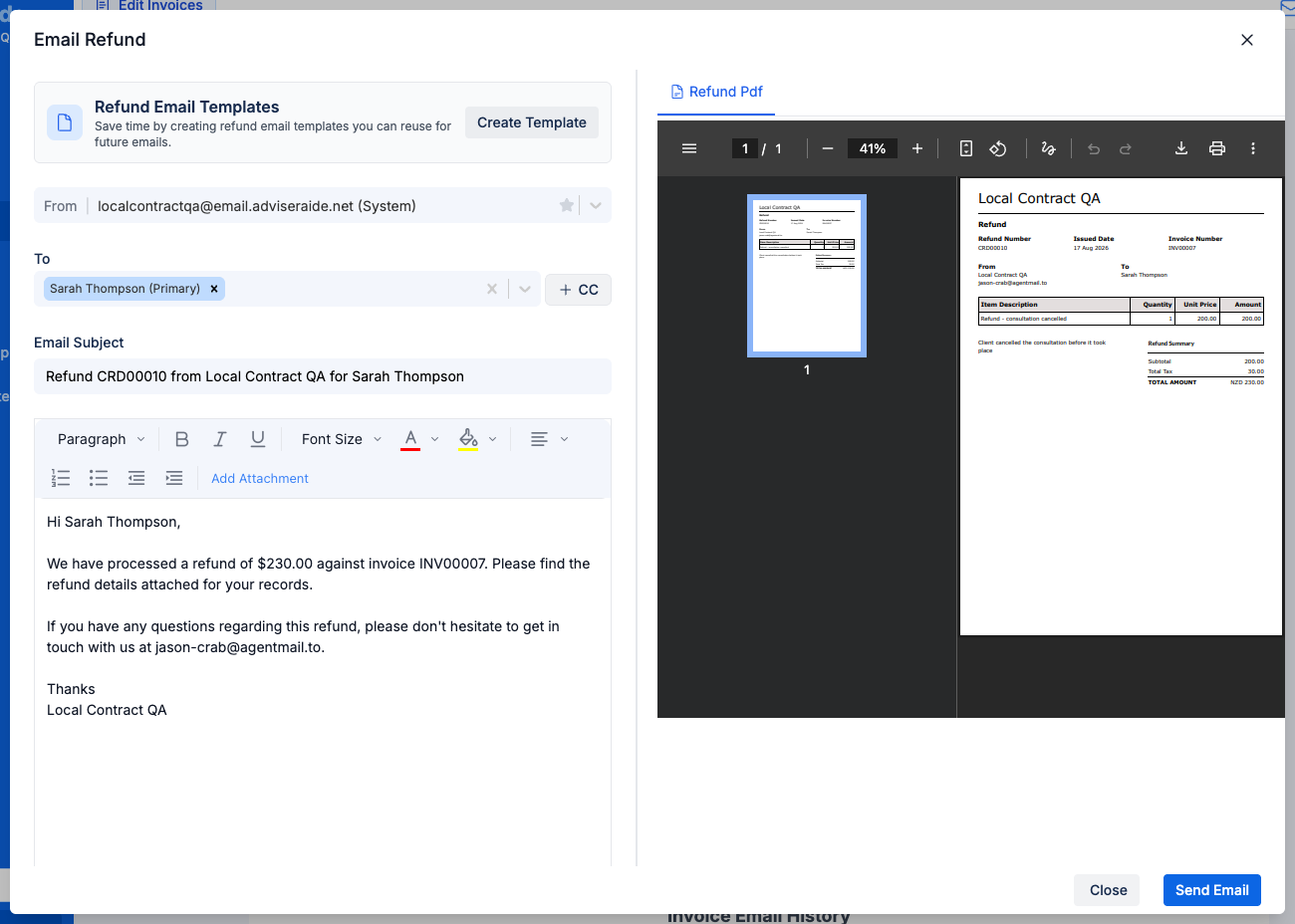
Click Save & Email Refund to save and open the email screen in one step. The email comes pre-written, and the refund receipt PDF is attached. You can see it on the right before anything is sent. Click Send Email when you’re happy with it.If you don’t want to email the client, click the small arrow next to the button and choose Save Refund instead. The refund is recorded and the client is not contacted.
The refund receipt PDF is attached and shown before you send
5
Check the invoice afterwards
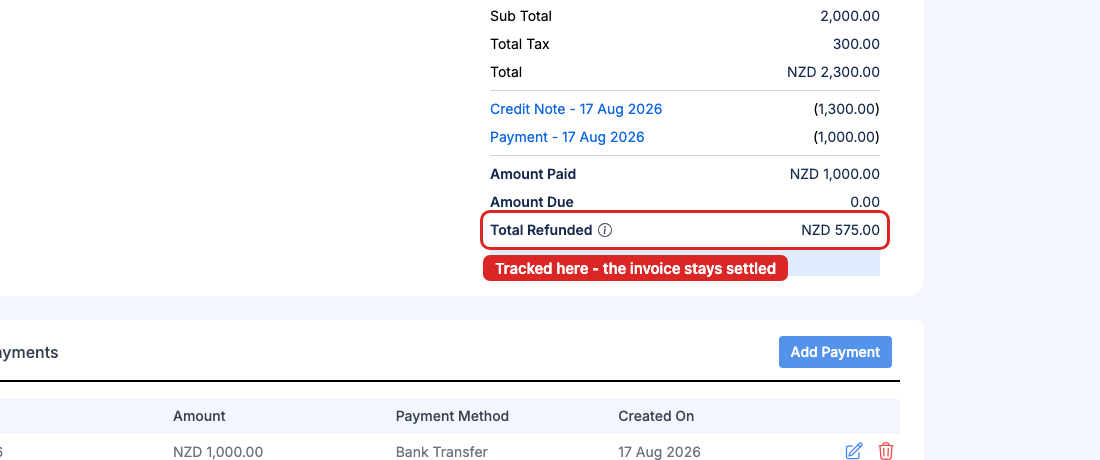
The invoice summary now tells the whole story: the payments the client made stay unchanged, and a Total Refunded line shows what you paid back (the small info icon next to it links back to this guide). If you ticked Waive the remaining amount, the amount due is now zero. The refund also appears in the Invoice Refunds list, where you can preview it, email it again, or delete it if you made a mistake.
The refund is tracked below the totals and never changes the amount due
Use a refund when the client already paid you and you’re giving money back.
Use a credit note (the Waive or Credit Amount button on the invoice) when you want to reduce what the client owes, for example a discount after invoicing, or writing off a balance they won’t be paying. No money changes hands.
If you’re doing both, keeping part of a payment and returning the rest, the waive box in the refund screen handles the credit note side for you automatically.