When you send supporting documents to an immigration authority, a page may need extra context.
When you send supporting documents to an immigration authority, a page may need extra context. Add PDF Notes lets you place a visible note on the exact part of a PDF you want the reader to see, without changing the original file.You can add notes to any page, choose their colour and text size, and move or remove them before saving the new copy.
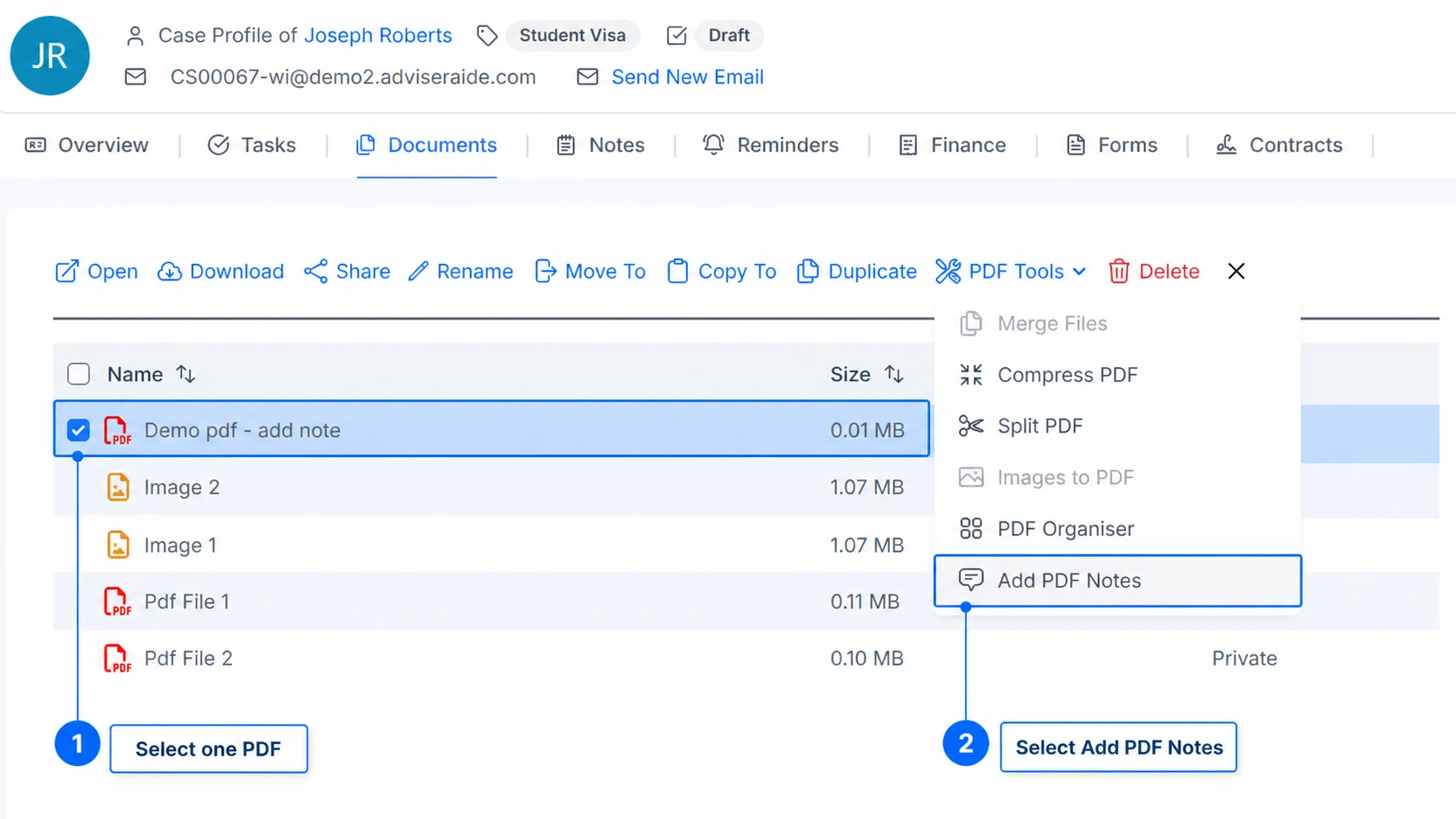
Open the case Documents tab or Library, then select one PDF. Select PDF Tools, then select Add PDF Notes.
Select one PDF, then open Add PDF Notes
2
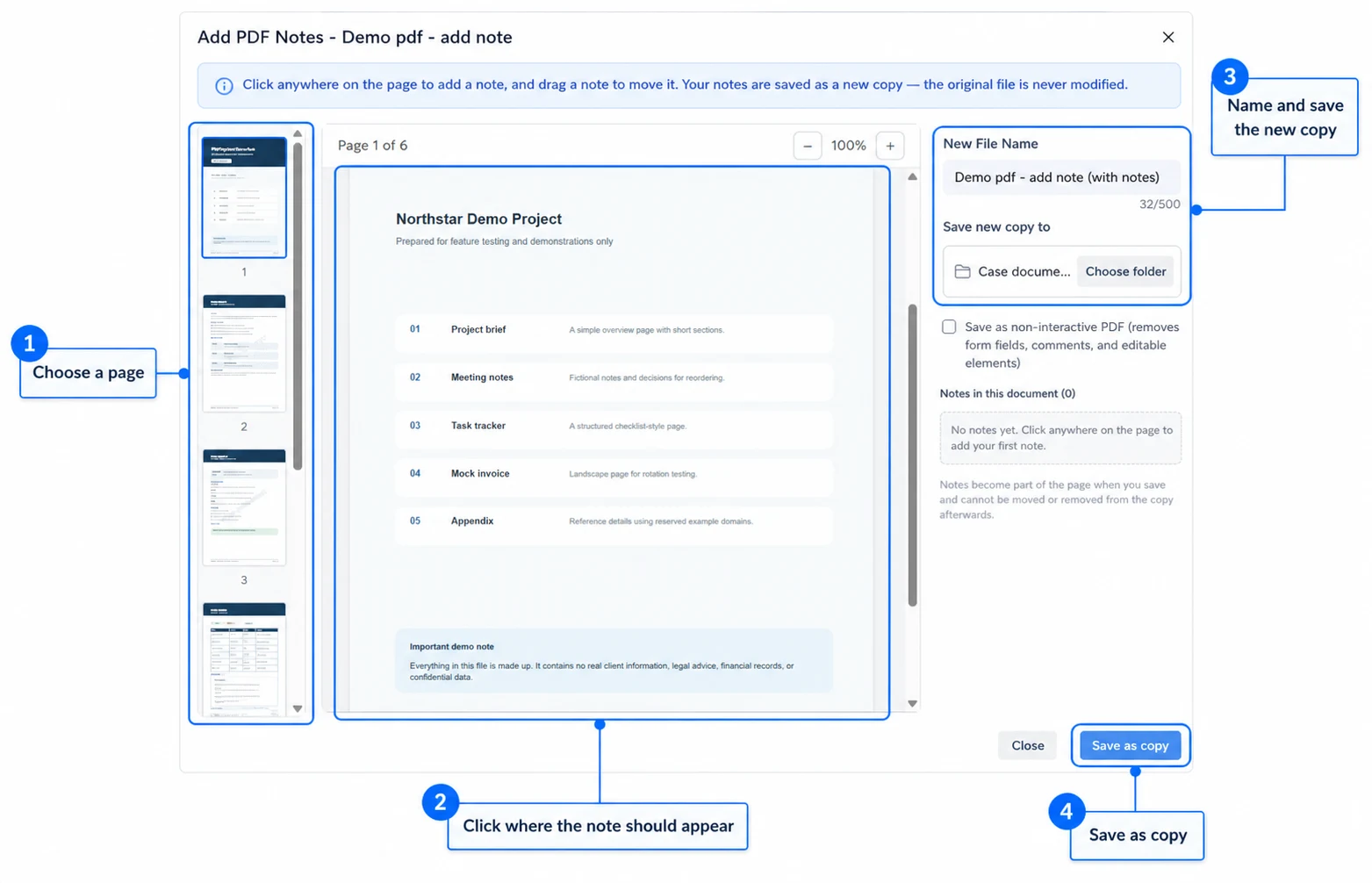
Choose the page
Select a page from the thumbnails on the left. The PDF opens in the centre, where you can use the − and + controls to change the zoom.Click the exact place on the page where the note should appear.
Choose a page, click where the note should appear and prepare the new copy
3
Write the note
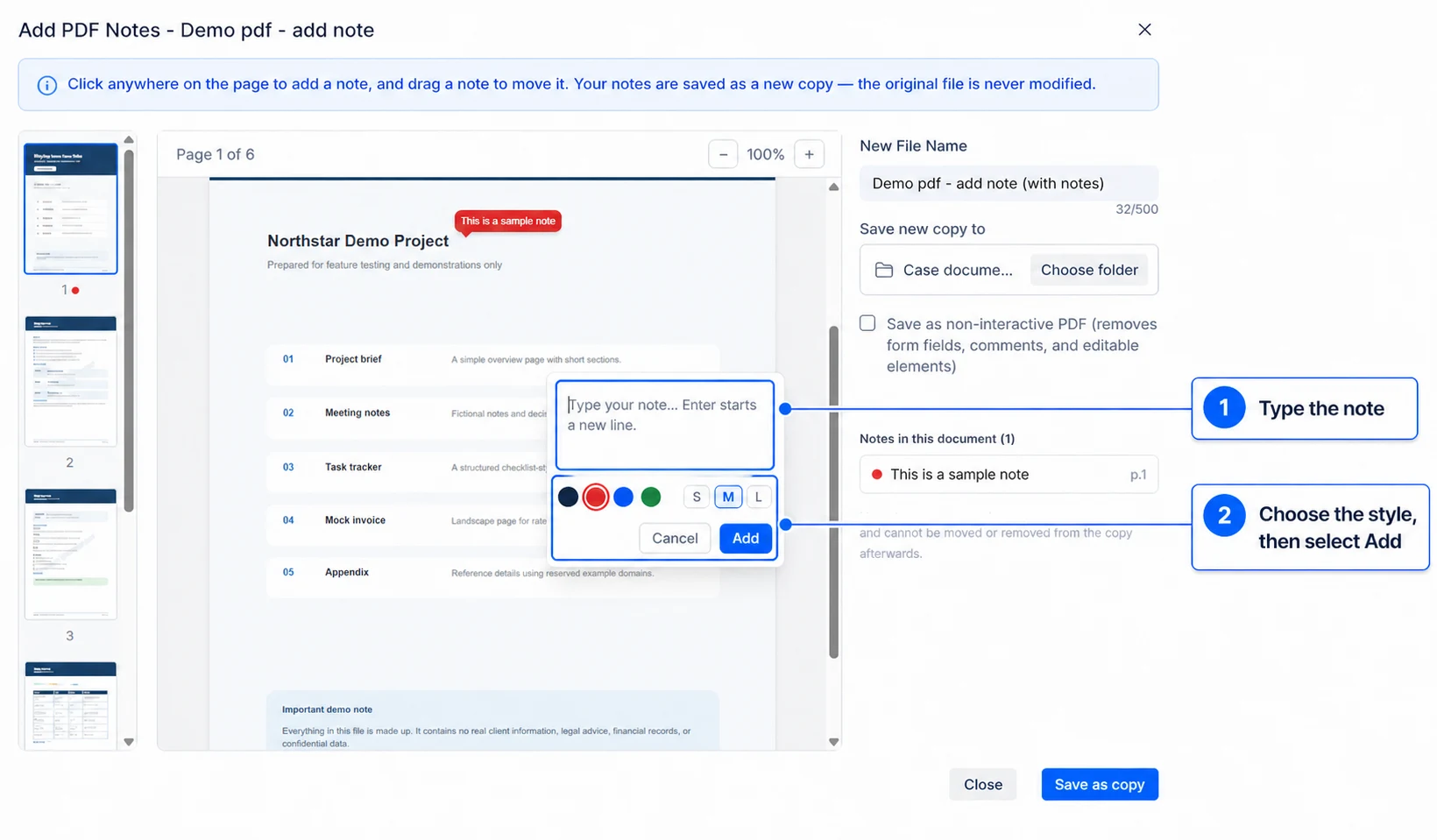
Enter the note for the reader. Press Enter when you need to start a new line, then choose a colour and text size. Select Add to place the note on the page.
Write the note, choose its appearance and add it to the page
4
Review the notes
Drag a note to move it. Select a note on the page, or select it under Notes in this document, to edit or remove it. The notes list also shows which page contains each note.Repeat these steps to add notes to other pages.
5
Name and save the new copy
Enter a New File Name. The new PDF is saved to the current case documents or Library location by default. Select Choose folder to save it somewhere else.Save as non-interactive PDF is optional. Select it when you want the new copy to turn existing form fields into static page content and remove comments and other editable elements.
You can move, edit or remove notes until you save. After saving, the notes become part of the new PDF and cannot be changed or removed from that copy. The original PDF is never modified.
Select Save as copy. AdviserAide creates the new PDF with your notes in the location you chose.