Merge two or more PDF files when you want to keep related documents together as one PDF.
Merge two or more PDF files when you want to keep related documents together as one PDF. You can choose the order of the files before merging them. AdviserAide creates a new PDF and leaves the original files unchanged.
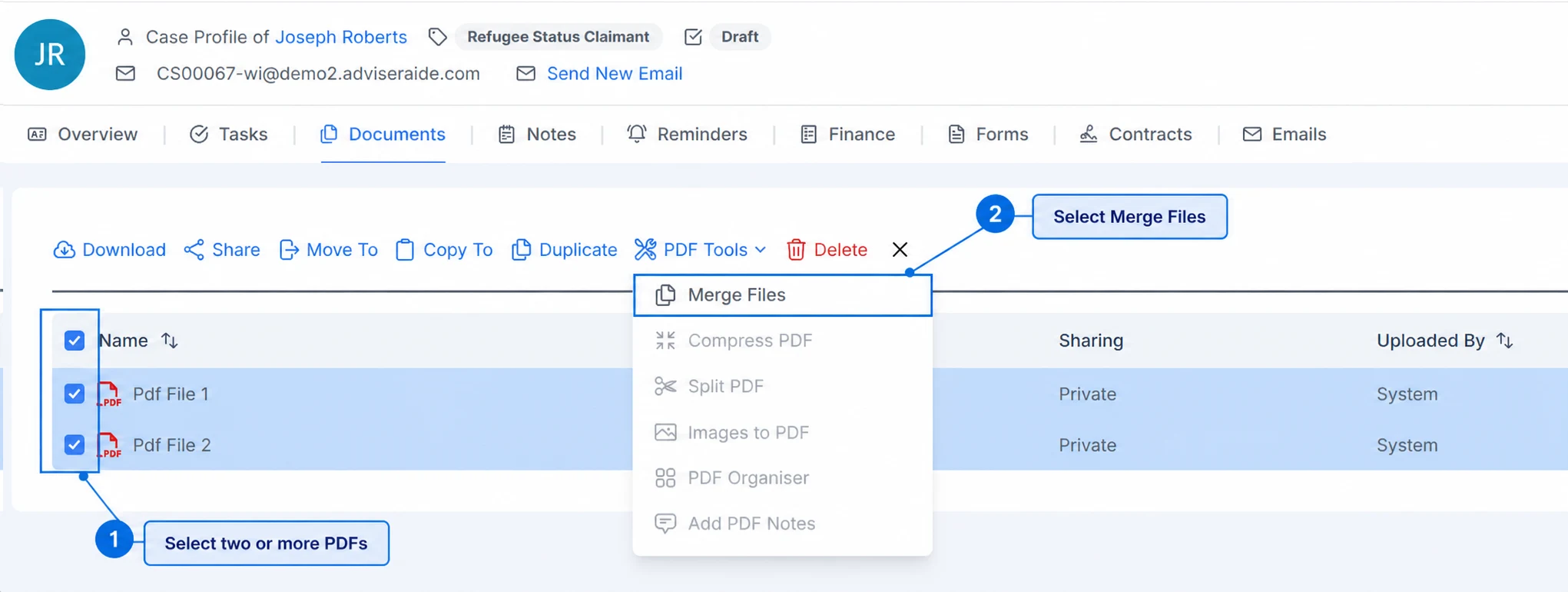
Open the case Documents tab or Library, then tick two or more PDF files. Select PDF Tools, then select Merge Files.
Select the PDFs you want to combine, then open Merge Files
2
Set the file order
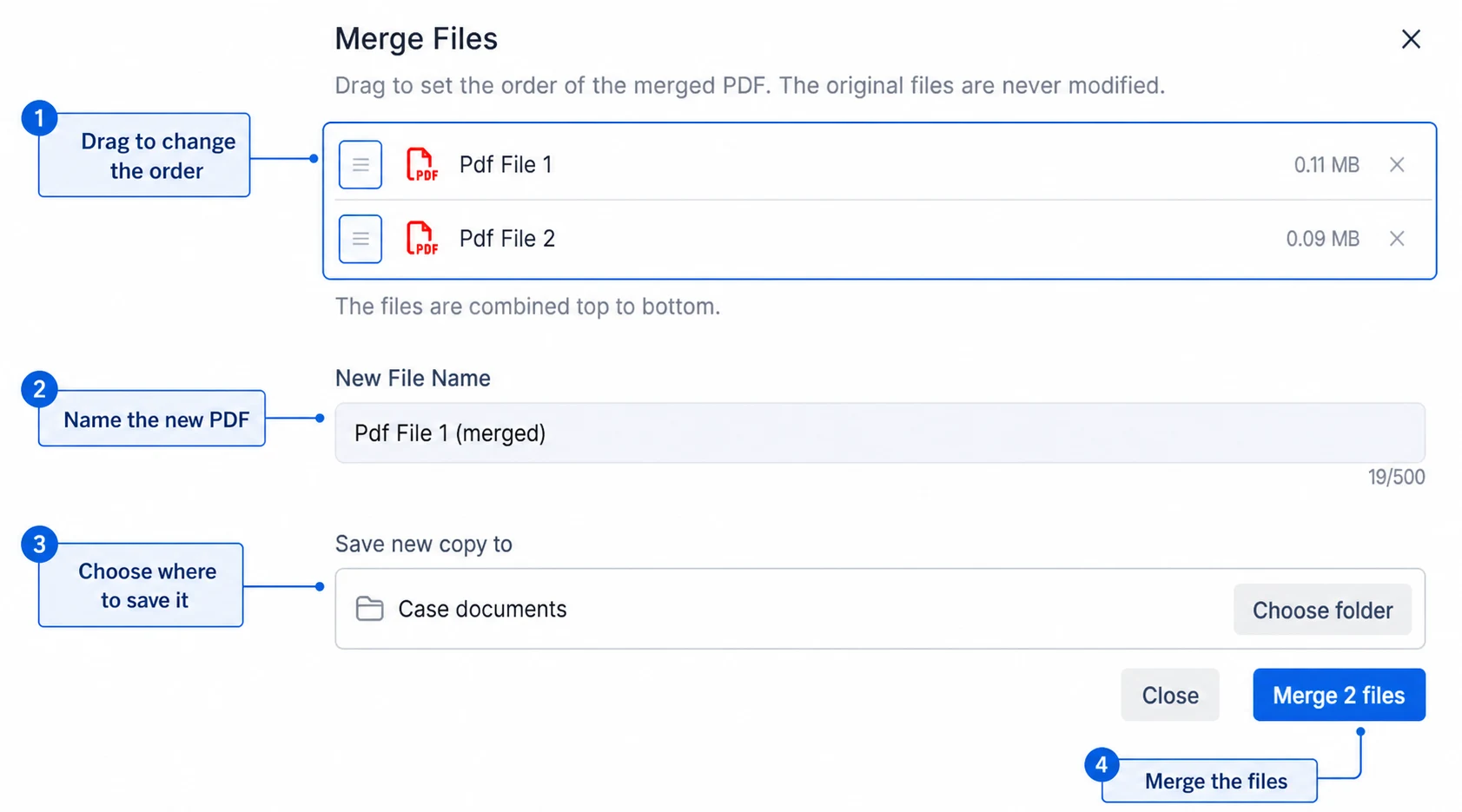
The selected files appear in the order they will be combined. AdviserAide adds every page from the first file, followed by every page from the second file, continuing from top to bottom.Drag a file using the handle beside its name to move it higher or lower in the list. Select the X beside a file if you do not want to include it.
3
Name and save the new PDF
Enter a name for the merged PDF. The new copy is saved to the current case documents or Library location by default. Select Choose folder to save it in another folder.
Arrange the files from top to bottom, name the new PDF and choose where to save it
4
Merge the files
Select Merge files. AdviserAide creates the combined PDF in your chosen location and confirms when it is ready.