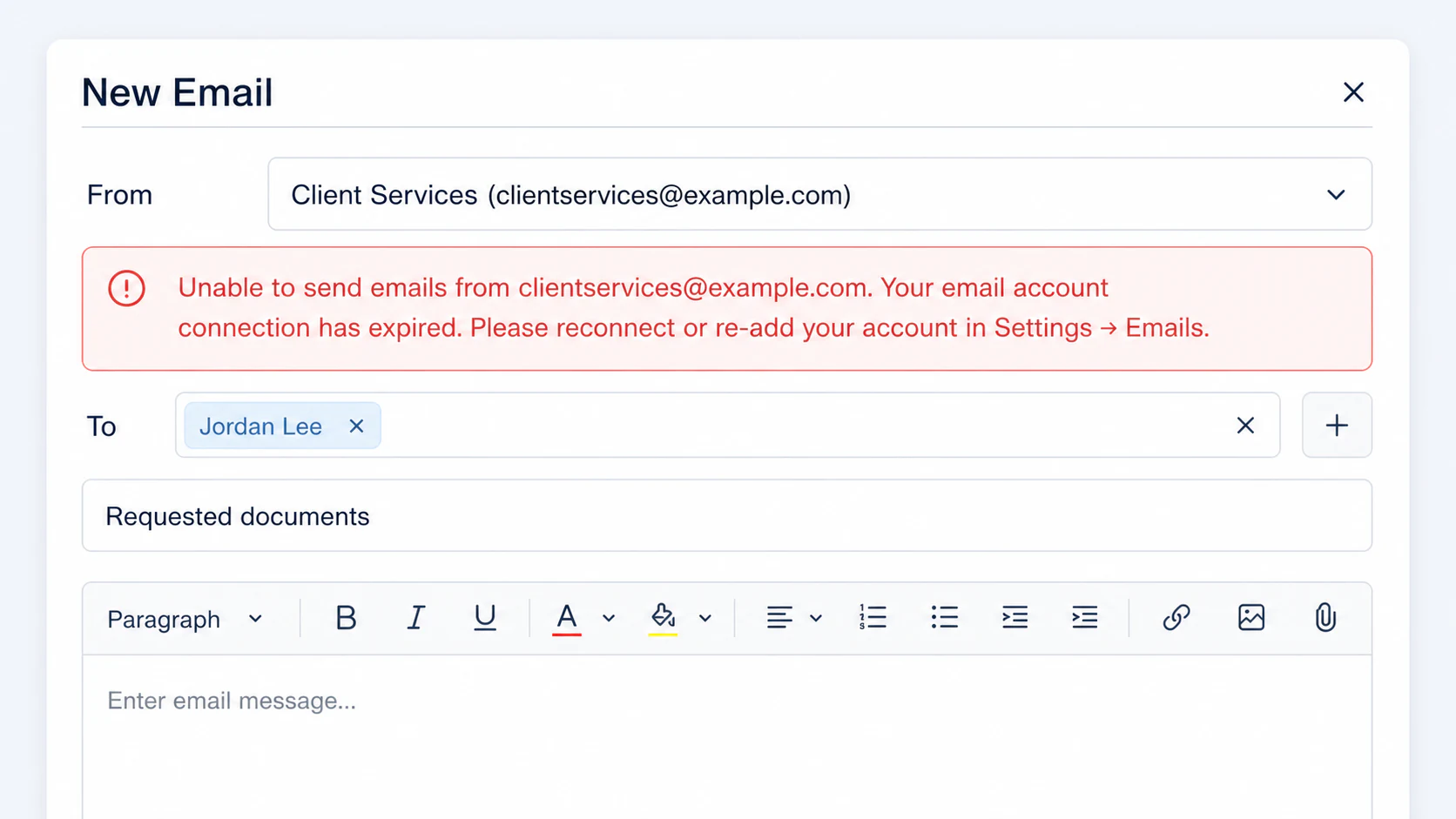
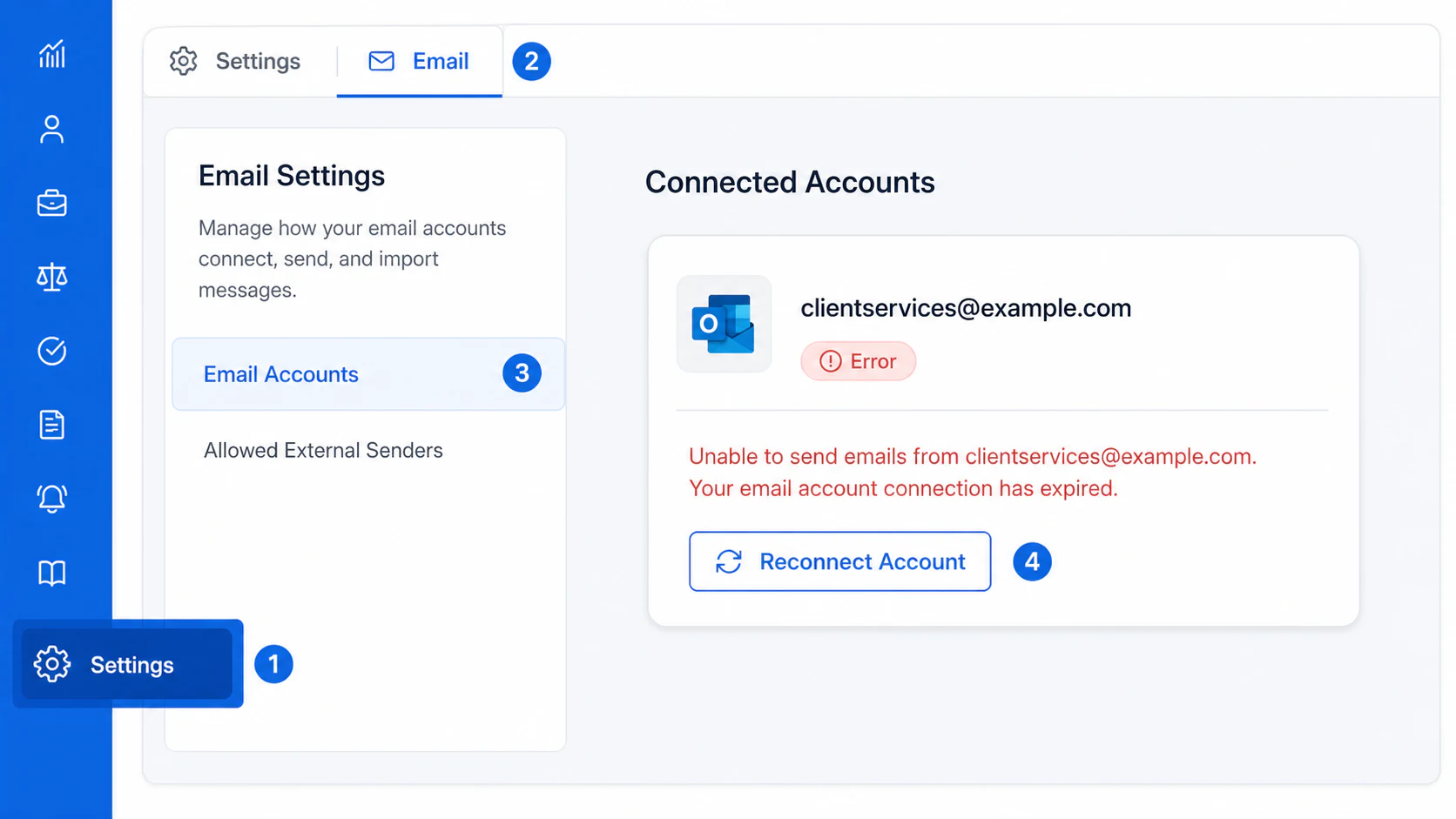
Gmail or Microsoft may occasionally require AdviserAide to be authorised again. Until the account is reconnected, AdviserAide cannot send email from that address.When this happens, an error appears below the From field:
Unable to send emails from your email address. Your email account connection has expired. Please reconnect or re-add your account in Settings → Emails.
An expired connection prevents AdviserAide from sending email from the selected account
If you are unsure whether the account is hosted by Microsoft
Your organisation may use the Outlook application even when its email is hosted by another provider.
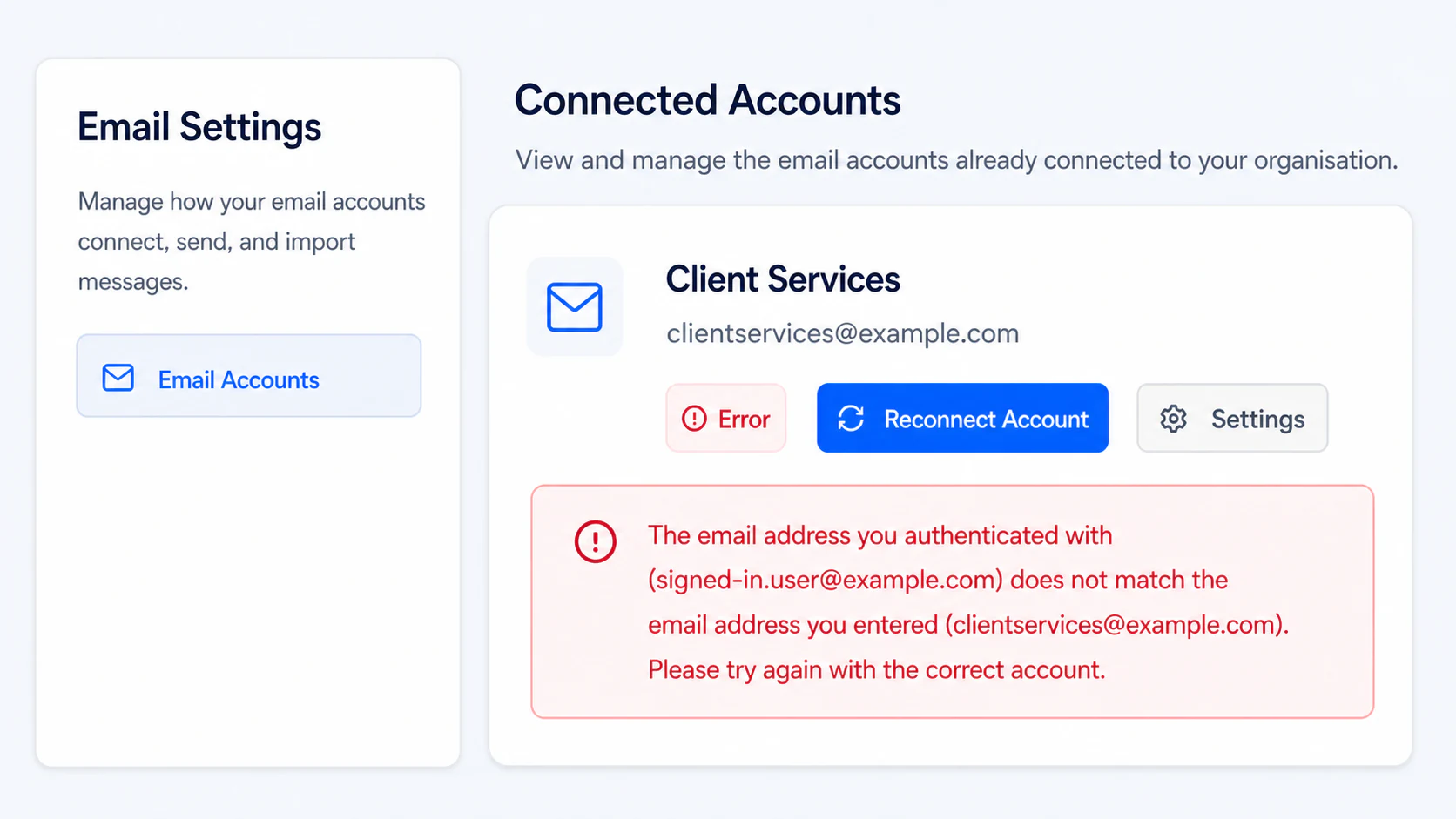
Visit Outlook.com and try to sign in using the exact email address you entered in AdviserAide.
If the sign-in works, return to AdviserAide and reconnect the account using that same Microsoft account. If the mismatch remains, contact AdviserAide Support and include a screenshot of the error.
If the sign-in does not work, the mailbox may require an SMTP/IMAP connection. Contact AdviserAide Support so we can confirm the provider and enable SMTP/IMAP email accounts for your organisation when required.
Recipients receive a winmail.dat attachment (Outlook accounts)
Sometimes an email sent from a connected Outlook account looks fine in your Sent items, but the person receiving it sees something different:
The email arrives as plain text with none of your formatting.
Your signature image or attached files are missing, and the image may appear as text such as [signature.png].
There is a single attachment called winmail.dat that they cannot open.
This is not caused by AdviserAide, and nothing is wrong with your email or attachments. Your Microsoft 365 email server sent the message in a special format called Rich Text that only Microsoft Outlook can read. When the recipient uses Gmail, Apple Mail or most other email apps, everything Outlook packed into that format shows up as an unreadable winmail.dat file instead.The fix is a one-time change to a single Microsoft 365 setting, which tells Microsoft to always send email in a format every email app can read.
You need to sign in as a Microsoft 365 administrator for your organisation to change this setting. If you are unsure who that is, it is usually the person who set up your Microsoft email accounts.
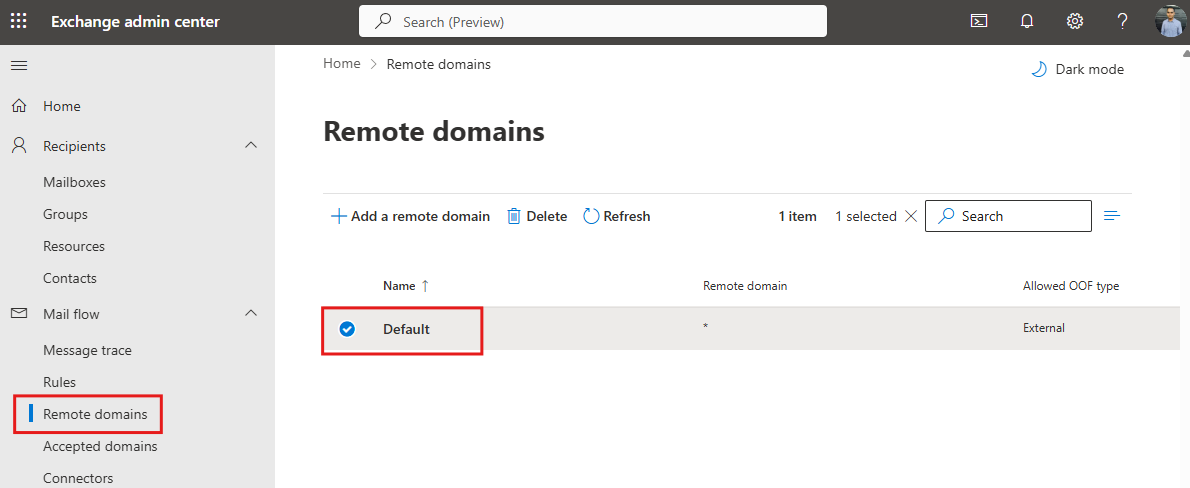
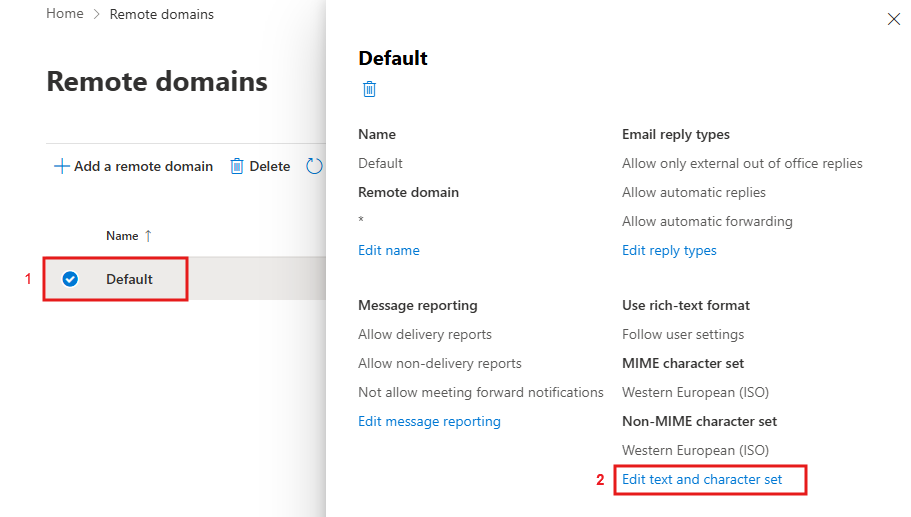
Select Default under Remote domains in the Exchange admin center
If more than one remote domain is listed, repeat these steps for each entry in the list, not just Default.
3
Open the text settings
In the panel that opens, select Edit text and character set.
Select Edit text and character set on the Default remote domain
4
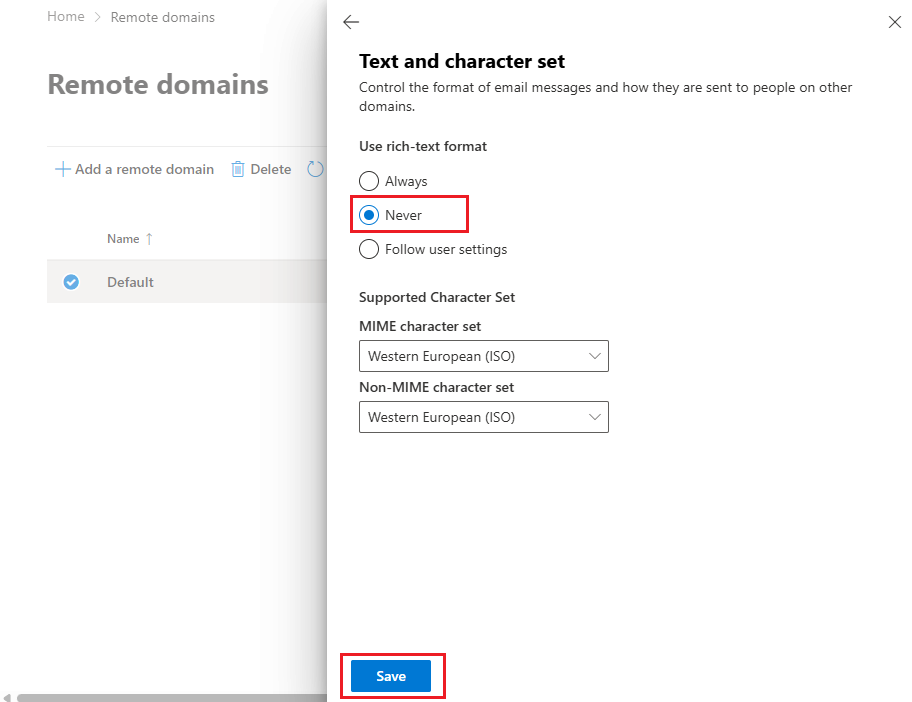
Set rich-text format to Never
Under Use rich-text format, select Never, then select Save. Leave the character set options unchanged.
Set Use rich-text format to Never and save
5
Wait at least 30 minutes, then send a test email
The change is not instant. Microsoft typically takes around 30 minutes (and occasionally up to an hour) to apply it. Emails sent before then will still arrive with winmail.dat - this does not mean the fix failed.
After waiting, send yourself or a colleague a test email from AdviserAide using the connected Outlook account. The signature and attachments should now come through correctly. If the test still fails, wait a little longer and try again before changing anything else.
If you would like a hand with this, book a support session and one of our staff can walk you through it.
If your error is not listed, take a screenshot of the complete message and contact AdviserAide Support.