Compress a PDF when you need a smaller file for sending, sharing or uploading.
Compress a PDF when you need a smaller file for sending, sharing or uploading. AdviserAide creates a new compressed copy and leaves the original PDF unchanged.
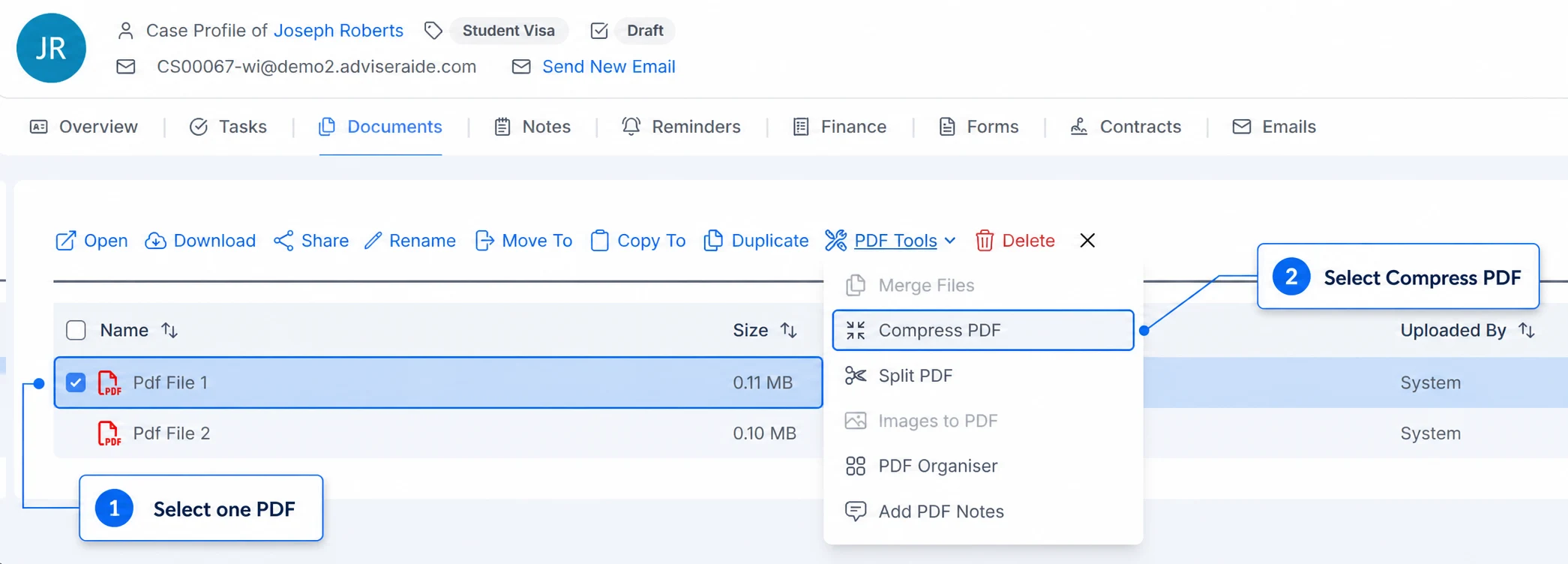
Open the case Documents tab or Library, then tick one PDF. Select PDF Tools, then select Compress PDF.
Select one PDF, then open Compress PDF
2
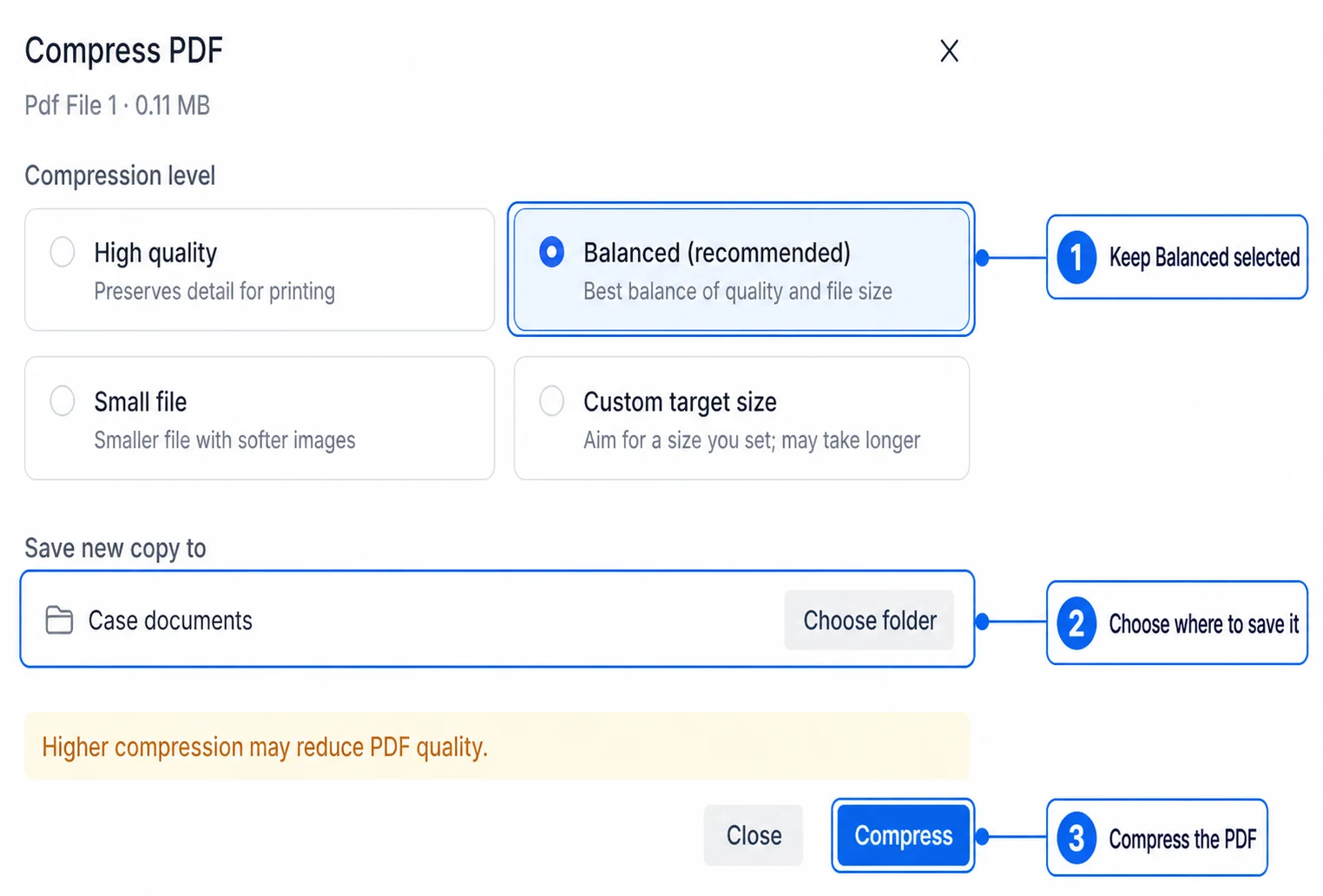
Choose the compression level
For most documents, keep Balanced (recommended) selected. This option provides a good balance between the file size and the quality of the PDF.You can choose another option when needed:
High quality keeps more detail when the PDF will be printed.
Small file creates a smaller file but images may look softer.
Custom target size lets you enter the file size you want AdviserAide to aim for. The target must be smaller than the original PDF and may not always be achievable.
3
Choose where to save the copy
The compressed copy is saved to the current case documents or Library location by default. Select Choose folder to save it in another folder.
Keep Balanced selected for most PDFs, choose the destination and compress the file
4
Compress the PDF
Select Compress. AdviserAide creates the compressed copy in your chosen location and confirms when it is ready.
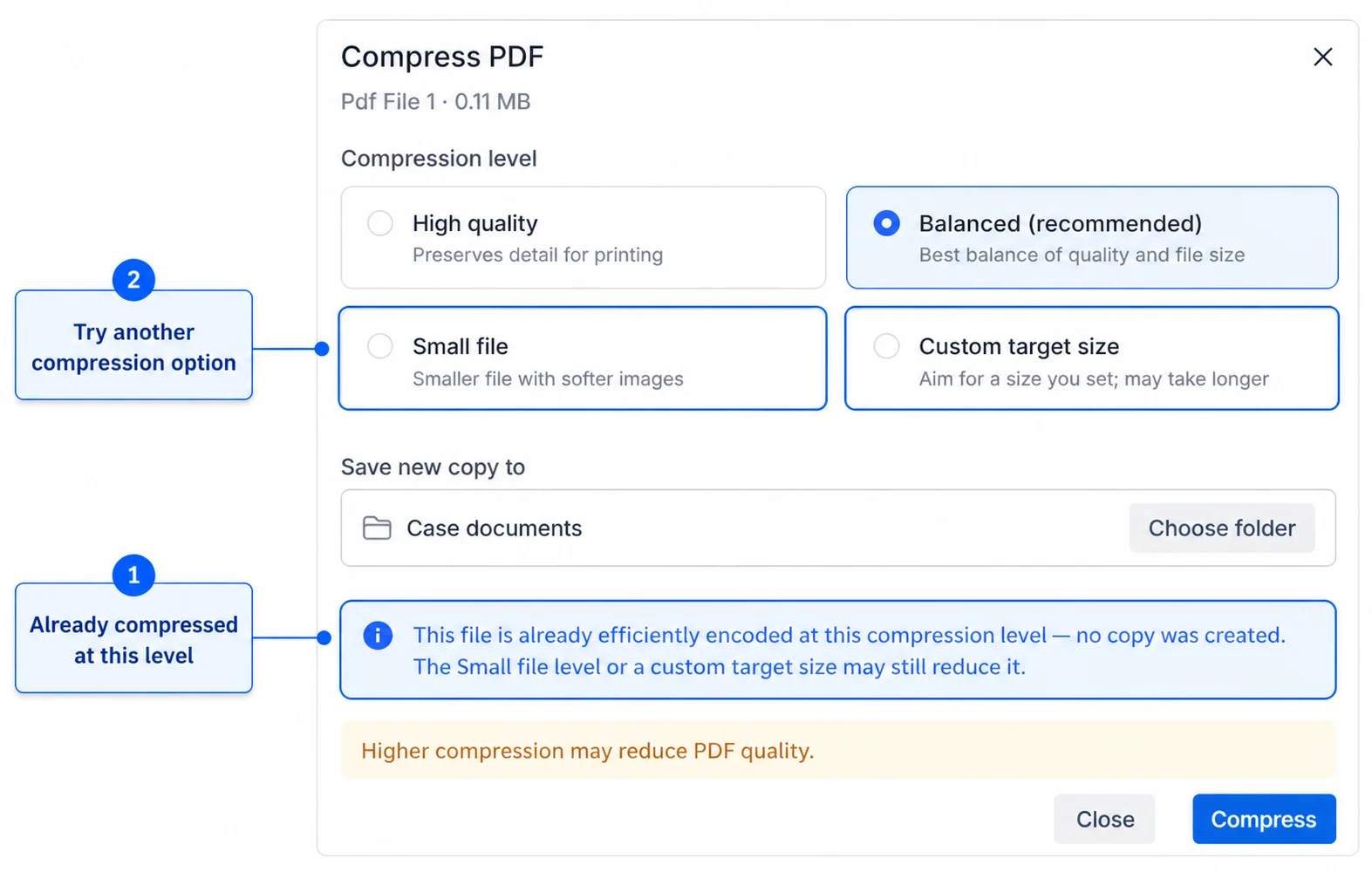
Sometimes a PDF is already efficiently compressed and Balanced cannot make it any smaller. AdviserAide shows an information message and does not create another copy.If you still need a smaller PDF, try Small file or Custom target size. Higher compression can reduce the quality of images, so check the new PDF before sharing it.
Try another compression option when the PDF is already compressed at the selected level