

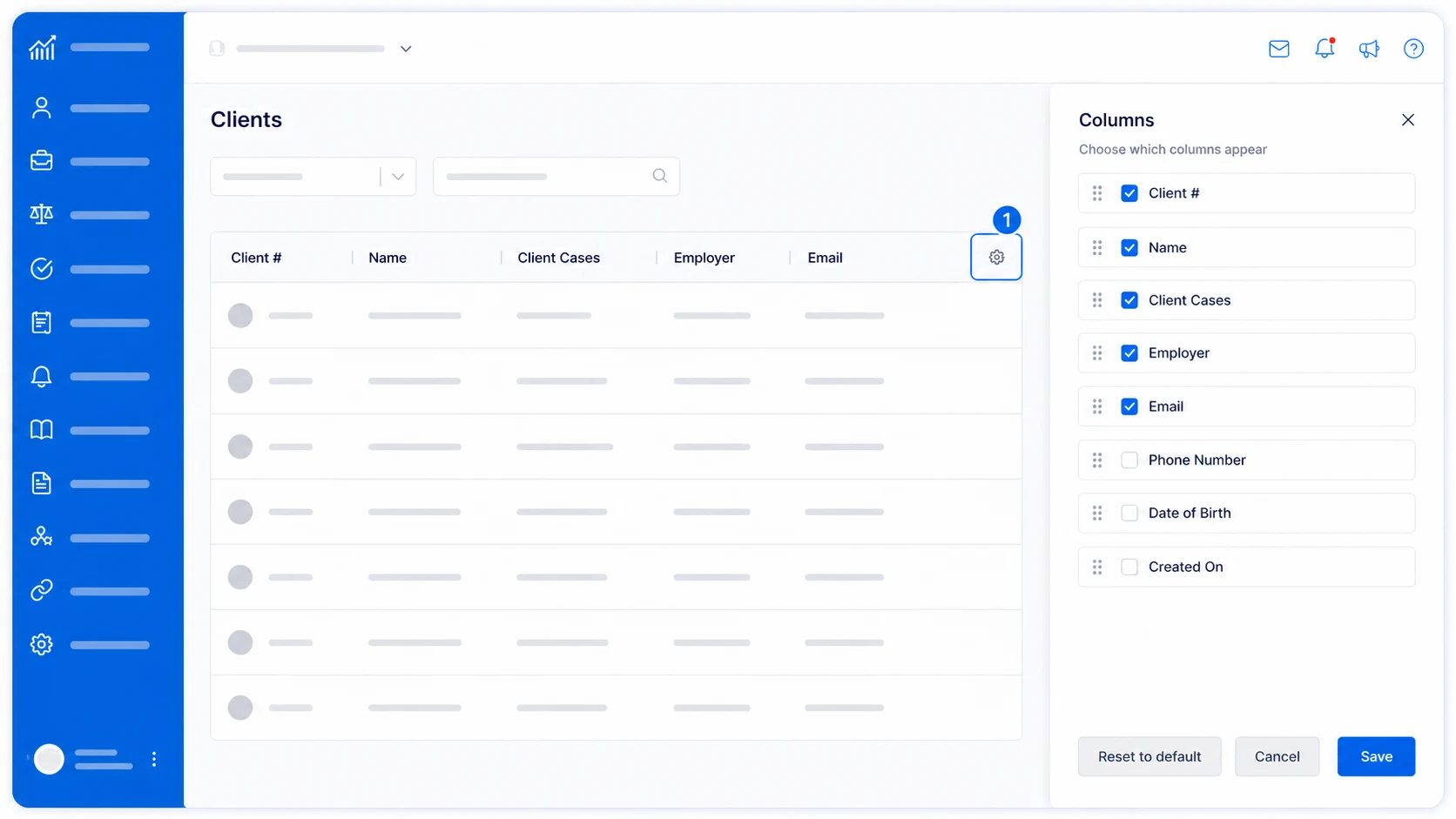
Your client, employer or case list might not show every detail your team needs at a glance. You can choose which information shows up in each list, hide columns you do not use, move columns into the order you prefer and resize them. If your organisation has created custom fields, those fields can also be shown as columns. For example, if you record a visa expiry date as a custom client field, you can show it directly in the Clients list instead of opening each client profile. AdviserAide saves your layout to your account. Column settings are available on the main Clients, Employers, Cases and Invoices lists.
Clients list with the column settings icon highlighted and the Columns panel open

Use the settings icon to choose which columns appear in a list

Change the columns in a list

1

Open the list

Open Clients, Employers, Cases or Invoices from the main menu.
2

Open the Columns panel

Select the settings icon at the far-right end of the list headings.
3

Choose and arrange your columns

Tick a column to show it or untick it to hide it. To change the order, drag a column using the dotted handle beside its name.
4

Save your changes

Select Save. AdviserAide applies the layout to the list and saves it to your account.

Resize a column

Move your pointer to the line between two column headings, then drag the line left or right. AdviserAide remembers the new column width for your account.

Restore the original layout

Open the Columns panel and select Reset to default. This restores the original columns, order and widths for that list.