Connect a supported email mailbox to AdviserAide using SMTP and IMAP settings.
Some email providers do not offer a direct connection like Gmail or Microsoft. AdviserAide can also connect supported mailboxes using SMTP and IMAP.
SMTP is used to send email from the connected account.
IMAP is used to import email from the mailbox into AdviserAide.
These longstanding email standards are commonly used by Zoho, Yahoo and other specialist email hosting providers that do not offer a direct integration.
SMTP/IMAP provider choices are not shown until AdviserAide Support enables them for your organisation. Contact AdviserAide Support before attempting setup. We will confirm your email provider, check whether it is compatible and tell you which details are required.
Send us the email address you want to connect and the name of your email provider, if you know it. If you are unsure who hosts the mailbox, we will work with you to identify the provider and find the right connection option.We will check the connection type, enable SMTP/IMAP email accounts for your organisation when appropriate and send you setup instructions for your provider.
2
Choose the provider
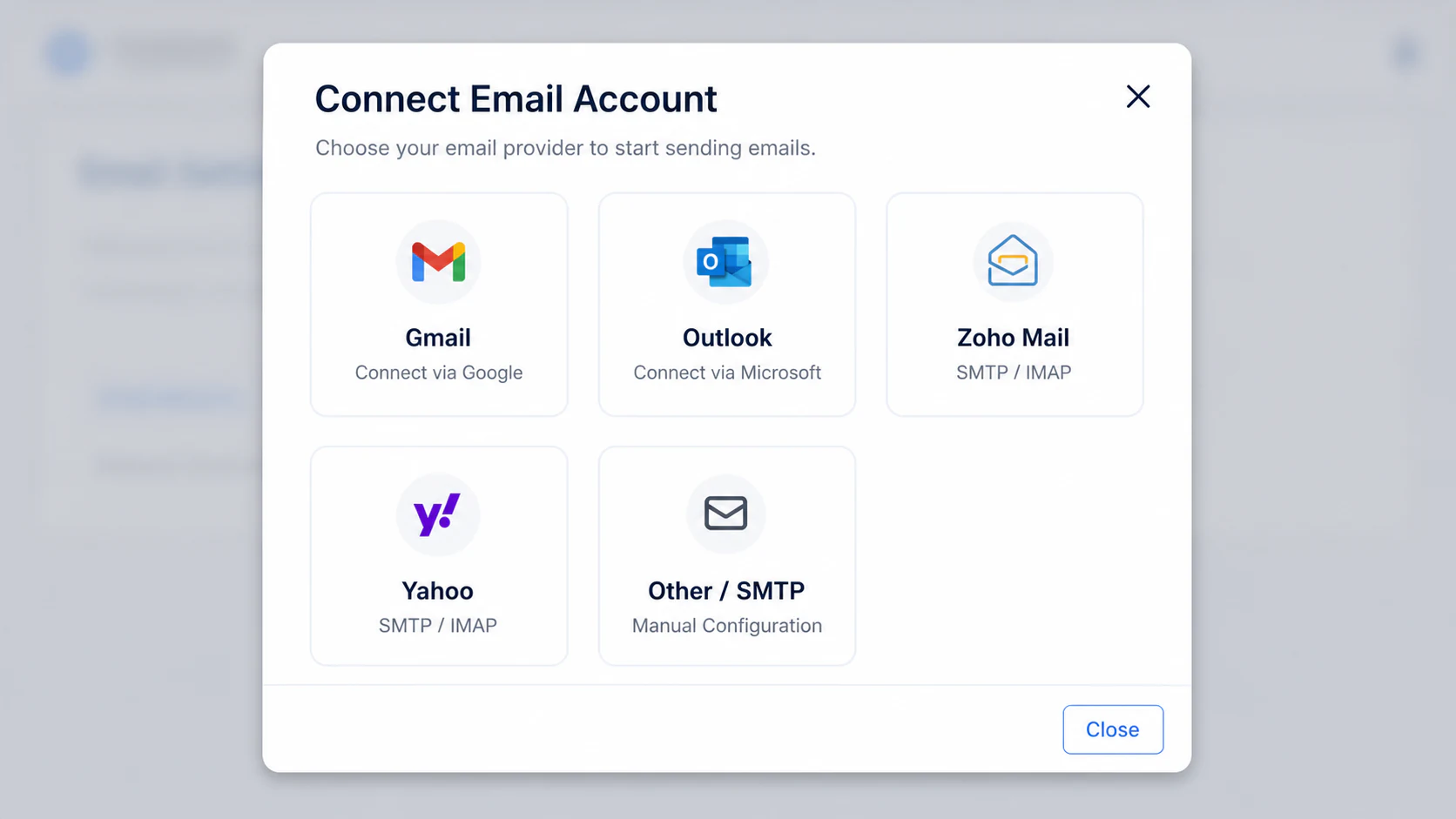
After the option is enabled, open Settings, select Email and then Email Accounts. Select Connect New Email, then choose Zoho Mail, Yahoo or Other / SMTP as advised by our support team.
3
Gather the account details
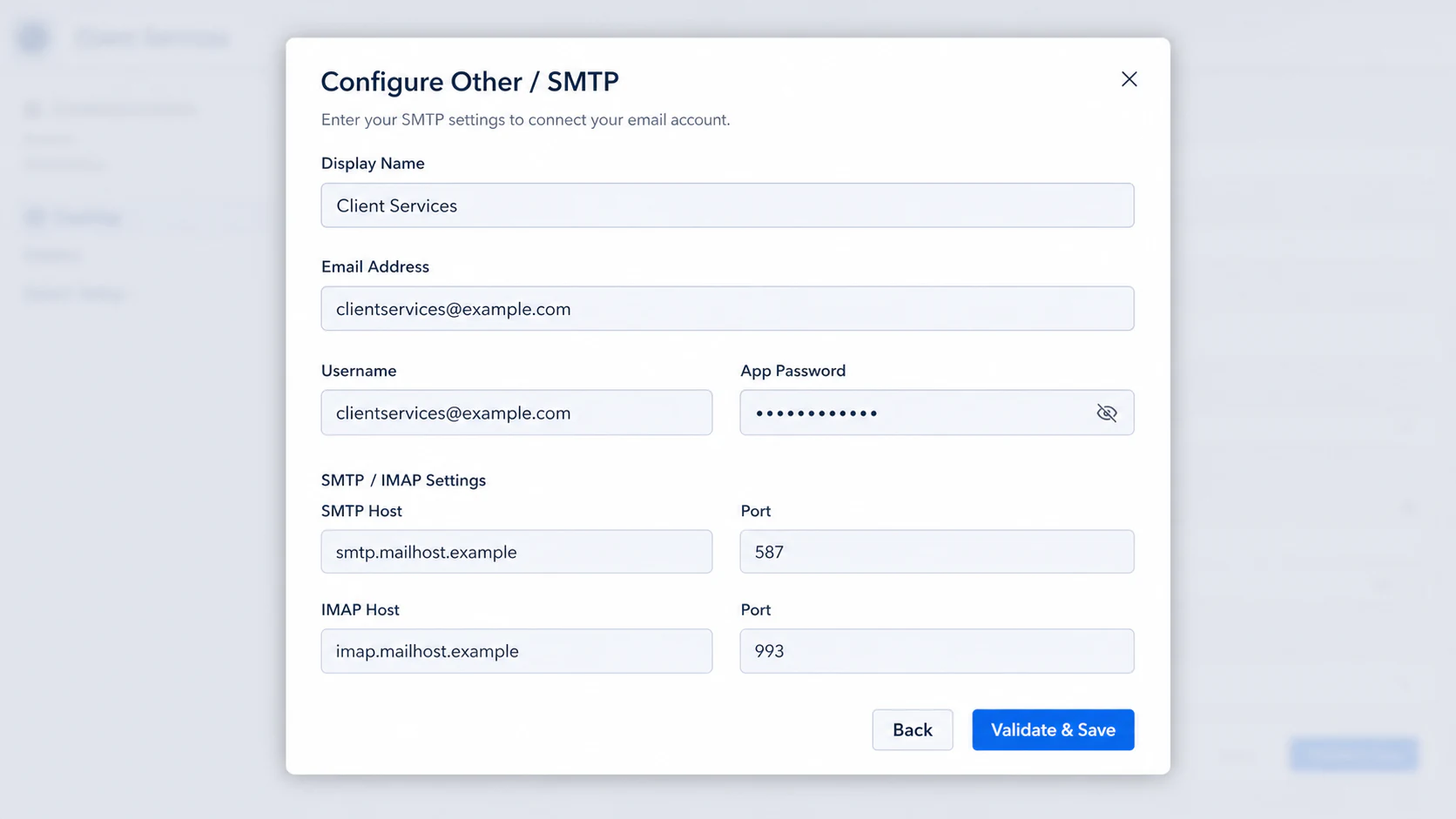
The required details depend on the provider. You may need:
A display name and email address.
The mailbox username and an app password.
The SMTP host and port used for sending email.
The IMAP host and port used for importing email.
The Zoho data centre or region when connecting Zoho Mail.
After you contact AdviserAide Support, we will work with you to confirm the settings you need and send instructions for your email provider. If an app password is required, we will also guide you through creating one.
4
Validate and save
Enter the details confirmed in the instructions we send you, then select Validate & Save. AdviserAide checks both connections before adding the account.
Enter the SMTP/IMAP settings confirmed during setup
5
Review who can use the account
After the account is connected, open its settings to enable it and choose whether it is available to all users or selected users.
New inbox email is not imported immediately. Allow 5-10 minutes for it to appear in AdviserAide after it reaches the connected mailbox.