AdviserAide normally imports incoming email when it can identify a client or employer in your organisation. Use Allowed External Senders when you also need to import email from a trusted address that is not saved against a client or employer. This can be useful for immigration authorities, government agencies and other organisations whose messages need to be kept with a case.
You need Manage Email Accounts permission to add, edit or remove allowed external senders.
Emails from an allowed external sender are imported but not automatically linked to a case. They appear under Unmatched Emails and must be assigned manually.


Add an external sender

1

Open Allowed External Senders

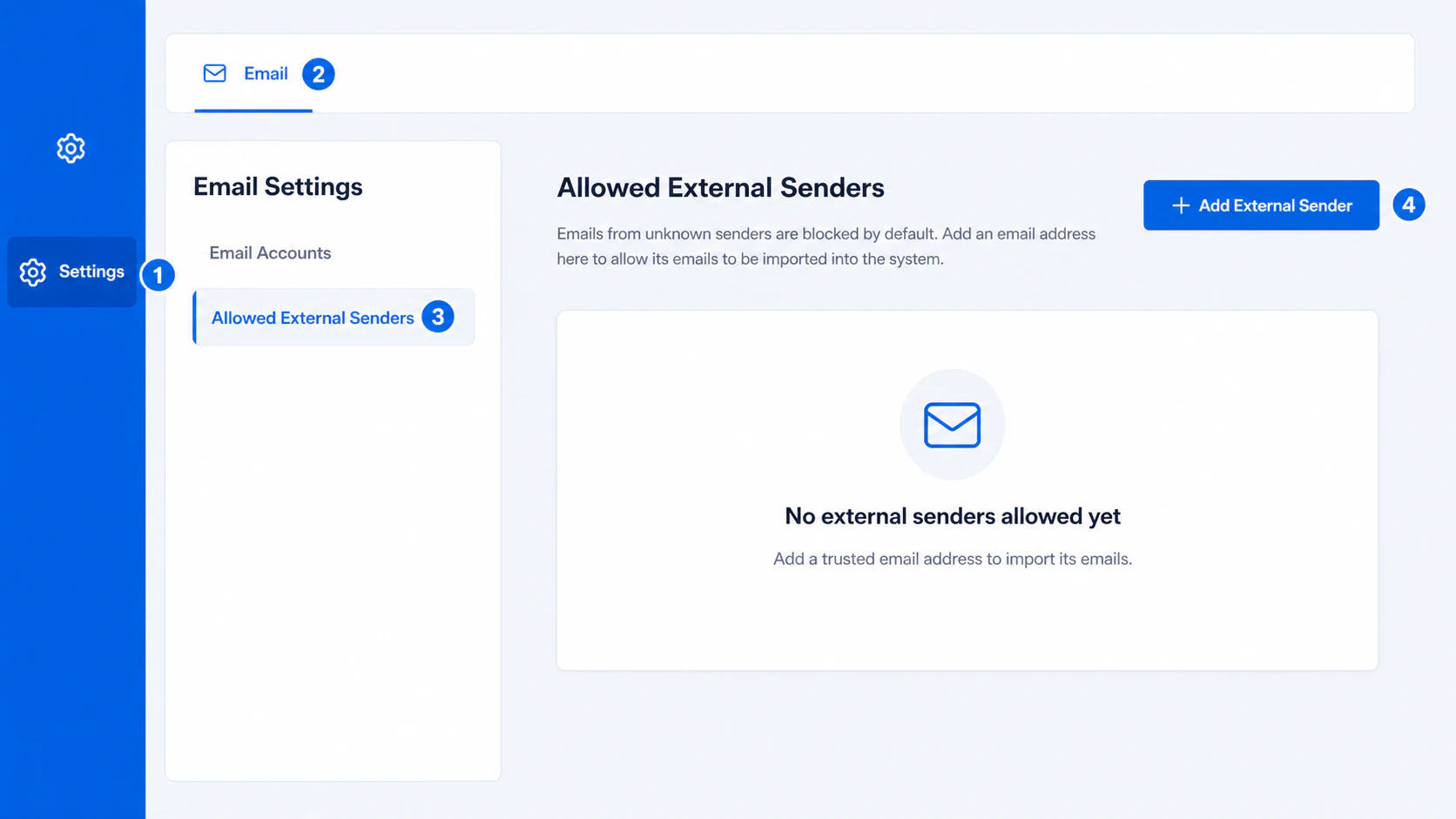
Open Settings, select Email at the top, then select Allowed External Senders. Select Add External Sender.
Numbered navigation showing Settings, Email, Allowed External Senders and Add External Sender

Open Allowed External Senders from Email Settings

2

Enter the sender details

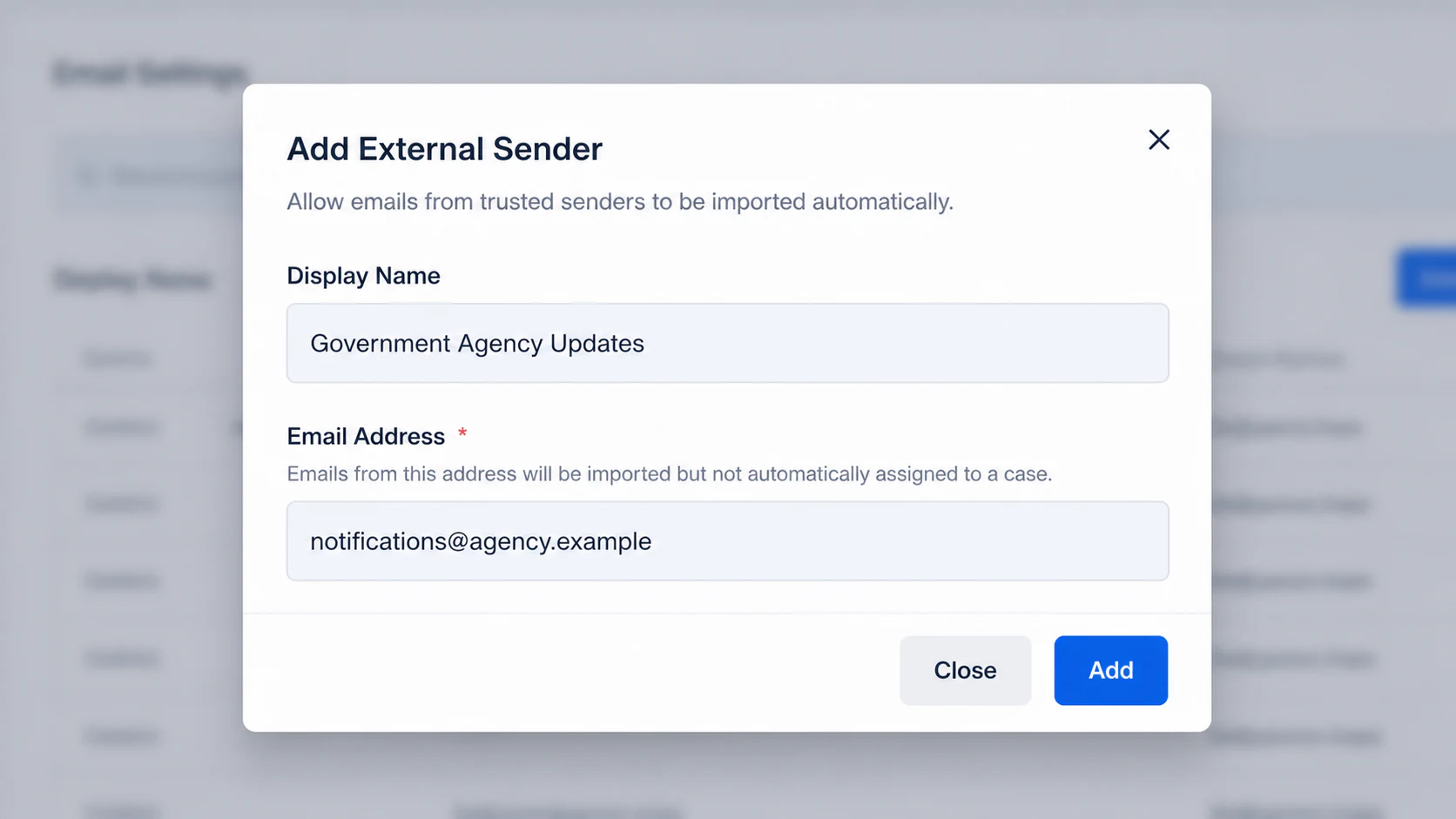
Enter:
  • Display Name - An optional name that helps your team recognise the sender, such as Government Agency Updates.
  • Email Address - The exact email address that sends the messages you want AdviserAide to import.
Add External Sender window using a fictional government agency email address

Enter the trusted sender's display name and exact email address

3

Add the sender

Select Add. AdviserAide adds the address to the Allowed External Senders list.
4

Assign imported emails to a case

When an email arrives from the allowed address, open Unmatched Emails and link it to the correct client or employer and case.
Only add email addresses you trust. Each entry allows incoming messages from that exact address to be imported into AdviserAide.
See Managing Unmatched Emails to assign an imported email to a case.