The Form Template Library includes ready-made questionnaires that your organisation can add to My Forms, customise and reuse with clients.
The Form Template Library includes ready-made questionnaires that your organisation can add to My Forms, customise and reuse with clients.Open Form Templates in AdviserAide
Open Form Templates from the main menu, then select Form Template Library.Look for Questionnaire in the Type column. You can also use the form name and Suggested for information to find a questionnaire that matches the cases your organisation handles.
Preview a questionnaire before adding it to My Forms
2
Preview the questionnaire
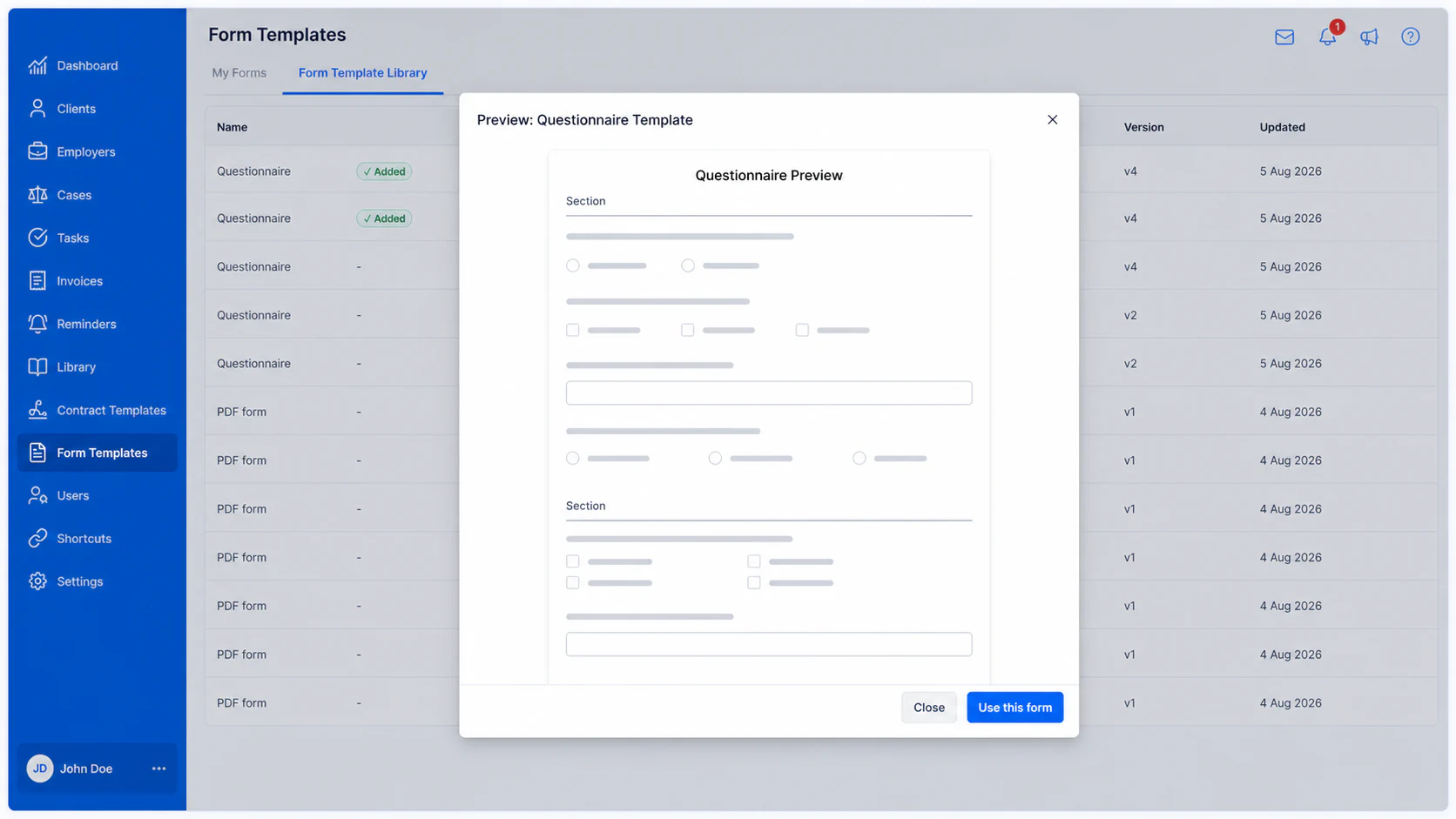
Select a questionnaire to preview it in full. Review its sections and questions before adding it to your organisation.
3
Use the questionnaire
Select Use this form, choose the case categories where it should be available, then select Add to my forms.AdviserAide creates an editable copy in My Forms. The Added label in the Template Library shows that your organisation has already used that template.
Open the questionnaire from My Forms to change its name, categories, sections or questions. You can then assign it to a case and share it with a client in the same way as any other questionnaire form.To add another separate copy of the same template, return to the Template Library, open the form and select Use this form again.For help changing questions, adding sections or using conditional logic, see Creating Questionnaire Forms.