

This page covers the new contract editor. The new editor is available to all new AdviserAide customers. If your organisation currently uses the existing contract editor and would like access to the new editor, contact our support team.
How do I add an adviser's signature to my agreements?
How do I add an adviser's signature to my agreements?
To add an advisers signature to a contract there is only one way. First you will need a image of your signature. Once you have a image follow these steps.
1
Open your contract template
Open your contract by going to the contract template menu from the left menu panel. See below for an example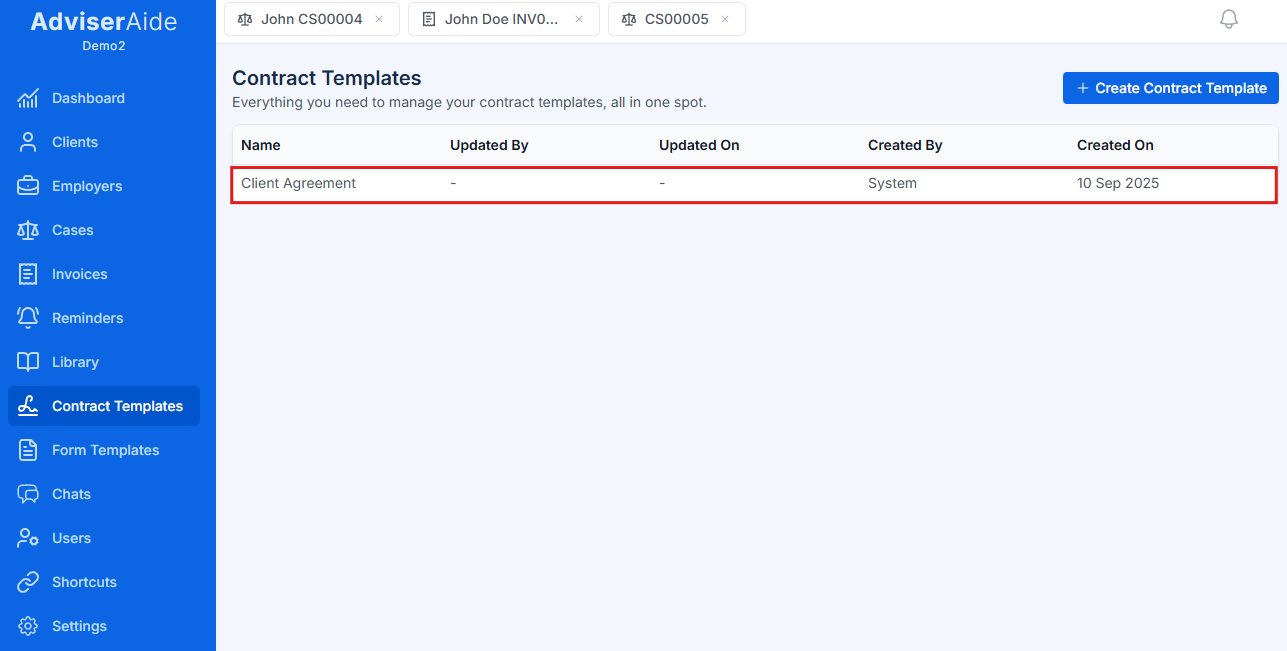
2
Open the contract editor
Open your contract template. The contract editor will appear.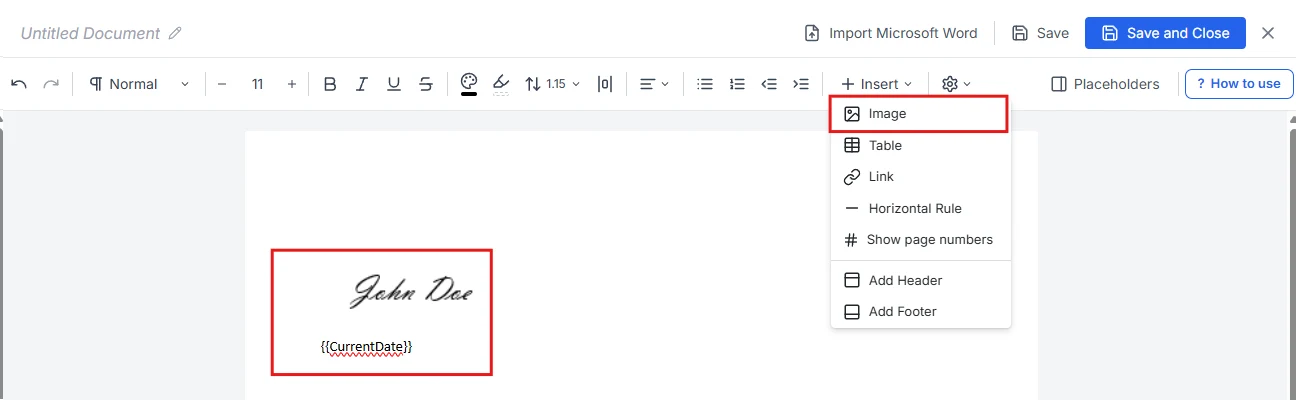
3
Upload your signature image
Select Insert, then Image, and choose your signature image. AdviserAide adds the image to the contract at the position you selected.
4
Add the signed date placeholder
For the adviser signed date, use the
{{CurrentDate}} placeholder. When you assign the contract to a case, this will automatically update to the assignment date.How do I set up contracts for multiple signers?
How do I set up contracts for multiple signers?
There may be times when you need more than one person’s signature on a contract. For instance, if two people are listed, both will need to sign. We also understand that signatures may not always happen at the same time. Let’s walk through how you can handle this using Adviseraide.Step 1. Open the contract template by clicking on the contract template in the left panel and clicking on a contract.Step 2. Insert signature placeholdersClick inside the contract where you want the signature to appear, then select Placeholders. The Placeholder Fields panel opens on the right side of the editor.
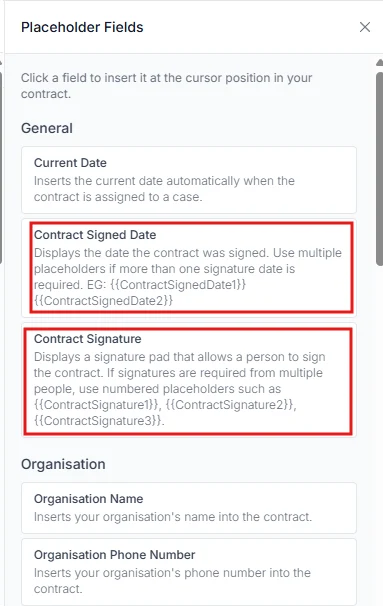 Select Contract Signature to insert the signature placeholder at the position you selected. For multiple signers, number each placeholder manually:
  To use a case contact’s details for an additional signer, read Using Case Contacts in Contract Templates.
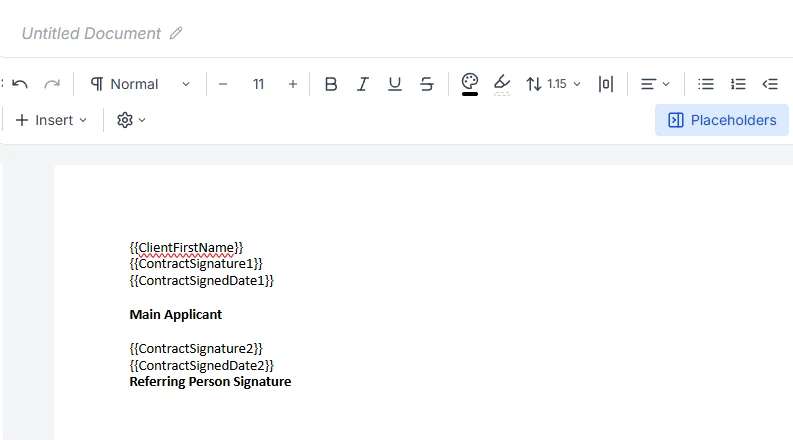
{{ContractSignature1}}, {{ContractSignature2}}, {{ContractSignature3}} and so on.Add unique signature datesTo add contract signed dates use: {{ContractSignedDate1}} {{ContractSignedDate2}} This ensures that the date will only be inserted when the second signer completes their signature.Here is final example.