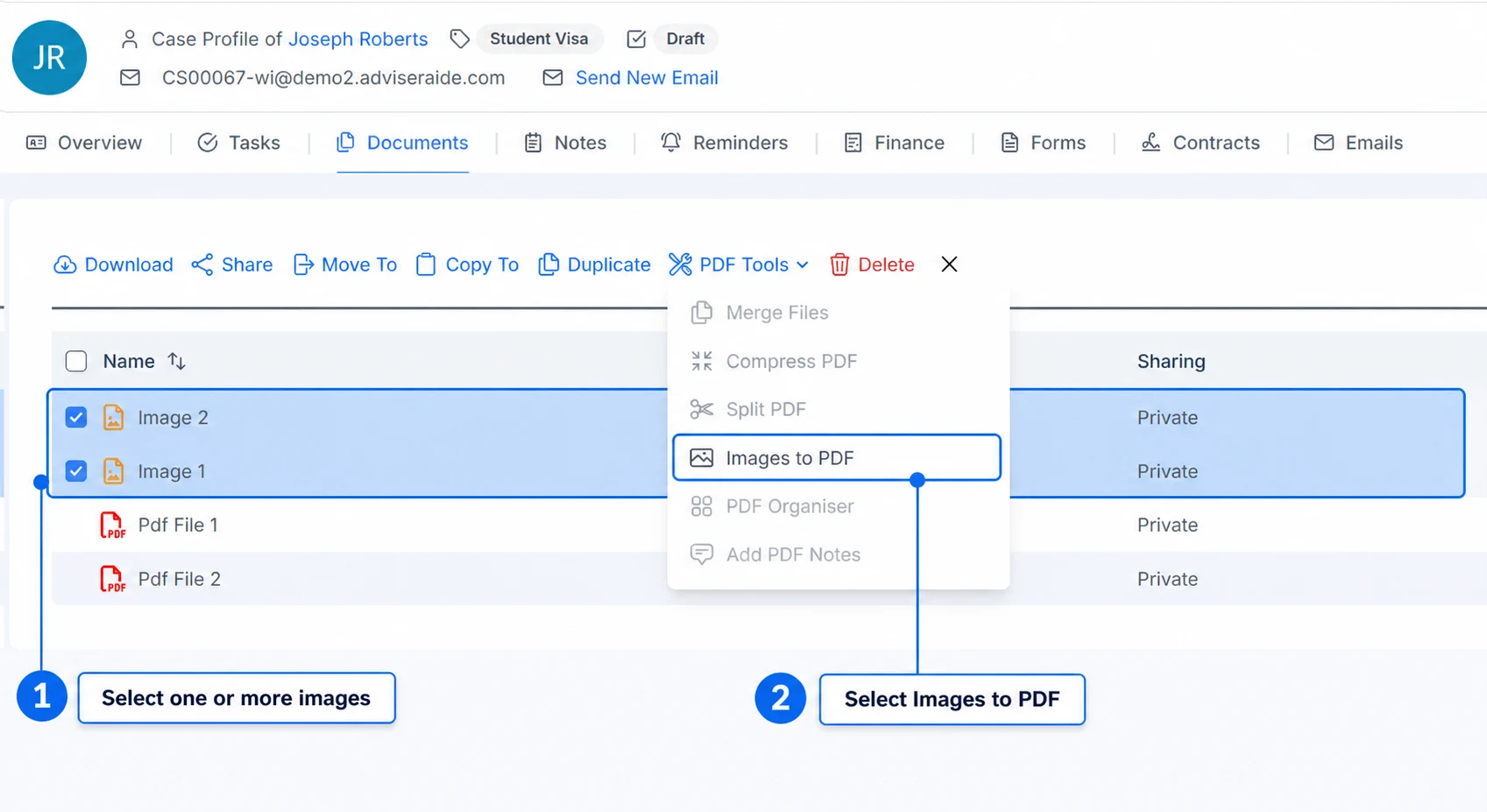
Open the case Documents tab or Library, then select one or more JPG or PNG images. Select PDF Tools, then select Images to PDF.You can select one image to create a one-page PDF, or select several images to combine them into a single PDF.
Select one or more images, then open Images to PDF
2
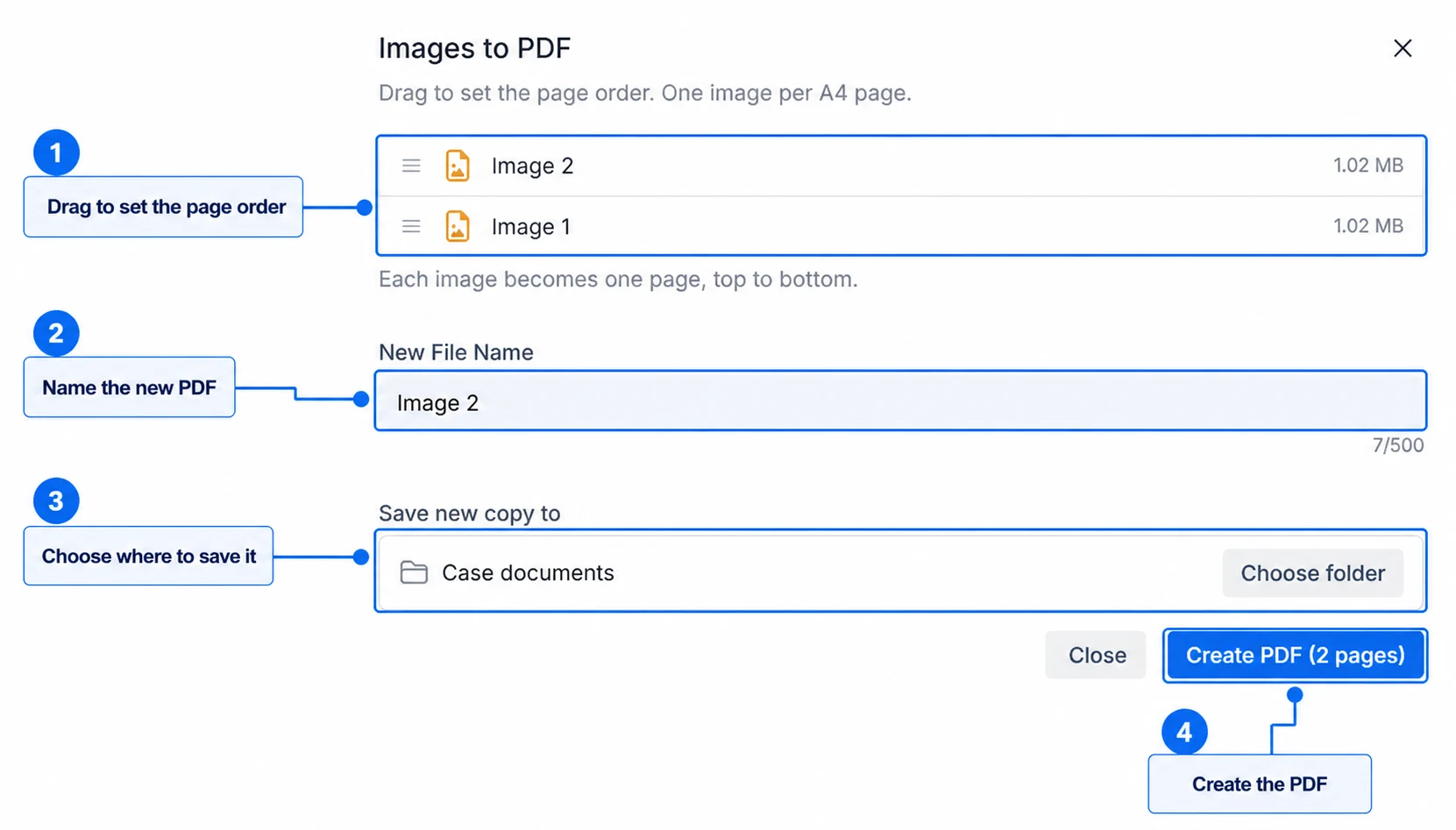
Put the pages in order
Drag the images into the order you want. The first image becomes the first page of the PDF, and each image after it becomes the next page.
Arrange the pages, name the PDF, choose where to save it and then create it
3
Name and save the PDF
Enter a New File Name. The new PDF is saved to the current case documents or Library location by default. Select Choose folder to save it somewhere else.
4
Create the PDF
Select Create PDF. AdviserAide creates one PDF containing the selected images and saves it in your chosen location. The original image files are left unchanged.