

What you can do
Open PDF Organiser
Open the case Documents tab or Library, then select one PDF. Select PDF Tools, then select PDF Organiser.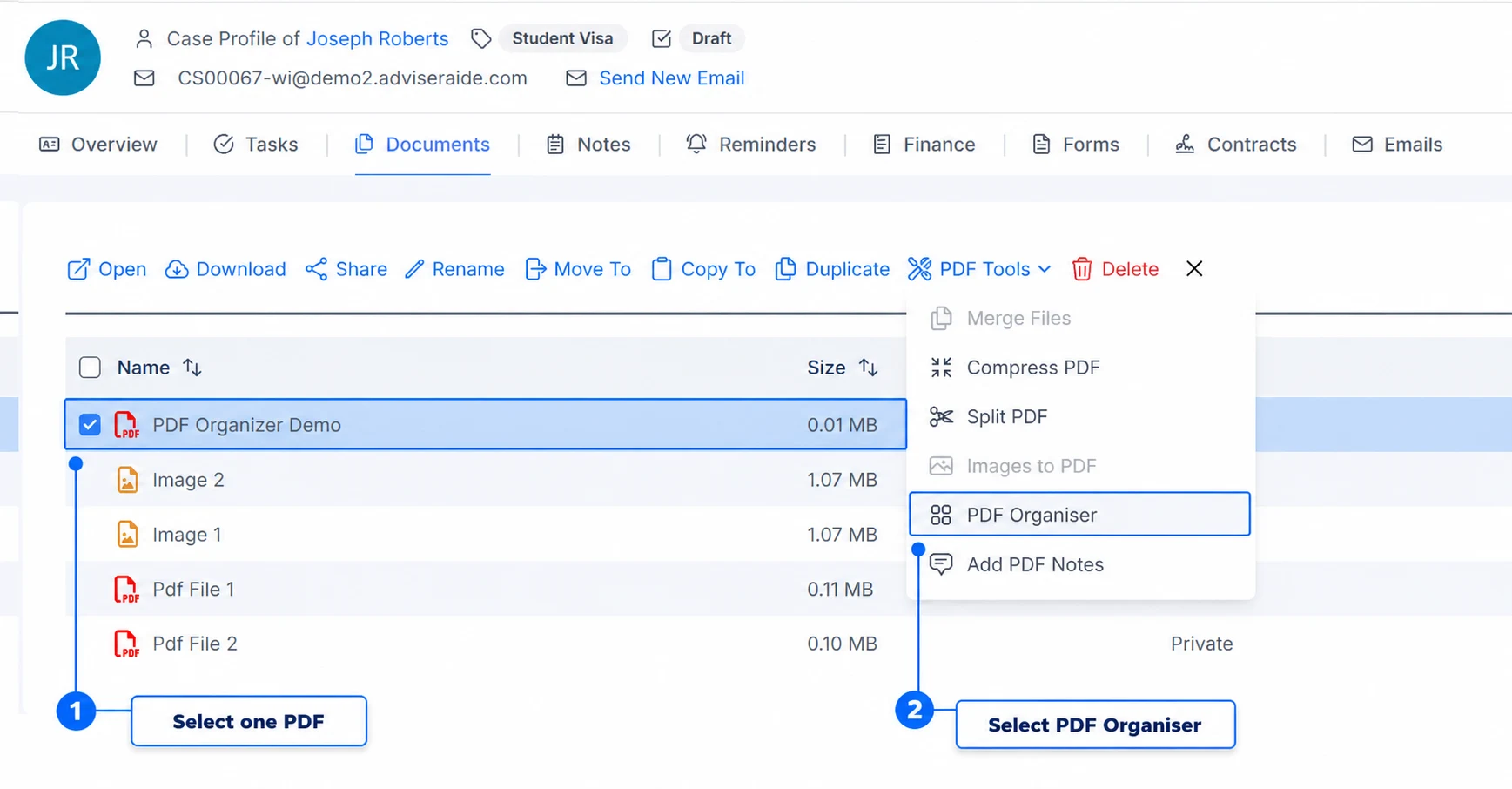
Select one PDF, then open PDF Organiser
Arrange the document
The pages appear as thumbnails on the left. Select a thumbnail to open a larger preview on the right, where you can move between pages and change the zoom. Drag any thumbnail to move that page to a different position. The page numbers update to show the order of the new PDF.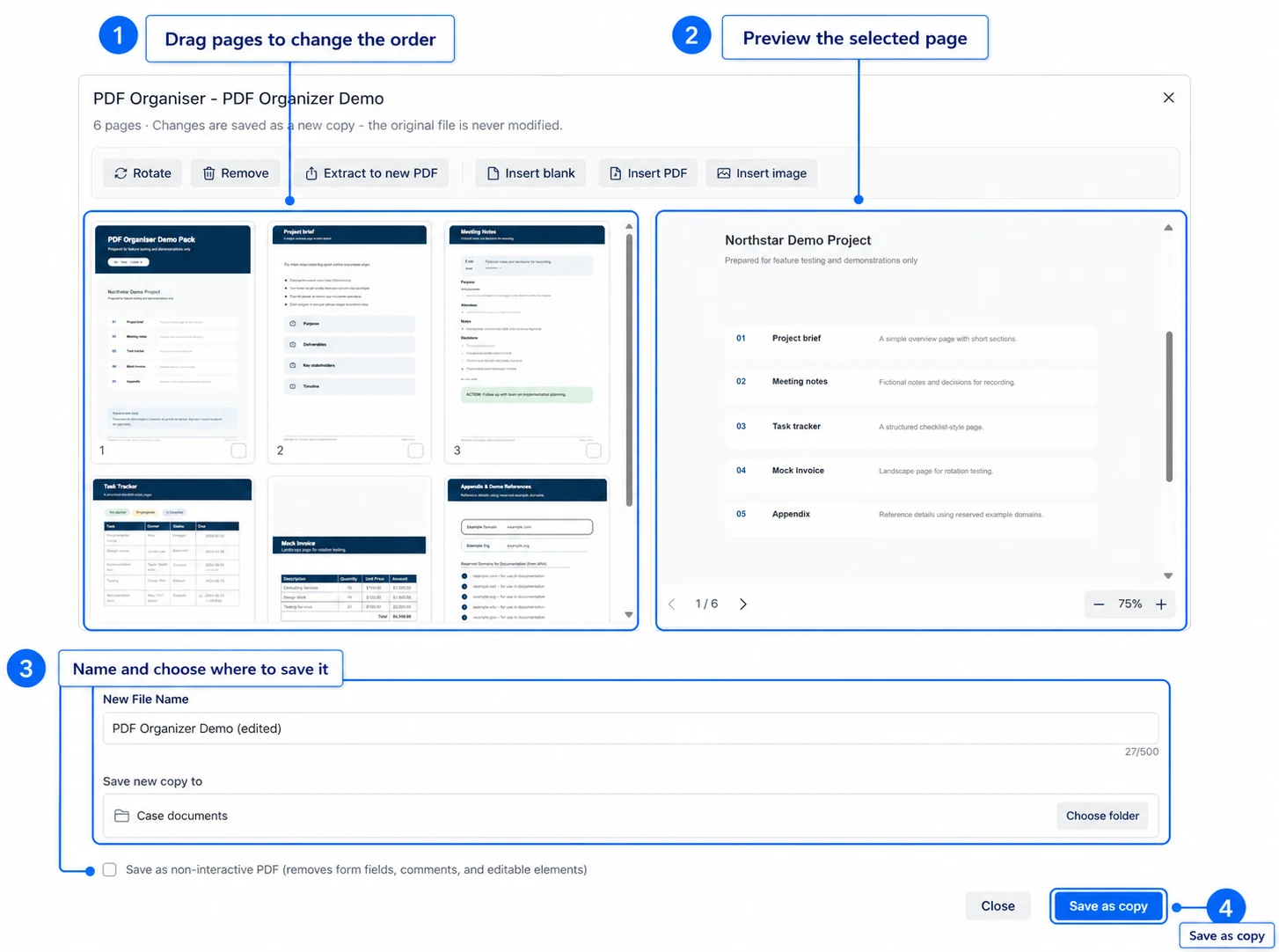
Drag pages into order, preview the document and prepare the new copy
Rotate, remove or extract pages
Tick one or more page thumbnails, then choose what you want to do from the toolbar:- Rotate turns the selected pages in the new copy you are preparing.
- Remove leaves the selected pages out when you save the new copy.
- Extract to new PDF creates a separate PDF containing only the selected pages.
Rotate pages
Select the pages, then select Rotate. Each time you select it, the chosen pages turn another 90 degrees.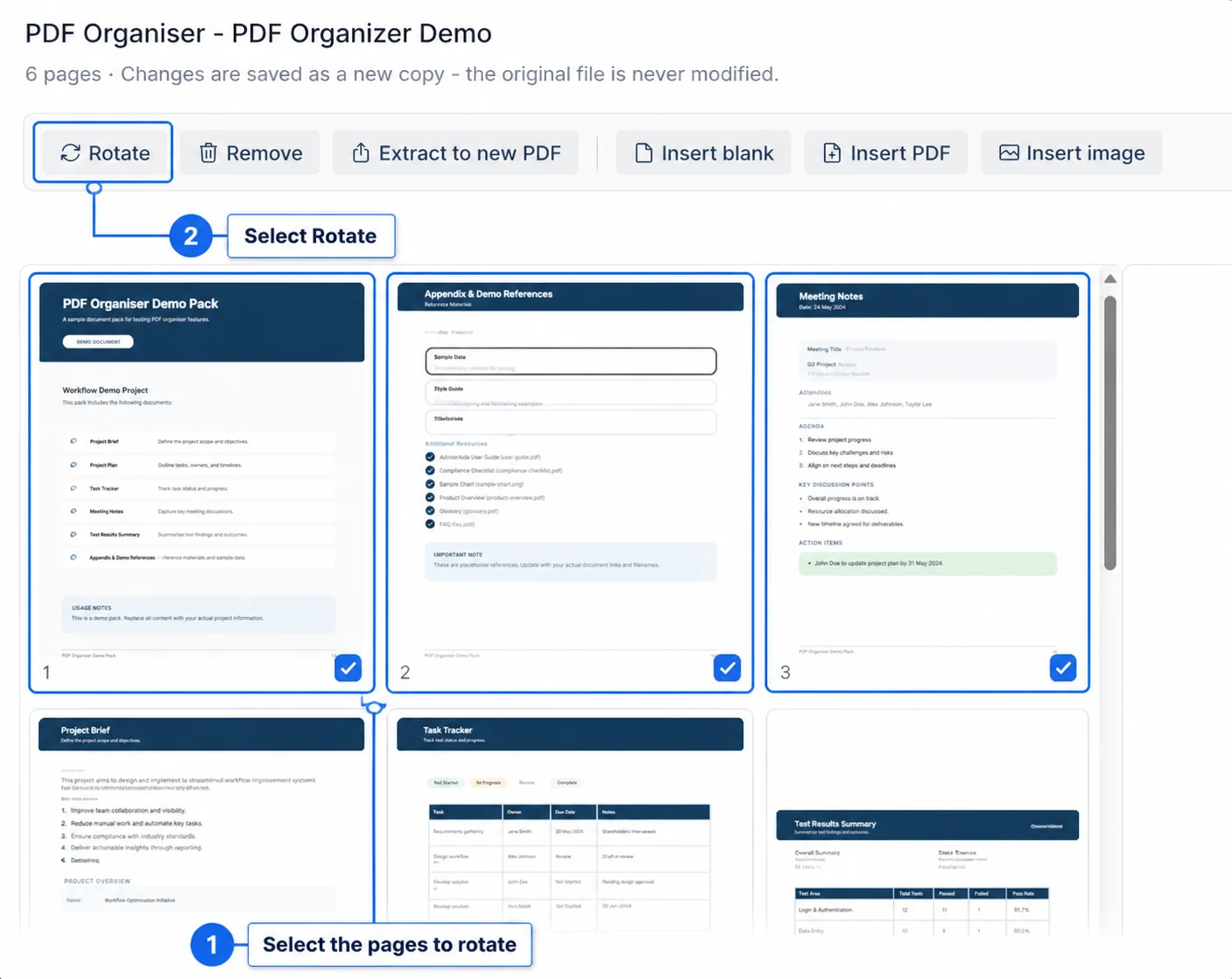
Select the pages you want to rotate, then select Rotate
Remove pages
Select the pages you do not want, then select Remove. When you select Save as copy, AdviserAide creates a new PDF without those pages. The pages are not deleted from the original PDF.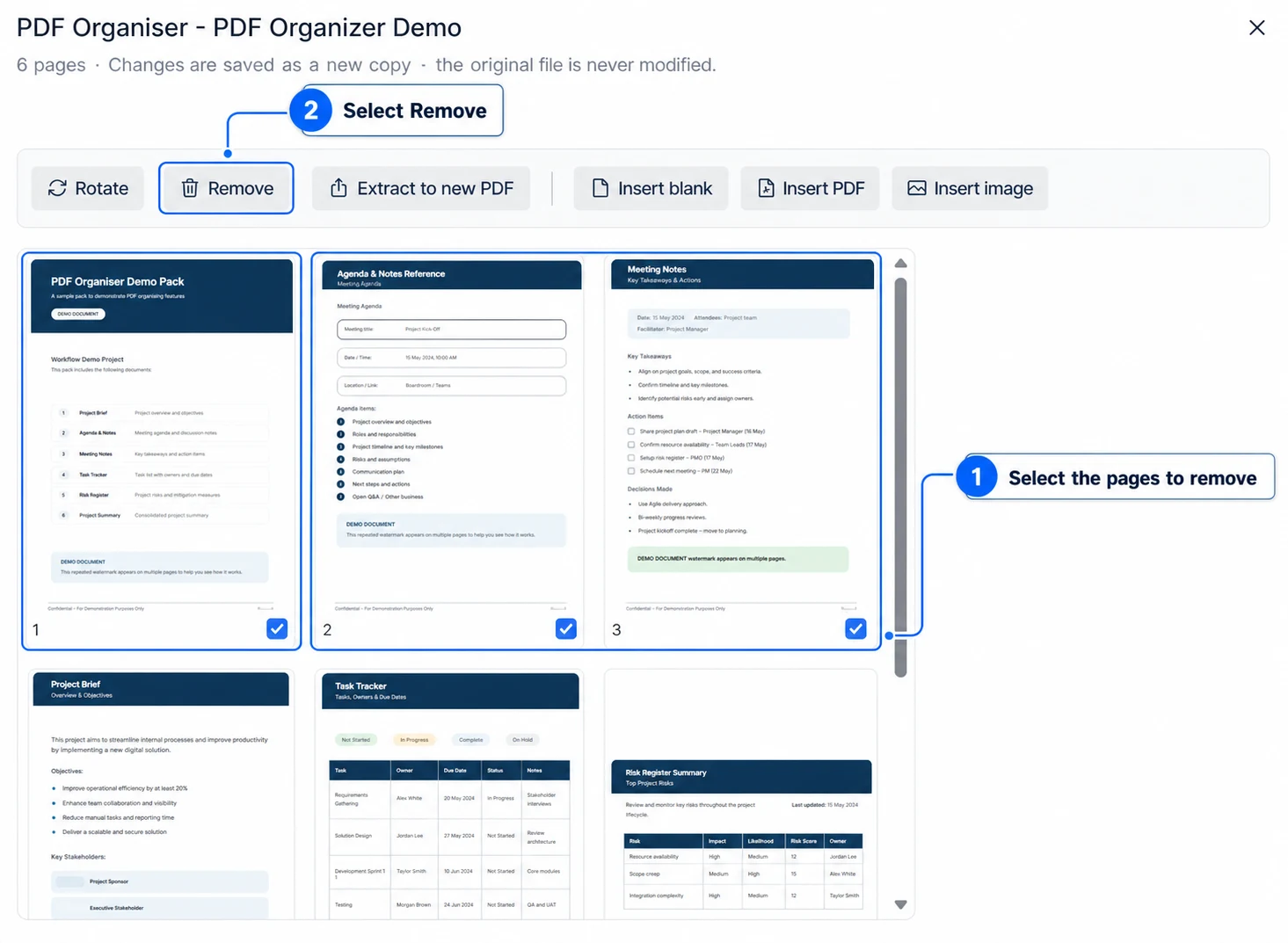
Select the pages to leave out of the new copy, then select Remove
Extract pages into a new PDF
Select the pages you want to place in a separate document, then select Extract to new PDF. AdviserAide creates a new PDF containing only the selected pages. For example, selecting pages 2, 3 and 5 creates a new three-page PDF containing those pages in that order. The pages are not removed from the original PDF.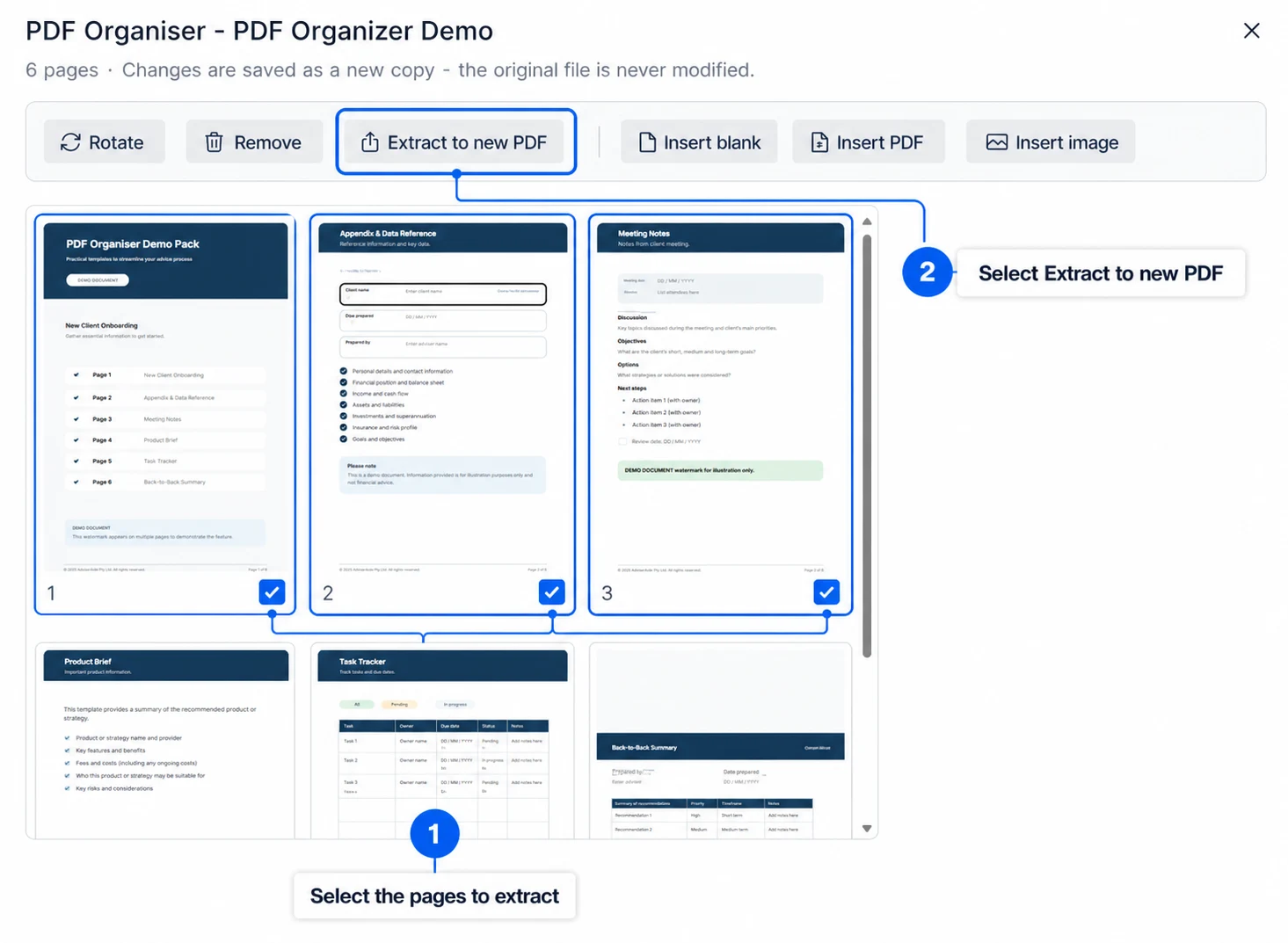
Select the pages for the separate PDF, then select Extract to new PDF
Add new pages
Before inserting anything, open the page that the new content should follow. PDF Organiser adds blank pages, PDFs and images immediately after the page currently shown in the preview. You can drag the inserted pages elsewhere afterwards.Insert a blank page
Select Insert blank to add one empty page. You can then drag it into the position you need.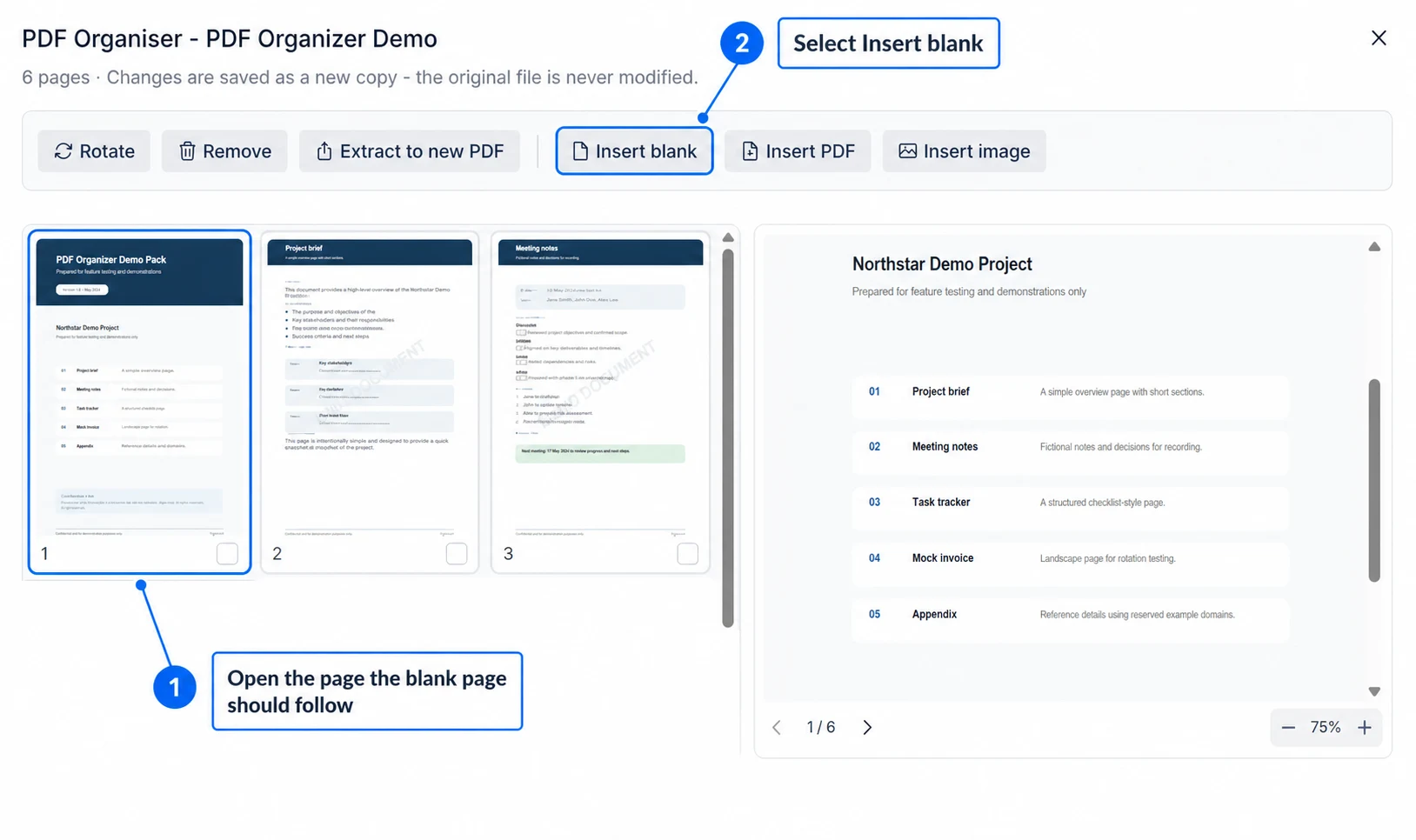
Open the page the blank page should follow, then select Insert blank
Insert another PDF
Select Insert PDF, then choose a PDF already stored in the case or select Upload From PC. Every page from the selected PDF is added to the organiser. Each inserted page can then be moved, rotated or removed separately. This lets you combine two PDFs while still controlling exactly where their pages appear.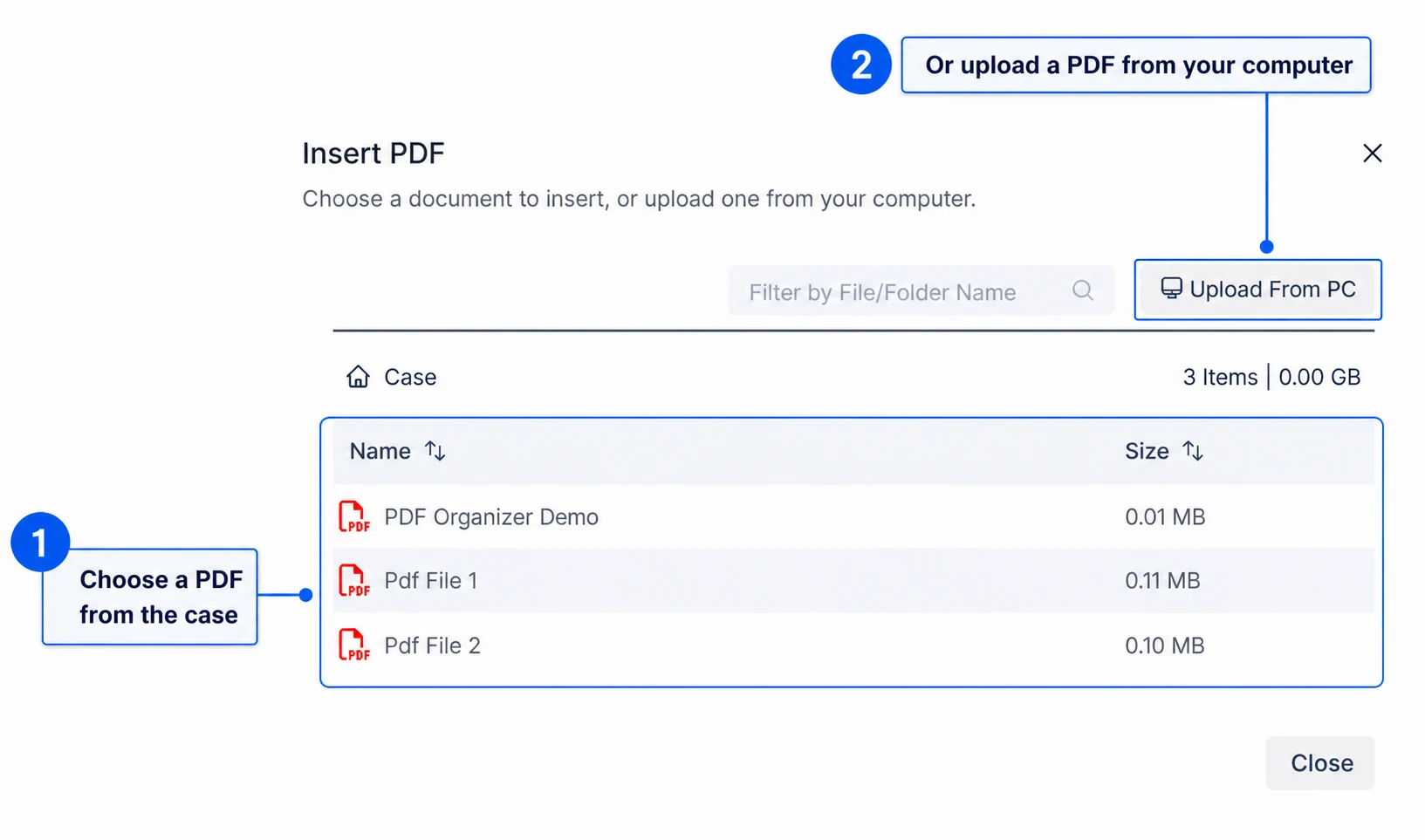
Choose a PDF from the case or upload one from your computer