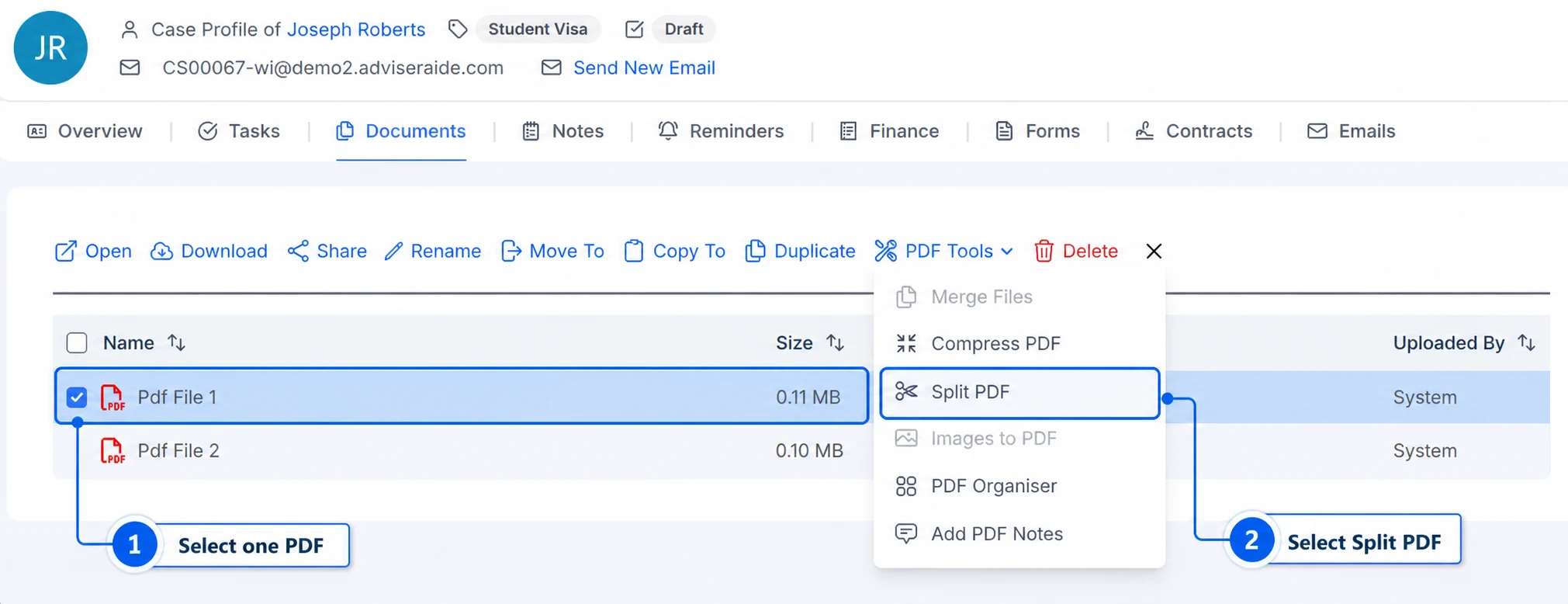
Open the case Documents tab or Library, then select one PDF. Select PDF Tools, then select Split PDF.
Select one PDF, then open Split PDF
2
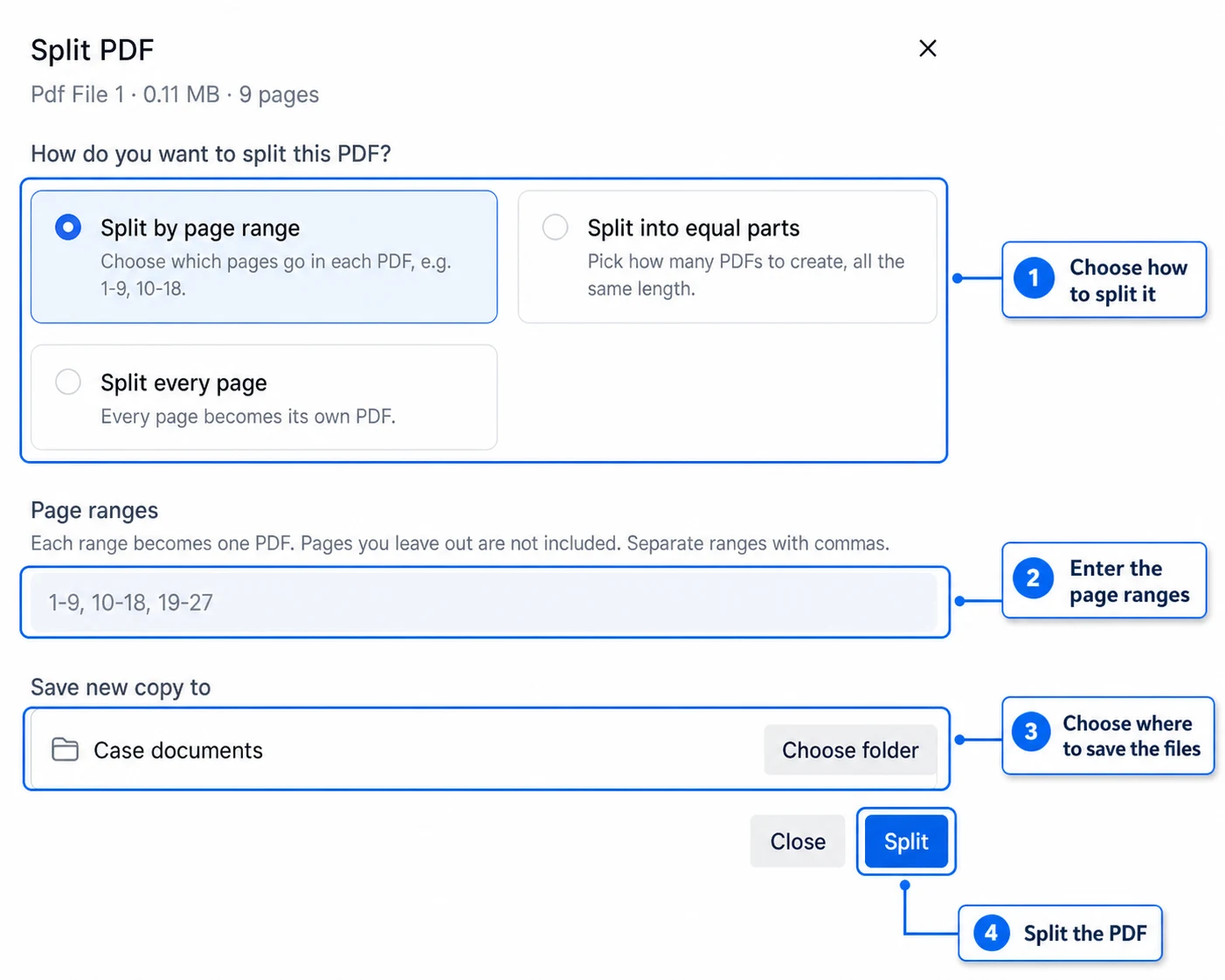
Choose how to split it
Choose the option that matches the files you want to create:
Split by page range lets you choose the pages for each new PDF. Separate each range with a comma. For example, 1-2, 3-4, 5-6 creates three PDFs: one with pages 1 and 2, one with pages 3 and 4, and one with pages 5 and 6. Pages you leave out are not included.
Split into equal parts asks how many PDFs you want. AdviserAide divides the pages between them as evenly as possible. For example, splitting a 10-page PDF into two parts creates two 5-page PDFs.
Split every page creates a separate PDF for every page in the original document.
Choose how to split the PDF, where to save the new files and then select Split
3
Choose where to save the files
The new PDFs are saved to the current case documents or Library location by default. Select Choose folder to save them somewhere else.
When splitting a large PDF, create or choose a separate folder first. Splitting every page of a 50-page PDF creates 50 new files, so keeping them in a folder makes the document list easier to manage.
4
Split the PDF
Select Split. AdviserAide creates the new PDFs in your chosen location and confirms how many files were created.