

The Xero bar on each invoice
Invoices that sync with Xero show a Xero bar at the top of the invoice: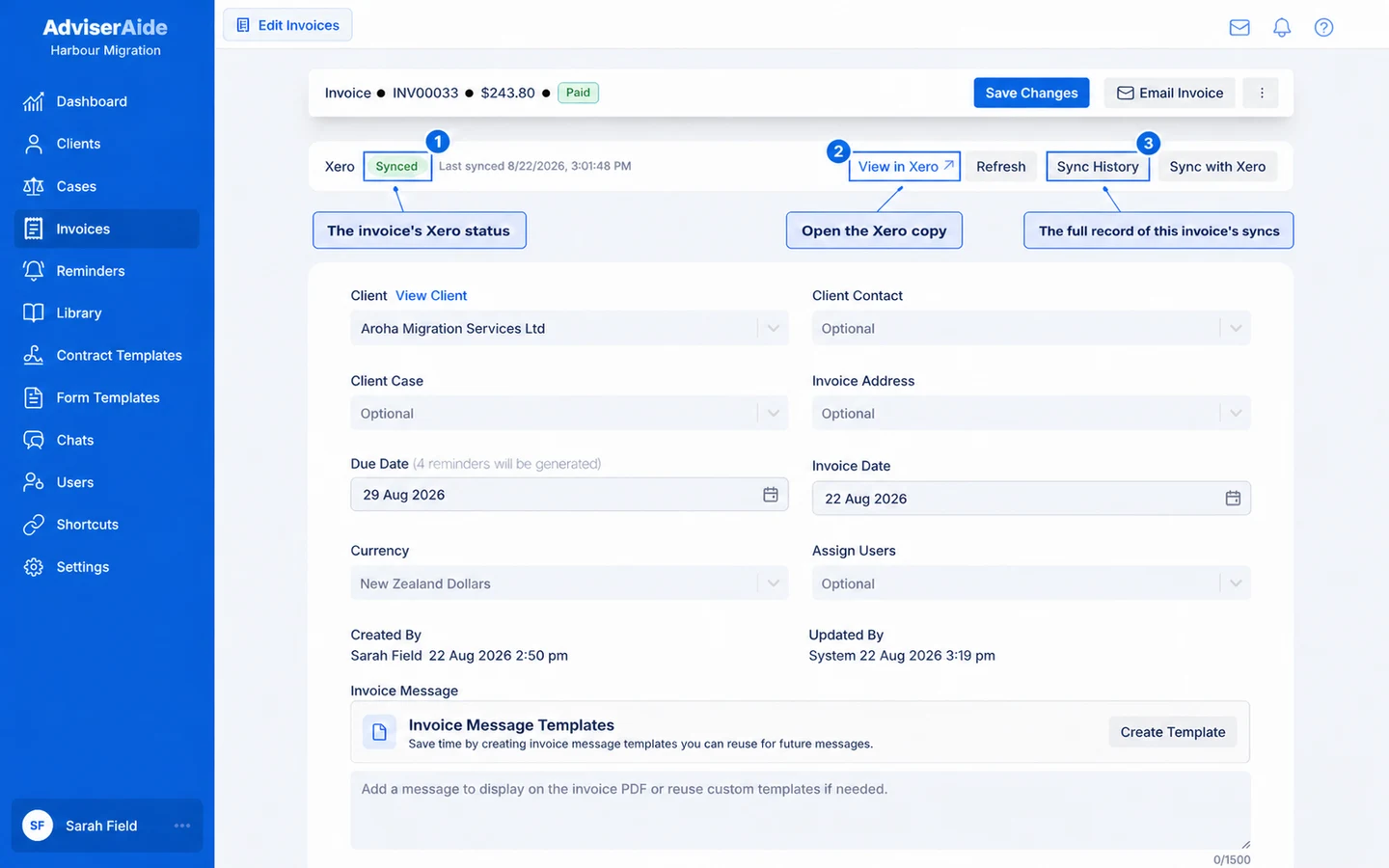
The Xero bar shows the invoice's current status and actions
Select Refresh to check the invoice against Xero. Select Send to Xero before its first send. Once it has a Xero copy, select Sync with Xero to send changes or retry after a fix.
Sync History on the invoice
Select Sync History to see everything that has ever happened between this invoice and Xero - the invoice itself, its payments and its credit notes, in time order: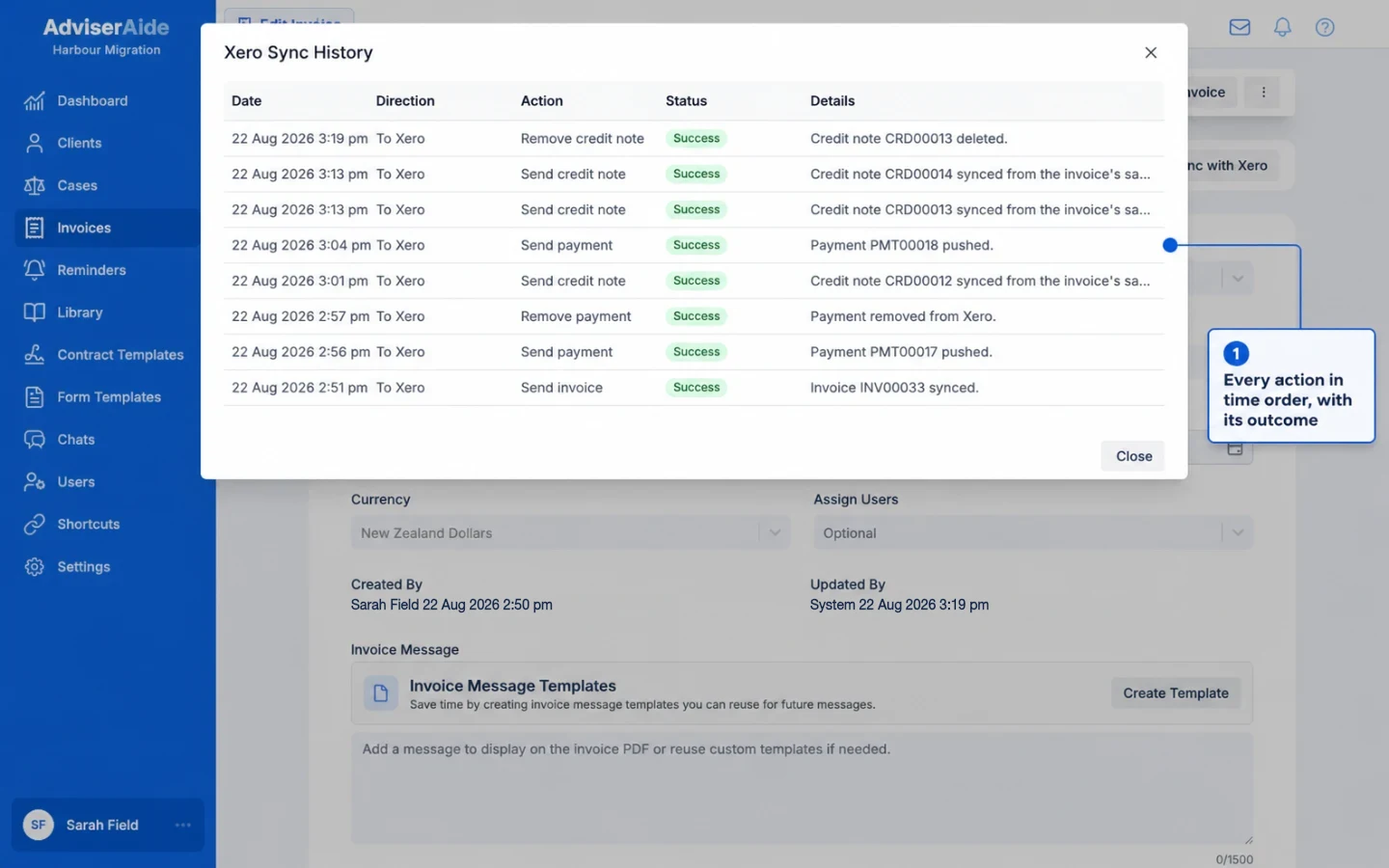
Sync History lists every action for the invoice, its payments and credit notes
The settings page
Settings → Integrations gives you the organisation-wide picture.Anything that needs you
When Xero refuses an invoice or something needs a decision, a banner counts the invoices that need your attention. Select See what needs fixing for the list - each invoice is named with a specific explanation of what happened and what to change: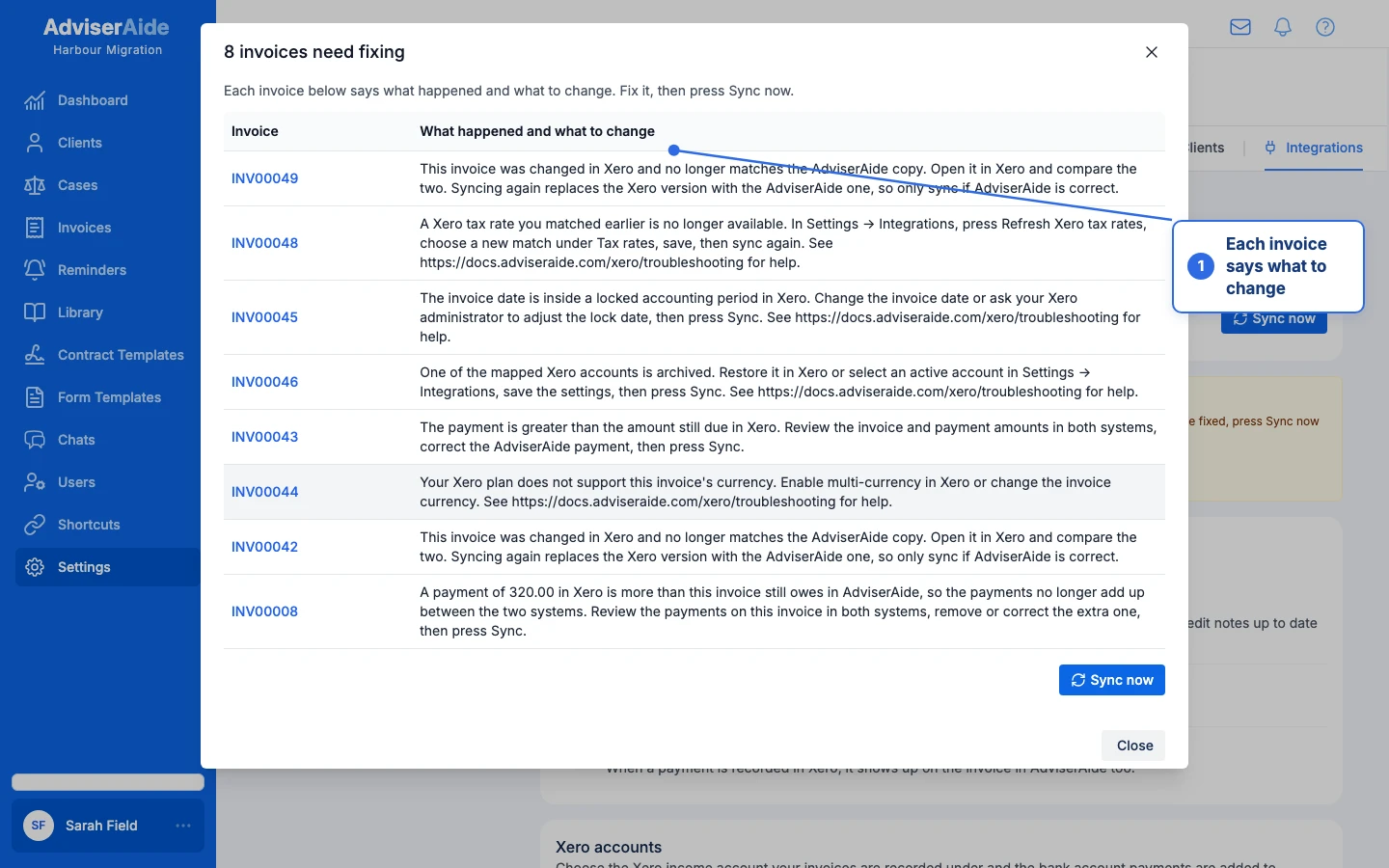
Each invoice that needs attention comes with its own explanation and fix
Run history
The history section shows each time AdviserAide checked or updated Xero - when it happened, what started it, and whether it succeeded. Open an entry to see the individual actions. Open a run to see the individual actions it performed: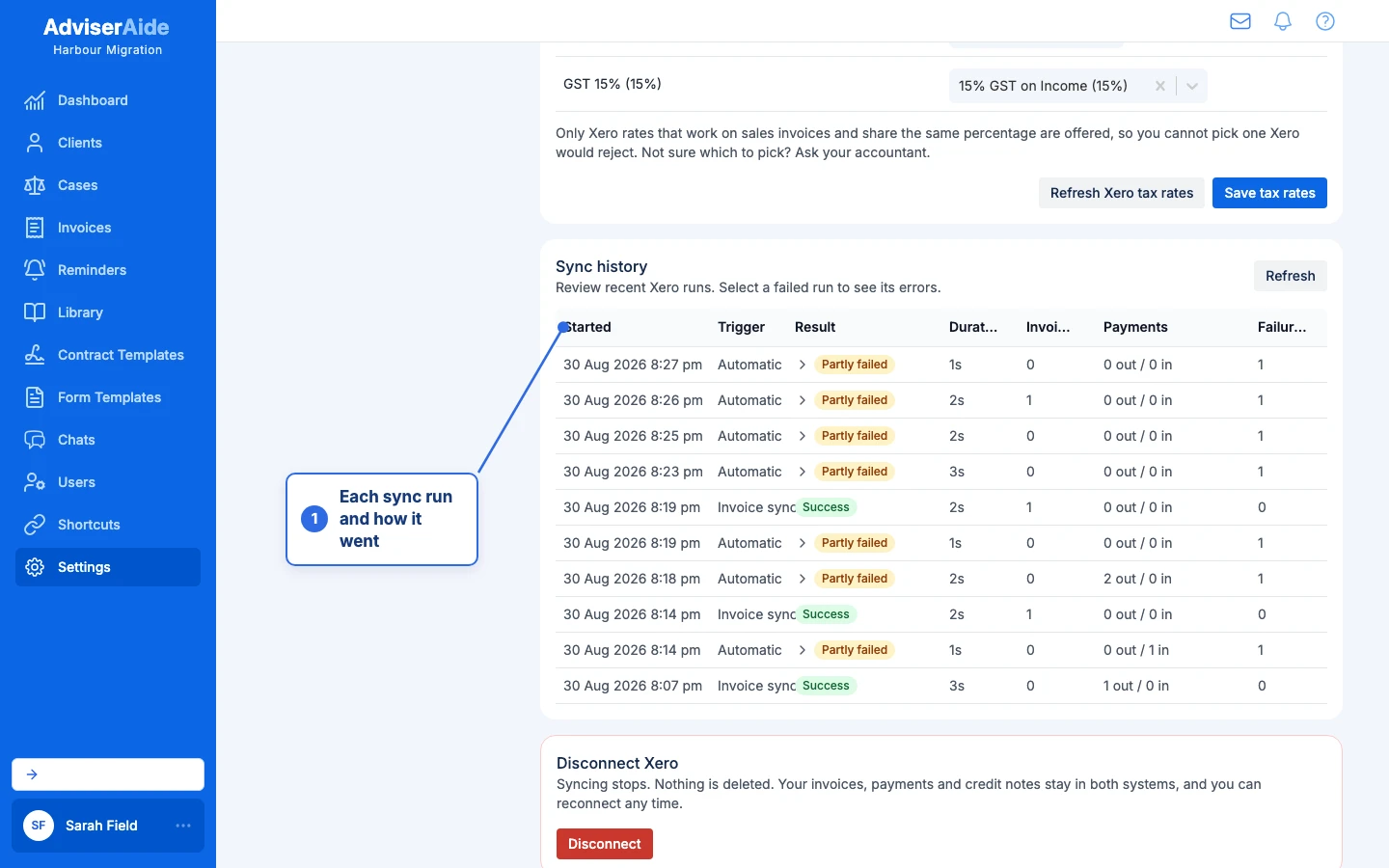
Every sync run is recorded with its outcome
The notification bell
The bell’s Xero tab mirrors the needs-attention list, so you can spot a sync problem from anywhere in AdviserAide and jump straight to the invoice: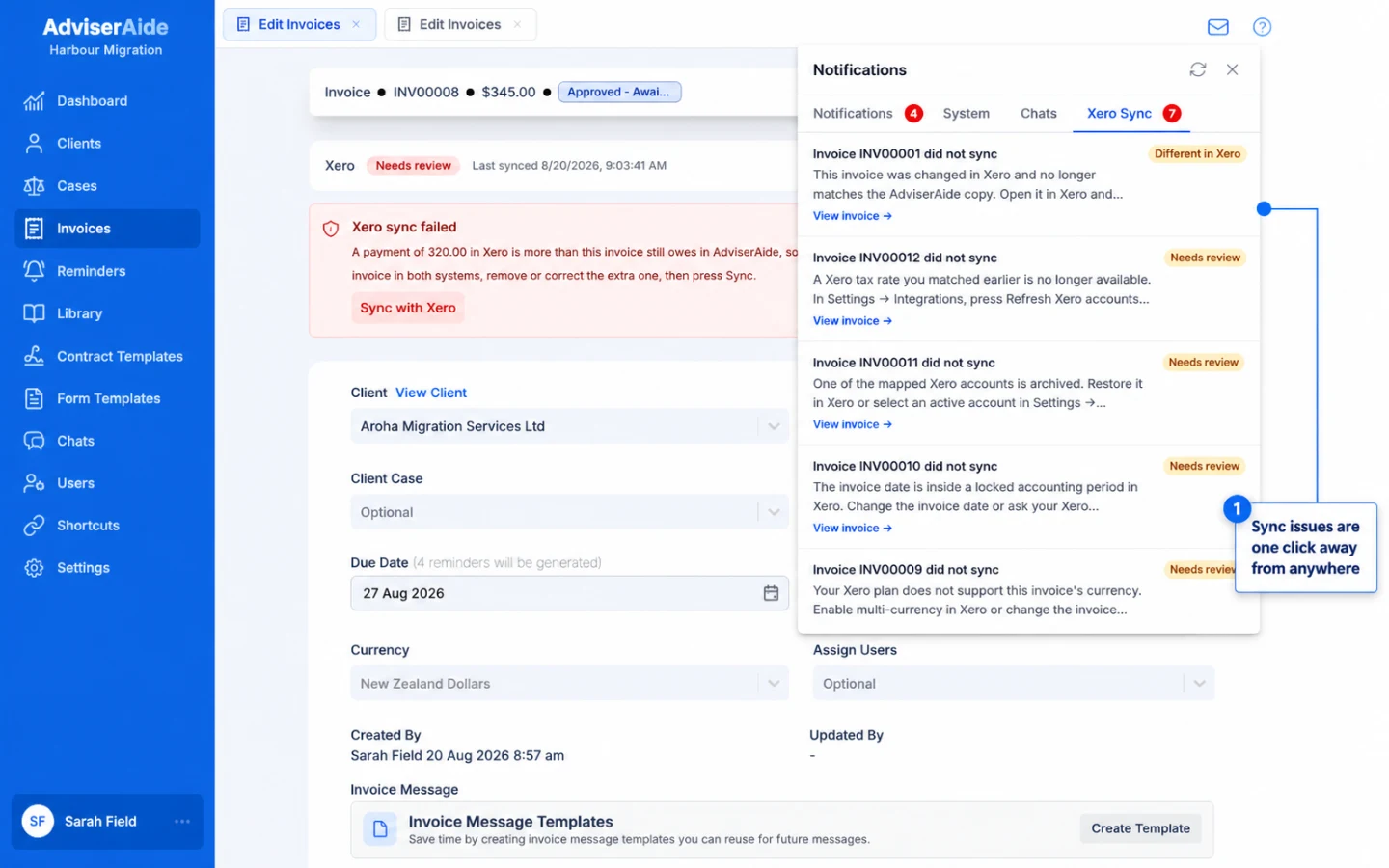
Xero sync issues are also one click away from the notification bell