Connect AdviserAide to your Xero organisation, choose your Xero accounts and tax rates, and start syncing invoices in minutes.
Connect AdviserAide to your Xero organisation once, finish a short setup, and syncing runs on its own from then on. You need a Xero login with access to the organisation you want to connect.
Nothing is sent to Xero until setup is finished, and connecting never changes anything already in Xero. You can disconnect at any time.
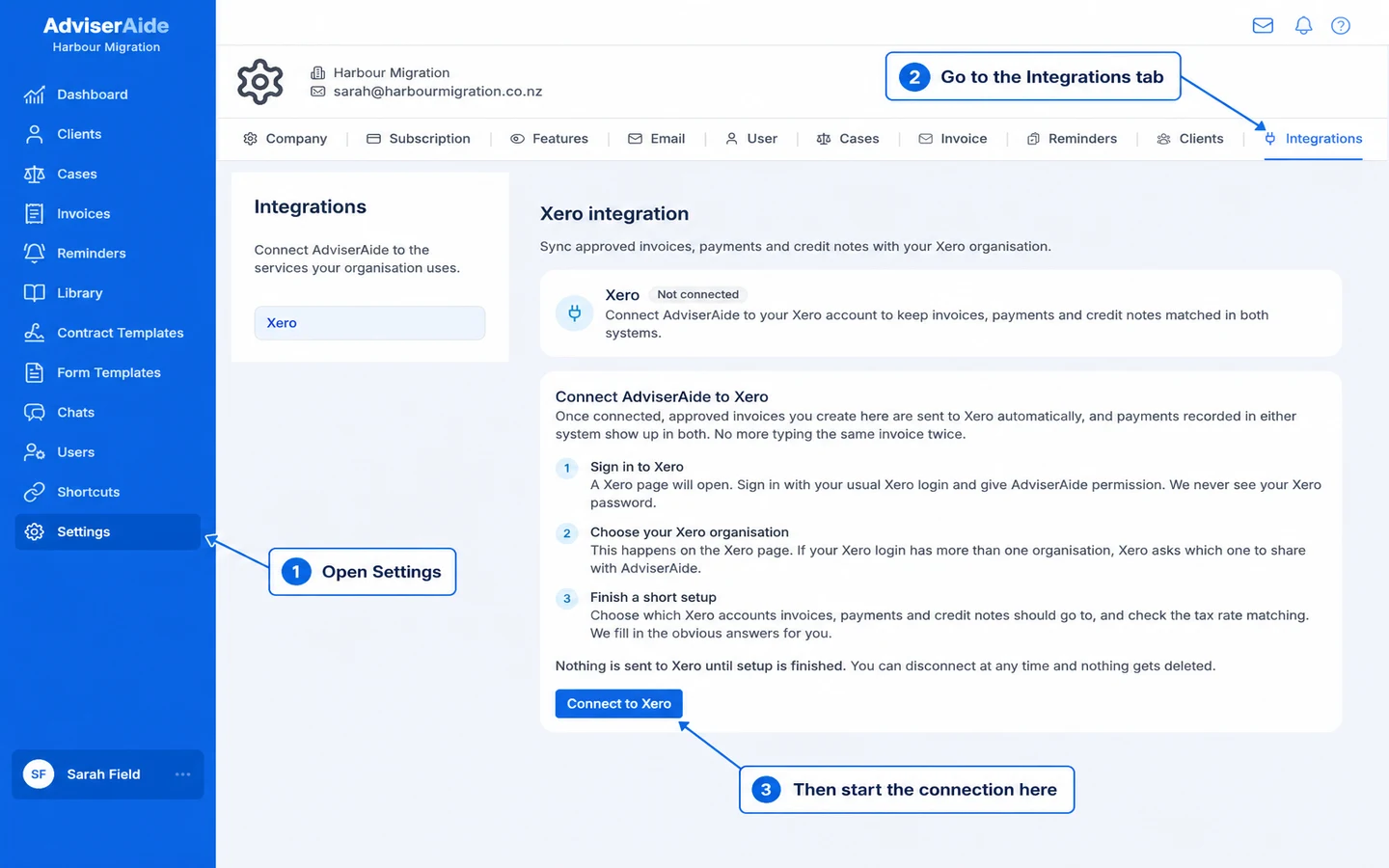
Open Settings → Integrations and select Connect to Xero.
The Integrations tab in Settings, with the Connect to Xero button
2
Sign in to Xero
A Xero page opens. Sign in with your usual Xero login and give AdviserAide permission. AdviserAide never sees your Xero password.
3
Choose your Xero organisation
If your Xero login has more than one organisation, Xero asks which one to share with AdviserAide. Choose the organisation you invoice from, then you are returned to AdviserAide.
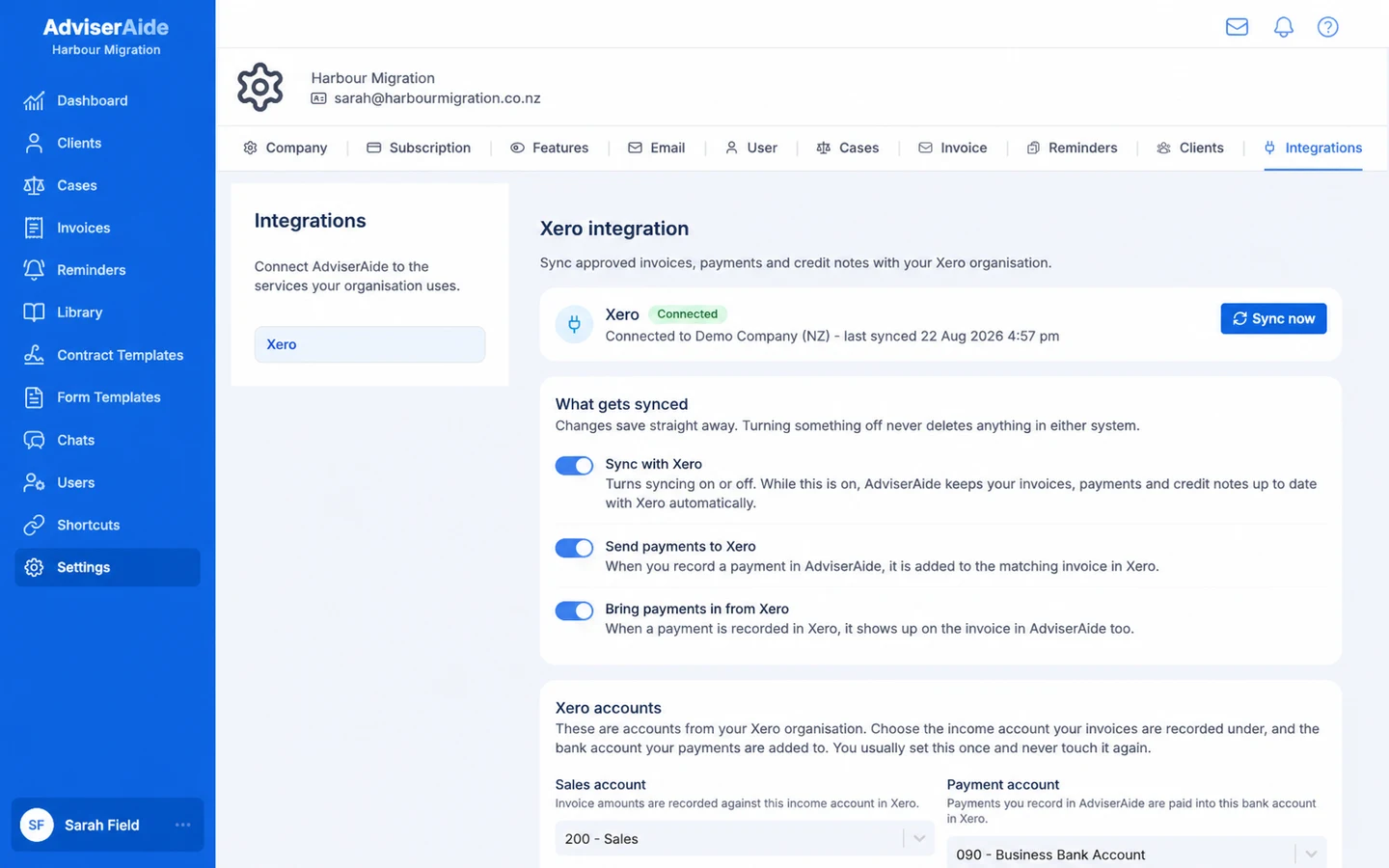
Once connected, the page shows Connected to your organisation’s name, and the setup sections below become available.
The connected Xero settings page with syncing controls
To finish setup, choose and save your Xero accounts, then match and save your tax rates. AdviserAide suggests the obvious choices for you - review them and save each section. Sync with Xero is already on, but syncing cannot start until both sections are complete.
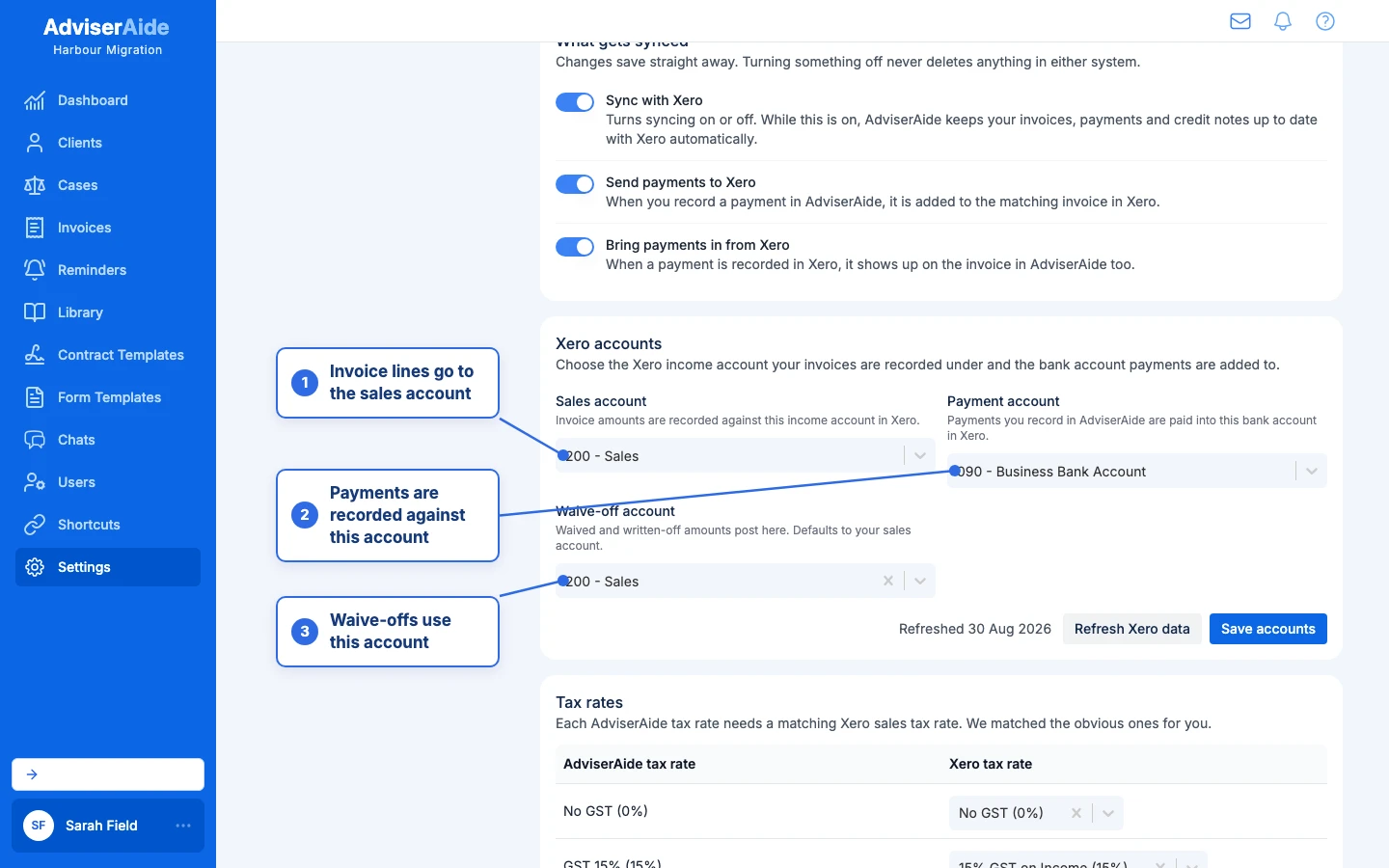
Choose a Sales account (the Xero account invoice line items are coded to) and a Payment account (the Xero bank or payment account payments are recorded against), then save.The Waive-off account is optional. Choose it only if you want waived amounts to appear separately from ordinary credits in your Xero reporting.
Choose which Xero accounts invoices, payments and waive-offs go to
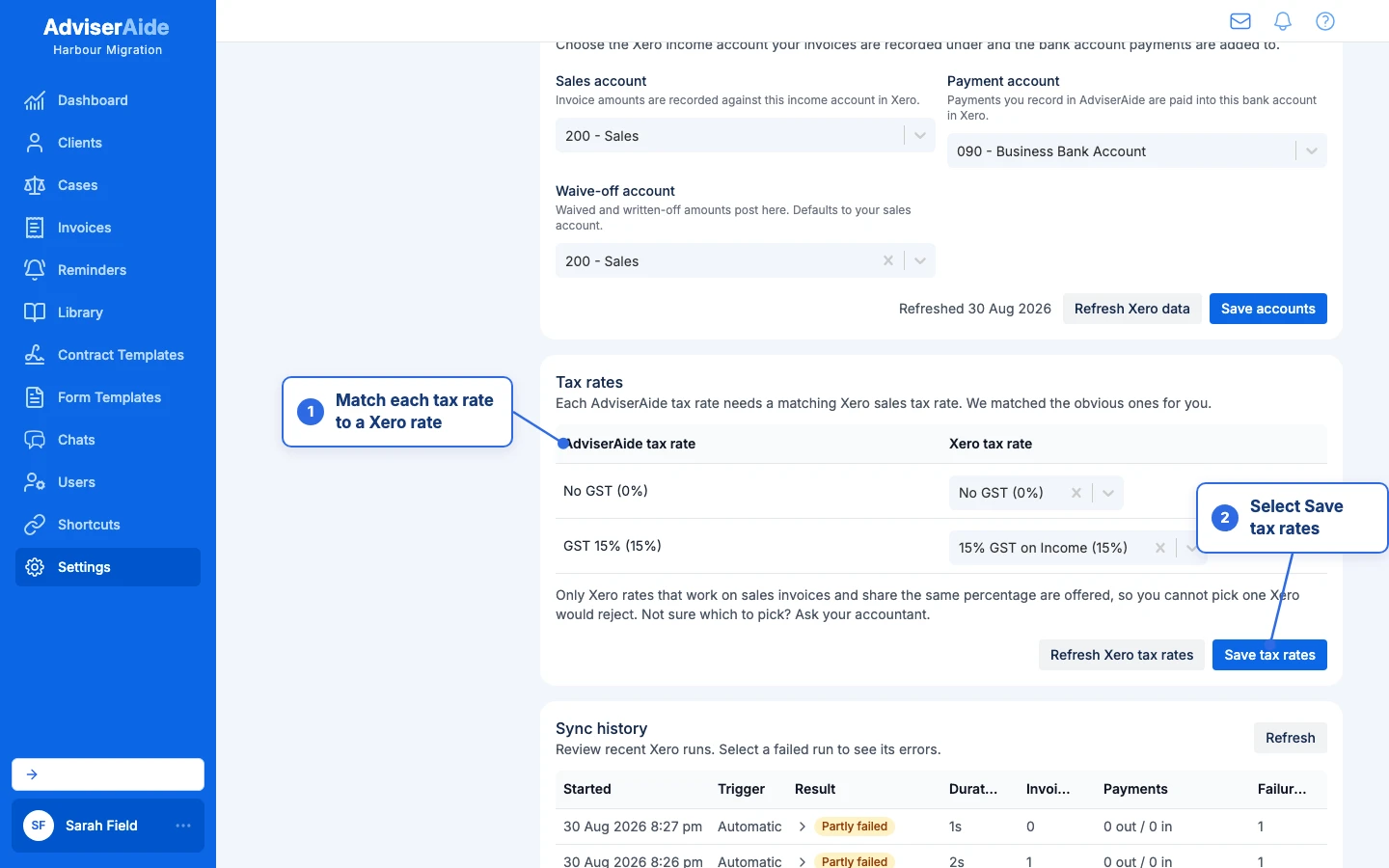
Each AdviserAide tax rate needs a matching Xero tax rate so invoice lines carry the right tax in Xero. AdviserAide suggests matches automatically - check them, adjust if needed, then select Save tax rates.
Match each AdviserAide tax rate to a Xero tax rate and save
If a Xero rate you expect is missing from the list, select Refresh Xero tax rates to fetch the latest rates from Xero.
Turns syncing on or off. While it is off nothing moves in either direction - work is remembered and catches up when you turn it back on. See Pausing and disconnecting.
Send payments to Xero
Payments recorded in AdviserAide are recorded in Xero too.
Bring payments in from Xero
Payments recorded in Xero appear on the matching invoice in AdviserAide.
Invoices you approve from now on sync to Xero - see Sending invoices for exactly when and how.
Invoices that existed before you connected are not sent automatically. Open one and select Send to Xero if you want it in Xero.
Clients are matched to Xero contacts automatically the first time one of their invoices syncs. AdviserAide looks for an existing Xero contact by email address and name, and creates one only when there is no match.