Send AdviserAide invoices to Xero automatically or on demand, keep edits in sync, and see exactly what your client owes in both systems.
When Xero is connected, approving an invoice does not send it straight away. The invoice waits for up to 30 minutes so you can still look it over, change it, or void it before anything reaches Xero. You stay in control: send it yourself the moment you are ready, or let AdviserAide send it automatically when the wait ends.
Draft invoices never sync. An invoice only starts its journey to Xero once you approve it.
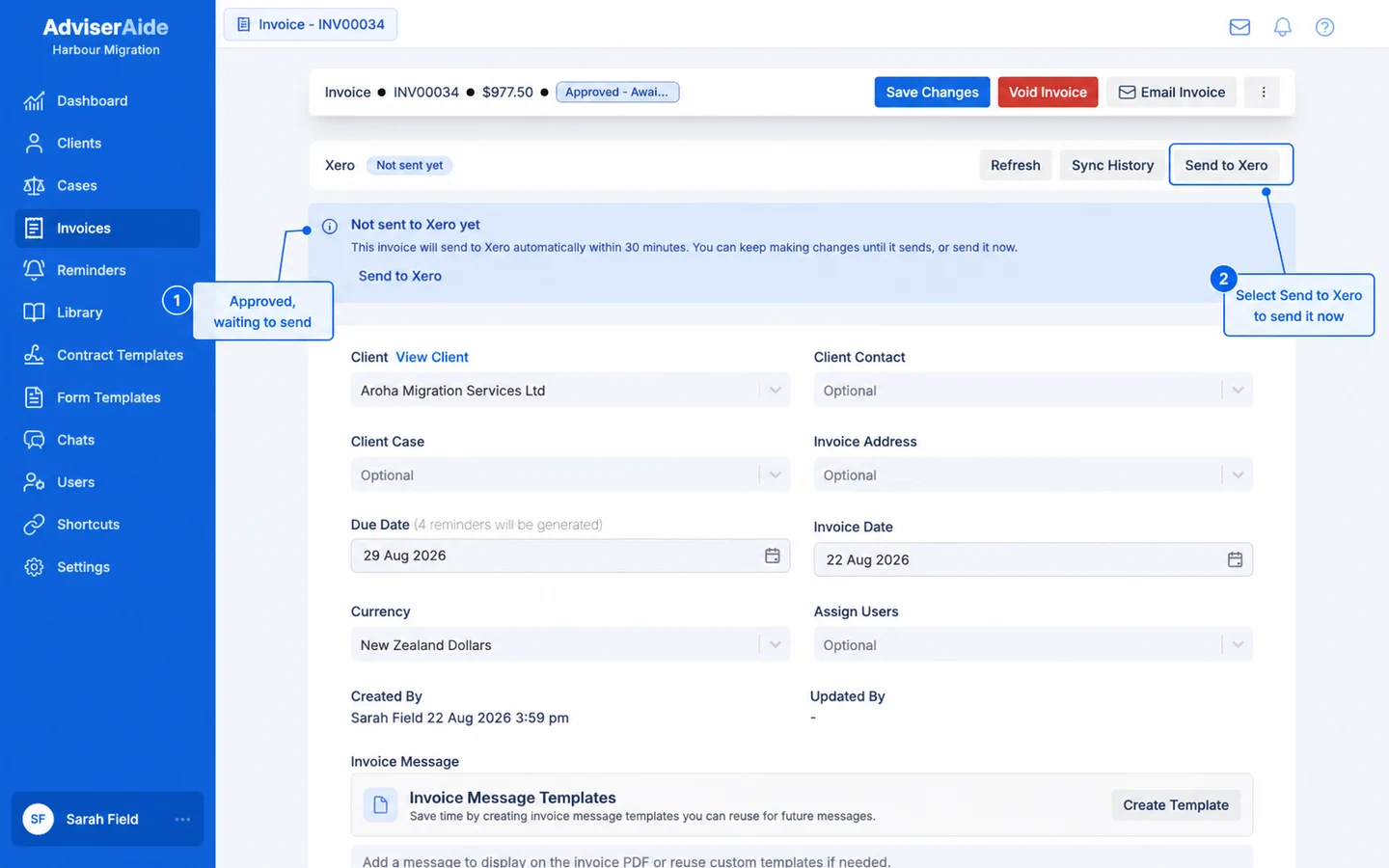
Approve the invoice as usual. A Xero bar appears at the top of the invoice showing Not sent yet, and a banner explains that the invoice will send to Xero automatically within 30 minutes.Nothing has reached Xero at this point. The invoice stays fully editable - change line items, dates or amounts and save as often as you need. Your changes do not restart the 30-minute wait.
An approved invoice waits before sending, so you can keep making changes or send it now
2
Send it now, or let it send itself
Select Send to Xero when you are happy with the invoice. A progress message appears in the corner - Sending invoice to Xero… - and you can keep working while it finishes. It changes to Xero has been updated when the invoice has arrived.If you do nothing, AdviserAide sends the invoice automatically when the 30-minute wait ends. Automatic sends happen quietly in the background.
3
Check the result
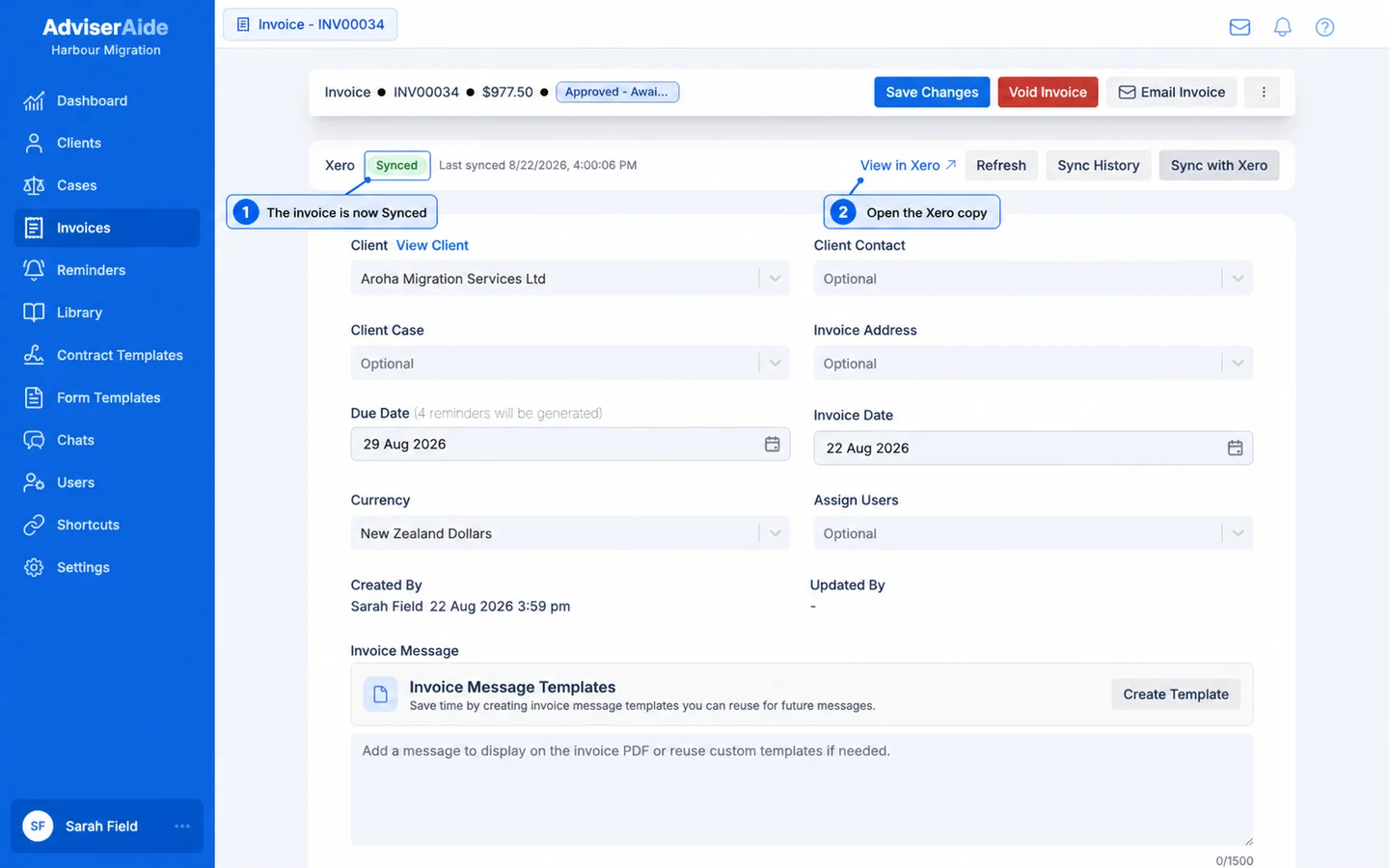
The Xero bar now shows Synced with the time of the last sync, and the button is renamed Sync with Xero. Select View in Xero to open the invoice in your Xero organisation.
Once sent, the invoice shows as Synced with a direct link to the Xero copy
While the invoice shows Not sent yet, nothing exists in Xero, so you can:
Keep editing. Every change you save is included when the invoice sends. The send always uses the latest saved version.
Void it with no trace. If the invoice was approved by mistake, void it. Because it never reached Xero, there is nothing to clean up there - no voided invoice, no history entry, nothing.
Once the invoice shows Synced, AdviserAide keeps the two systems matched automatically:
Edits sync on their own. Change the invoice in AdviserAide and the Xero copy is updated - you do not need to press anything.
Deleting or voiding voids the Xero copy. The invoice is voided in Xero rather than deleted, which keeps Xero’s records intact.
Xero uses its own invoice number. Xero numbers the invoice by its own sequence and keeps the AdviserAide invoice number as the reference, so you can match the two either way.
Payments and credit notes follow.Payments and credit notes you add sync to Xero automatically, and payments recorded in Xero appear on the invoice in AdviserAide.
When Xero is disconnected, syncing is paused, or Xero refuses the invoice, the Xero bar says so in plain terms and tells you what to fix - for example a tax rate that needs matching in Settings → Integrations. Fix the cause, then select Send to Xero if the invoice has never reached Xero, or Sync with Xero if it already has a Xero copy. See Troubleshooting for every message and its fix.