Remind employers automatically before their accreditation, job check or sponsorship approval expires, so they have time to renew.
An employer reminder emails an employer you work with before an important date. For example, if an employer’s accreditation expires on 20 June, add an Accreditation Expiry reminder with that date. AdviserAide then emails the employer 90 and 30 days before, so there is time to renew. Employer reminders work the same way as client reminders, but are added on the employer’s profile.
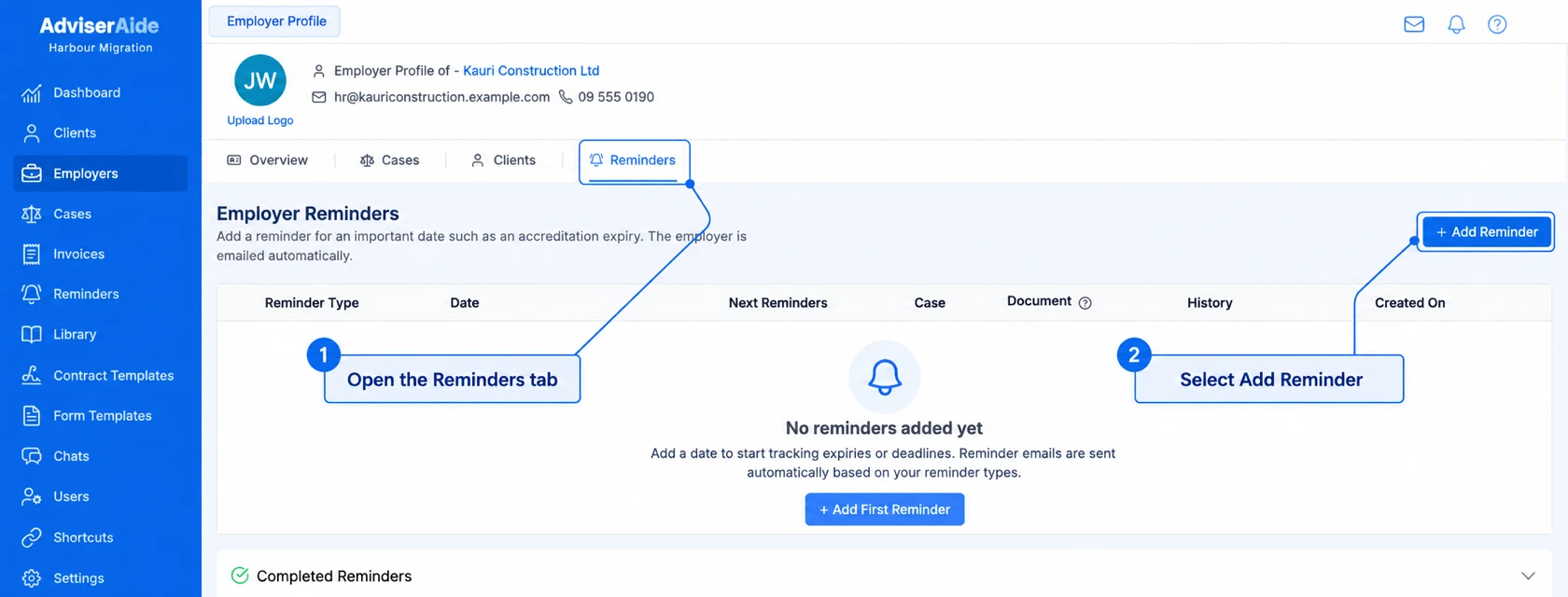
Select Employers in the left menu and open the employer. Select the Reminders tab, then select Add Reminder.
Select Add Reminder on the employer's Reminders tab
2
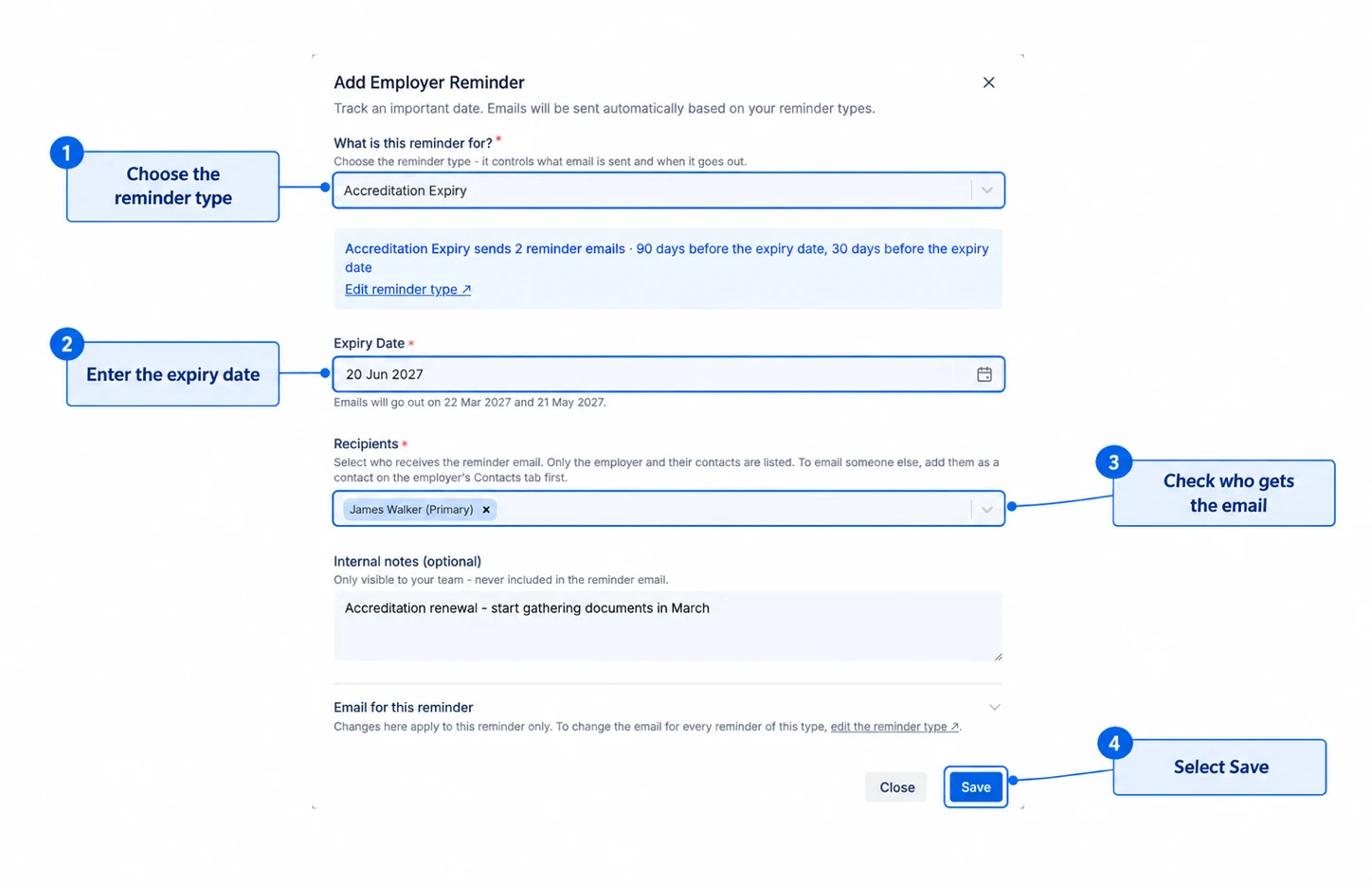
Fill in the reminder
What is this reminder for? - Choose what the date is, such as Accreditation Expiry. A blue box shows how many emails will be sent and when.
Expiry Date - Enter the date. Underneath, AdviserAide shows the exact dates the emails will go out.
Recipients - Who gets the email. The employer’s primary contact is already selected. You can add the employer’s other contacts too.
Internal notes (optional) - Notes for your team. These are never included in the email.
Choose what the date is, enter the date and check who gets the email
3
Save
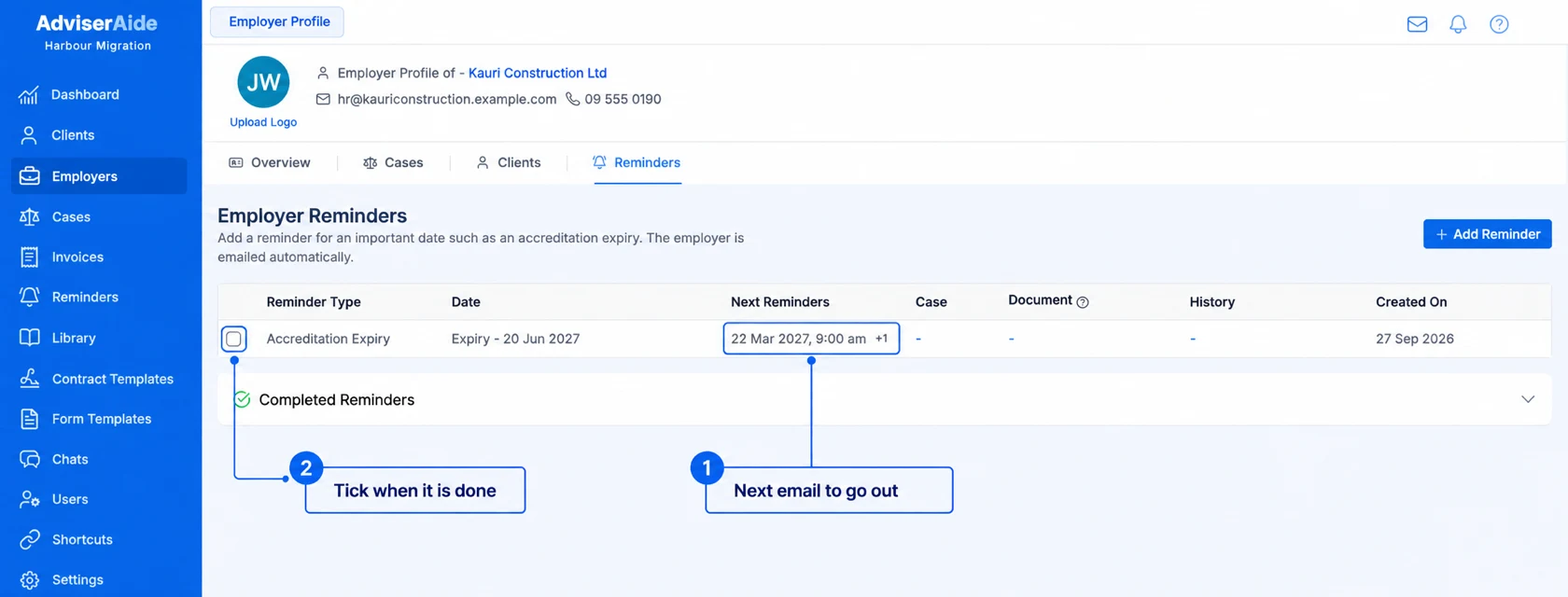
Select Save. The reminder appears on the employer’s Reminders tab, with the next email due to go out.
The reminder is listed with the next email due
When the employer has renewed, tick the box at the start of the reminder’s row. No more emails are sent, and the reminder moves to Completed Reminders.
You can also add an employer reminder from the Client & Employer Reminders tab on the Reminders page. Select Add Reminder and choose the employer under Client / Employer.
Every employer reminder is also listed on that tab, next to your client reminders.
If you do not see Employers in the left menu, ask your administrator.