Remind clients automatically to complete the forms you share and to sign their client agreement.
AdviserAide can chase clients automatically when a form or contract you shared is still waiting to be completed or signed. You choose who to remind when you share it, and the emails stop by themselves once the form is submitted or the agreement is signed.
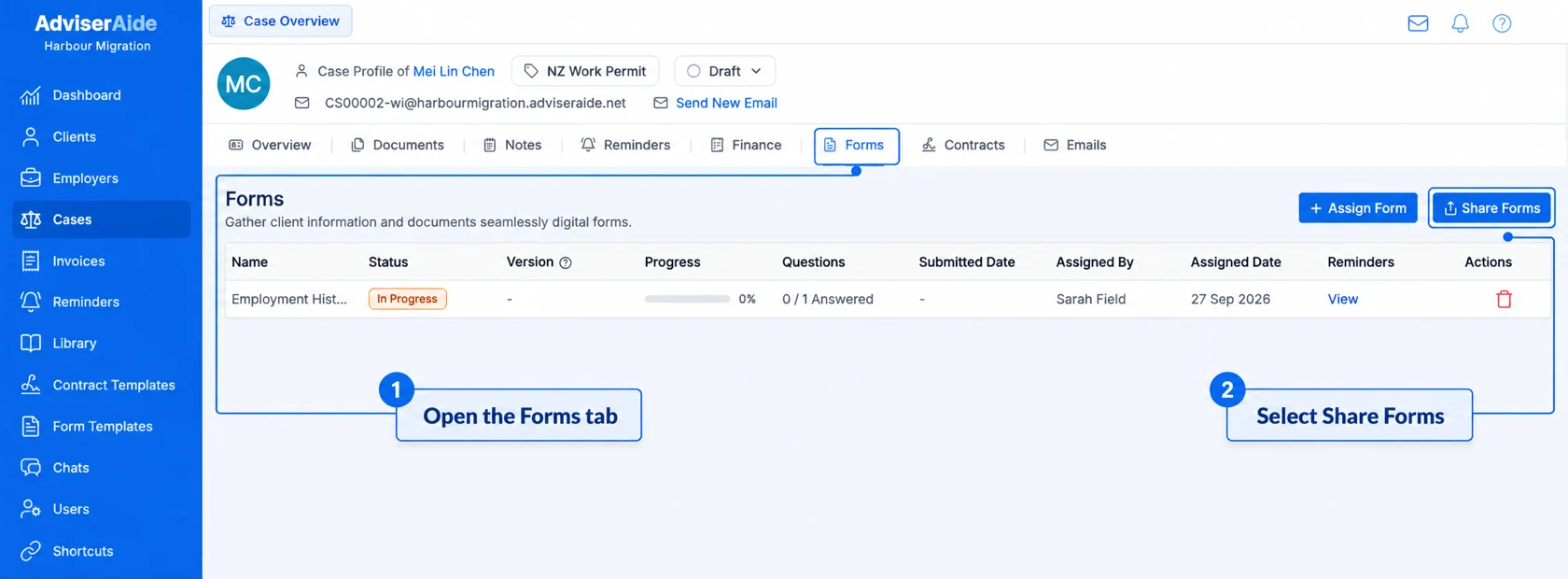
Open the case, select the Forms tab, then select Share Forms.
Select Share Forms on the case's Forms tab
2
Choose who to remind and share
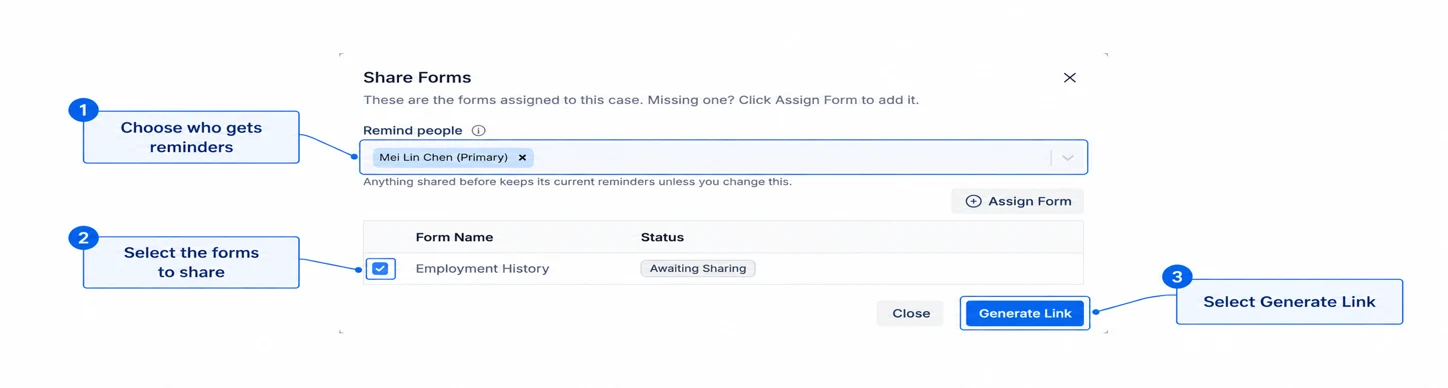
Under Remind people, the client is already selected. Add any of the client’s contacts who should also be reminded. Tick the forms to share, then select Generate Link.
Choose who to remind, tick the forms and select Generate Link
3
Send the link to your client
Send the link to your client as usual. If the form is not submitted, AdviserAide emails a reminder 5, 10 and 20 days after sharing. Each email includes the link, so the client can finish straight away.
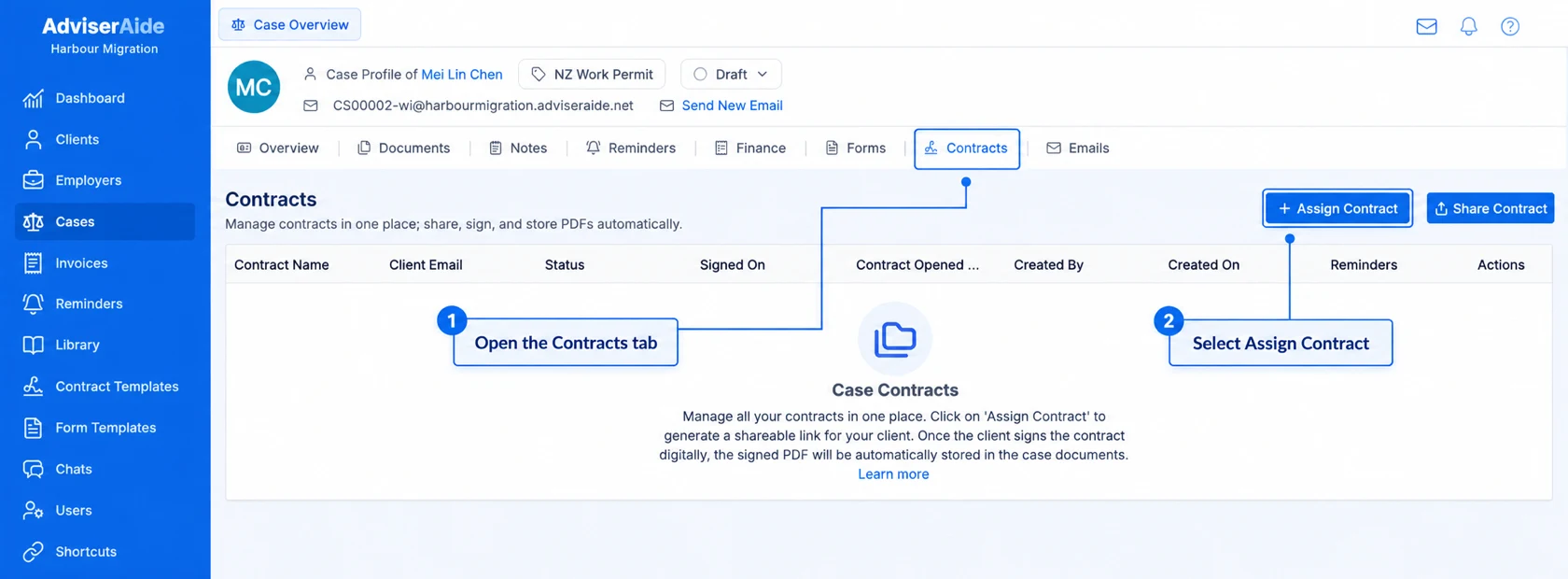
Open the case, select the Contracts tab, then select Assign Contract and choose the agreement, such as Client Agreement.
Select Assign Contract on the case's Contracts tab
2
Select Save & Generate Link
Check the agreement, then select Save & Generate Link at the top right.
Select Save & Generate Link when the agreement is ready
3
Choose who to remind
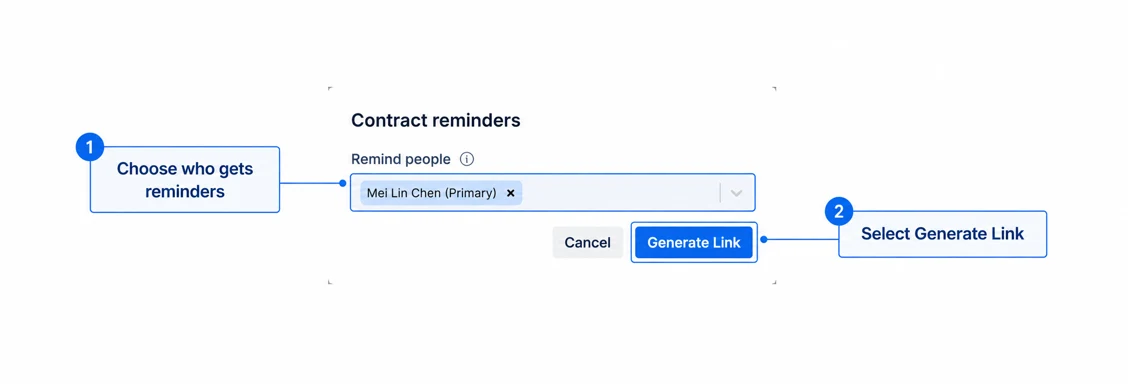
In the window that opens, the client is already selected under Remind people. Add any of the client’s contacts who should also be reminded, then select Generate Link.
Choose who to remind, then select Generate Link
4
Send the link to your client
Send the link to your client as usual. If the agreement is not signed, AdviserAide emails a reminder 3, 7 and 14 days after sharing.
Already created the agreement? Select Share Contract on the case’s Contracts tab instead. The same Remind people field is shown there.
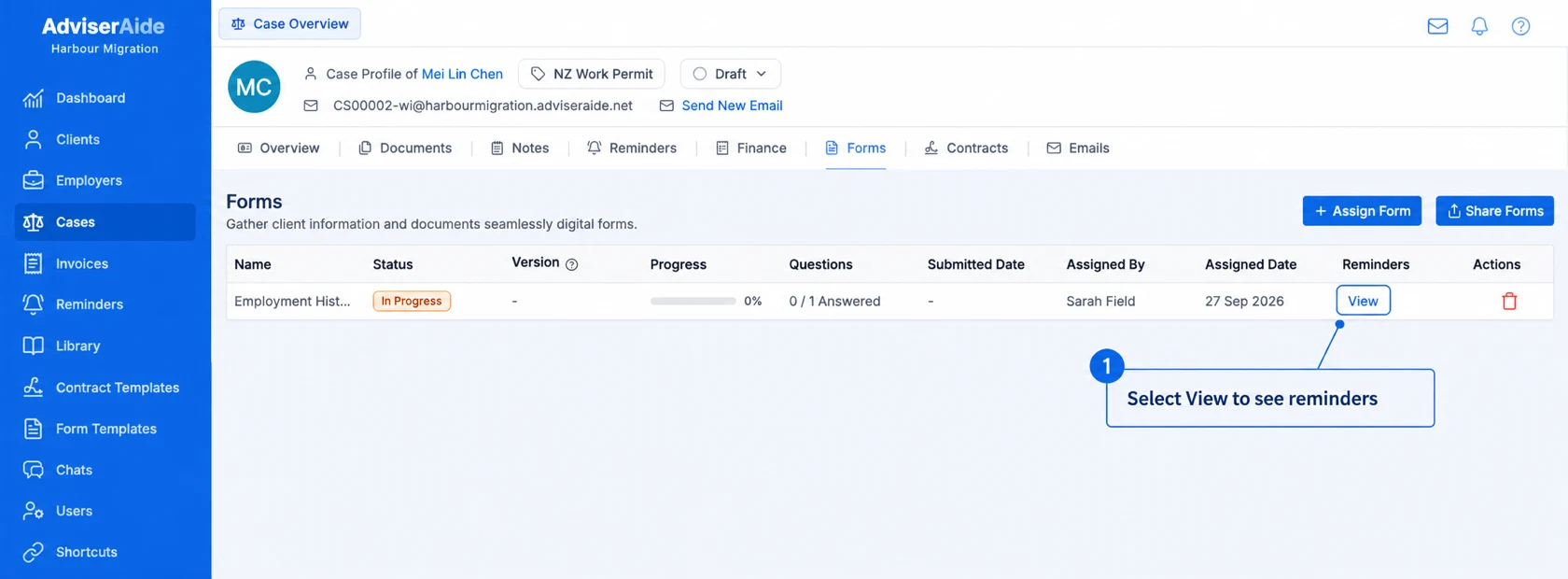
On the case’s Forms or Contracts tab, select View in the Reminders column.
Select View to see the reminders for a form
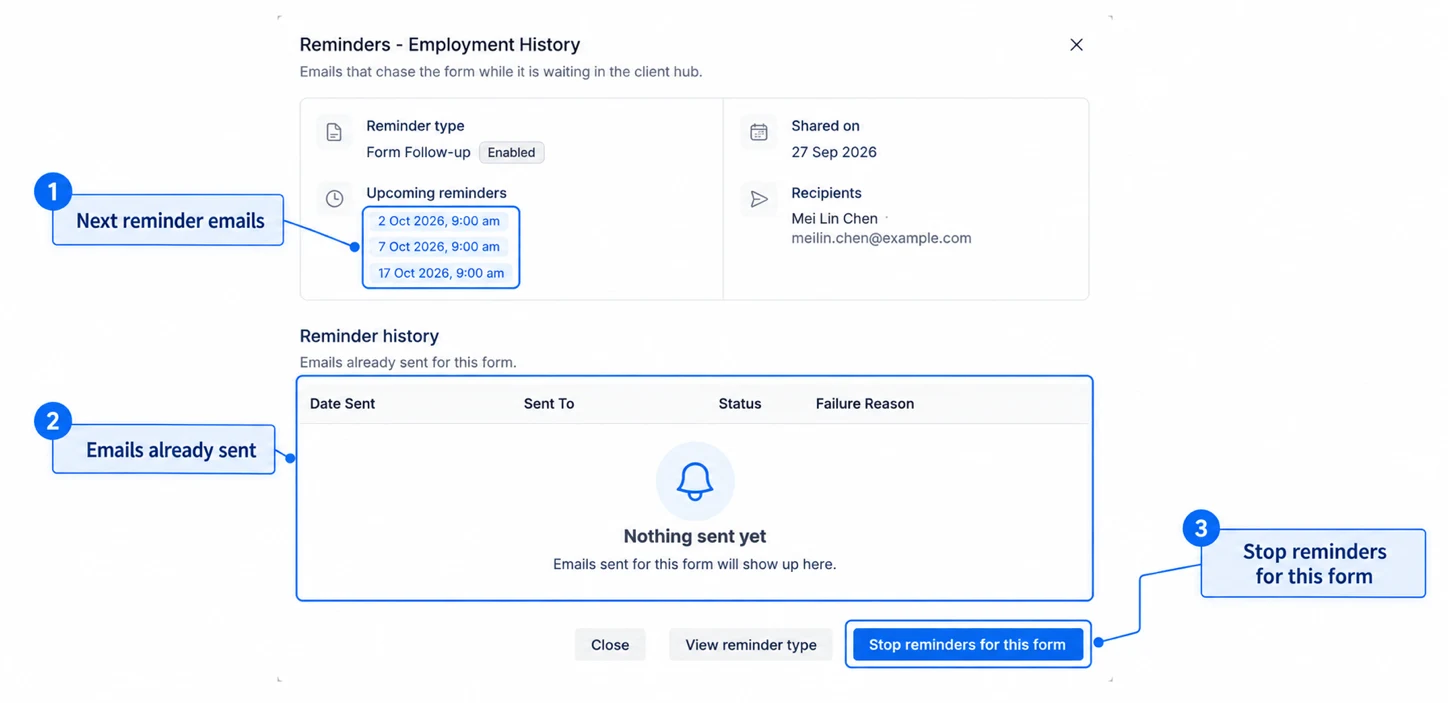
The window shows the next reminder emails, who is being reminded and the emails already sent. If the client has already sent you the information another way, select Stop reminders for this form (or Stop reminders for this contract) and confirm.
Reminders stop by themselves when the form is submitted or the agreement is signed, or if you delete it from the case.
If several forms or agreements on the same case are due a reminder on the same day, the client gets one email, not one for each.
Sharing again starts the reminders again from the new share date, for the people you choose under Remind people. Anything shared before keeps its current reminders.
To change the wording or the days these emails are sent, edit Form Follow-up or Contract Follow-up in Reminder emails and timing. Keep the {{ClientHubLink}} placeholder in the email so the client can open the link.