Change what the reminder emails to clients and employers say and when they are sent - for example, send the Visa Expiry email 60 days before instead of 90.
When you add a client or employer reminder, you choose what the date is for, such as Visa Expiry or Passport Expiry. In AdviserAide, each of these is called a reminder type. The reminder type holds the email the client receives and the days it is sent. For example, Visa Expiry emails the client 90, 30 and 7 days before the expiry date.AdviserAide sets these up for you, so you can start without changing anything. This page shows how to change them, or add your own. A change applies to every reminder of that type, including reminders you have already added.
You need administrator access to change reminder types.
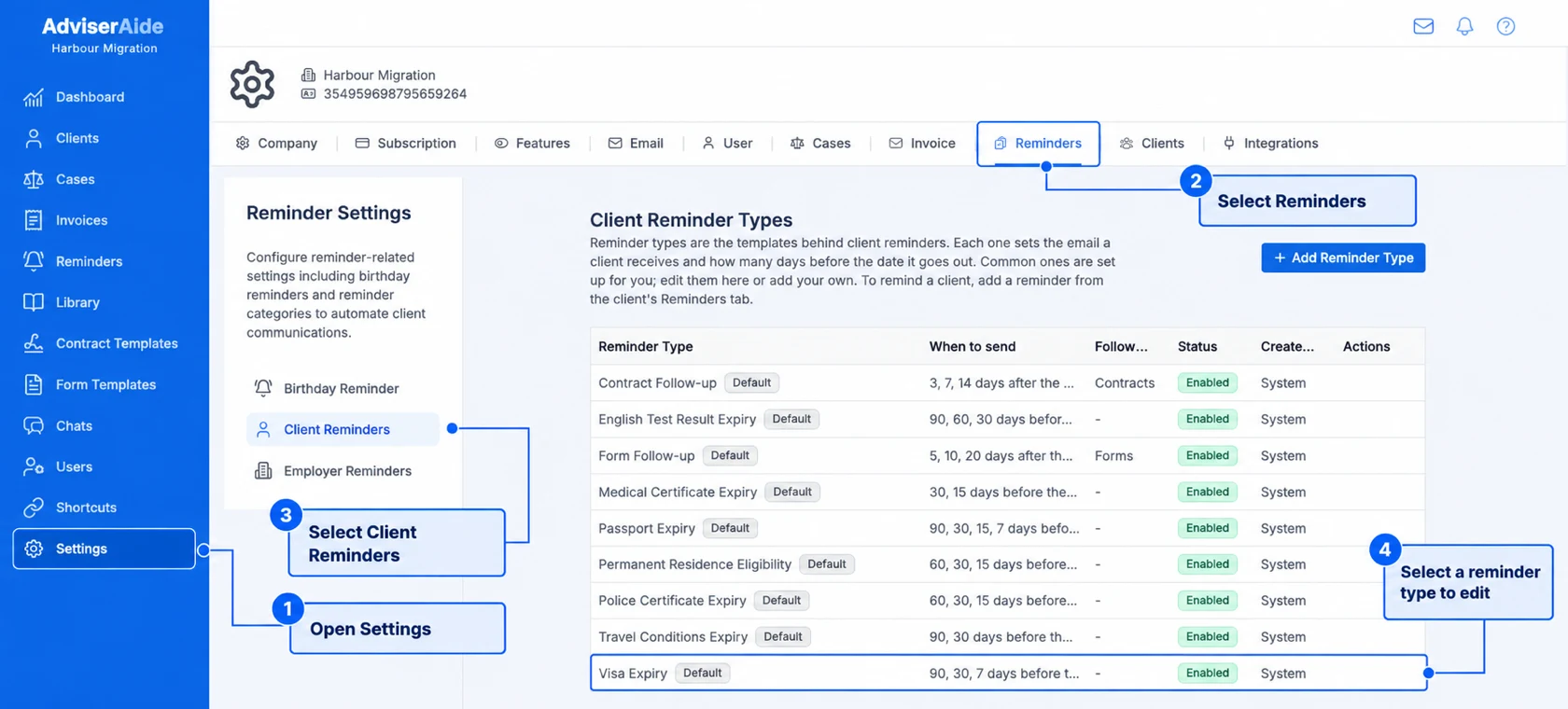
Select Settings in the left menu, then select the Reminders tab.
2
Choose client or employer reminder types
Select Client Reminders, or Employer Reminders for employers. Select any reminder type in the list, such as Visa Expiry, to change it.
Reminder types are listed under Settings, Reminders, Client Reminders
The list shows each reminder type, When to send, whether it Follows up forms or contracts, and whether it is Enabled or Disabled. Types that came with AdviserAide are marked Default.
Select the reminder type in the list, for example Visa Expiry. The Edit Reminder Type window opens.
2
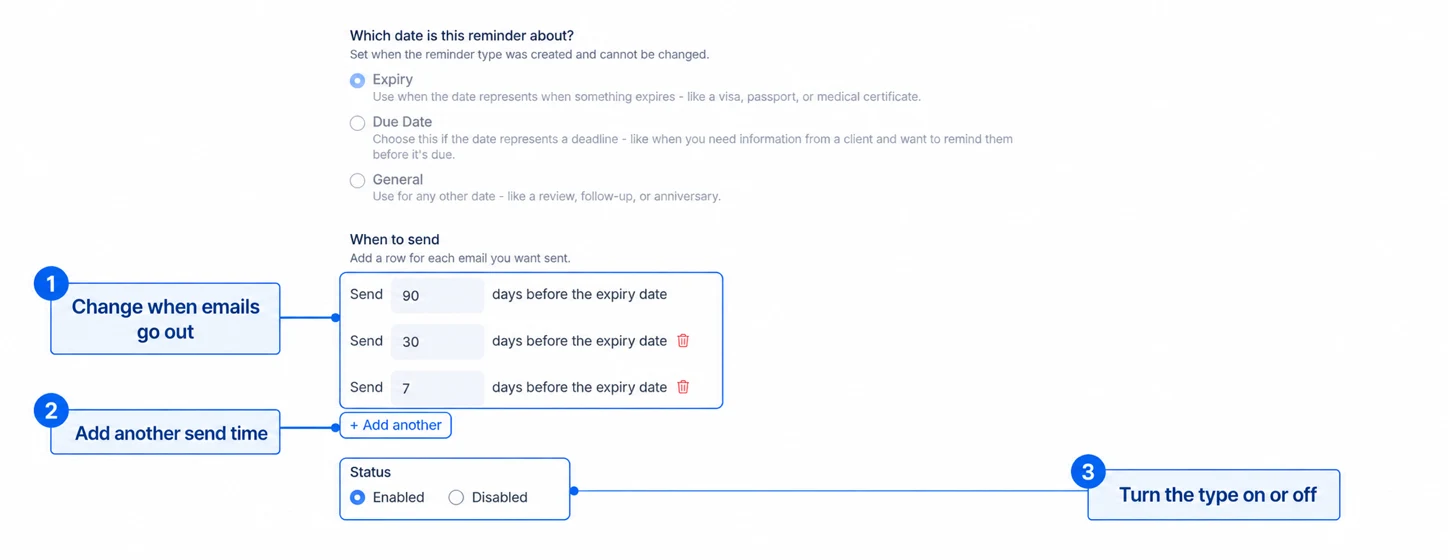
Change the send times
Under When to send, each row is one email. Change the number of days in any row, select + Add another to add an email, or select the bin icon to remove one. You can send an email up to 3,650 days before the date, and each row must use a different number of days.
Each row under When to send is one email to the client
Use Status to turn the reminder type on or off. While it is Disabled, no emails are sent for any reminder of this type, and it cannot be chosen for new reminders. Turn it back on to start sending again.
3
Save your changes
Select Save. The new send times apply to every reminder of this type from now on.
Scroll down in the Edit Reminder Type window to the email section.
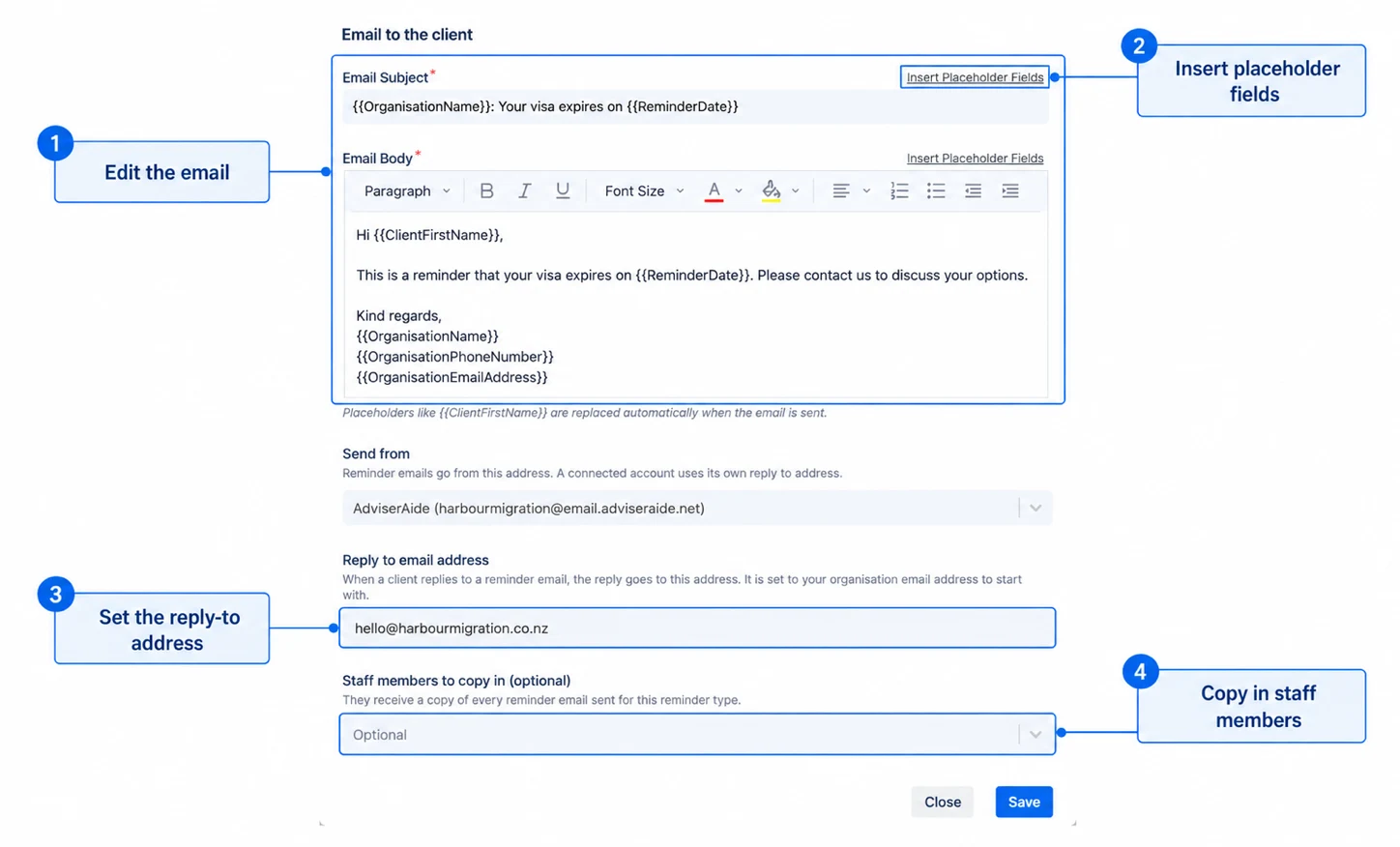
Change the email wording, the reply-to address and who is copied in
Email Subject and Email Body - The email the client or employer receives. Write it the way you would normally write to a client.
Insert Placeholder Fields - Adds details that are filled in automatically when the email is sent. Place your cursor where you want the detail, then choose a placeholder.
Send from - The email address the reminder is sent from. Choose AdviserAide’s email address, or one of your connected Gmail or Outlook accounts so the email comes from your own mailbox. This field only appears when email accounts are available for your organisation.
Reply to email address - Where the client’s reply goes. It starts as your organisation’s email address.
Staff members to copy in (optional) - Team members who receive a copy of every email sent for this reminder type. This is useful if a case manager wants to know when clients are reminded.
A link to the client’s forms or contracts (follow-up reminder types only)
Name placeholders always use the client’s or employer’s name, even when the email is also sent to one of their contacts.
Want different wording for just one client? You do not need a new reminder type. Open the client’s reminder and change the email under Email for this reminder. See Change the email for one client.
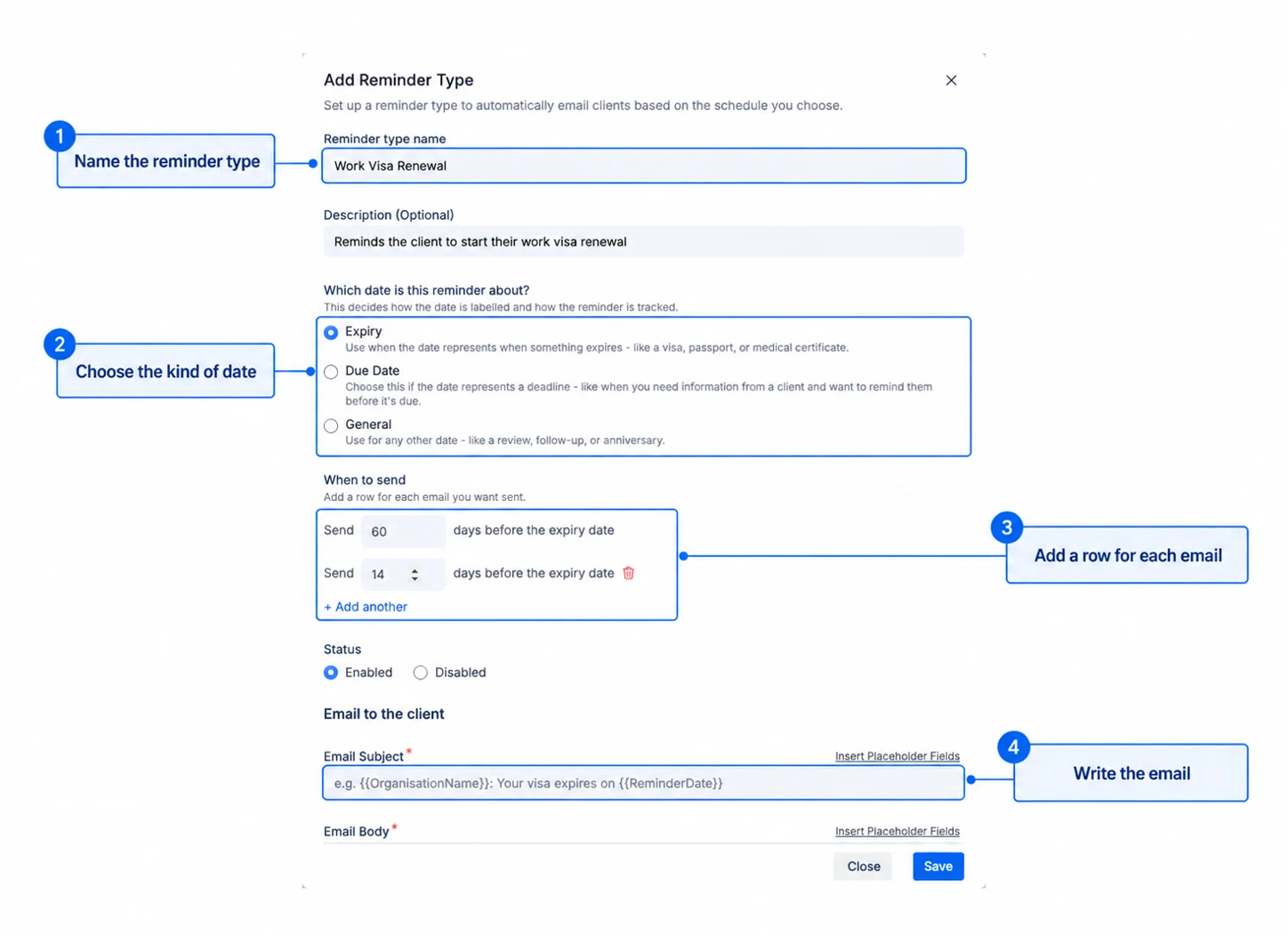
Organisations in other countries get the reminder types marked All. You can add your own reminder types for anything else you need to track.The Form Follow-up and Contract Follow-up types work differently from the others. They start when you share a form or agreement, so you never pick them when adding a reminder. See Form and agreement reminders.