Remind yourself or your team to call a client, chase a missing document or check on an application, with an email at the times you choose.
Staff reminders are notes to your team. Use them for anything you need to remember to do, such as calling a client, chasing a missing document, or checking on an application. At the times you choose, each person you assign gets an email and a notification in AdviserAide. Clients never see staff reminders.
If Reminders is not in the left menu, your user role does not include reminders, or reminders are turned off for your organisation. Ask your administrator.
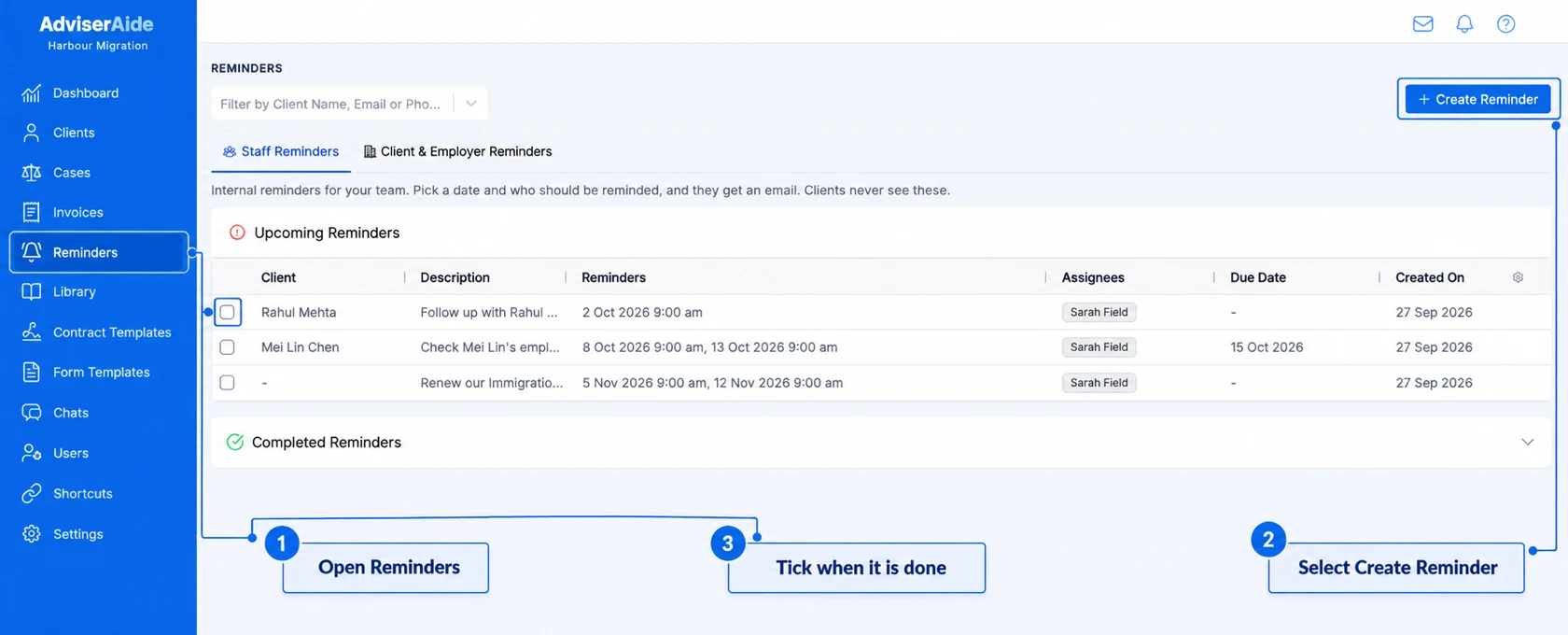
Select Reminders in the left menu. The Staff Reminders tab opens first. Select Create Reminder.
Create a reminder from the Staff Reminders tab
2
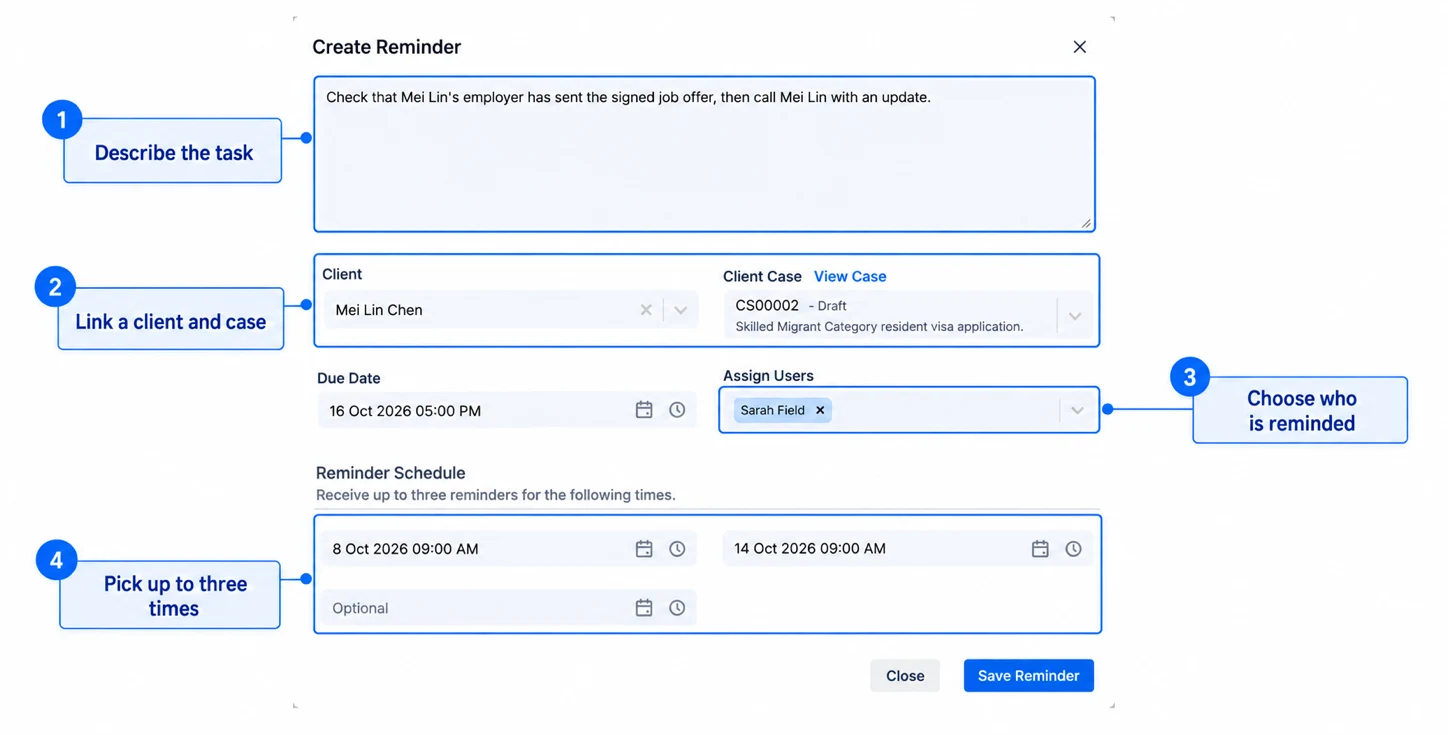
Fill in the reminder
Enter:
Description - What needs to be done. This text is what your team sees in the email, so make it clear, for example Call the client with an update on their work visa.
Client - Optional. Choose the client the reminder is about.
Client Case - Optional. Choose the case. The email then includes a link straight to the case.
Due Date - Optional. The date the task needs to be done by. It is shown in the list so your team can see what is urgent.
Assign Users - Who should be reminded. Choose one or more people, or All Users to remind everyone in your organisation.
Reminder Schedule - Up to three dates and times to send the reminder. The first one is required.
Describe the task, choose who is reminded and pick up to three reminder times
3
Save the reminder
Select Save Reminder. The reminder appears under Upcoming Reminders, showing who it is assigned to and when it will be sent.
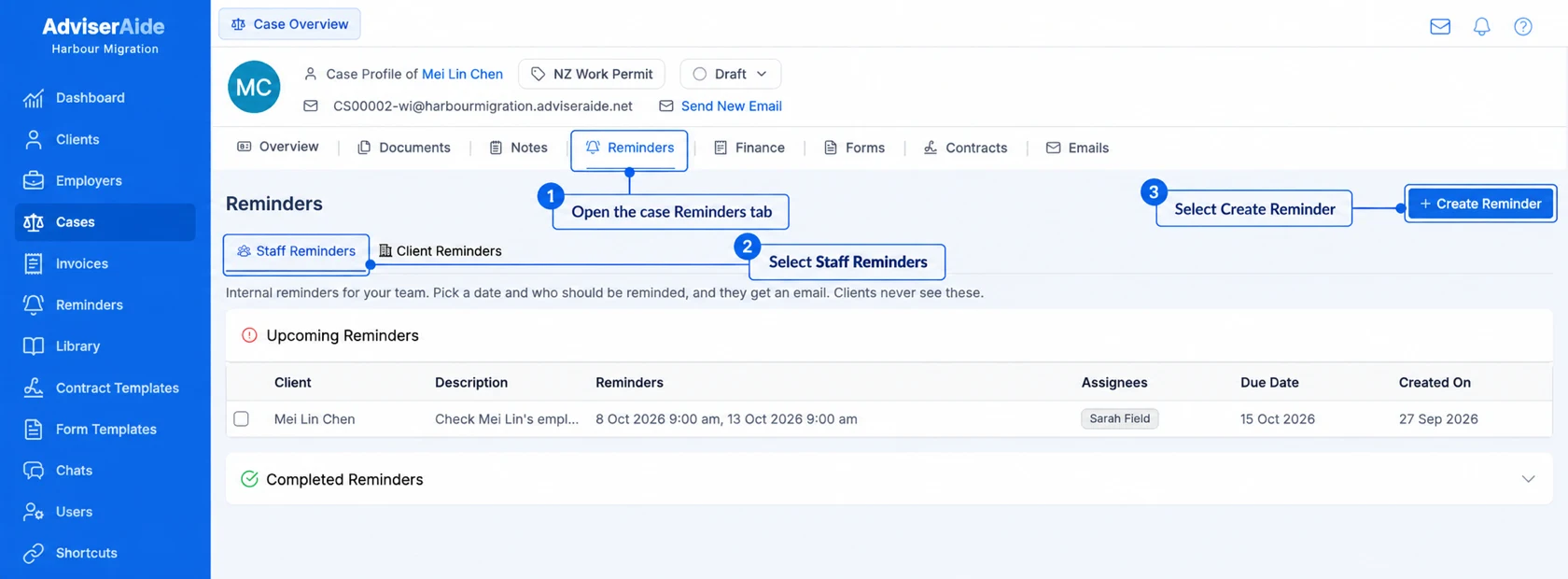
Open the case, select the Reminders tab, select Staff Reminders, then select Create Reminder. The client and case are filled in for you, so you only need to add the description, who to remind and when.
When the task is finished, tick the box at the start of the reminder’s row. The reminder moves to Completed Reminders, and any reminder emails that have not gone out yet are cancelled.To reopen a completed reminder, expand Completed Reminders and untick it. Reopening does not send the cancelled emails again, so open the reminder and set new reminder times if you still need to be reminded.
Use the Filter by Client Name, Email or Phone box at the top of the page to show only the reminders for one client. Reminders for a single case are also listed on that case’s Reminders tab.