Work out a number from other fields on the same case, client or employer, such as GST from a case fee and a GST rate.
A calculated field works out a number from other fields on the same record. For example, a GST field can take each case’s Case Fee and GST Rate and show the GST, so nobody has to type it in. You set up the calculation once in settings. Each case, client or employer then shows the result, and it updates by itself when the fields it uses change on that record.Calculated fields work for cases, clients and employers. A calculation can only use fields of the same record type, so a case calculation uses case fields.
Create the fields your calculation needs first. A calculation can use:
Number and Decimal fields
Other calculated fields
A fixed number that you type into the calculation
If a value can change over time, such as a GST rate, put it in its own Decimal field with a default value instead of typing it into the calculation. New records start with the default, each record keeps its own rate, and you can set a different rate on one record, such as 0 for a client who is not charged GST.
This example adds a GST field to cases that works out GST as Case Fee × GST Rate %.
1
Open the custom field settings
Go to Settings > Cases > Custom Fields, then select Add Custom Fields. For client or employer fields, go to Settings > Clients or Settings > Employers instead.
2
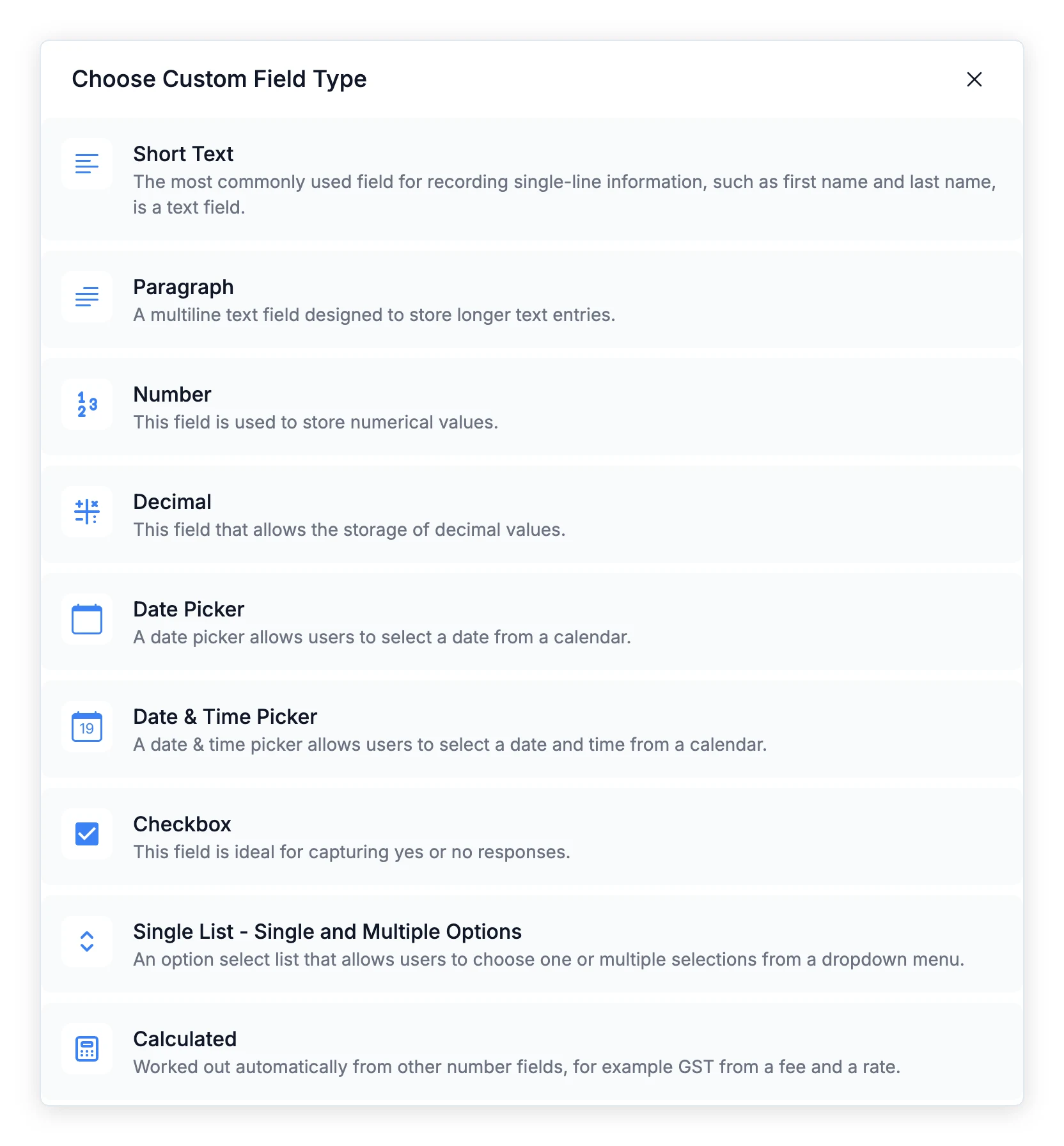
Choose Calculated
In Choose Custom Field Type, select Calculated.
Calculated is the last option in the list of field types
3
Name the field
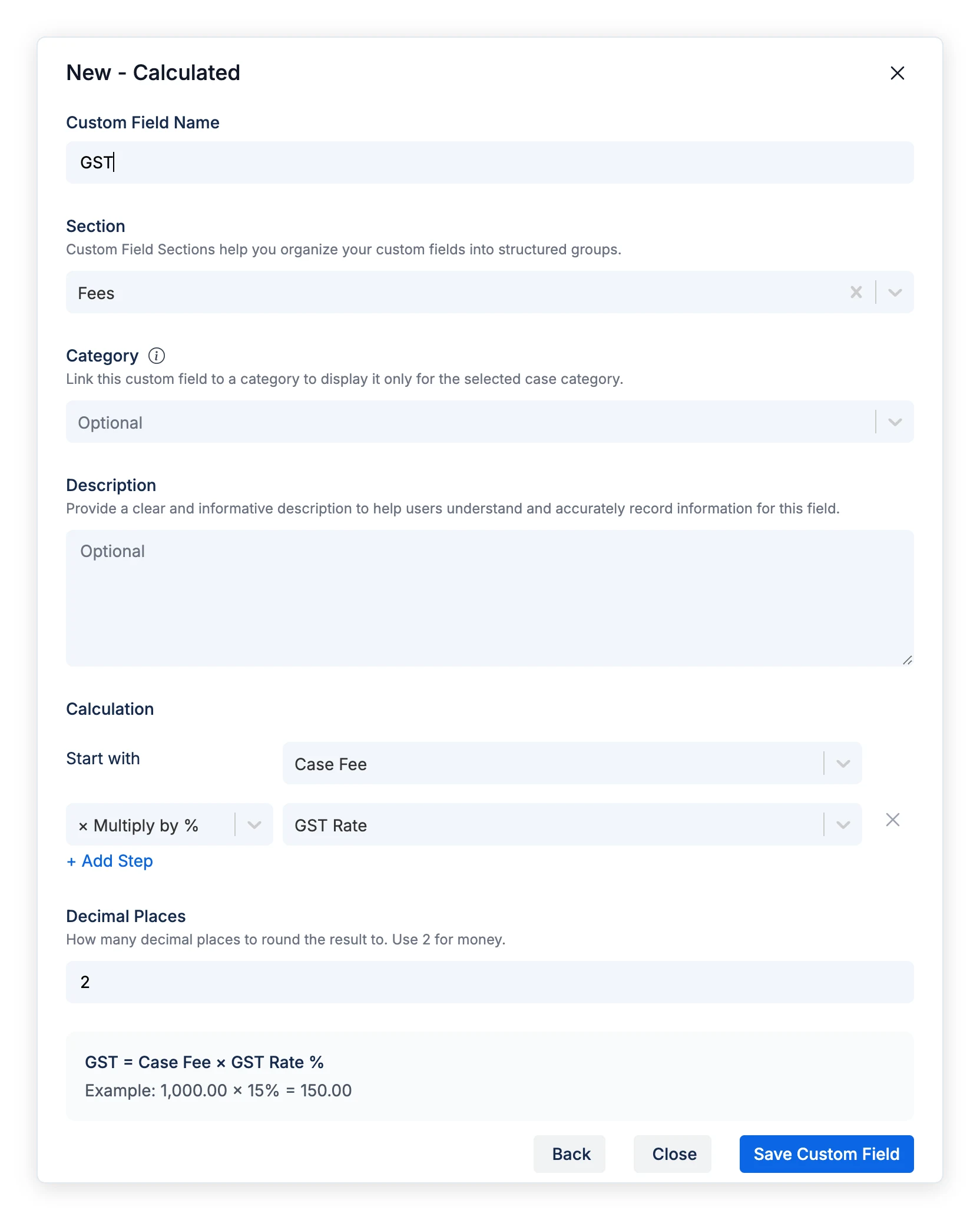
Custom Field Name (required): The name shown on records, such as GST.
Section (optional): The section the field appears in, such as Fees.
Category (cases only, optional): Show the field only on cases in these categories.
Description (optional): Extra help for your team. It appears in the field’s info icon on records.
4
Build the calculation
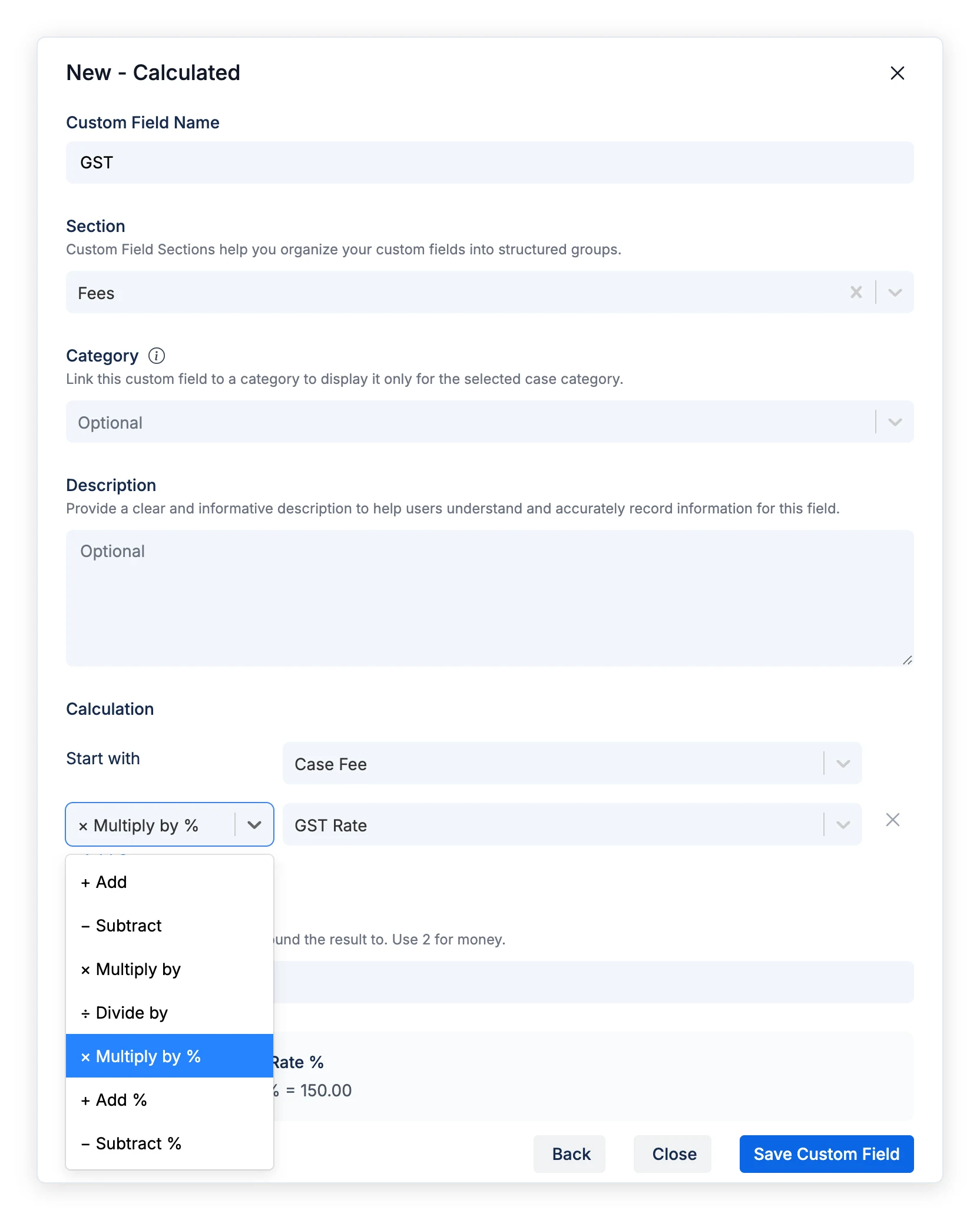
Under Calculation, choose a field in Start with. Then select + Add Step, choose what the step does, and choose the field it uses. For a number that never changes, choose Fixed number… and type the number in the box that appears.For GST, choose Case Fee in Start with, then add a step with × Multiply by % and GST Rate.
GST works out Case Fee × GST Rate %, and the grey box shows a worked example
Each step works on the result of the step above it. To remove a step, select the × at the end of its row.
5
Choose the decimal places
Decimal Places sets how many decimal places the result is rounded to. It starts at 2, which suits money, and can be anything from 0 to 4.
6
Check the preview
The grey box under the calculation shows the calculation in words, such as GST = Case Fee × GST Rate %, and a worked example. The example uses each field’s default value, or sample numbers such as 1,000 for fields without one. If a step is not finished, a message such as Choose a field or enter a number shows under the steps instead.
7
Save
Select Save Custom Field. AdviserAide reminds you that existing records stay blank until a field the calculation uses is changed on them. Select Save to add the field. New records get the result as soon as the fields it uses are filled in.
Steps run in order, from the top down. There are no brackets. Each step uses the result of the step above it, like a calculator.
Only the final result is rounded, to the field’s Decimal Places. When a step uses another calculated field, it uses that field’s rounded value, the same number you see on the record.
A blank field gives a blank result. If any field a calculation uses is empty on a record, the result stays blank rather than showing 0. Dividing by 0 also gives a blank result.
A calculation can’t use itself. Calculated fields that already use the field you are editing are greyed out in the list with Already uses this field.
A calculation can have up to 20 steps.
For a bigger sum, split it into smaller calculated fields and add them together. For example, to work out (Fee × Hours) + (Disbursements × GST Rate %), create a Professional Fees field for Fee × Hours and a Disbursement GST field for Disbursements × GST Rate %, then create a Total field that starts with Professional Fees and adds Disbursement GST. This works like a helper column in a spreadsheet.
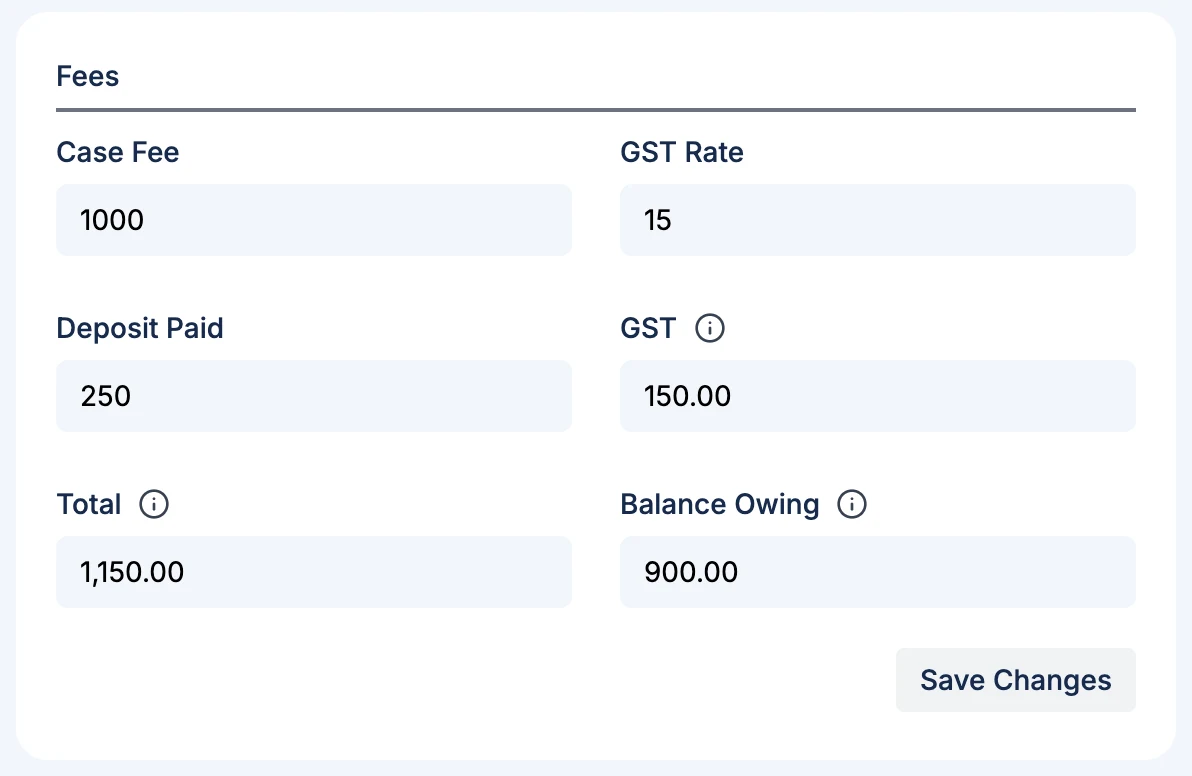
A calculated field appears on the case, client or employer profile with the other custom fields. It can’t be typed in. Until it has a value, it shows Calculated automatically: on a new record until the fields it uses are filled in, and on a record that existed before you added the field until one of those fields is changed.
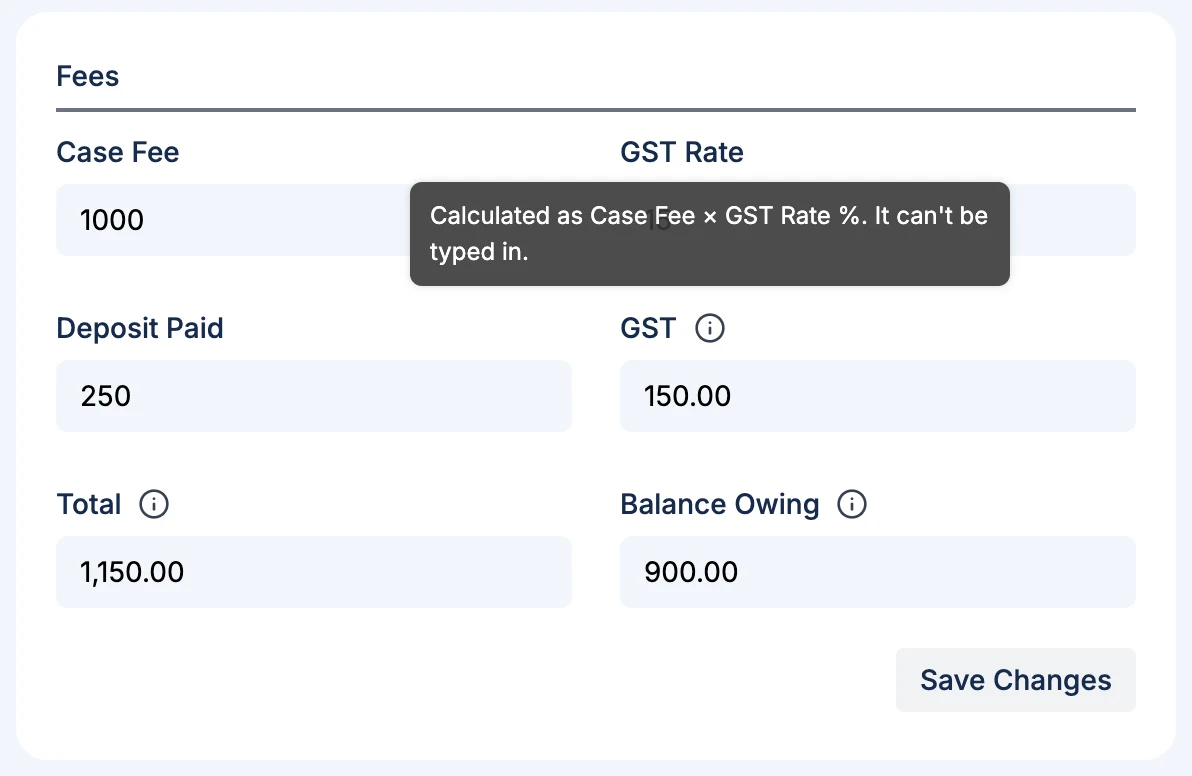
GST, Total and Balance Owing are worked out from Case Fee, GST Rate and Deposit Paid
Hover over the info icon next to a calculated field’s name to see how it is worked out.
The info icon shows the calculation
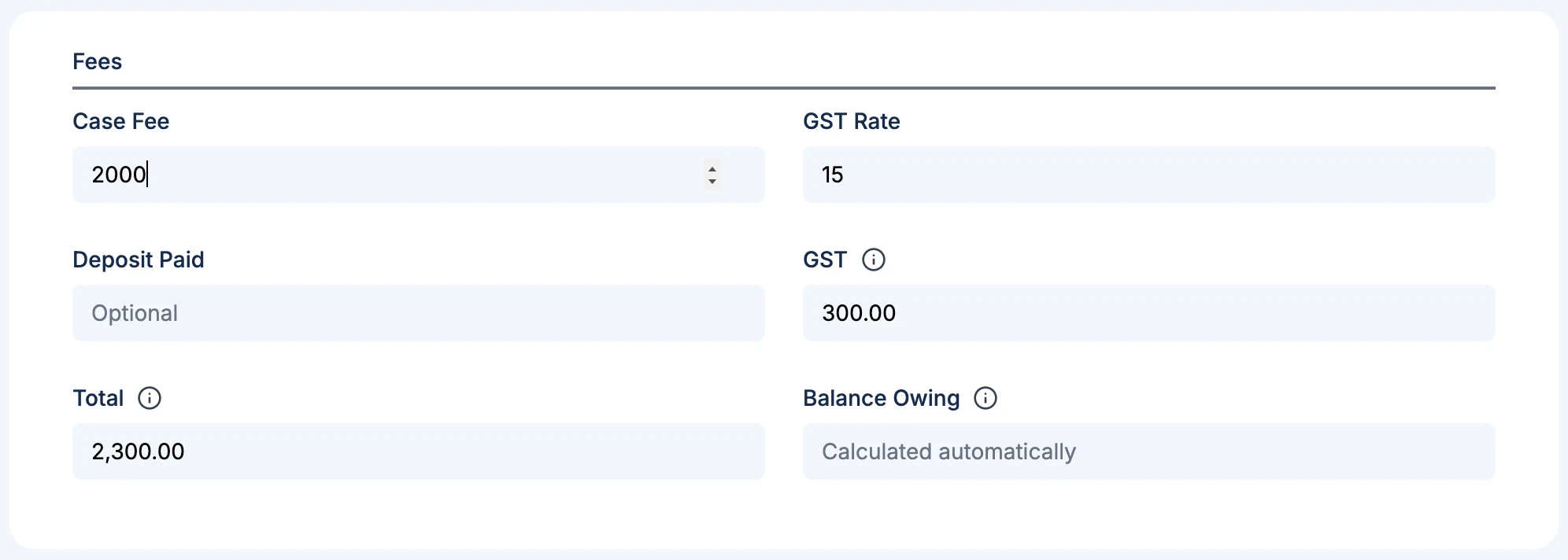
When you type in a field that a calculation uses, the calculated field updates on screen straight away, before you save. This also works on the Create Case, Create Client and Create Employer screens. Until you save, the info icon also says Not saved yet. The result is saved with the record when you select Save Changes or create the record.
On a new case, GST and Total are worked out as soon as the Case Fee is typed in
Calculated values use your organisation’s number format, such as 1,150.00.
Lists: Show a calculated field as a column on the Cases, Clients or Employers list, and filter the list by it with Add filter, for example GST between 100 and 400. See Customise list columns.
Contract and email templates: Use a calculated field as a placeholder, the same way as other custom fields. In the contract editor, calculated fields are listed under Placeholders marked (Calculated).
Forms: A number question in a form can be prefilled from a calculated field. Answers can’t be saved back into a calculated field, because it can’t be typed in.
A contract or email shows the value at the time it was created. If a case’s fee changes later, contracts already created don’t change.
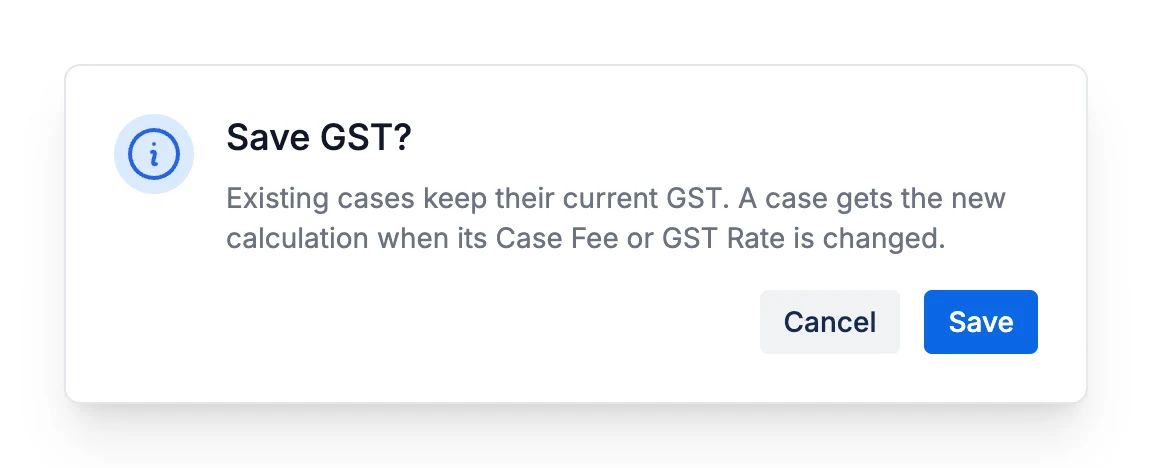
To change a calculated field, go to the custom field settings and select the edit icon next to it. Change the steps or decimal places, then select Save.New steps apply to new records. Existing records keep the value they have, so a closed case doesn’t change because you changed the calculation today. An existing record gets the new steps when one of the fields the calculation uses is changed on it. For example, if GST uses a fixed rate of 15 and you change it to 10, an old case keeps its 15% GST until its Case Fee is changed. Then its GST, and any calculated field that uses GST such as a Total, is worked out with 10%.Before saving new steps, or when you turn a disabled calculated field back on, AdviserAide reminds you that existing records keep their current values. Select Save to go ahead.
Existing cases keep their current GST
If a rate changes from time to time, keep it in a field with a default value instead of a fixed number in the calculation. Then change the field’s default value: new records start with the new rate, and existing records keep theirs.
Renaming a field that a calculation uses does not change any values. The calculation shows the new name.
GST = Start with Case Fee, × Multiply by %GST RateA Case Fee of 1,000 with a GST Rate of 15 gives 150.00. Give GST Rate a default value of 15, so new cases start with 15%. For a client who is not charged GST, set GST Rate to 0 on that case and GST shows 0.00.For Australian GST, give GST Rate a default of 10 instead.
Total = Start with Case Fee, + AddGSTA Case Fee of 1,000 gives a Total of 1,150.00. If you don’t need a separate GST field, you can also use Start with Case Fee, + Add %GST Rate.
A calculated field can use other calculated fields. Using the Total field above and a Deposit Paid decimal field:Balance Owing = Start with Total, − SubtractDeposit PaidA Total of 1,150.00 with a Deposit Paid of 250 gives 900.00. When the Case Fee changes on a case, GST, Total and Balance Owing all update.
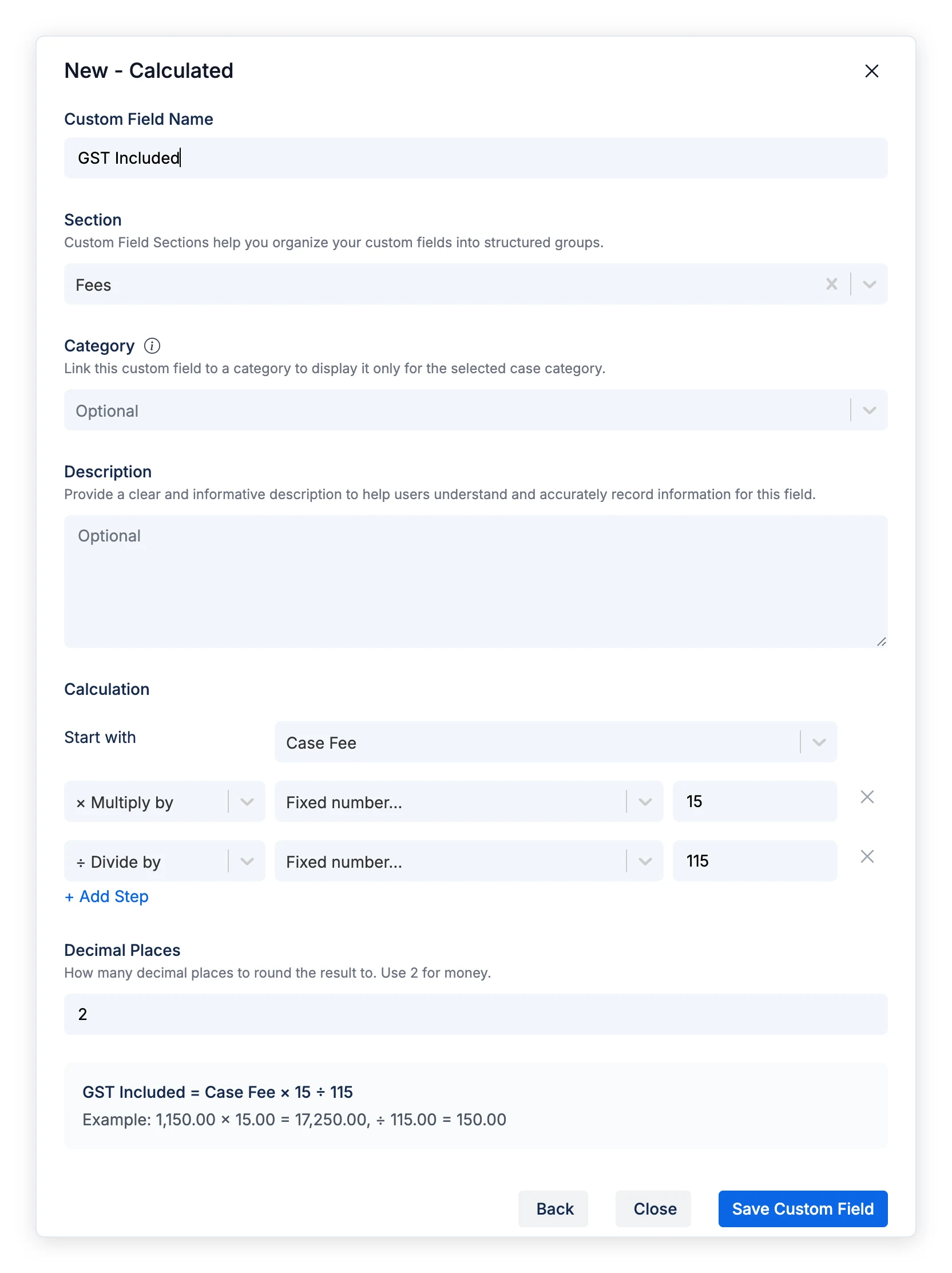
If your fees already include GST, work out the GST inside the fee like this:GST Included = Start with Case Fee, × Multiply by fixed number 15, ÷ Divide by fixed number 115A Case Fee of 1,150 gives GST of 150.00.
GST included in a fee, worked out with fixed numbers
Other calculations for fees that include GST:
Fee without GST: Start with Case Fee, ÷ Divide by fixed number 1.15. A fee of 1,150 gives 1,000.00.
Australian GST included in a fee (10%): Start with Case Fee, ÷ Divide by fixed number 11. A fee of 1,100 gives 100.00.
These use a fixed rate, so changing the rate later means changing the calculation. To keep the rate in your GST Rate field instead, you need a helper calculated field, because there are no brackets:
GST Divisor = Start with GST Rate, + Add fixed number 100. With a rate of 15, this gives 115.00.
GST Included = Start with Case Fee, × Multiply byGST Rate, ÷ Divide byGST Divisor. A fee of 1,150 gives 150.00.
The helper field shows on records like any other calculated field.
− Subtract % is not the reverse of + Add %. Taking 15% off 1,150 gives 977.50, not 1,000, because the 15% is worked out on 1,150. To remove GST from a fee that includes it, use ÷ Divide by 1.15 as shown above.