This is step 3 of Getting Started. Add your signature once and AdviserAide puts it on client agreements and PDF forms for you.
1

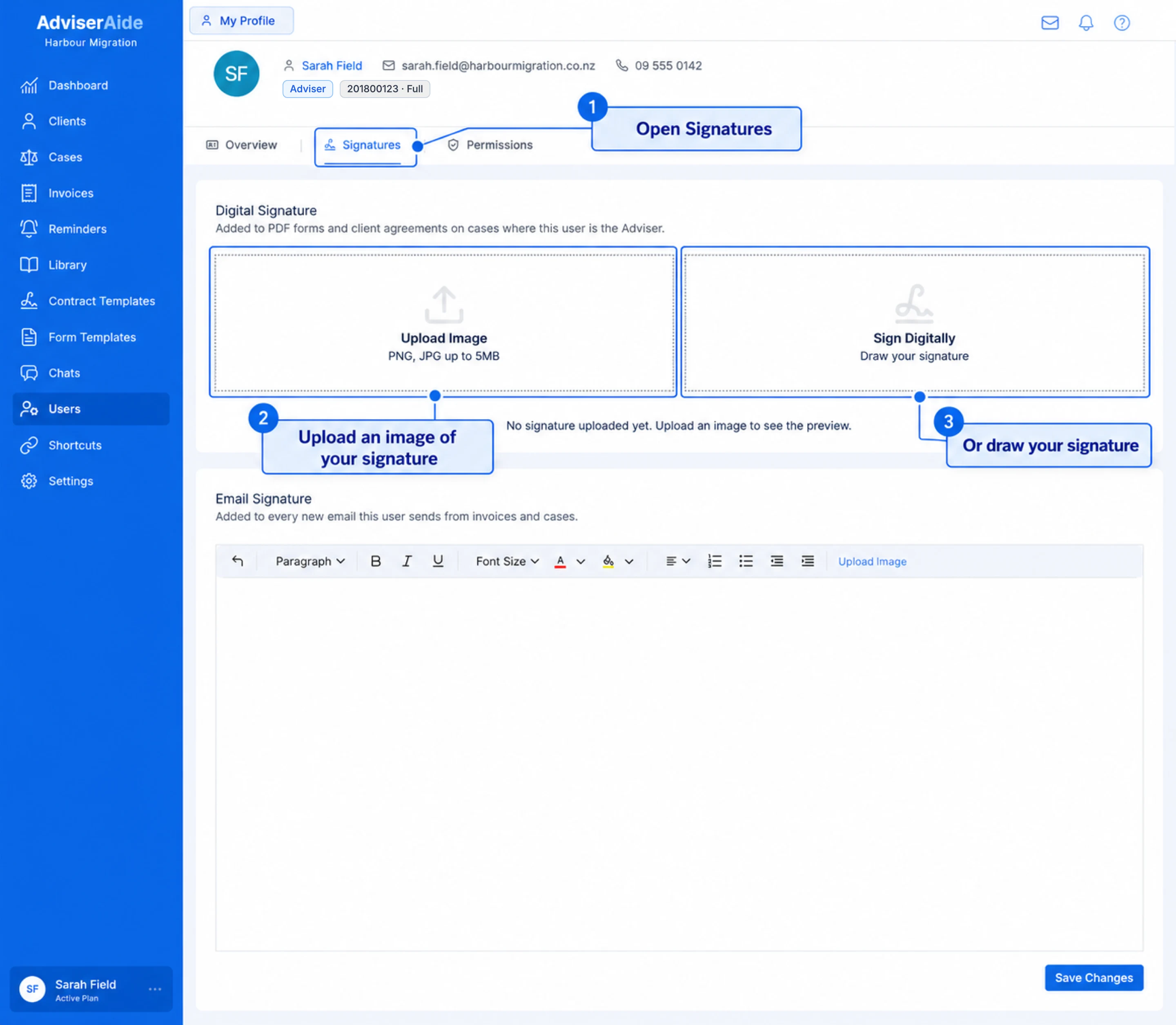
Open the Signatures tab

In My Profile, select the Signatures tab. Under Digital Signature, choose how you want to add your signature.
My Profile Signatures tab with numbered callouts on the Signatures tab, the Upload Image option and the Sign Digitally option

Upload or draw your signature on the Signatures tab

  • Upload Image - Upload a PNG or JPG of your handwritten signature, up to 5MB. A signature on a white or transparent background looks best.
  • Sign Digitally - Draw your signature with your mouse, trackpad or touchscreen.
2

Draw your signature

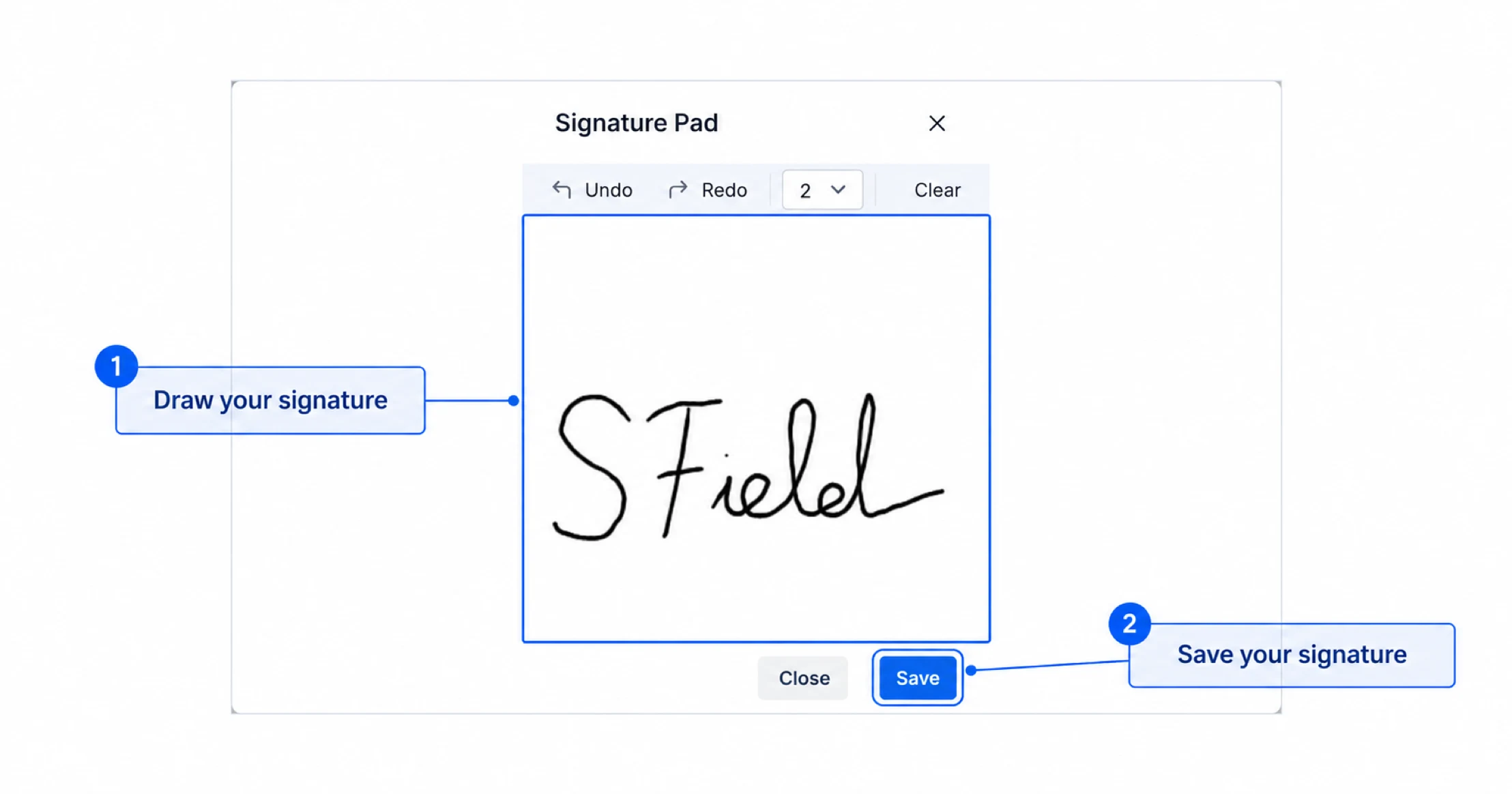
If you selected Sign Digitally, the Signature Pad opens. Draw your signature in the box, then select Save. Use Clear to start again.
Sign Digitally dialog with numbered callouts on the drawing area showing a drawn signature and the button that saves it

Draw your signature, then save it

3

Check your signature

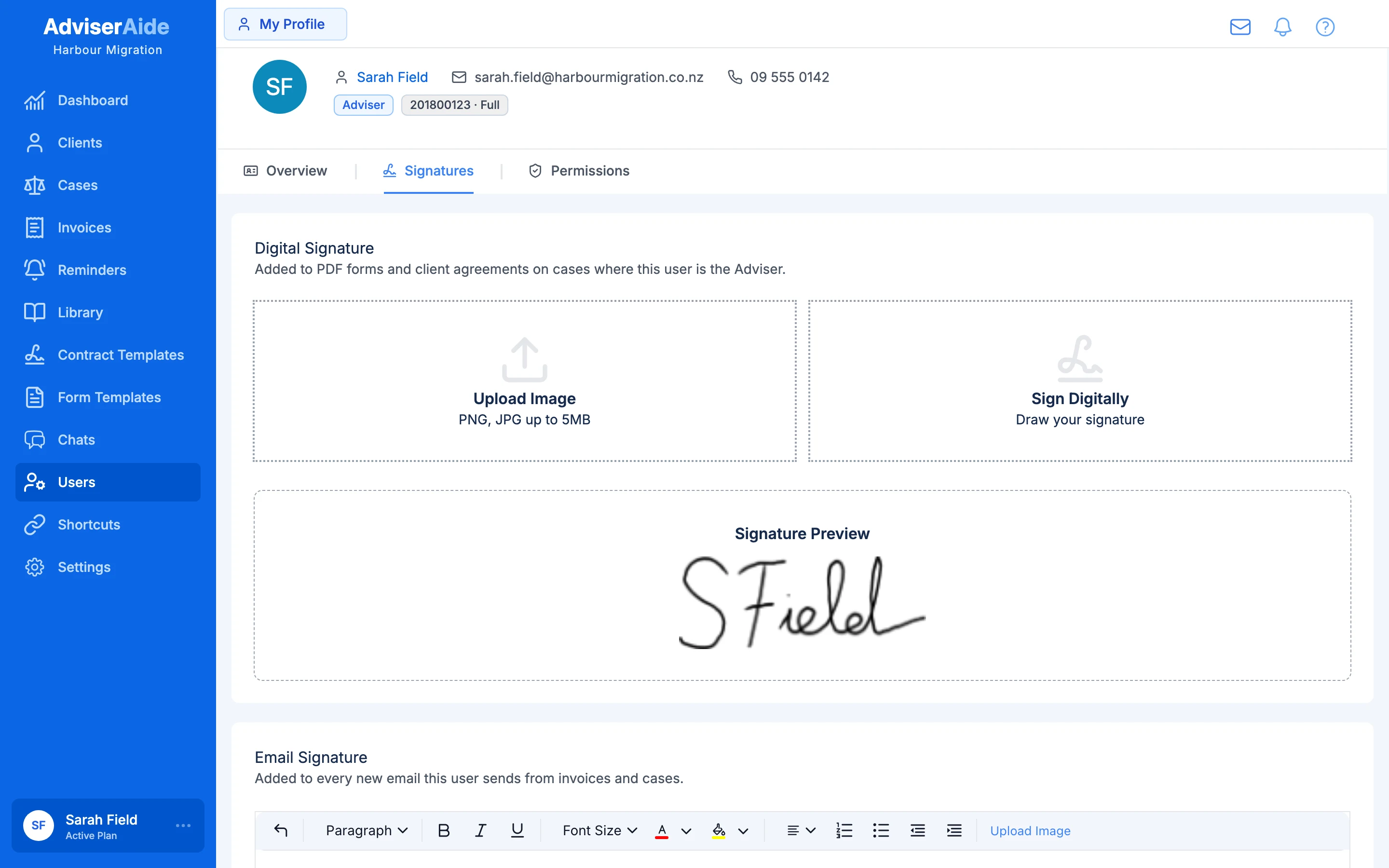
Your signature shows on the Signatures tab once it is saved.
Signatures tab showing the saved digital signature preview

Your saved signature on the Signatures tab

Where your signature is used

  • Client agreements - Add the {{AdviserSignature}} placeholder ({{MigrationAgentSignature}} in Australia) to your contract template where you sign. When you assign the agreement to a case, AdviserAide puts in the signature of the adviser or migration agent on the case. See Creating and Sending a Contract for Signature.
  • PDF forms - An Adviser Signature field set to Case adviser uses the signature of the adviser or migration agent on the case. See PDF Form Fields.
If a case has no adviser or migration agent, AdviserAide uses your organisation’s Default Adviser (Default Migration Agent in Australia) from company settings.

Email signature

The Signatures tab is also where you set up the signature added to emails you send from AdviserAide. See Setting up Email Signature.

Next step

Step 4: Complete your company settings

Add your logo, legal name, business number, Default Adviser and address.
Need a hand? Email support@adviseraide.com and we will help you.