Connect your Stripe account so your clients can pay their invoices and advance payments online by card.
Connect your Stripe account once and your clients can pay invoices and advance payments online. Each email you send can include a Pay now online button. The client pays on Stripe’s secure payment page, and AdviserAide records the payment against the invoice for you.The money goes straight into your own Stripe account. AdviserAide never holds client funds, and Stripe pays out to your bank account on your usual Stripe schedule.
You need to be an Administrator in AdviserAide to connect and manage Stripe. You also need a Stripe account. If you do not have one, create it at stripe.com before you start. Stripe online payments are available to organisations based in New Zealand, Australia, the United States, the United Kingdom and Canada.
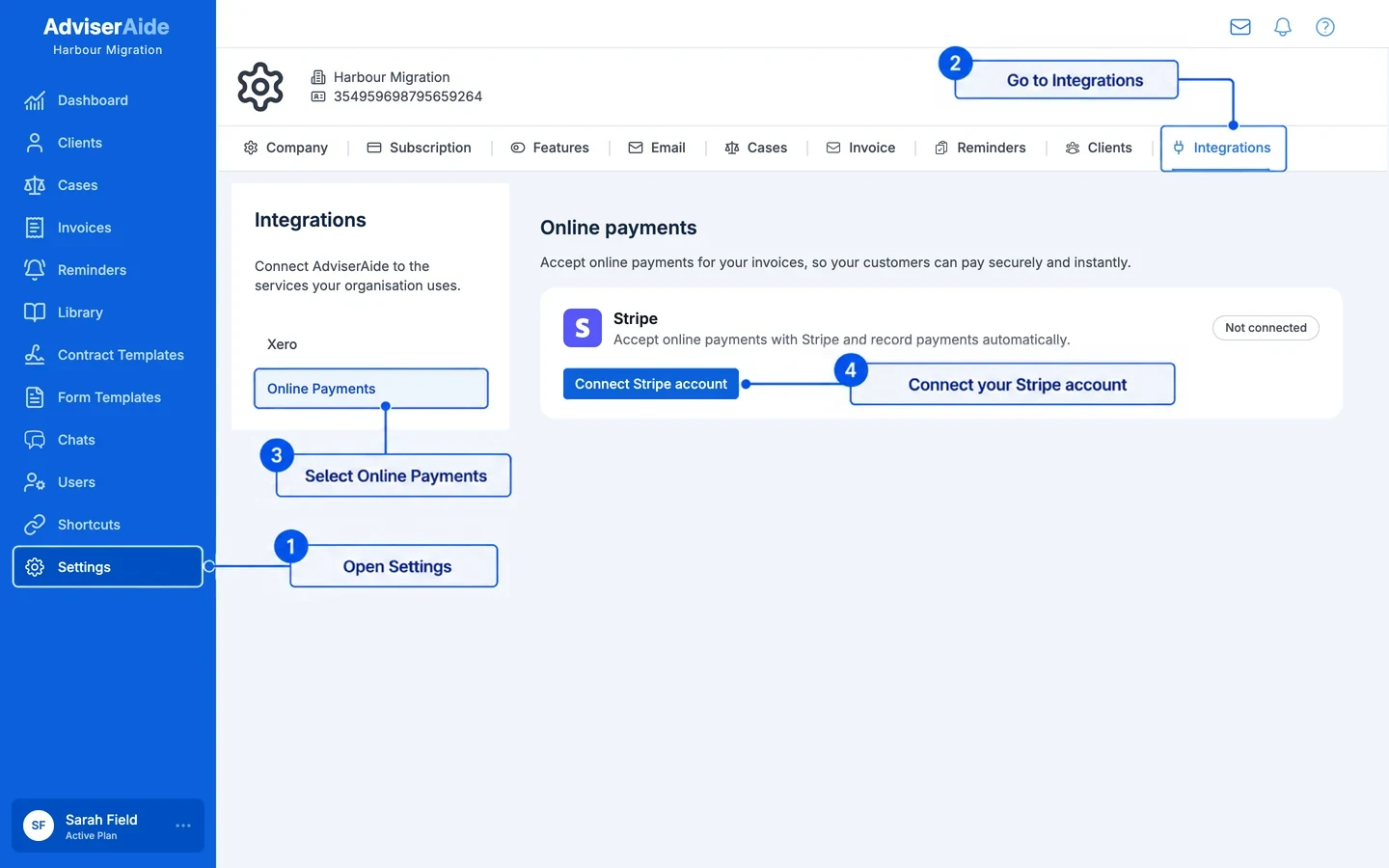
Open Settings, select Integrations at the top, then select Online Payments. Select Connect Stripe account.
Open Online Payments from Settings and connect Stripe
2
Sign in to Stripe
Stripe opens its sign-in page. Sign in to the Stripe account you want clients to pay into, then select Connect to give AdviserAide access.AdviserAide never sees your Stripe password.
3
Check the connection
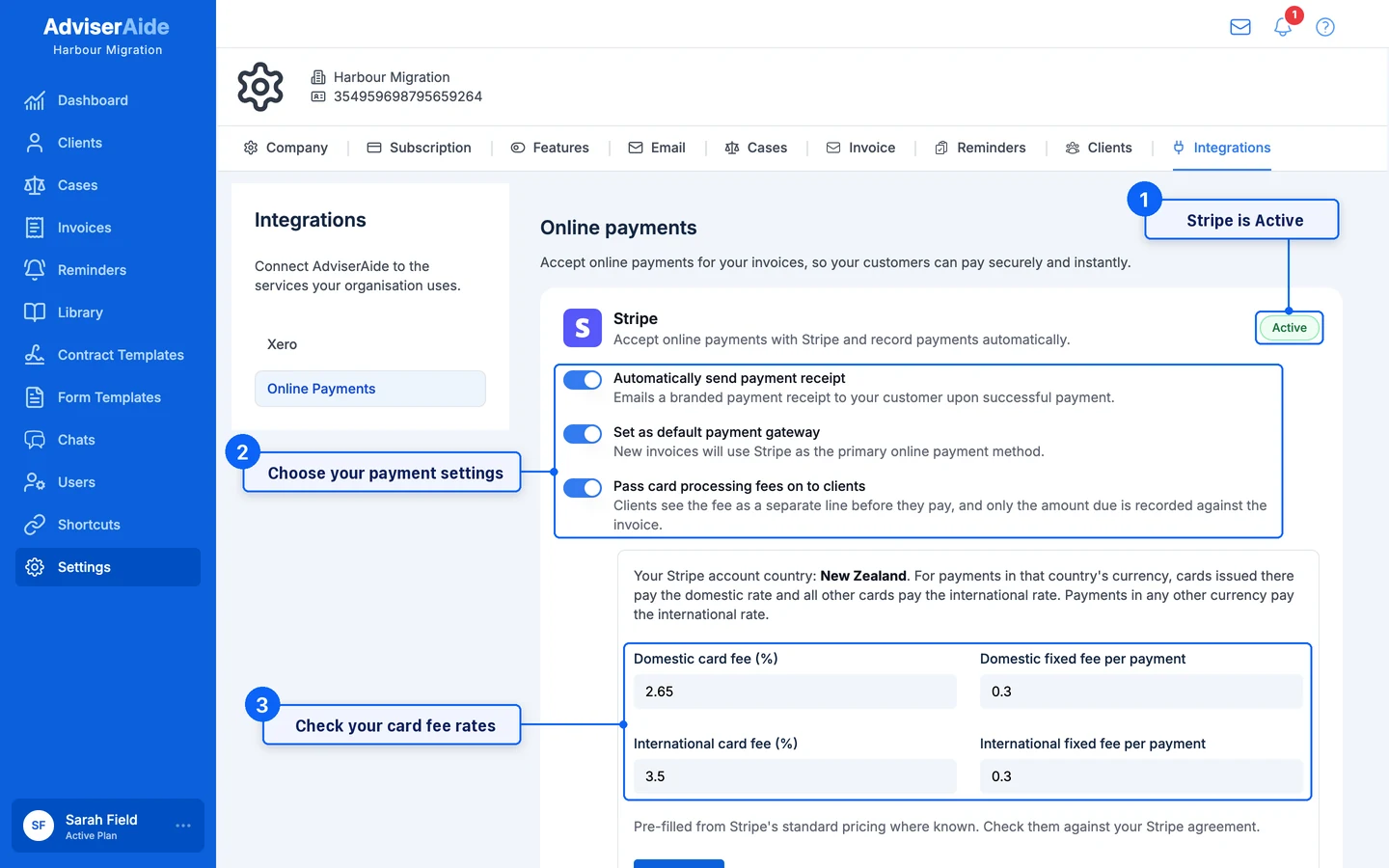
Stripe returns you to AdviserAide. The Stripe card shows Active when your account is ready to take payments.
An active Stripe connection with its payment settings
4
Check which Stripe account is connected
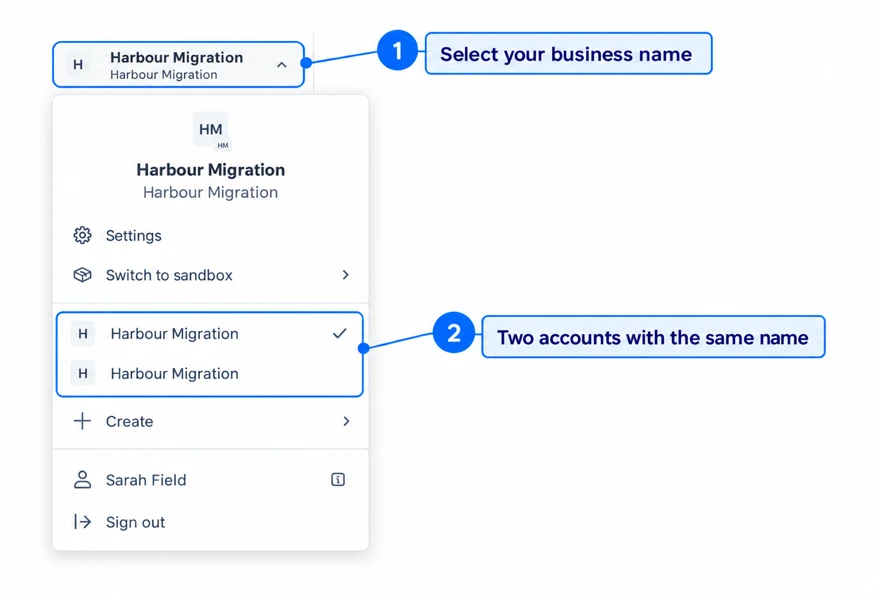
Stripe sometimes creates a new Stripe account and connects that one instead of your existing account. This happens if you chose to create a new account on the Stripe page, or if your existing account is already used by another software platform. Your existing account and its payment history are not changed.To check, open your Stripe dashboard and select your business name at the top left. If the list shows more than one account with your business name, Stripe created a new one. The new account usually has the same name as your existing one, and the dashboard may open in it after you connect.
Check the Stripe account menu for a second account with your business name
If Stripe created a new account:
All online payments from AdviserAide go into the new account, under Payments.
Add your bank details to the new account so Stripe can pay you out.
To tell the accounts apart, check the account ID under Settings > Business > Account details in Stripe.
When Stripe is active, these settings appear on the Stripe card:
Automatically send payment receipt - Emails the client a payment receipt, with the receipt PDF attached, as soon as an online payment is recorded. This is on by default.
Set as default payment gateway - New invoices and advance payments use Stripe for online payment automatically. You can still change this on each invoice.
Pass card processing fees on to clients - Adds a card processing fee to what the client pays online. See below.
Turn on Pass card processing fees on to clients to charge clients the card fee instead of absorbing it yourself. The client sees the fee as a separate line before they pay. Only the invoice amount is recorded against the invoice in AdviserAide.
Whether you can pass card fees on to clients depends on the rules in your country. Check that you are allowed to before you turn this on. AdviserAide does not check these rules for you.
Australia - From 1 October 2026, businesses cannot add a surcharge to debit, credit or prepaid card payments. Leave this setting off.
United Kingdom - Businesses cannot add a surcharge to payments made with personal debit or credit cards.
Other countries - Surcharges may be capped or need to be shown to the client before they pay.
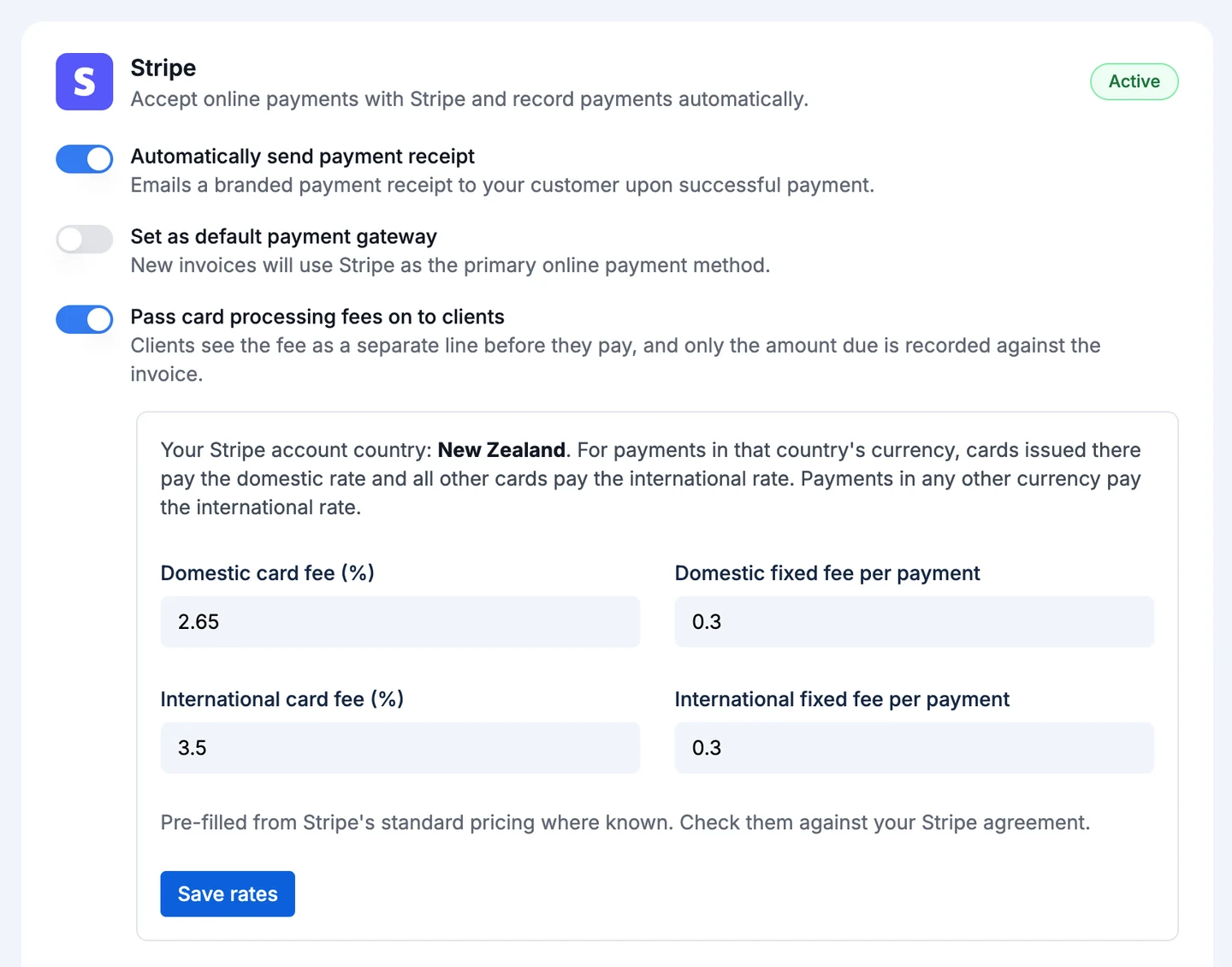
When you turn it on, enter your card fee rates and select Save rates:
Domestic card fee (%) and Domestic fixed fee per payment - Charged when the card was issued in your Stripe account’s country and the payment is in that country’s currency.
International card fee (%) and International fixed fee per payment - Charged for every other card or currency.
AdviserAide fills these in from Stripe’s standard pricing for your Stripe account’s country. Check them against your own Stripe pricing, because your agreement with Stripe may differ.
Enter the card fee rates your clients are charged
When fees are passed on, the client can only pay by card, so AdviserAide can work out the right fee. To cover the fee yourself on one invoice, tick Don’t charge the online payment fee on this invoice when you create it. See Getting paid online.
Disconnect Stripe to stop taking online payments, or to switch to a different Stripe account.
1
Open the Stripe card
Open Settings > Integrations > Online Payments.
2
Disconnect
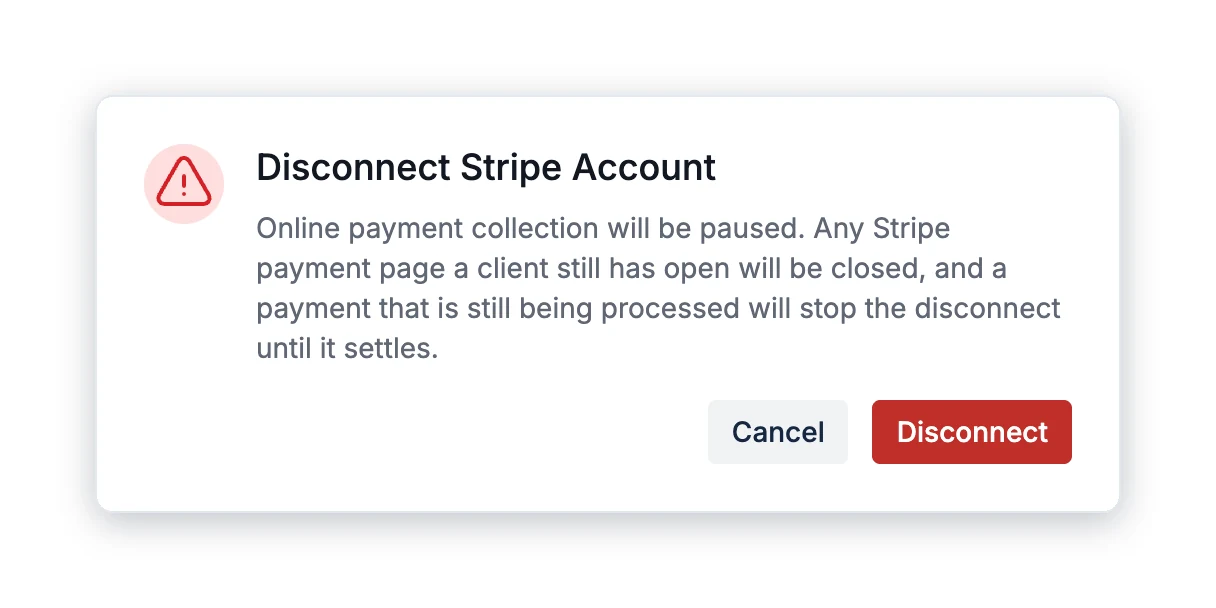
Select Disconnect Stripe Account, then confirm with Disconnect.
Confirm that you want to disconnect Stripe
When you disconnect:
Clients can no longer start a new online payment.
Any Stripe payment page a client still has open is closed.
Payments already recorded stay on their invoices. Your Stripe account and its payment history are not changed.
If a client’s payment is still being processed, AdviserAide does not let you disconnect until it settles. See Troubleshooting.
Pay Now links you sent before disconnecting stop working, even if you later connect the same Stripe account again. After you reconnect, resend the invoice or advance payment email with Include Pay Now link ticked so the client gets a new link.