

Find the panel
The Online Payment Attempts panel is near the bottom of the invoice page, and in the advance payment window. The newest try is at the top.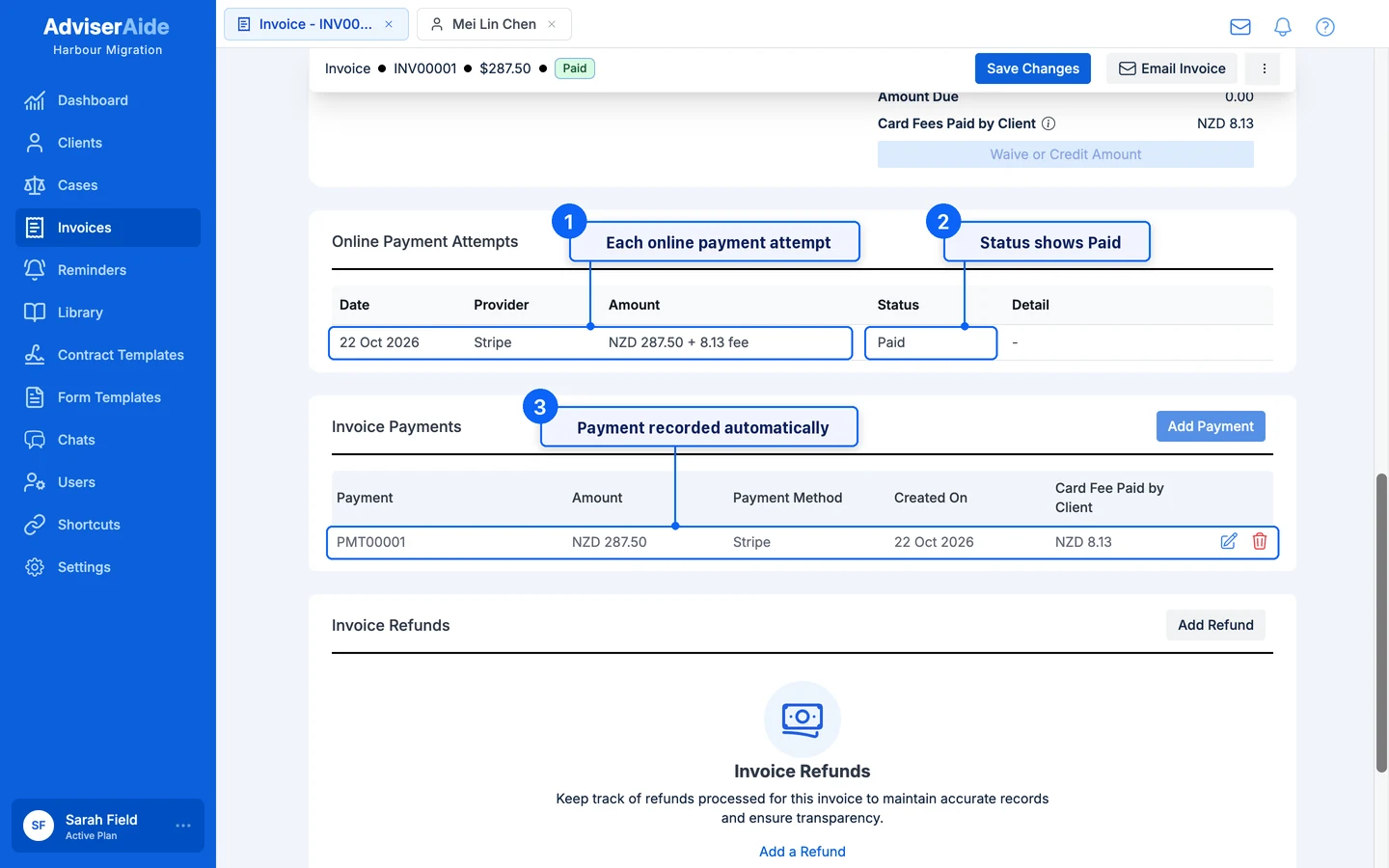
The Online Payment Attempts panel on an invoice, showing a paid attempt
- Date - When the client started the payment.
- Provider - The payment service used, such as Stripe.
- Amount - The amount the client was asked to pay. When a card fee was charged it shows separately, for example
NZD 1150.00 + 33.65 fee. - Status - Where the payment is up to. See below.
- Detail - Why a payment failed, or when AdviserAide will next check it with Stripe.
What each status means
When a payment fails after the client has left the page, administrators get an in-app notification such as Mei Lin Chen’s payment for INV00001 failed.
Actions in the history
The buttons at the bottom of a payment’s history depend on its status.Check now
Asks Stripe straight away instead of waiting for the next automatic check. Use it when the client says they have paid but the invoice has not updated yet. A message confirms the result, for example Checked with Stripe: Paid., and the invoice figures refresh if a payment was found. Check now appears while the outcome is still open. It does not appear once a payment is Paid, Failed, Cancelled or Expired, or when a payment has arrived but is waiting for you to record it (see Unverified payments).Close online payment
Closes a Stripe page the client has open but has not paid on yet. Use it before you take payment another way, such as a bank transfer, so the client cannot also pay online. Available for Created and Awaiting payer payments.1
Open the payment's history
Select the payment in the Online Payment Attempts panel.
2
Close the payment page
Select Close online payment. The confirmation reads Close this online payment? Select Close online payment to confirm.
3
Check the result
The message The online payment has been closed. appears and the status changes to Cancelled.
Mark as not received
Clears an Unverified payment that never arrived, so the client can pay again with the same Pay Now link.1
Check your Stripe Dashboard
Look for the payment in Stripe using the reference shown in the payment’s history.
2
Mark it as not received
Select Mark as not received. The confirmation reads Mark this payment as not received? Select Mark as not received to confirm.
3
Let the client know
The message Marked as not received. The payer can pay again. appears and the status changes to Cancelled. Ask the client to open the same Pay Now link and pay again.
Unverified payments
A payment becomes Unverified in two situations. Administrators get an in-app notification titled A payment for INV00001 needs a quick look that explains which one applies and what to do. Stripe has not confirmed the payment yet. Stripe could not say within two days whether the payment went through. This is rare, and usually involves a slower payment method. AdviserAide keeps checking for up to two weeks and records the payment automatically if it arrives, so don’t add it by hand. If the money never arrives, mark it as not received. The payment arrived but could not be recorded automatically. Stripe took the money, but AdviserAide held it back because recording it would not have been right. For example:- You recorded a payment by hand, or reduced the total, while the client’s payment page was open, so the payment is more than is now owing.
- The invoice was already paid in full, so the client has most likely paid twice.
- The invoice was voided while the client was paying.
- The amount or currency paid does not match what was asked for.
When you record a payment while an online payment is open
Before you add a payment, apply a credit note, change an invoice or advance payment, or void an invoice, AdviserAide checks whether the client is in the middle of paying online. This stops the same amount being paid twice. If the client has a Stripe page open, you see The client has an online payment page open, with when the payment was started. For example: Recording this payment now may double up.- Close the online payment - Closes the client’s Stripe page first, then carries on with what you were doing. Choose this in most cases.
- Continue anyway - Leaves the page open and carries on. If the client then pays online, the payment may be more than is owing and becomes Unverified.