Add Stripe to an invoice or advance payment, send it with a Pay Now link, and see what happens when your client pays.
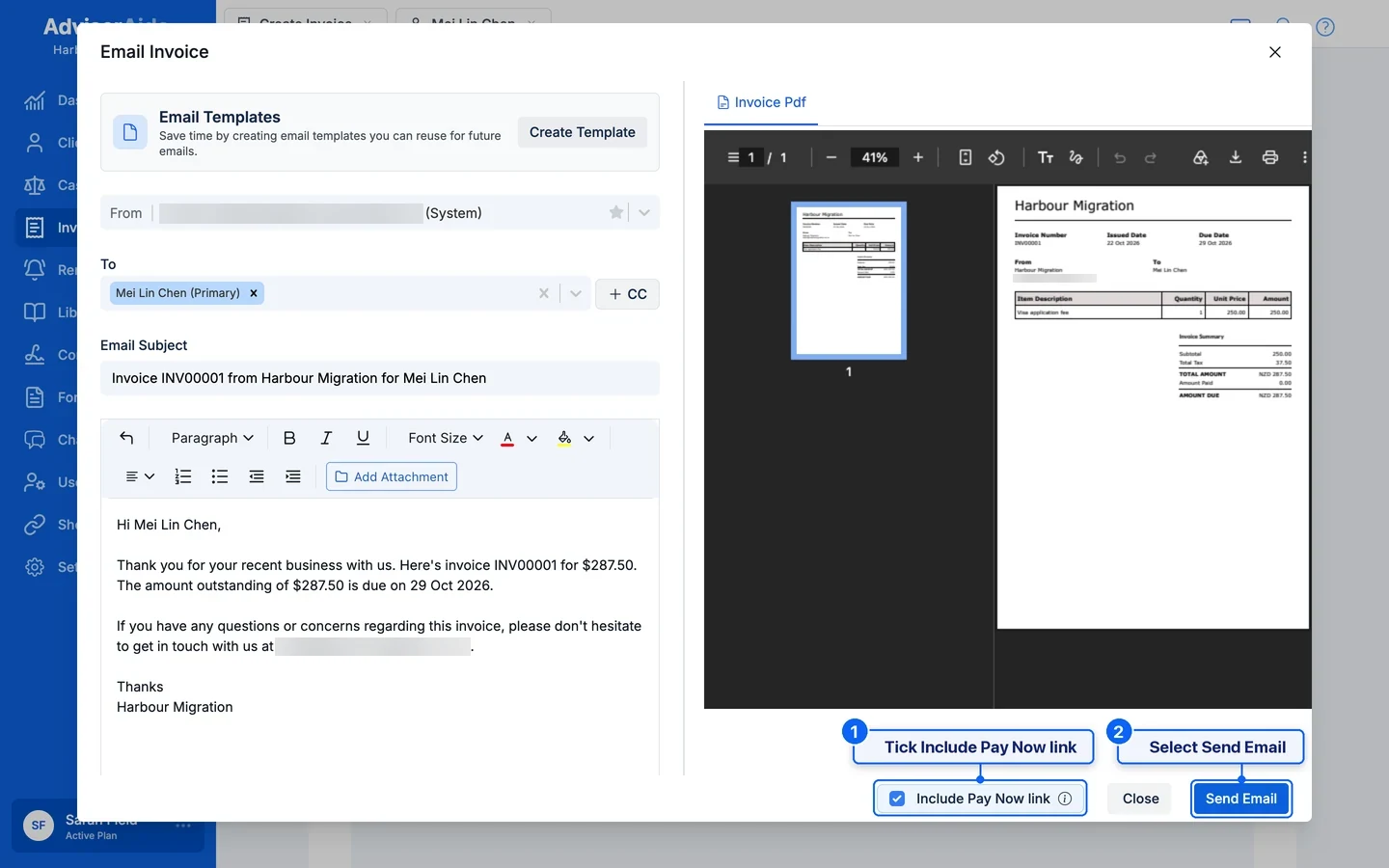
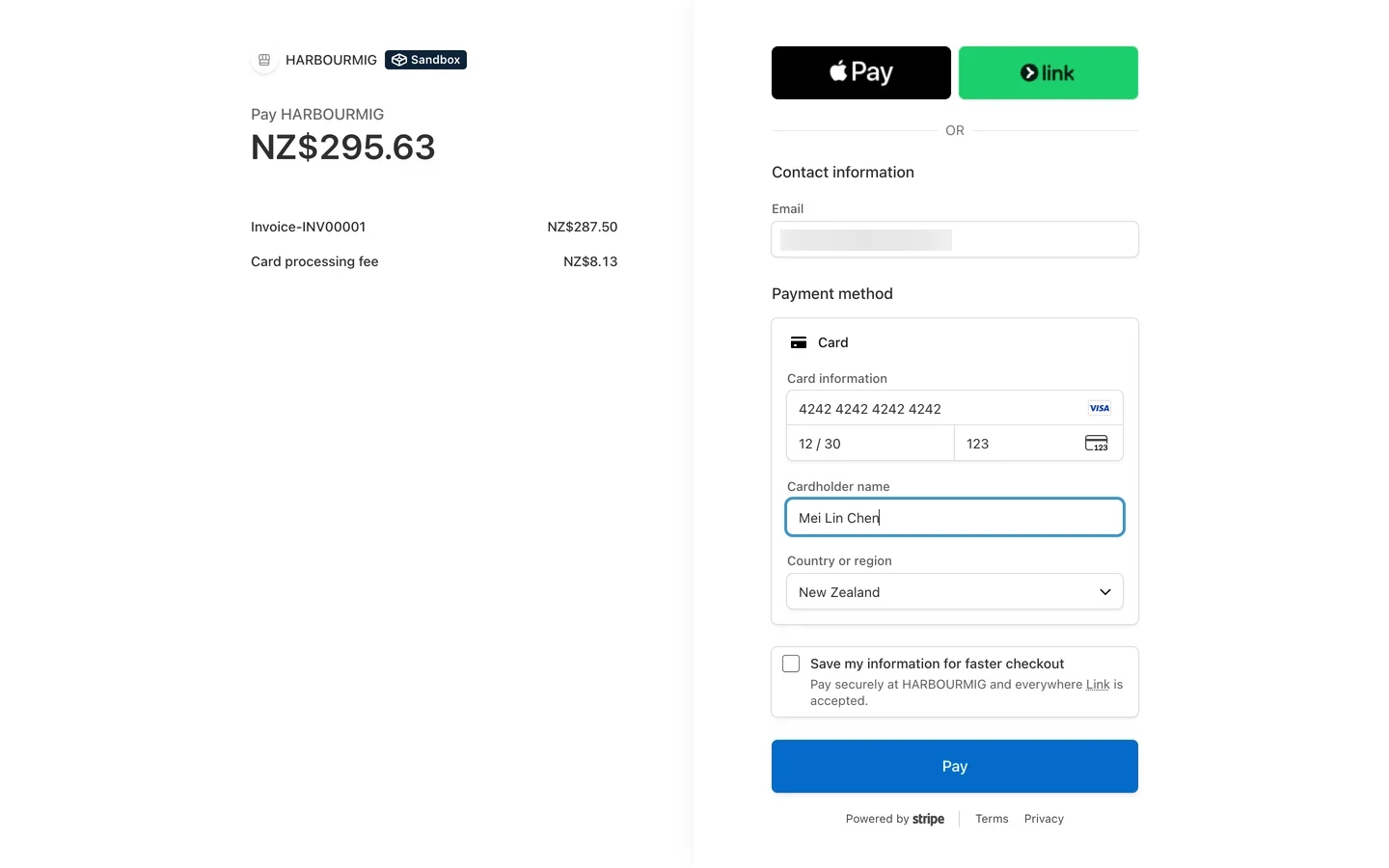
Once Stripe is connected, you can let clients pay an invoice or advance payment online. Choose Stripe on the invoice, email it with a Pay Now link, and the client pays on Stripe’s secure payment page. AdviserAide records the payment, marks the invoice as paid and lets you know.
Online payment options only appear on invoices and advance payments when Stripe shows Active under Settings > Integrations > Online Payments.
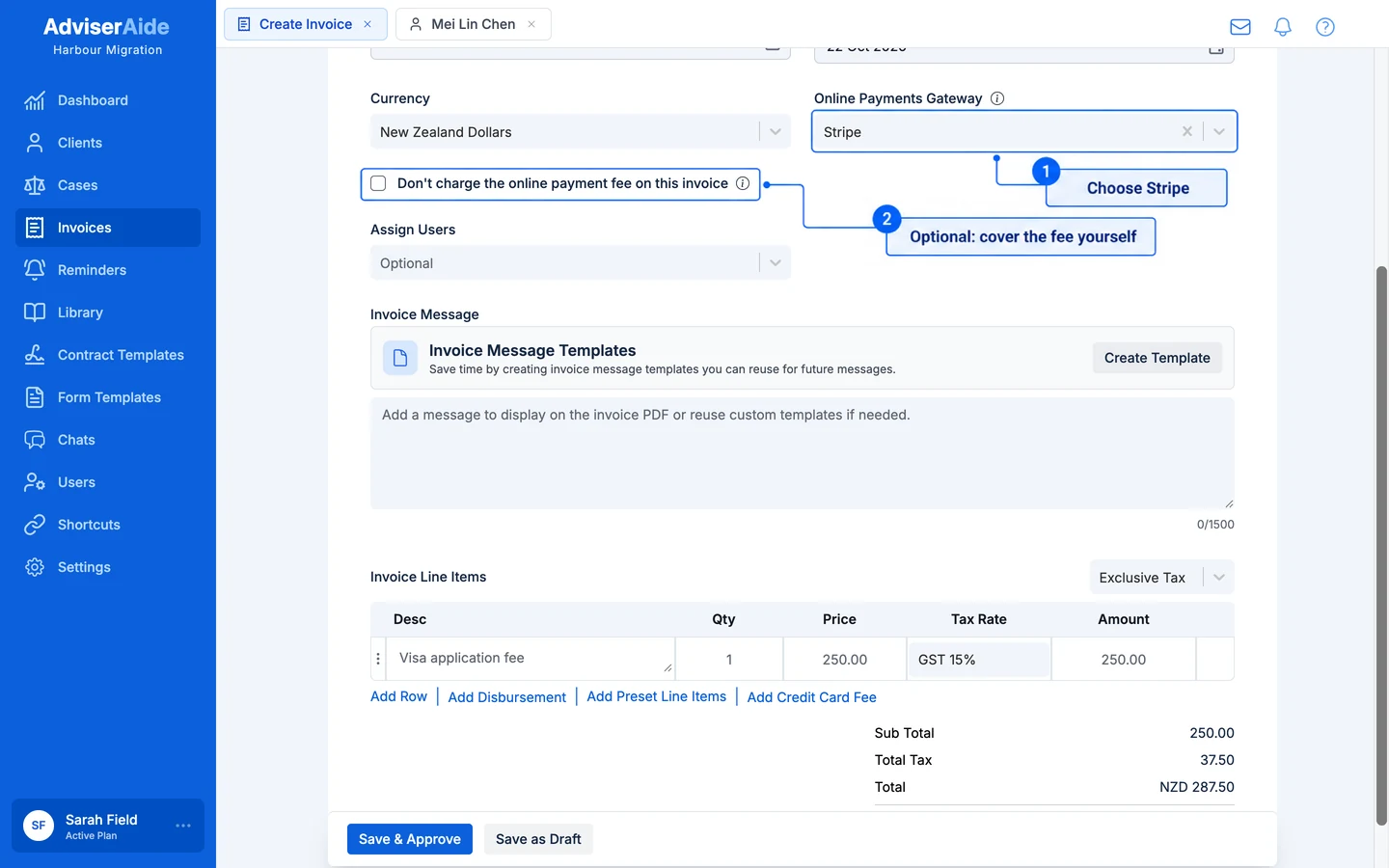
When you create or edit an invoice or advance payment, use Online Payments Gateway to choose how the client can pay online.
Choose Stripe as the online payments gateway, and waive the fee for this invoice if you want to
Online Payments Gateway - Stripe is selected for you if you turned on Set as default payment gateway. Clear the field if you don’t want this client to pay online. If no gateway is selected, the client cannot pay this invoice online.
Don’t charge the online payment fee on this invoice (or …on this advance payment) - Appears only when you pass card fees on to clients. Tick it to cover the card fee yourself on this one invoice. The client then pays only the amount owing.
Stripe only appears in the list when it can take the invoice’s currency. Select Online Payments Settings at the bottom of the list to open your Stripe settings in a new tab.
Clients can only pay an invoice online once it is approved. Draft, voided, written-off and fully paid invoices cannot be paid online.
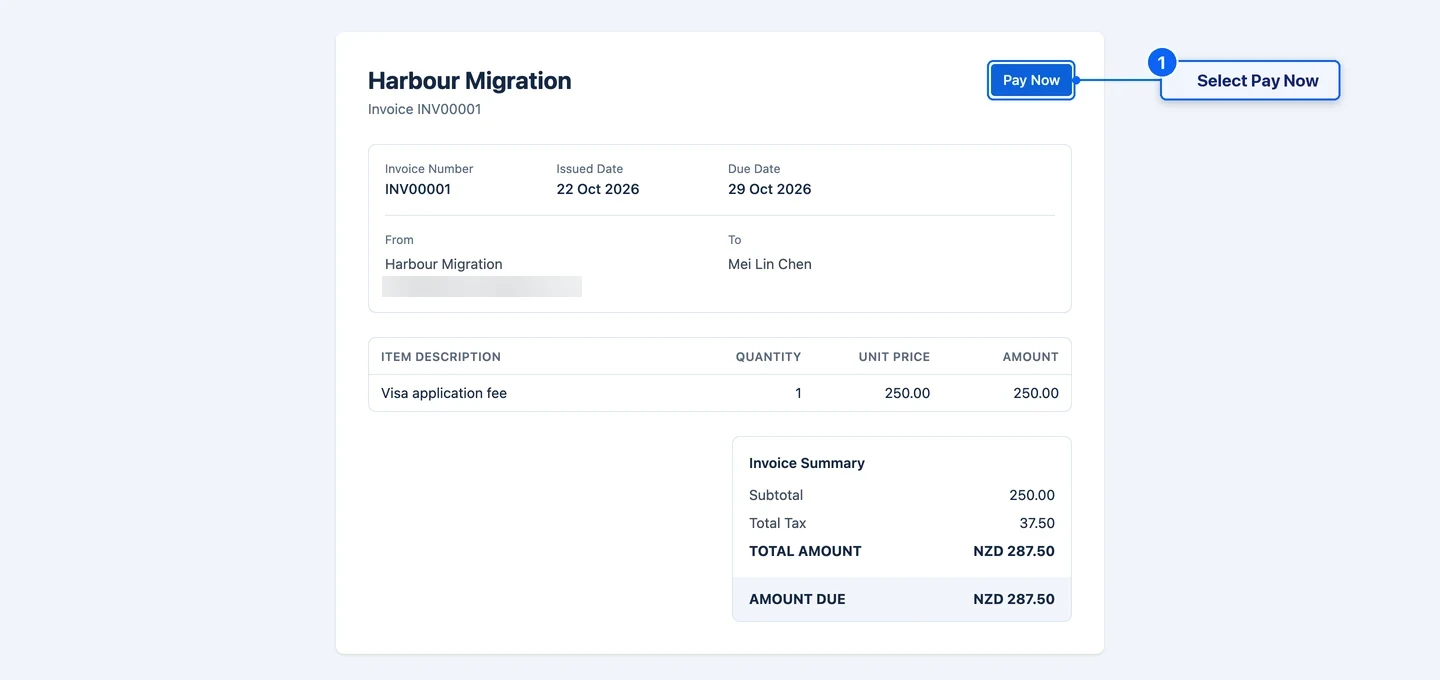
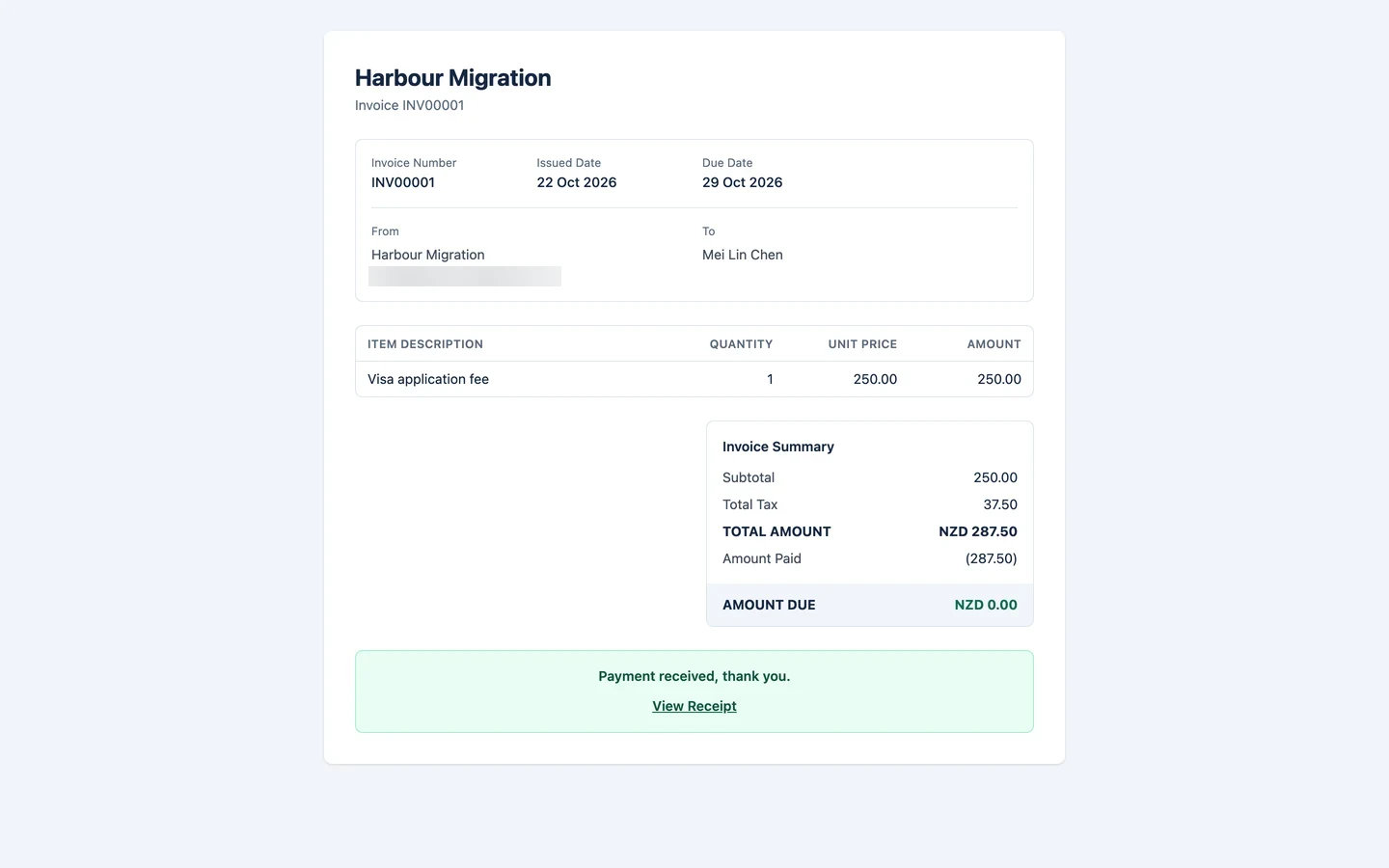
The button opens a ClientHub page with the invoice details and a Pay Now button. The client pays the full amount still owing on the invoice. The client can open the same link again later, for example to see that the payment went through.
The client reviews the invoice and selects Pay Now
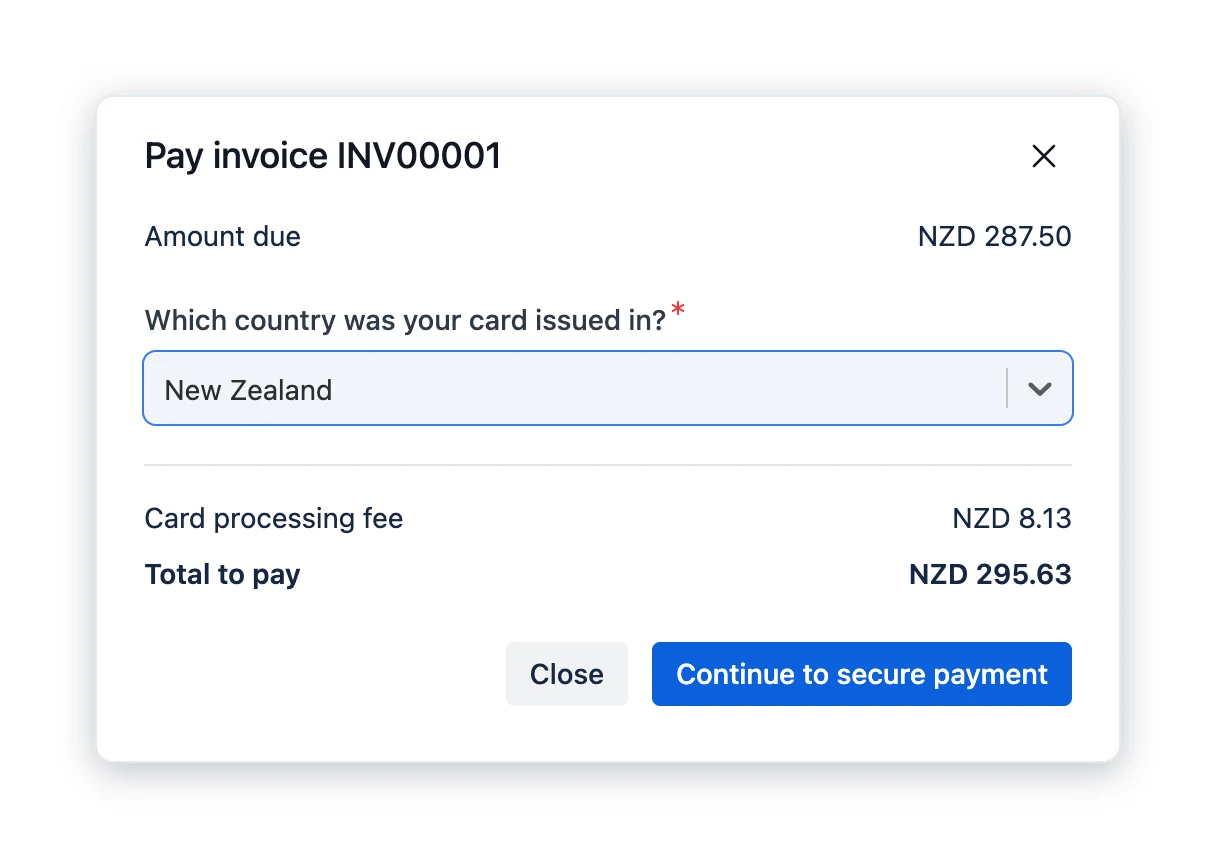
When you pass card fees on, the fee can depend on where the client’s card was issued. In that case a window asks Which country was your card issued in? and shows the Card processing fee and Total to pay. The client selects Continue to secure payment to carry on, or Close to go back.
The client chooses their card's country and sees the fee before paying
AdviserAide records the payment for you. You don’t need to add it by hand.
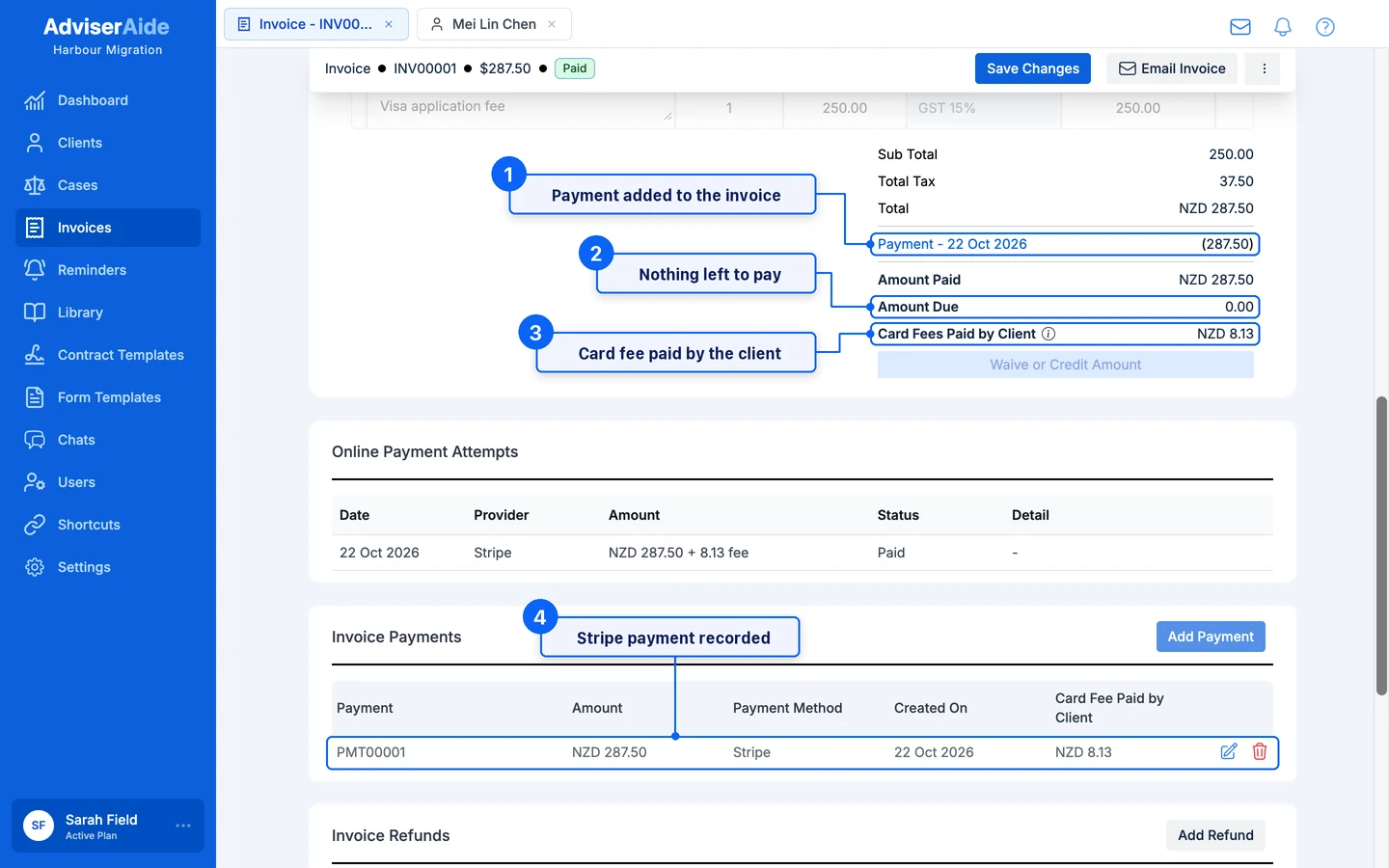
The payment is recorded. On an invoice, a payment is added with the payment method Stripe and a description such as Stripe online payment (Ref: pi_...). The reference is the payment’s ID in your Stripe Dashboard. On an advance payment, the amount paid goes up.
The status updates. The invoice or advance payment shows as paid once nothing more is owing.
The card fee stays separate. A fee the client paid is never added to the invoice or the amount paid. It shows on its own as Card Fees Paid by Client in the invoice or advance payment summary.
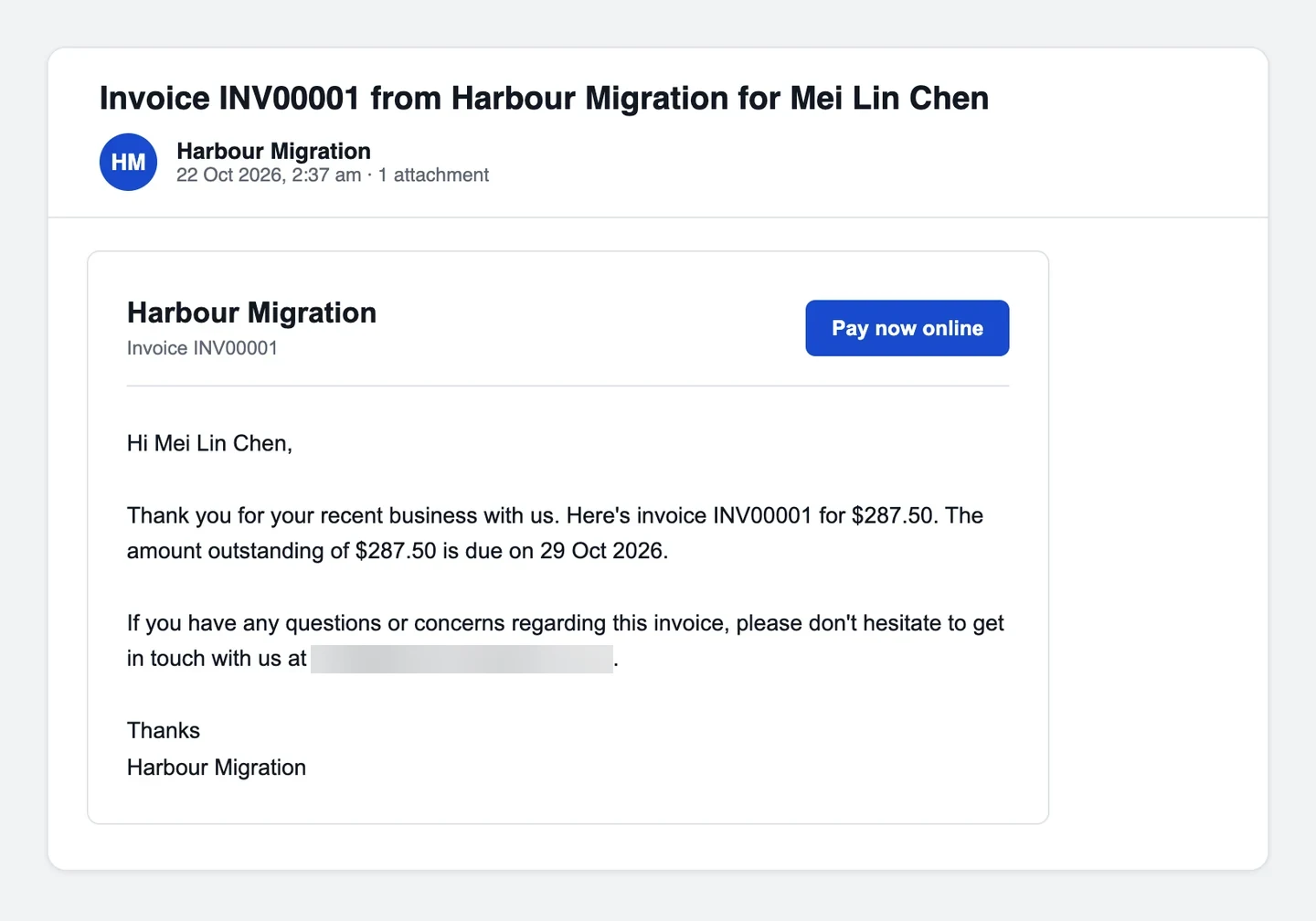
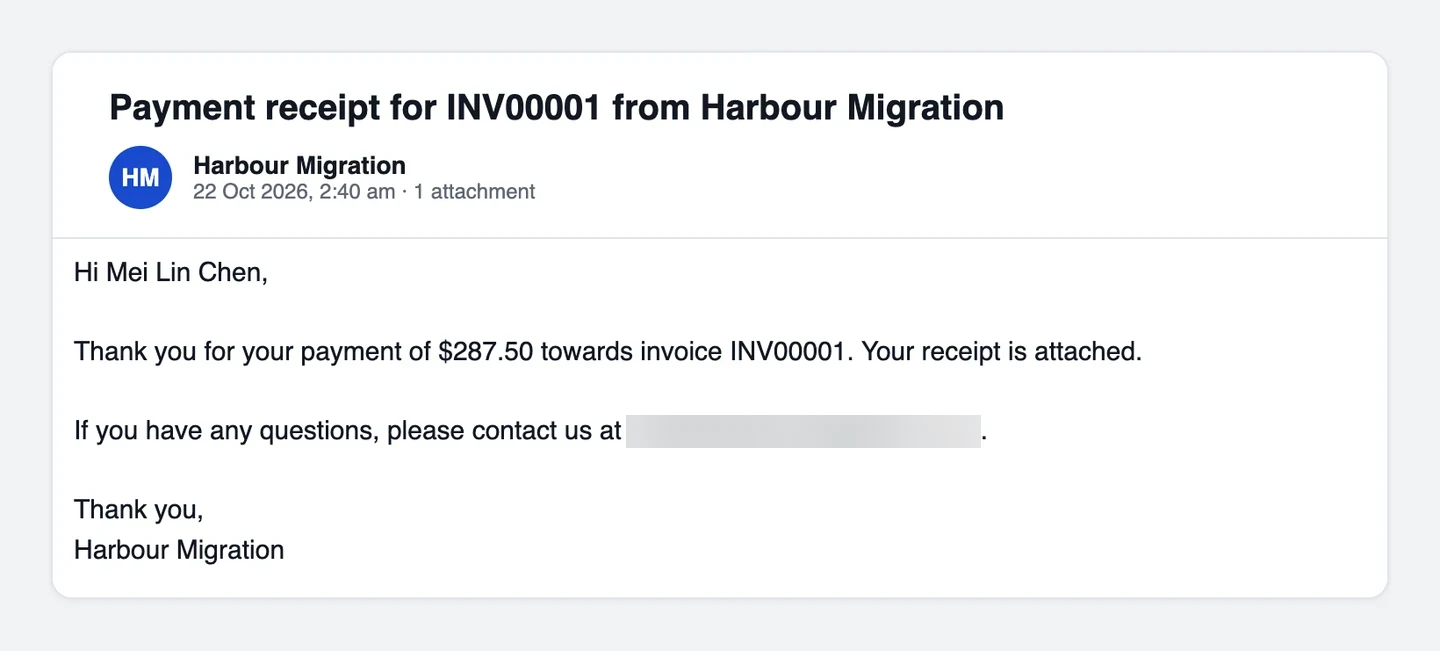
A receipt is emailed. If Automatically send payment receipt is on, the client gets an email titled Payment receipt for INV00001 from Harbour Migration with the receipt PDF attached. It goes to the client, or to the contact who pays the invoice. The receipt email uses fixed wording, not your email templates.
A case note is added. For example, Online payment of NZD 287.50 received via Stripe (Ref: …). Invoice INV00001 - Paid in Full., or Partial Payment when the payment didn’t cover the whole invoice total.
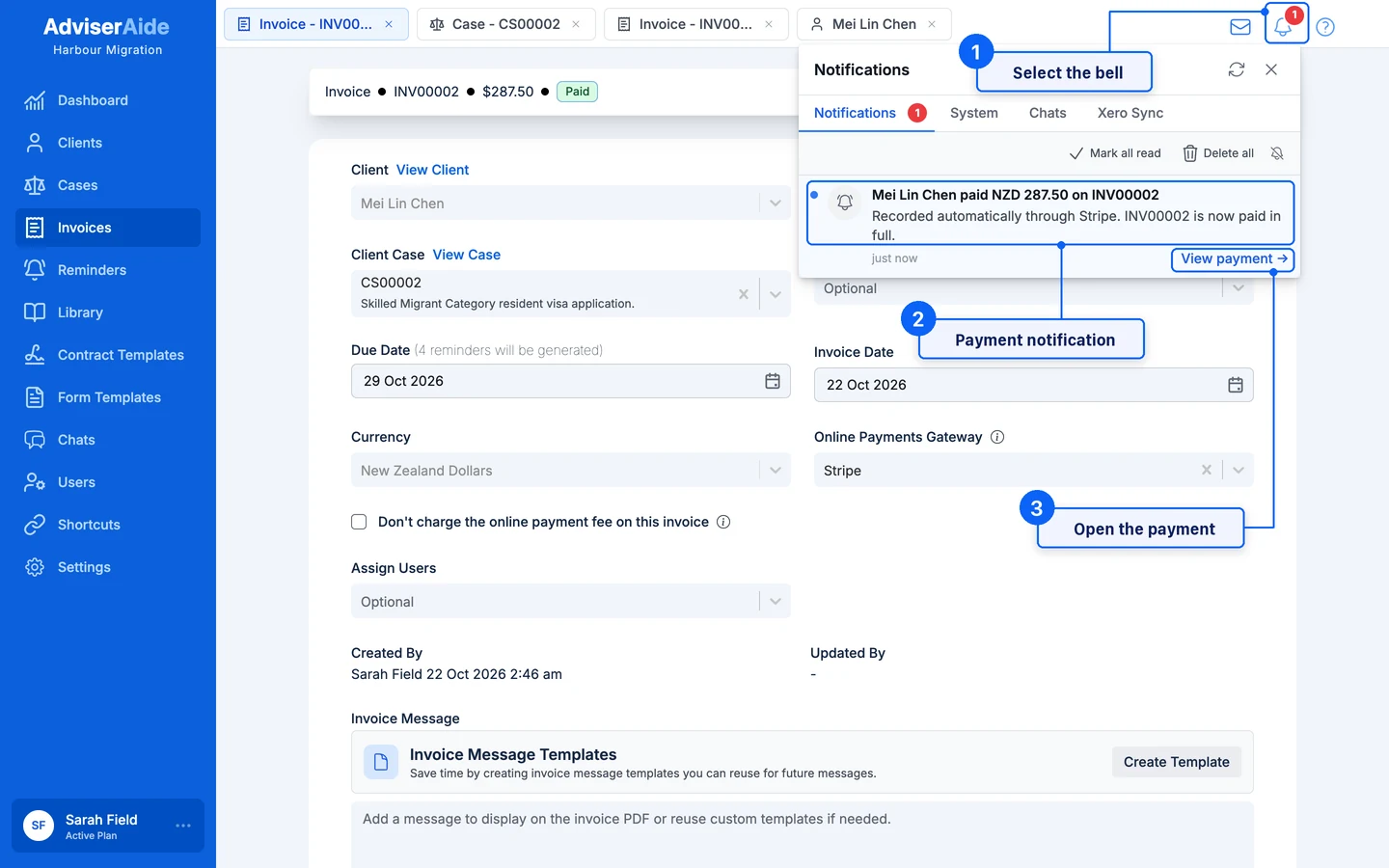
Your team is told. Users assigned to the case get an in-app notification, such as Mei Lin Chen paid NZD 287.50 on INV00001.
Xero is updated. If Xero is connected and Send payments to Xero is on, the invoice payment is sent to Xero like a payment you record yourself.
The invoice after an online payment, with the card fee shown separately
The receipt email your client receives
The in-app notification for users assigned to the case
Every try the client makes is listed in the invoice’s Online Payment Attempts panel. See Online payment attempts.
The client pays straight into your own Stripe account. Stripe pays out to your bank account on your usual Stripe payout schedule. AdviserAide never holds client funds.
Online payments are refunded in your Stripe Dashboard, not in AdviserAide. Find the payment using the reference in the payment description, then refund it in Stripe.AdviserAide does not see refunds made in Stripe, so the invoice still shows the payment afterwards. To keep your records matching:
1
Refund the payment in Stripe
Open the payment in your Stripe Dashboard and issue the refund.
2
Record the refund on the invoice
Open the invoice in AdviserAide and record the refund with Add Refund. Choose Save Refund if Stripe has already emailed the client, or Save & Email Refund to send them a refund receipt. See Issuing a Refund to a Client.
If a client pays more than is owing, the case note says Overpayment detected with the amount. Check the payments on the invoice, then refund the difference through Stripe.